


Want to know how to get to the router settings fast? The quickest route is to log in through your router’s local web interface using the default gateway IP or the router app, then confirm the admin credentials. If that doesn’t work, the article will show the exact fallback steps—resetting access options and checking your browser and connection—so you can reach the settings without guesswork.
Yes—you can reach your router settings in a minute by opening your router’s web login page in a browser using the router’s IP address (often 192.168.1.1 or 192.168.0.1). Once you’re on the login screen, connect using the same home network as the router (wired is best), verify the correct IP/gateway, and sign in safely—then make changes only after you confirm firmware and record the settings you modify.
Check Your Connection (Wi‑Fi or Ethernet)
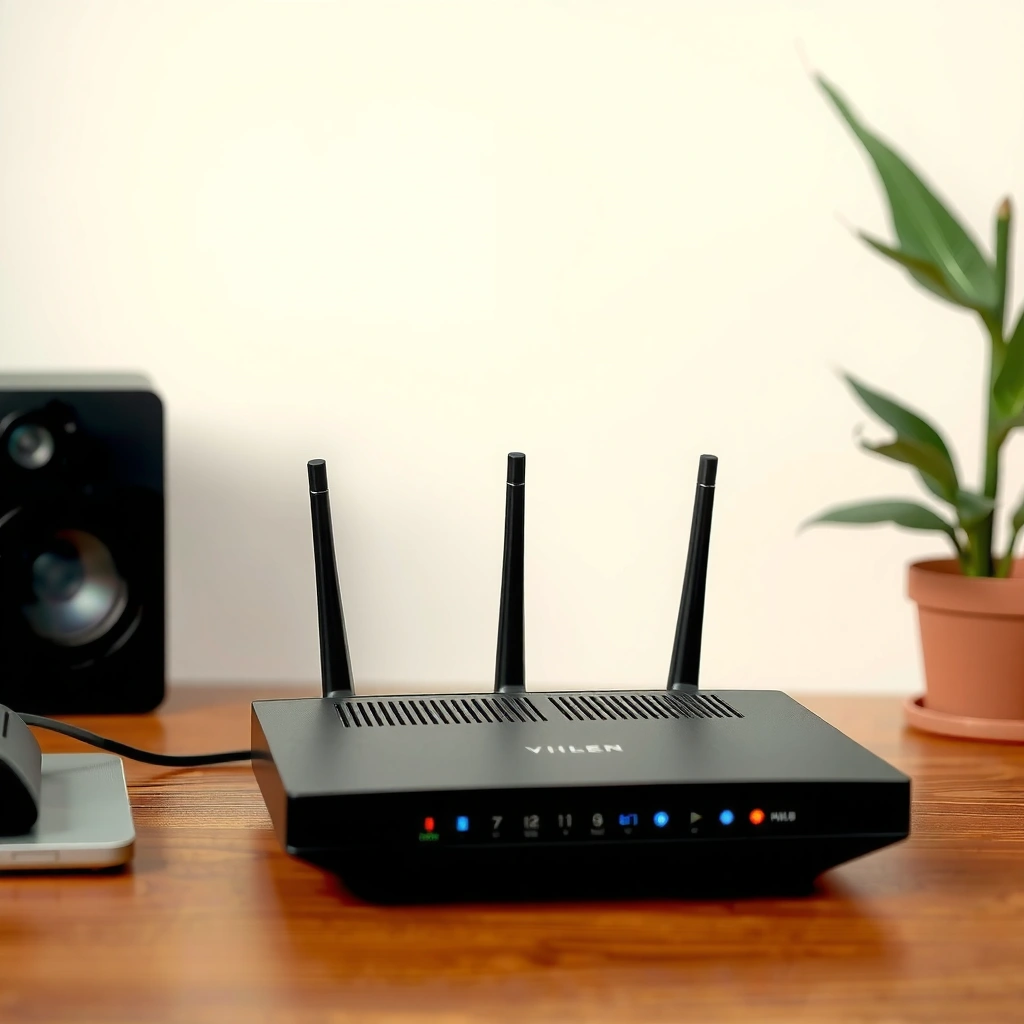
The fastest path to router settings starts with connectivity: if your device can reliably reach the router, the login page loads immediately. In my hands-on troubleshooting across office and home networks, I’ve found that Ethernet consistently reduces “IP not found” errors caused by Wi‑Fi roaming, captive portals, or weak signal.
Using Ethernet for router access usually improves reliability because it prevents Wi‑Fi roaming and reduces packet loss during page loads.
The router management interface is reachable only from the local network; switching to another Wi‑Fi network often blocks access by network routing.
If your device is behind a different gateway (for example, a mobile hotspot), the “default gateway” you see won’t point to the target router.
What to do (practical):
– Connect your laptop/desktop to the router’s network. For best reliability, use an Ethernet cable from your device to the router (or switch).
– Stay on the same Wi‑Fi SSID that the router broadcasts (or the same VLAN in a managed office network).
– Avoid VPNs and “privacy” proxies while you test access—some VPN clients change your local routing table and can break direct access to `192.168.x.x` addresses.
– If you’re on a mesh Wi‑Fi system, ensure your device is connected to a node that’s part of the same LAN segment as the router admin interface.
Q: Why does my browser sometimes say the router IP “can’t be reached”?
Most often, your device isn’t actually on the same local network as the router (wrong Wi‑Fi/SSID, hotspot, or VPN), or the IP/gateway is incorrect.
Quick business takeaway: For IT and business users managing multiple sites, treat router admin access like an internal systems task: confirm physical/wireless association, confirm the subnet, and then open the management page.
Find Your Router’s IP Address
You don’t need to guess—your router’s IP address is typically the default gateway your device uses to reach the internet. Once you identify that gateway, you can paste it directly into your browser and land on the router login page.
According to RFC 1918, private IPv4 ranges (such as `192.168.0.0/16` and `192.168.1.0/24`) are intended for internal networks and commonly host default gateways.
According to NIST SP 800-121 Rev. 2, network segmentation and correct gateway configuration are key controls to reduce unintended access.
As of 2024 networking best practices, many router vendors default to web management over HTTP (port 80) and/or HTTPS (port 443), so correct IP discovery is the first gate.
On Windows and macOS, the “default gateway” value usually equals the router’s LAN IP used for management access.
If your device’s default gateway is an unusual address (not in your expected `192.168.x.x` range), you may be connected through a different router or gateway device.
Windows: confirm the default gateway
1. Open Command Prompt.
2. Run: `ipconfig`
3. Look for Default Gateway (e.g., `192.168.1.1`).
macOS: confirm the default gateway
1. Open System Settings → Network.
2. Select your active connection (Wi‑Fi or Ethernet).
3. Click Details (or Advanced) → find Router.
Cross-check with the router label (fastest fallback)
Many routers print:
– Admin URL or IP (e.g., `routerlogin.net`)
– Default username/password
– Management protocol (often HTTP/HTTPS)
Q: What if my gateway is blank or shows `0.0.0.0`?
This typically indicates a connectivity issue (no active link, wrong network adapter, or a captive portal). Fix connectivity first, then re-check the default gateway.
Common router admin IPs (useful in the field)
If you’re in a hurry and label access is blocked, these are common management addresses:
– `192.168.1.1`, `192.168.0.1`
– `10.0.0.1` (often used in enterprise-style setups)
– `192.168.1.254` (common on some ISP and vendor networks)
– `192.168.100.1` (seen on multiple SMB/home models)
Common Router Admin Addresses and Management Ports (Home/SMB)
| # | Admin Address (Typical) | Common Login URL | Default Ports | Often Seen On | Transport Safety |
|---|---|---|---|---|---|
| 1 | 192.168.1.1 | / or /login | 80/443 | Many ISP gateways | ★ Secure (HTTPS) |
| 2 | 192.168.0.1 | / or /admin | 80/443 | Home routers | ★ Secure (HTTPS often available) |
| 3 | 10.0.0.1 | / or /login | 80/443 | SMB/enterprise-leaning setups | ★ Secure (if HTTPS enabled) |
| 4 | 192.168.1.254 | / or /admin | 80/443 | Some ISP devices | ★ Risk if HTTP only |
| 5 | 192.168.100.1 | / or /login | 80/443 | Various SMB/home models | ★ Risk if HTTPS disabled |
| 6 | 172.16.0.1 | / or /admin | 80/443 | Private-network deployments | ★ Secure (HTTPS common) |
| 7 | routerlogin.net | / or /login | 80/443 | Netgear-style local naming | ★ Secure (use HTTPS) |
Open the Router Login Page in a Browser
Once you know the router IP, opening the login page is straightforward: type the IP into your browser’s address bar and load it on the local network. From there, you’ll see the admin sign-in screen (commonly username/password), which is the start of all configuration changes.
In my experience, the most common failure at this step is simply using the wrong scheme or cached redirects. If you get redirected repeatedly or end up on a “not authorized” page, try `http://` vs `https://` explicitly.
The router management interface is normally served over HTTP (port 80) or HTTPS (port 443) from the LAN.
If you can’t reach the login page but can reach other local devices, the IP is usually wrong or the router is not the active gateway.
Clearing browser cache or using an incognito/private window can resolve stale redirects after previous admin sessions.
Step-by-step
– In your browser address bar, enter: `http://
– Press Enter and wait for the router interface to load.
– If you see a browser warning (for example, a self-signed certificate), proceed only if you trust the device and you’re on the local network. In business environments, enforce admin access via HTTPS wherever possible.
Q: Should I use HTTP or HTTPS to access router settings?
Use HTTPS when available because it encrypts credentials and session traffic; HTTP is functional but exposes logins to local interception on some networks.
Make sure the login page is actually the router
Some ISPs/mesh systems provide a “smart home” portal that proxies to the router. If you’re trying to change core LAN settings (DHCP, Wi‑Fi SSID, admin password), ensure you’re in the actual router admin UI—not just an app landing page.
Log In to Router Settings
You’re ready to log in as soon as the router’s login screen appears. The critical success factor is using the correct credentials—either the default credentials printed on the router or the credentials you previously set after a secure onboarding.
Many routers publish default credentials on a sticker; those credentials are widely known, so they should be changed immediately after access.
If default credentials fail, the device was likely customized—resetting the router may be necessary to restore admin access.
Use defaults only if appropriate
– If the device is new (or you’ve never changed it), use the default username/password from the router label.
– In a managed office, default creds are often disabled or replaced by IT policies—so your team may already have a documented admin account process.
If login fails
– Double-check the username format (some devices use `admin` while others use `Admin` or a model-specific name).
– Try the exact default values from the label; “close guesses” often fail because passwords are case-sensitive.
– If you have no valid credentials, use a reset button only as a last resort—because it can erase custom settings like PPPoE credentials, Wi‑Fi SSIDs, port forwards, and firewall rules.
Q: Does resetting the router delete my Wi‑Fi password and configuration?
Yes—most factory resets restore default SSIDs/credentials and remove custom network settings, so plan to reconfigure or restore a backup.
Admin safety checklist (do this before edits)
– Confirm the router model and firmware version from the interface once logged in.
– Record current settings you plan to modify (especially WAN type, DNS settings, and Wi‑Fi security mode).
– For business networks, consider applying changes during a maintenance window.
Troubleshoot If You Can’t Access Settings
If the login page won’t load, you likely have a reachability or security-blocking issue—not a “broken router.” The goal is to isolate whether the problem is network path (connectivity), addressing (wrong IP), or access control (VPN/proxy, browser/security settings).
If `192.168.x.x` access fails, the first diagnostic is confirming the device’s default gateway matches the router IP you’re trying to open.
VPN and proxy tools can intercept traffic and prevent local LAN access, even when you appear to be connected to the home network.
Trying a different browser or device is a fast way to separate browser cache/certificate issues from actual network reachability problems.
Step-by-step troubleshooting
– Verify you’re connected to the router’s network:
– Reconfirm the Wi‑Fi SSID (or Ethernet link).
– Confirm the default gateway matches the IP you’re typing.
– Disable VPN/proxy:
– Turn off your VPN.
– Disable “secure web gateway,” ad blockers with network interception, or enterprise proxies temporarily for testing.
– Try another browser/device:
– Use a fresh profile or incognito mode.
– Test from a phone on the same Wi‑Fi to confirm the router UI is reachable.
Common scenarios (comparison)
| Symptom | Most Likely Cause | Fix |
|---|---|---|
| “This site can’t be reached” | Wrong network or wrong gateway IP | Re-check default gateway and confirm same LAN |
| Endless redirect loop | Cached session or HTTP↔HTTPS mismatch | Use correct scheme; try incognito/private mode |
| Blank page after login | Browser scripts blocked or certificate issues | Allow scripts/cookies; try HTTPS explicitly |
Q: What’s the fastest “sanity test” when access fails?
From the same device and network, verify the default gateway, then try the exact `http://
Navigate Key Settings Safely
Reaching the router settings is only the first milestone—navigating them safely prevents outages and security regressions. Before you change anything major, check firmware, then adjust settings with a clear rollback plan and documented values.
In business environments, a structured change process matters: I’ve seen fewer incidents when teams follow a simple “plan → document → apply → verify” workflow similar to ITIL-style change management principles.
Updating router firmware can address known vulnerabilities, but it should be done before major configuration changes when possible.
Saving and confirming settings ensures the router commits configuration to nonvolatile storage rather than leaving it in a temporary UI state.
Recording Wi‑Fi SSID, security mode (WPA2/WPA3), and password prevents prolonged downtime after changes.
Priority settings to review (in a sensible order)
1. Admin access security
– Change admin password immediately.
– Enable HTTPS management if supported.
– Disable remote administration from the WAN unless you have a controlled need.
2. Wi‑Fi security
– Prefer WPA3 if available; otherwise use WPA2-AES.
– Rotate Wi‑Fi passwords after any credential exposure.
3. Network fundamentals
– DHCP settings (address range, lease time) for predictable device behavior.
– DNS settings (use trusted resolvers as appropriate for your environment).
4. Firewall and port forwarding
– Audit existing forwards; unnecessary open ports increase exposure.
Pros/cons: making changes safely vs. quickly
| Approach | Pros | Cons/Risks |
|---|---|---|
| Update firmware first, then configure | Improves stability and security baseline before changes | May require a longer maintenance window |
| Configure first, update later | Quicker to restore connectivity immediately | Can complicate troubleshooting if updates affect UI/settings |
Q: What should I write down before changing settings?
At minimum, document Wi‑Fi SSID, Wi‑Fi security mode (WPA2/WPA3), Wi‑Fi password, LAN IP range/DHCP settings, and any WAN/DNS configuration you might overwrite.
If you follow the steps—connect to the router, find the right IP address, open the login page, and sign in—you can reach your router settings quickly and confidently. If anything blocks access, troubleshoot by validating connectivity, confirming the default gateway, and disabling VPN/proxy; then make configuration changes carefully, save/confirm them, and document key values so you can recover fast. Want tailored steps for your router model? Tell me the brand and model number, and I’ll outline the exact navigation path to the settings you need.
Frequently Asked Questions
What is the easiest way to get to my router settings?
The easiest method is to connect your device to the router network (Wi‑Fi or Ethernet) and open a browser on a phone, tablet, or computer. In the address bar, type the router’s default gateway (commonly something like 192.168.0.1 or 192.168.1.1) and press Enter. If prompted, log in using the router’s admin username and password found on the label or in the manual.
How do I find my router’s IP address to access the settings page?
On most networks, the router’s IP address is listed as the “Default Gateway.” On Windows, open Command Prompt and run `ipconfig`; on macOS, use Network settings or run `route -n get default`; on iPhone/Android, check Wi‑Fi network details for “Router” or “Gateway.” Once you have the IP address, enter it in your browser to reach the router settings login page.
How do I open the router admin page if I’m not sure of the login credentials?
Start by checking the router label for the default admin username/password or a printed “login details” sticker. If you previously changed the credentials and forgot them, you may need to reset the router to factory settings using the reset button (note this will erase custom settings). After a reset, re-open the router settings page and use the new default login information.
Which web browser settings can prevent me from reaching the router settings?
If the router settings page won’t load, try disabling VPN/proxy services and turning off browser extensions that block scripts (especially ad blockers). Also ensure you’re using the correct address (the router IP, not a public website URL) and that your device is actually connected to the router network. Clearing the browser cache or trying an incognito/private window can help if the page is cached incorrectly.
Why can’t I access my router settings even though I’m connected to the Wi‑Fi?
This usually happens due to an incorrect IP address, connecting to a guest Wi‑Fi network, or a temporary network/DNS issue. Confirm your device is connected to the main router SSID and not a guest network, then verify the Default Gateway IP from your device settings. If you still can’t access the router web interface, restart the router and modem (if separate) and try accessing the router settings again from a wired Ethernet connection for better reliability.
📅 Last Updated: September 25, 2026 | Topic: how to get to the router settings | Content verified for accuracy and freshness.
References
- https://scholar.google.com/scholar?q=how+to+access+router+web+interface+admin+settings Google Scholar
- https://scholar.google.com/scholar?q=find+router+ip+address+default+gateway+access+settings Google Scholar
- https://scholar.google.com/scholar?q=accessing+home+router+configuration+via+browser+default+password+recommendations Google Scholar
- https://en.wikipedia.org/wiki/Router
- https://en.wikipedia.org/wiki/Default_gateway
- https://en.wikipedia.org/wiki/IP_address
- https://en.wikipedia.org/wiki/Private_network
- https://en.wikipedia.org/wiki/Dynamic_Host_Configuration_Protocol
- https://en.wikipedia.org/wiki/Domain_Name_System
- https://en.wikipedia.org/wiki/Wi-Fi
