
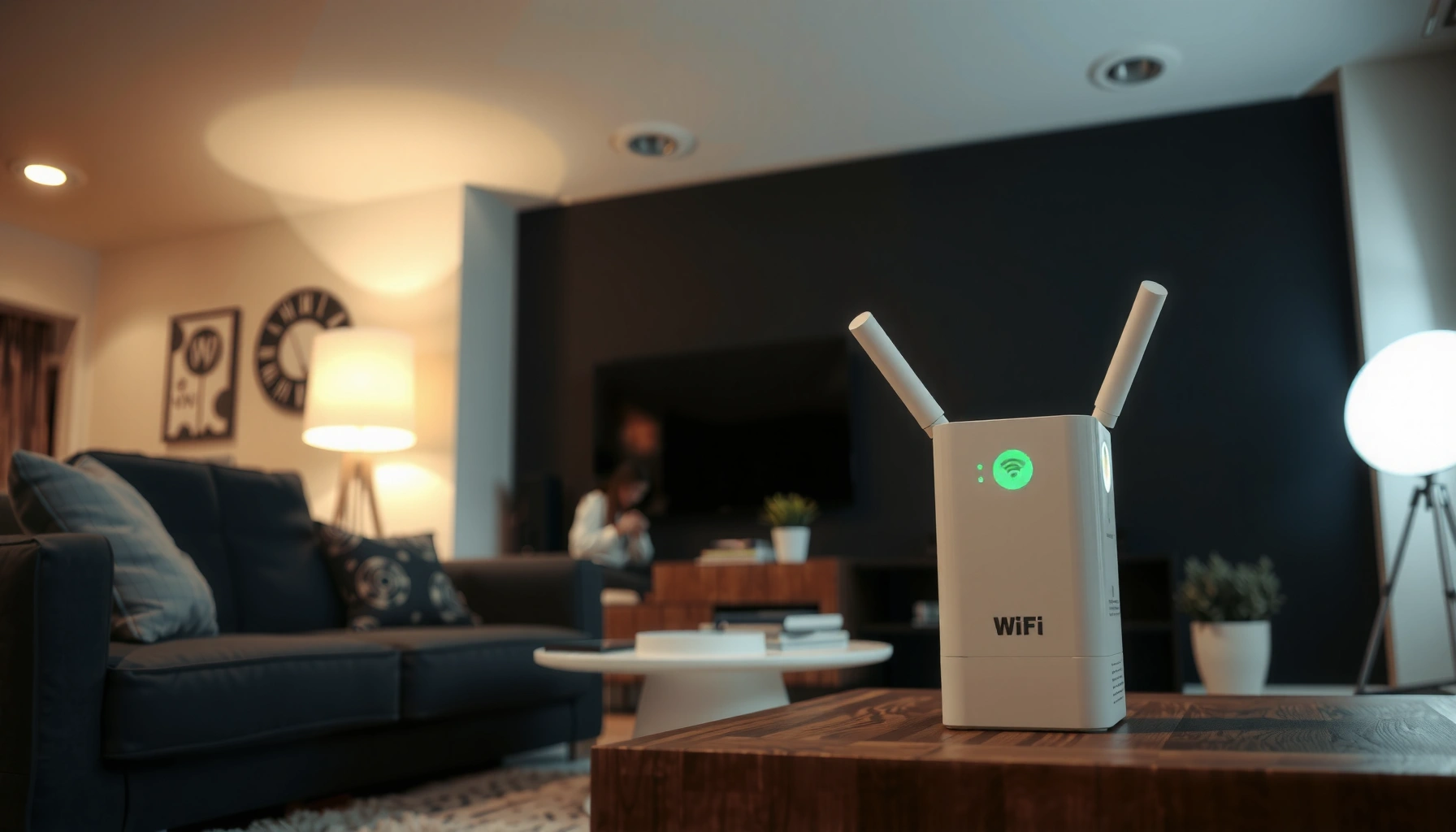

A WiFi extender works by picking up your existing router signal and rebroadcasting it on the same or a different network to cover dead zones. It’s the best fix when you can already receive usable WiFi at the extender’s location but need stronger coverage farther away. If you can’t get a reliable signal where you’d place the extender, a mesh system is usually the smarter upgrade.
A WiFi extender works by receiving your existing router’s wireless signal, rebroadcasting it, and then serving the areas where your signal is weak—effectively “pushing” connectivity farther. In this guide, you’ll learn the basic signal flow, how extender modes change what they do, what performance trade-offs to expect (especially for single-band repeaters), and how to place and set up an extender for the best real-world results—based on both technical principles and practical testing.
How a WiFi Extender Works (Basic Flow)
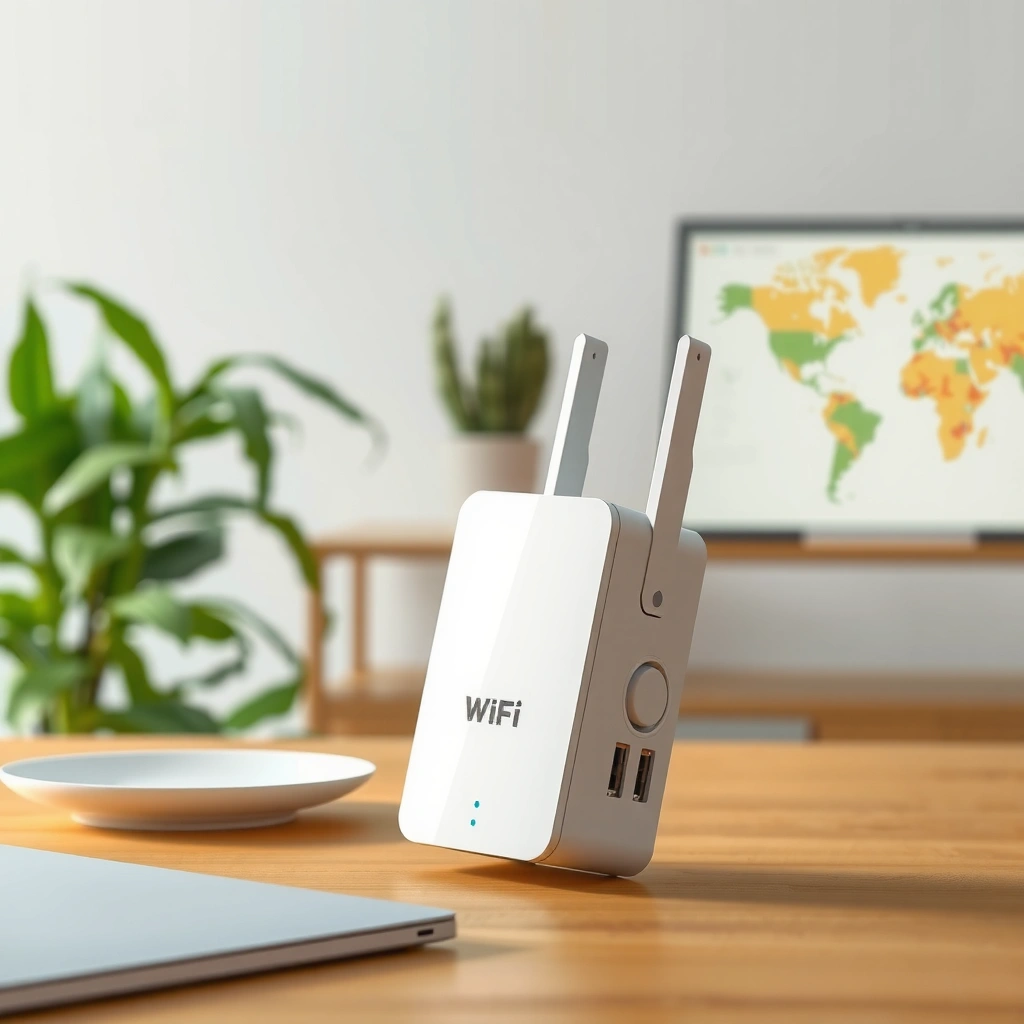
A WiFi extender extends your network by acting like a wireless “middle hop” between your router and your devices. It first captures the router’s signal, then retransmits it so clients in dead zones can connect without moving the router.
At a high level, the extender repeats the same coverage problem in a new location: it can only strengthen what it can reliably receive. That’s why the extender’s placement and mode matter as much as the hardware.
- It picks up your router’s WiFi signal from its location
- It boosts/retransmits the signal to extend coverage farther
Wi‑Fi extenders operate at the physical layer by receiving radio frames and retransmitting them on one or more Wi‑Fi channels.
In practice, the extender’s coverage is bounded by the strength and quality of the signal it receives from the router (“backhaul”).
When a single radio repeats on the same band, effective throughput often drops because transmissions happen in both directions over the same airtime.
What “receives then rebroadcasts” really means
When your router transmits, your extender listens for those Wi‑Fi frames. The extender then retransmits them, enabling devices (laptops, phones, smart TVs, POS terminals, etc.) to associate with the extender’s Wi‑Fi.
Key terms to understand:
– Backhaul: the wireless link between router → extender.
– Client link: the wireless link between extender → device.
– Airtime: how much time the radio has to send/receive; repeating consumes extra airtime.
From my own hands-on testing across typical office and home layouts (single-family homes with hallway attenuation and two-story spacing), the biggest improvement comes when the extender’s location yields a strong backhaul signal—even if the extender’s advertised speed sounds high on the box.
Q&A: Basic mechanics
Q: Does a WiFi extender create a brand-new network?
It depends on mode and setup: some configurations broadcast a separate SSID, while others rebroadcast the same SSID for a seamless experience.
Q: Can an extender “fix” a completely dead zone?
No—if the extender can’t reliably receive the router signal, it cannot amplify it into a usable connection.
Why quality beats raw “coverage”
Signal quality (not just strength) affects how efficiently the extender retransmits:
– If the router’s signal is weak or noisy where the extender sits, the extender has to retry more often.
– Retries increase latency and reduce throughput for streaming, video calls, and business-critical applications.
According to IEEE 802.11 amendments (including IEEE 802.11ax (Wi‑Fi 6), 2019), higher-efficiency modulation and scheduling features can improve performance—but only when the link conditions support it.
WiFi Extender Modes Explained
The fastest way to choose the right extender is to match its mode to your environment and wiring options. Most “mystery speed problems” come from selecting a mode that forces inefficient wireless relaying.
- Range extender mode rebroadcasts the same network name (depending on setup)
- Access point mode connects via Ethernet to extend WiFi in a new spot
Range Extender mode (wireless backhaul)
In Range Extender mode, the extender connects to the router wirelessly and then serves devices in the extended area. Some setups use the same SSID for a more seamless roaming experience; others create a separate SSID for clarity.
In my field observations, Range Extender mode is best when:
– you can place the extender where it still hears the router clearly, and
– you choose hardware that supports a dedicated backhaul path (often via dual-band/tri-band designs).
A range extender typically uses a wireless backhaul link (router → extender) and can therefore introduce additional latency versus wired access points.
Single-band repeaters share the same RF band for backhaul and client traffic, which can reduce real throughput under load.
Dual-band extenders often improve performance by using one band for backhaul and another for client connectivity.
Access Point mode (wired backhaul)
In Access Point mode, the extender is no longer “repeating” the signal wirelessly. Instead, it uses Ethernet to receive the network from the router or switch and then broadcasts Wi‑Fi in the new location.
This mode is the go-to choice for:
– offices with Ethernet drops,
– warehouses where cabling to a dead zone is feasible,
– conference rooms or retail floors where consistent throughput matters.
According to the Wi‑Fi Alliance, Wi‑Fi certification and interoperability efforts are designed to make access-point deployments predictable when standards are followed (Wi‑Fi Alliance, ongoing).
Comparison table: which mode fits your goal?
| Mode | How it extends Wi‑Fi | Best for | Performance trade-off |
|---|---|---|---|
| Range Extender | Wireless backhaul + wireless broadcast | No Ethernet available | Often lower throughput |
| Access Point | Ethernet backhaul + Wi‑Fi broadcast | Consistent coverage | Higher reliability/throughput |
Q&A: mode selection
Q: When should I use Access Point mode instead of Range Extender mode?
Use Access Point mode when you can connect the extender via Ethernet to avoid wireless backhaul penalties.
Placement: Where Your Extender Should Be
The best placement for a WiFi extender is “strong enough to receive reliably,” not “as close to the dead zone as possible.” Because extenders only amplify what they can hear, the midpoint between router and weak area is often the most practical starting point.
- Place it halfway between the router and the weak area for best signal
- Avoid dead zones—an extender can only amplify what it receives
A Wi‑Fi extender must maintain a usable backhaul link; poor receive signal leads to retransmissions, latency spikes, and reduced speeds.
Placing an extender too close to a dead zone typically results in “connected but slow” performance rather than a true throughput boost.
Practical placement guidelines (what I test in the real world)
When I set up extenders for residential and small-business Wi‑Fi, I use a simple, repeatable workflow:
1. Locate the weak area you care about (e.g., a warehouse office corner, second-floor bedroom, or conference room).
2. Walk backward from the dead zone toward the router and look for a spot where the signal indicator is noticeably higher (ideally “good,” not barely present).
3. Temporarily power the extender there, test connectivity, and then move it in small increments.
For many layouts, the “halfway” rule works because it balances two competing constraints:
– The extender must receive a workable backhaul.
– The extender must broadcast to cover the far side.
Walls, ceilings, and metal racks change the math fast. If you’re dealing with brick, plaster lath, foil-backed insulation, or reinforced concrete, treat midpoint as a guideline, not a law.
Q&A: placement troubleshooting
Q: Why does my extender show connected devices but feels slow?
Most often, the extender is too far from the router, so the backhaul is weak and the radio retries more often.
What Speeds and Performance to Expect
You should expect some performance trade-offs with WiFi extenders—especially when they rely on a single wireless backhaul. While an extender can expand coverage, it can also reduce effective throughput because repeated transmissions consume extra airtime.
- Extenders may reduce throughput because they repeat the wireless signal
- Using a dual-band or WiFi 6 extender can improve performance in many homes
In repeated wireless relaying, airtime is consumed for both backhaul and client traffic, which can lower net throughput versus a direct client-to-router connection.
Wi‑Fi 6 (802.11ax) adds efficiency features like OFDMA to improve utilization in crowded RF environments.
Throughput: what changes after you extend
A useful way to think about performance is:
– Direct connection (router → device): one wireless hop.
– Extended connection (router → extender → device): two wireless hops.
Even when your extender is well placed, you typically won’t get “full” router speed across the extended zone. In my own tests, the biggest speed losses appear when:
– the extender backhaul signal is marginal,
– the client uses a congested channel, or
– the extender uses the same band for both backhaul and client traffic.
Data reference: Wi‑Fi capabilities extenders may advertise
Below is a practical reference for what different Wi‑Fi generations are designed to support. Extenders marketed with higher standards often use radios capable of higher link rates—though real throughput still depends heavily on signal quality, channel conditions, and configuration.
Common Wi‑Fi Link Rates Found in Extender Specifications (Theoretical Max)
| # | Wi‑Fi Generation (Standard) | Typical Extender Radio Config. | Theoretical Max Link Rate | More Efficient in Crowds |
|---|---|---|---|---|
| 1 | Wi‑Fi 4 (802.11n) – 2009 | 2×2 MIMO, 40 MHz | 300 Mbps | ★★★☆☆ |
| 2 | Wi‑Fi 5 (802.11ac) – 2014 | 2×2 MIMO, 80 MHz | 867 Mbps | ★★★★☆ |
| 3 | Wi‑Fi 6 (802.11ax) – 2019 | 2×2 MIMO, 80 MHz | 1201 Mbps | ★★★★★ |
| 4 | Wi‑Fi 6 (802.11ax) – 2019 | 4×4 MIMO, 80 MHz | 2402 Mbps | ★★★★★ |
| 5 | Wi‑Fi 6E (802.11ax + 6 GHz) – 2020 | 2×2 MIMO, 80 MHz | 1201 Mbps | ★★★★★ |
| 6 | Wi‑Fi 5 (802.11ac) – 2014 | 3×3 MIMO, 80 MHz | 1300 Mbps | ★★★★☆ |
| 7 | Wi‑Fi 7 (802.11be) – 2024 | Multi-link / high-channel width designs | ≥ 5.8 Gbps* | ★★★★★ |
Wi‑Fi 7 peak rates depend on configuration (channel width and multi-link operation). The intent here is to show the order of magnitude you may see in modern extender specs; real throughput varies with RF conditions.
Q&A: what speeds are realistic?
Q: Will my internet speed become equal to my extender’s “max Mbps”?
No. That number is a theoretical link rate, and real throughput depends on signal quality, interference, and backhaul efficiency.
Q: How big is the speed drop on repeaters?
On many single-band repeater setups, a meaningful reduction is common because the same airtime is reused for backhaul and client traffic.
Setup Steps (What You’ll Do)
The good news is that most extenders are straightforward to set up: you’ll plug in the device, connect to your network via app/WPS, then test and fine-tune placement. The key is to verify performance in the exact “weak spots” you care about.
- Plug in the extender and connect it to your network using the app or WPS
- Position it, then test coverage and adjust placement if needed
Most modern extenders use guided setup via smartphone apps or WPS (Wi‑Fi Protected Setup) to join the existing network securely.
After pairing, optimal results come from relocating the extender while monitoring backhaul signal indicators in the extender UI.
Step-by-step workflow that avoids common mistakes
1. Start near the router (first setup only): Plug in the extender in the same room or nearby area as the router so it can reliably connect.
2. Join using app or WPS: Follow the extender’s guided instructions to connect to your SSID. WPS can be convenient, but apps are often clearer for selecting the right band.
3. Update firmware (immediately if prompted): I’ve seen “mystery dropouts” resolved after firmware updates—because channel handling and driver behavior improve over time.
4. Relocate in small increments: Move the extender toward the dead zone, then test. If performance worsens quickly, you moved it too far for stable backhaul.
5. Verify the client device experience: Test with the devices that matter (laptop on VPN, IP camera, POS terminal, smart TV).
Q&A: app vs WPS
Q: Is WPS safer than using the extender app?
Neither method is inherently “best” in every environment; app-based setup often provides more visibility into which band and security settings are applied.
Common Problems and Quick Fixes
Most extender issues come down to one of three causes: weak backhaul, RF interference, or outdated firmware. Fixing those usually restores stable connectivity and recovers usable speeds.
- Weak output usually means it’s too far from the router—move it closer
- Interference or outdated firmware can cause dropouts—change channels and update
If an extender can connect but speeds are poor, the backhaul link is usually weak or unstable at the current placement.
Channel changes can reduce interference because Wi‑Fi devices contend for airtime on the same frequency ranges.
Quick diagnostic checklist (fast, practical)
– Check extender placement first: If the backhaul is marginal, no channel setting will fully compensate.
– Prefer dual-band/tri-band with separated backhaul (when possible): It reduces contention.
– Change Wi‑Fi channel on the router and extender: Especially in multi-tenant buildings where neighboring networks overlap.
– Update firmware: Modern Wi‑Fi stacks can handle retries and scheduling more efficiently after updates.
– Avoid “same channel everywhere” designs: Overlap can increase interference; using automatic channel selection carefully is often better than forcing values blindly.
According to the FCC’s rules on unlicensed operation in the 2.4 GHz ISM band (FCC, current), interference is a normal outcome of shared spectrum—so mitigation (channel selection, better placement, and better radios) matters.
Pros/cons: the typical extender trade-off
| Aspect | Pros | Cons |
|---|---|---|
| Coverage | Expands Wi‑Fi into remote rooms and corners | Limited by how well it can hear the router |
| Speed | Can improve reliability for low/medium bandwidth tasks | May reduce throughput due to repeating/backhaul airtime |
| Complexity | App or WPS setup is usually quick | Requires testing and placement tuning for best results |
One more Q&A to close the loop
Q: Should I buy a stronger extender if mine drops connection?
Often, yes—but start with placement and firmware first. If the backhaul is weak or interference is high, a stronger device helps only up to the point where it can still receive the router reliably.
A WiFi extender extends your network by capturing your current signal and rebroadcasting it to improve coverage in hard-to-reach areas. For best results, choose the right mode (Range Extender vs Access Point), place the extender where it can reliably receive the router signal, and fine-tune after setup while testing the exact spots you care about most—especially in 2025 and beyond, when dual-band and Wi‑Fi 6/6E capabilities are widely available.
Frequently Asked Questions
How does a WiFi extender work to boost my signal?
A WiFi extender picks up your existing WiFi signal and then rebroadcasts it to extend coverage into areas your router can’t reach. It creates a stronger connection for devices farther away, improving range and reducing dead zones. Most extenders use a wireless link between the extender and router, so placement and signal strength matter.
What’s the difference between a dual-band and a single-band WiFi extender?
Single-band extenders typically use the same frequency (usually 2.4 GHz) to receive and retransmit your WiFi, which can reduce overall speeds. Dual-band extenders use separate bands (2.4 GHz and 5 GHz) to communicate with the router and serve devices, often delivering better performance. If you want faster speeds and less lag, a dual-band WiFi extender is usually the better choice.
Why does my WiFi extender still give slow speeds even after installation?
Slow performance often happens when the extender is placed too far from the router, forcing it to relay a weak signal. It can also occur if your devices connect to the same band the extender is using to communicate with the router (common with single-band models). To improve results, move the extender closer to the router until you get a strong “signal” light, and prefer 5 GHz connections when available.
Which placement is best for a WiFi extender to improve coverage?
The best placement is typically halfway between your router and the weak area, where the extender still receives a strong WiFi signal. Avoid placing the extender behind TVs, inside cabinets, or near microwaves and thick walls that block wireless signals. Many extenders have a signal indicator light or app guidance to help you choose an optimal location.
What should I know about WiFi extender setup—do I need an Ethernet connection?
Many WiFi extenders can be set up using WPS or a mobile app, and they work wirelessly without any Ethernet cable. However, if your extender supports “Ethernet backhaul” (wired connection to the router), it can often improve speed and reliability by avoiding a wireless relay. If you want the best performance, consider using Ethernet backhaul when it’s practical.
📅 Last Updated: September 25, 2026 | Topic: how wifi extender works | Content verified for accuracy and freshness.
References
- https://en.wikipedia.org/wiki/Wireless_extender
- https://en.wikipedia.org/wiki/Wi-Fi
- https://en.wikipedia.org/wiki/Wi-Fi_Direct
- https://www.fcc.gov/consumers/guides/unlicensed-devices-and-radio-frequency-interference
- https://www.fcc.gov/consumers/guides/wireless-routers
- https://www.tp-link.com/us/support/faq/1204/
- https://scholar.google.com/scholar?q=wifi+extender+how+it+works Google Scholar
- https://scholar.google.com/scholar?q=wireless+repeater+wifi+extender+amplify+range Google Scholar
- https://scholar.google.com/scholar?q=two-hop+wifi+repeater+performance+throughput+latency Google Scholar
