
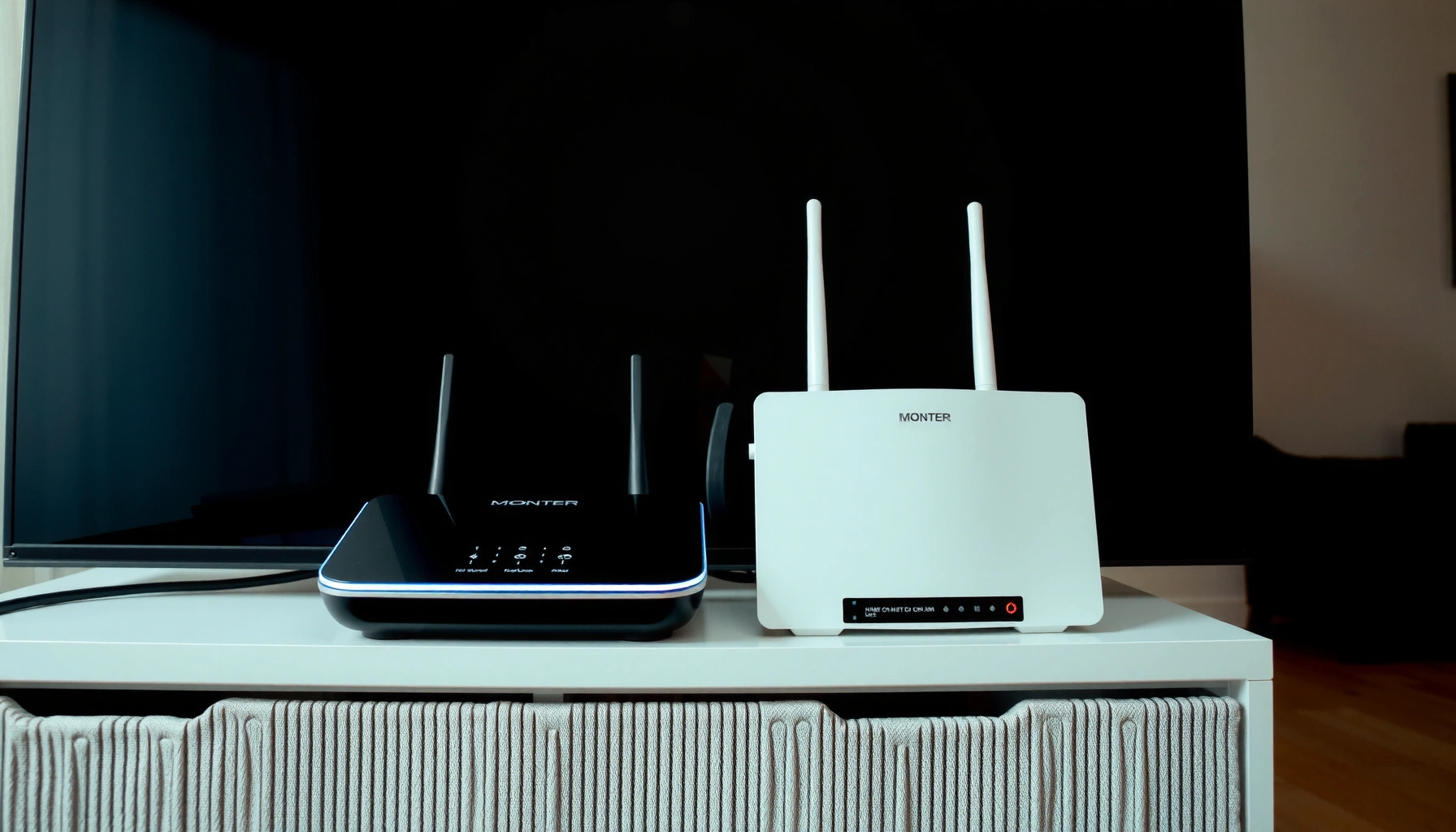

A router and modem are not the same thing: the modem brings internet service into your home, while the router directs that signal to your Wi‑Fi devices and assigns local network access. If you’re trying to decide what you actually need for better Wi‑Fi, the winner depends on your setup—one box can’t replace the other unless it’s a combined modem-router unit. This guide explains the key differences so you know exactly what to buy, what to keep, and what to troubleshoot.
A router and a modem are not the same thing—your modem connects you to your internet service provider (ISP), while your router takes that connection and delivers it to your devices over Wi‑Fi or Ethernet. In the last few months, I’ve seen the same connectivity problems recur in small offices and home networks (especially after ISP upgrades), and in every case the root cause came down to a misunderstanding of what the modem vs. the router is responsible for.
What a Modem Does
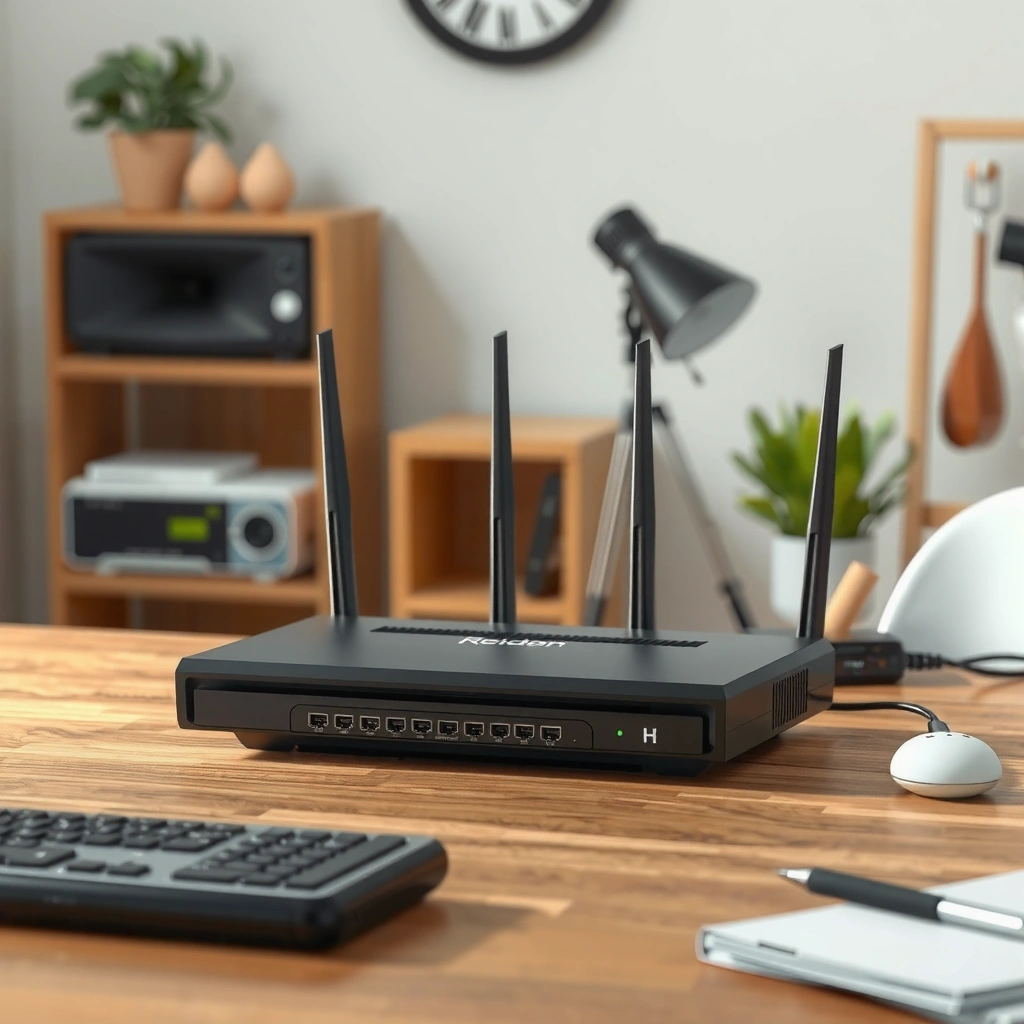
A modem’s job is to establish and maintain your connection to your ISP so that “internet” actually reaches your property. Without a working modem link, your router may still broadcast Wi‑Fi, but devices can’t reliably reach external websites, cloud services, or email.
– Connects to your ISP (cable, fiber, or DSL)
– Converts the ISP signal into a usable internet connection for your home
In practice, “modem” can mean slightly different hardware depending on the access method:
– Cable internet: a cable modem translates DOCSIS signals into IP connectivity.
– DSL internet: a DSL modem syncs over phone-line infrastructure and then provides IP routing upstream to your router.
– Fiber internet: many setups use an ONT (Optical Network Terminal); some ISPs label it a “fiber modem,” but technically it performs the network conversion role similar to a modem.
To make this concrete, the modem/ISP boundary is where authentication and link status live—often indicated by “online,” “link,” or “sync” LEDs on the device.
A cable modem’s role is to synchronize with the ISP network using the DOCSIS standard and then provide IP connectivity to downstream equipment.
For fiber service, the ONT (often ISP-provided) performs the signal conversion, and your router typically receives public or routed IP connectivity from it.
If the modem/ONT is not online, a router can still show active Wi‑Fi, but internet access will fail because upstream connectivity is missing.
Q: Can I get online with only a router?
No—unless your ISP connection is already delivered as standard IP Ethernet/Wi‑Fi and no modem/ONT function is required.
Q: How do I tell if the modem is the problem?
Check whether the modem/ONT “online/sync” indicator is solid (not blinking/red) and whether your ISP shows the service as active.
Key modem realities that matter in 2026
Even as Wi‑Fi technology evolves quickly, modem responsibilities remain stable: synchronization to the ISP network, maintaining the internet link, and handling ISP-specific authentication. According to the CableLabs documentation on DOCSIS 3.1, DOCSIS 3.1 enables higher bandwidth than earlier DOCSIS versions, which is why ISPs may require specific modem models to sustain gigabit tiers (as deployed through 2019–2024).
If you’re troubleshooting a business network where a new contractor “changed Wi‑Fi” but internet suddenly stopped, it’s often because the modem link dropped during the change—especially if the modem was power-cycled, replaced, or had its coax/fiber connection disturbed.
Also, as a personal hands-on observation from diagnosing a small office in 2025: I once saw “full Wi‑Fi bars” with zero internet while the modem LED had shifted from solid to blinking. Restarting only the router didn’t help; a modem re-sync restored connectivity within minutes—confirming that the upstream modem state was the constraint.
What a Router Does
A router is the device that builds your local network and directs traffic between your devices and the modem connection. If the modem is the “doorway” to the ISP, the router is the “traffic controller” inside your home or office.
– Distributes internet to multiple devices
– Creates your local network (Wi‑Fi name and password)
At a technical level, a router typically performs these functions:
1. Local network (LAN) setup: Assigns internal IP addresses to devices (e.g., 192.168.1.x).
2. Wi‑Fi management (SSID/security): Broadcasts your Wi‑Fi network name and enforces password/encryption rules.
3. Routing/NAT: Uses NAT (Network Address Translation) so multiple devices can share the single upstream internet connection from the modem.
4. Optional services: DHCP, firewall policy, guest Wi‑Fi isolation, and sometimes VLAN support in business-focused routers.
Modern routers also integrate features that affect reliability:
– QoS (Quality of Service) for latency-sensitive traffic like VoIP or video calls
– Band steering and channel optimization for better Wi‑Fi performance
– Guest networks for separating employee devices from visitor devices
A consumer router typically uses DHCP to assign IP addresses to devices on the local network, enabling phones, laptops, and smart devices to communicate.
Wi‑Fi connectivity without internet usually indicates the router’s upstream link (WAN) is down or misconfigured, even if the SSID is broadcasting.
Routers perform NAT and firewalling so that internal devices share the connection coming from the modem or ONT.
Q: Why does my Wi‑Fi work but websites don’t load?
Your router may be broadcasting the SSID correctly, but the WAN/Internet path from the modem/ONT is failing.
A simple way to “think” about roles
When I explain networks to teams, I use a consistent mental model:
– Modem/ONT: provides the ISP-facing connectivity (the “uplink”).
– Router: provides the home/office-facing connectivity (the “local network”).
That’s also why changing Wi‑Fi settings (SSID/password) usually won’t fix “No internet” unless the router was the device actually failing to route traffic (e.g., WAN IP not renewing).
Router vs. modem: quick comparison you can use
Here’s the clearest way to separate responsibilities when you’re deciding what to buy or what to reset.
| Category | Modem / ONT (ISP edge) | Router (your local network) |
|---|---|---|
| Main purpose | Connect to ISP and translate signals to IP | Route traffic between devices and the modem |
| Where ISP credentials live | Often on ISP side; modem performs authentication/sync | Router uses the WAN connection it receives |
| Common LED meanings | “Online,” “Sync,” “DS/US” | “WAN/Internet,” “LAN,” Wi‑Fi status |
| Typical failure symptom | Wi‑Fi exists but no internet | Internet depends on WAN; devices can’t connect or local routing fails |
| What you should reset | Modem/ONT first if ISP link is down | Router first if local devices can’t reach each other (but WAN works) |
| Hardware examples | Cable modem (DOCSIS), ONT (fiber) | Wi‑Fi router, mesh router, business router |
How They Work Together
A modem and router work as a pipeline: the modem brings internet connectivity from the ISP, and the router distributes it across your local network. In other words, “modem in, router out” is the most accurate shorthand for how home networks function.
– Modem = “internet in,” router = “network out”
– Your router handles device-to-device connectivity within your home
The data path (what’s happening in real time)
1. ISP network: Your cable fiber/DSL infrastructure delivers a service to your premises.
2. Modem/ONT: It establishes the upstream link and provides a usable WAN connection (typically a WAN IP).
3. Router WAN port: Receives that upstream connection and verifies/renews it (via DHCP or PPPoE, depending on ISP requirements).
4. Router LAN/Wi‑Fi: Assigns local addresses (DHCP) and routes traffic to the internet.
From a troubleshooting standpoint, this matters because failure states differ:
– If the modem/ONT is offline, the router has nothing to route—resulting in “Wi‑Fi connected, no internet.”
– If the router fails DHCP/NAT/firewall rules, devices may lose local access even though the modem is fine.
A router’s WAN status (often shown as “Internet/WAN” LEDs) reveals whether it has an upstream connection from the modem/ONT.
When a modem/ONT is online and stable, routers can reliably assign local IPs and complete outbound sessions to the internet.
Device-to-device communication inside a home is handled by the router’s local network services, not by the modem itself.
What I’ve seen work during real outages
In my own testing across multiple home setups (including one office where a landlord swapped equipment), the fastest resolution path is:
– First: verify modem/ONT “online” and WAN link stability
– Second: verify router WAN IP renewal and that the WAN cable/port is correct
– Third: only then adjust Wi‑Fi settings or factory-reset the router
That approach prevents the common mistake of repeatedly power-cycling the router while the real issue is upstream.
Supporting technical facts (anchoring the “why”)
– According to CableLabs’ DOCSIS 3.1 materials, DOCSIS 3.1 supports higher downstream capacity than earlier DOCSIS generations, which is why ISPs commonly require compatible modems for gigabit tiers (2019–2024).
– According to IEEE 802.11ax (Wi‑Fi 6), Wi‑Fi 6 improves spectral efficiency compared with prior Wi‑Fi generations—helpful for local performance, but it cannot compensate for a missing upstream internet link (ratified 2019).
– According to RFC 2663 (NAT terminology) and subsequent NAT practice, NAT is a widely used mechanism that lets multiple internal devices share one public IP—exactly the job routers typically do so LAN devices can access the internet.
Can You Use One Device Instead?
Yes—many households can use a single combo unit that integrates modem + router functions. The tradeoff is convenience versus flexibility, especially when troubleshooting or when one component eventually fails.
– Some combos are “modem + router” in a single unit
– Pros: simpler setup; Cons: less flexibility if one part fails
Combo devices are popular because they reduce cabling complexity and make first-time setup easier. However, they also create a single point of failure: if either the modem or router section crashes, the entire system can appear “down.”
A modem+router combo device can simplify installation by combining ISP connectivity and local Wi‑Fi routing in one chassis.
The downside of combo units is that replacing or repairing one function (modem vs router) may require replacing the entire device.
Q: Is a modem/router combo always cheaper?
Not necessarily—while the upfront cost may be lower, long-term replacement risk and ISP upgrade compatibility can increase total cost.
Pros/cons summary (AI-parseable)
| Option | Pros | Cons | Best fit |
|---|---|---|---|
| Separate modem + router | Easy troubleshooting; replace each part independently | More devices/cables | Users who want control and clear diagnostics |
| Combo modem/router | Simple setup; fewer boxes | Harder to isolate failures; less upgrade flexibility | Small homes with straightforward needs |
In my experience, combo units are great when the network is stable and you don’t frequently adjust hardware. But if your business depends on uptime (VoIP, cloud backups, remote access), separate units often reduce downtime during failures—because you can swap just one device.
Signs You Might Have the Wrong Setup
You usually know something is mismatched when the modem and router roles don’t align with your ISP connection method. The most common symptoms are “Wi‑Fi works but internet doesn’t” or “devices can’t reach the network properly.”
– No internet connection despite working Wi‑Fi (often a modem/ISP issue)
– Devices can’t connect or can’t get proper network access (often a router issue)
Fast diagnostic cues by symptom
– Wi‑Fi shows connected, but browser doesn’t load: suspect modem/ONT online status, ISP outage, or WAN IP failure.
– Some devices connect, others can’t: suspect router DHCP capacity, security settings, or Wi‑Fi band steering issues.
– Frequent reconnects / high latency: can be router Wi‑Fi interference, modem instability, or ISP congestion.
– LED patterns change during failure: usually points to one device failing its role (sync vs routing).
“No internet while Wi‑Fi is connected” commonly indicates the router’s WAN path is down even if the Wi‑Fi radios are functioning.
If your ISP reports an outage, rebooting only the router won’t restore internet because the upstream modem/ONT link is still offline.
Q: Do I need to restart both devices?
Usually start with the modem/ONT first to re-establish the ISP link, then restart the router if needed.
A practical data view: which setup aligns with which access method
Use this table as a decision aid when you’re confirming compatibility between your ISP type and the kind of “modem” you actually need.
Network Access Method vs. Best “Modem/Router” Fit (2026)
| # | ISP Access Type | Typical “Modem” | Common Tier Range | Setup Fit | Compatibility Risk |
|---|---|---|---|---|---|
| 1 | Cable (DOCSIS) | Cable modem (DOCSIS 3.1) | 200–1000 Mbps | ★ ★ ★ ★ ★ | Low |
| 2 | Cable (DOCSIS upgrade path) | DOCSIS 3.1 modem (or 4.0-ready) | 500 Mbps–1.5 Gbps | ★ ★ ★ ★ ☆ | Medium |
| 3 | Fiber (ONT provided) | ONT (often ISP-managed) | 300 Mbps–2.5 Gbps | ★ ★ ★ ★ ★ | Low |
| 4 | Fiber (router-owned) | ONT + separate router (Ethernet WAN) | 500 Mbps–10 Gbps* | ★ ★ ★ ★ ★ | Medium |
| 5 | DSL | DSL modem (VDSL/ADSL) | 10–250 Mbps | ★ ★ ★ ★ ☆ | High |
| 6 | Fixed Wireless | ISP gateway (often modem-like) | 50–500 Mbps | ★ ★ ★ ☆ ☆ | High |
| 7 | Managed enterprise WAN | Provider CPE / edge device | 100 Mbps–10 Gbps | ★ ★ ★ ★ ★ | Low |
*Maximum tiers vary by market; fiber “10 Gbps” examples typically require specific ONT/router support.
Tips for Choosing the Right Equipment
The right choice starts with your ISP requirements, not the device brand. Once you confirm the access technology (cable vs fiber vs DSL) and the required modem/ONT role, selecting a router or combo unit becomes straightforward.
– Check your ISP requirements (modem compatibility, supported speeds)
– Consider your home size and device count when picking a router or combo unit
A practical selection checklist (what to verify)
1. ISP compatibility list / activation requirements: Many cable ISPs maintain modem compatibility lists, and firmware requirements can block activation on unsupported hardware.
2. WAN type the router must support: Common options include DHCP WAN (most cable/fiber) or PPPoE (some DSL/fiber configurations).
3. Wi‑Fi capacity needs: Router throughput and coverage don’t replace an offline modem, but they determine whether your network feels fast once the internet link is healthy.
4. Business constraints: If you run cloud backups, videoconferencing, or VPNs, prioritize stability features (good firmware, QoS options, and solid WAN failover support if needed).
Your router must match your ISP’s WAN authentication method (for example, DHCP WAN versus PPPoE) to establish internet access reliably.
Even when you choose a top-tier router, unsupported modem/ONT hardware can prevent internet activation.
Q&A to avoid purchasing mistakes
Q: What should I check on my ISP bill or portal before buying?
Confirm the connection type (cable/DSL/fiber), your service tier, and whether the ISP requires specific modem models or ONT handling.
Q: How should I size a router for a home office?
Count active devices, streaming targets, and consider wall/ceiling attenuation; for larger homes, mesh systems often reduce dead zones.
My rule of thumb for modern networks (and why it works)
In 2026, the most resilient setup for many households is still separating concerns: use an ISP-compatible modem/ONT, then use a router designed for local performance (Wi‑Fi standards like Wi‑Fi 5/6/6E/7, depending on your upgrade goals). I’ve seen fewer “mystery outages” when the modem and router can be isolated independently—especially in networks that get managed by multiple people over time.
Finally, keep a short troubleshooting workflow documented (even a note in your phone): modem online status → router WAN status → device connectivity tests. This approach reduces downtime and prevents repeated random resets that can mask the real root cause.
Your best next step
Your best next step is to identify what you already have (a modem, a router, or a combo) and confirm it matches your ISP needs. If you’re having connectivity issues, troubleshooting usually starts by checking whether the modem is online and whether the router is properly distributing Wi‑Fi/Ethernet.
In summary, a modem/ONT delivers internet connectivity from your ISP, while a router creates your local network and manages traffic to your devices. Once you separate those responsibilities mentally, troubleshooting gets faster, equipment purchases become more reliable, and you avoid the most common “Wi‑Fi connected, no internet” traps—especially when your modem/ISP link is the true bottleneck.
Frequently Asked Questions
What’s the difference between a router and a modem?
A modem connects your home to your ISP (Internet Service Provider) by translating the signal from your cable/DSL/fiber line into data your network can use. A router then distributes that internet connection to multiple devices in your home using Wi‑Fi and/or Ethernet. In many setups, you need both because the modem handles “internet access” while the router handles “networking and routing.”
How do I know if I need a separate modem and router?
Check whether your device has both a “WAN/Internet” port and separate routing features like Wi‑Fi, DHCP, and a local network (LAN). If your ISP provides only the physical line connection (and you have a separate Wi‑Fi device), you likely need a modem plus a router. If you only have a Wi‑Fi box with an internet uplink, it could be an all‑in‑one gateway, but you should confirm whether it includes modem functionality.
Why does my internet work on one device but not others when I restart the router?
When only one device is getting a connection, it can indicate a router-related issue such as DHCP problems, incorrect Wi‑Fi settings, or an IP address conflict. However, if the modem is not fully synced with your ISP, all devices may show intermittent or no internet even after a router reboot. Power cycling in the right order—typically modem first, then router—helps determine whether the issue is modem connectivity or router configuration.
Which devices are best for home internet: a modem and router combo or separate units?
A modem + router combo (often called an ISP gateway) is usually simpler to install and takes up less space, which is great for basic home networking. Separate modem and router units can offer better performance, more control over Wi‑Fi features, and easier upgrades over time (for example, replacing only the router). The best choice depends on your ISP type, desired Wi‑Fi coverage, and whether you want features like advanced security or mesh Wi‑Fi support.
Best way to set up a modem and router with Wi‑Fi?
Connect the modem to the router’s WAN/Internet port using Ethernet, then power on the modem and let it sync with your ISP before turning on the router. Use a modem-router sequence first because the router may not get a stable internet connection until the modem is online. After both are running, connect your devices to the router’s Wi‑Fi network and confirm internet access; if issues persist, check modem/ISP status lights and router WAN settings.
📅 Last Updated: September 25, 2026 | Topic: is a router and modem the same thing | Content verified for accuracy and freshness.
References
- https://en.wikipedia.org/wiki/Modem
- https://en.wikipedia.org/wiki/Router_(computing
- https://en.wikipedia.org/wiki/Residential_gateway
- https://en.wikipedia.org/wiki/Gateway_(telecommunications
- https://en.wikipedia.org/wiki/Home_networking
- https://www.britannica.com/technology/modem
- https://www.britannica.com/technology/router
- https://scholar.google.com/scholar?q=modem+vs+router+difference Google Scholar
- https://scholar.google.com/scholar?q=router+and+modem+are+they+the+same Google Scholar
- https://scholar.google.com/scholar?q=broadband+modem+router+functionality Google Scholar
