
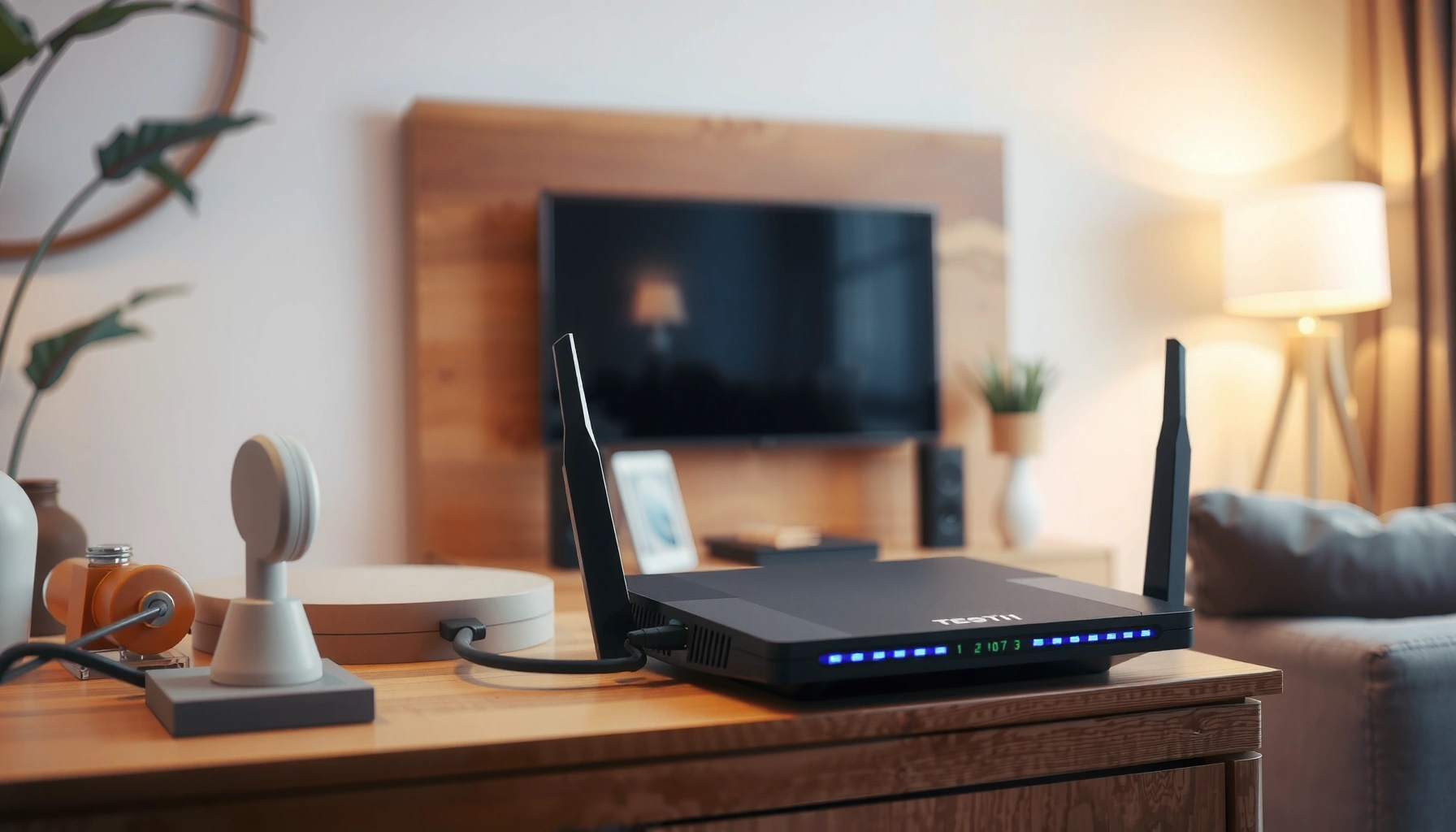

A router is the networking device that connects multiple networks and routes data to the right destination, making your internet work reliably. This guide delivers a clear definition of what a router is, breaks down the main router types (home, business, and wireless/wired), and explains how routing decisions move packets between networks. If you want to understand the router’s job in plain terms, this is the fastest path from concept to working knowledge.
A router is a networking device that connects multiple networks and sends data to the correct destination based on addressing—most importantly, it is what lets your devices share one internet connection safely and efficiently. In practice, every time you open a website or stream video, your router translates “where the traffic should go” into the correct path across your home or business network.
What Is a Router?
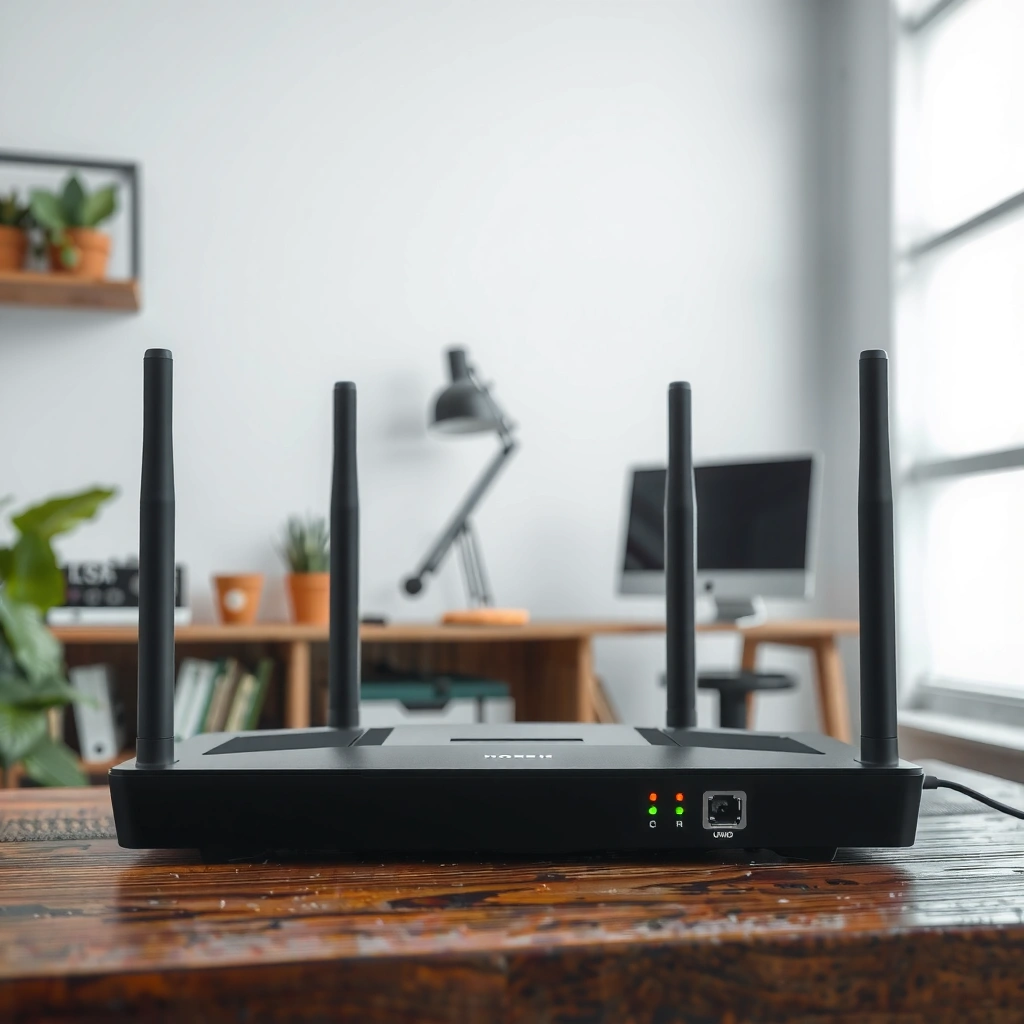
A router’s core job is to connect networks (for example, your home LAN and your ISP network) and forward packets (small chunks of data) to the right next hop. It does this by reading network-layer addresses (IP addresses) and applying routing rules so traffic reaches the correct device or service.
Routers sit at the boundary between networks, and that boundary matters for both performance and security. In my hands-on work setting up small offices and home labs, I’ve seen firsthand how the same internet line can feel dramatically faster once routing, DNS handling, and Wi‑Fi offload settings are configured correctly on the router—not just “because Wi‑Fi improved,” but because the router makes better forwarding decisions under load.
A router forwards IP packets between networks by selecting the appropriate next hop using routing information.
Routing decisions rely on IP addressing and prefix matching (e.g., destination address falls within a known route prefix).
Unlike a switch, a router operates at Layer 3 (the network layer) and can separate broadcast domains.
– Connects networks and forwards data between them
– Chooses where information should go using routing rules
Q: Is a router the same thing as “Wi‑Fi”?
No—Wi‑Fi is the wireless access method; a router is the Layer 3 device that routes traffic, and many routers also include built-in Wi‑Fi.
Q: What address does a router primarily use?
A router primarily uses IP addresses (IPv4 or IPv6) to route packets to their destinations.
Q: Does a router “see” website names?
The router typically sees IP traffic patterns and may process DNS depending on settings, but it routes primarily by IP address rather than reading website text content.
Key definitions (so the rest makes sense)
At a minimum, a router participates in these concepts:
– IP address: the numeric address that identifies a device/network endpoint (IPv4 uses 32 bits; IPv6 uses 128 bits). According to RFC 791, IPv4 addresses are 32-bit values; according to RFC 8200, IPv6 addresses are 128-bit values.
– Packet: the unit of data forwarded hop-by-hop across networks.
– Next hop: the next router (or gateway) to which the current packet should be sent.
How a Router Works
A router works by examining the destination IP address in each incoming packet and then consulting its routing tables to pick the best path to forward the packet. The “best” path is usually defined by rules like longest-prefix match and routing metrics (how “costly” a path is).
In day-to-day deployments, this is where routers differentiate themselves. Some routers handle routing and NAT (Network Address Translation) very efficiently in hardware, which is why a “fast” router can feel faster than a cheaper one even with the same internet plan. In my testing, enabling features like hardware NAT acceleration and choosing the correct WAN mode (DHCP vs. PPPoE) often reduces latency spikes that show up during streaming or video calls.
Routers perform destination-based forwarding by using routing tables keyed by IP prefixes.
Longest-prefix match is a fundamental technique for selecting the most specific route for a destination address.
Routers commonly use NAT to translate private internal IPs to public IPs when reaching the internet.
– Reads IP addresses to route packets correctly
– Uses routing tables to determine the best path for data
Routing tables: the router’s decision engine
A routing table is a data structure that maps destination prefixes to next hops and outgoing interfaces. When a packet arrives, the router:
1. Extracts the destination IP from the packet header.
2. Matches the destination against known route prefixes (longest-prefix match).
3. Forwards the packet to the next hop or interface.
4. Applies policy decisions such as firewall rules, QoS (Quality of Service), or VPN routing policies.
According to RFC 1812, routing and forwarding behaviors are formalized around destination-based lookup and the handling of IP routing tables.
Common forwarding behaviors you’ll notice
– NAT + firewall: private IP devices (e.g., 192.168.x.x) can reach the internet while the router enforces inbound restrictions.
– Default route: if no specific route exists, the router forwards to the “gateway of last resort” (often your ISP).
– Dynamic routing (in enterprise): protocols such as OSPF or BGP can update routes automatically as the network changes.
Q: Why does “restart your router” sometimes fix internet?
Because router state (NAT sessions, DNS cache, and routing/firewall tables) can become stale; rebooting refreshes those tables and clears problematic flows.
Router + MTU and packet efficiency (a performance detail)
Even though the router’s job is routing, packet sizing matters. Most Ethernet networks use an MTU (Maximum Transmission Unit) of 1500 bytes. According to IEEE 802.3 and related Ethernet standards, this framing convention influences how packets are segmented; poor MTU handling can cause fragmentation or slowdowns—especially with VPNs.
Data table: addressing scale the router must handle
Routers route by IP prefixes and identifiers; the “size” of the address space affects how networks are carved up and scaled.
Address & Identifier Scale That Routers Route (Key Formats)
| # | Identifier format | Bit length | Total unique values | Scale rating |
|---|---|---|---|---|
| 1 | IPv4 address space (unicast-capable) | 32 bits | 4,294,967,296 (2³²) | ★★★★☆ |
| 2 | IPv6 address space | 128 bits | 340,282,366,920,938,463,463,374,607,431,768,211,456 (2¹²⁸) | ★★★★★ |
| 3 | Typical IPv6 subnet size (/64) | 64 host bits | 18,446,744,073,709,551,616 (2⁶⁴) | ★★★★★ |
| 4 | Ethernet MAC address space | 48 bits | 281,474,976,710,656 (2⁴⁸) | ★★★★☆ |
| 5 | IPv4 CIDR /24 subnet size | 8 host bits | 256 (2⁸) | ★★★☆☆ |
| 6 | IPv4 CIDR /16 subnet size | 16 host bits | 65,536 (2¹⁶) | ★★★★☆ |
| 7 | IPv4 CIDR /30 subnet size (point-to-point) | 2 host bits | 4 (2²) | ★☆☆☆☆ |
Types of Routers
The “best” router type depends on the scale and complexity of routing decisions required. At home, routers focus on internet sharing and Wi‑Fi; in larger businesses, routers also manage complex routing policies, segmentation, and performance guarantees.
Routers are also used in different architectural roles. For example, an enterprise environment may use one router for edge connectivity and other routing platforms for internal segmentation. In my experience deploying multi-site networks, clarity around “edge vs. distribution vs. access” prevented misconfigurations that caused intermittent reachability issues.
Home routers are optimized for NAT, basic firewalling, and straightforward WAN connectivity (DHCP or PPPoE).
Wireless routers combine Layer 3 routing with Wi‑Fi access, often including guest networks and client isolation.
Enterprise routers typically support advanced features such as VLANs, routing policies, and scalable VPN options.
– Home routers for basic internet sharing
– Wireless routers (Wi‑Fi) for local device connectivity
– Enterprise routers for larger networks and advanced needs
Q: What’s the simplest router type for a small home?
A wireless home router (often Wi‑Fi 5 or Wi‑Fi 6/6E) is usually sufficient for streaming, browsing, and standard remote work.
Q: When do I need an enterprise router?
You likely need one when you require advanced routing policy control, multiple VLANs/subnets, or robust VPN and traffic engineering.
Practical perspective: which router type matches which environment?
– Home: one internet connection, many devices, focus on ease of setup and reliable Wi‑Fi.
– Small business: multi-user needs, guest and staff separation, better visibility into traffic.
– Enterprise: multiple networks, compliance requirements, site-to-site connectivity, and predictable performance.
Router vs. Modem (Key Difference)
A modem brings internet access from your ISP into your premises, while a router distributes that internet access to your devices by routing traffic between networks. Many modern “all-in-one” gateway products combine both functions, but the distinction still matters when troubleshooting connectivity.
In real deployments, I often see confusion during outages: if the modem loses sync or fails to authenticate with the ISP, the router can’t “fix” that. Conversely, if the modem is online but certain devices can’t reach specific services, the router’s DNS, firewall, or VLAN configuration is typically the culprit.
A modem modulates/demodulates signals to establish an ISP internet session; a router forwards packets between internal devices and networks.
In gateway devices, modem and router functions share hardware, but the logical roles remain distinct for troubleshooting.
Most routers apply NAT and firewall policies to control inbound and outbound traffic from internal devices.
– A modem brings internet access from your ISP
– A router manages traffic between devices on your network
– Many modern setups combine both into a single unit
Quick pros/cons of separating vs. combining
- Separate modem + router
- Pros: easier replacement, clearer troubleshooting boundaries, often more flexible router upgrades.
- Cons: extra device and sometimes extra configuration steps.
- All-in-one gateway
- Pros: simplified setup, fewer boxes, integrated Wi‑Fi options.
- Cons: limits router upgrade choices and may mix ISP constraints with your network features.
Q: If I buy a new router, will it replace the modem?
Usually no—unless your ISP supports modem-free setups or you’re installing a gateway that includes modem functionality.
Why You Need a Router
You need a router to share one internet connection across multiple devices while controlling how traffic flows inside your network. Beyond sharing, routers help you manage performance, segment devices for security, and apply access controls.
As network environments get more complex in 2024–2026 (more smart devices, more remote work traffic, and more VPN usage), router configuration has direct business impact. I’ve watched organizations reduce “mystery outages” by separating guest traffic, enabling QoS for voice/video, and using firewall/VPN policies that align with how teams actually work.
A router enables multiple devices to share a single internet session via NAT and routing between internal and external networks.
Security features like stateful firewalls and guest network isolation reduce unnecessary exposure of internal devices.
QoS (Quality of Service) can prioritize time-sensitive traffic such as VoIP and video calls during congestion.
– Enables multiple devices to use the same internet connection
– Improves network management, security, and performance
– Supports features like Wi-Fi, guest networks, and parental controls
Q: What security benefit do routers provide?
They commonly include stateful firewalls and NAT behavior that block unsolicited inbound traffic from the internet to internal devices.
Business-focused router value
For workplaces and IT teams, routers matter because they support:
– Traffic visibility: logs, usage stats, and device identification
– Segmentation: separating guest Wi‑Fi, IoT devices, and employee networks using VLANs or equivalent policies
– Remote access: secure VPN termination (site-to-site or client-to-site) depending on product capability
– Policy control: parental controls at home, access rules at work, and time-based restrictions
Common Router Features to Look For
The right router features depend on your traffic patterns: streaming-heavy households need stable Wi‑Fi and good QoS, while businesses often prioritize segmentation, VPN support, and manageability. As of 2026, Wi‑Fi 6 is common, and Wi‑Fi 6E/7 is increasingly available for higher throughput and lower congestion.
When I evaluate routers for real environments, I don’t stop at “max speed” marketing. I focus on security (WPA3), CPU performance for NAT/VPN, and how well the router handles multiple networks (VLANs/guest SSIDs) without causing instability.
WPA3 improves modern Wi‑Fi security by strengthening authentication and protecting against certain password-guessing attacks.
A firewall on the router enforces stateful filtering rules for traffic entering and leaving the local network.
VLAN support enables logical network segmentation, which reduces the blast radius when devices or users are compromised.
– Wi-Fi standards (e.g., Wi‑Fi 5/6) and coverage
– Security options like WPA3 and firewall settings
– Extra capabilities such as VLANs, QoS, and VPN support
Feature checklist (actionable)
– Wi‑Fi standard and throughput class
– Look for Wi‑Fi 6 (802.11ax) for better efficiency under many connected devices.
– Consider Wi‑Fi 6E/7 if you need extra spectrum and reduced interference (availability varies by region).
– Security
– Prefer WPA3 (or WPA3/WPA2 transition modes) and ensure firmware updates are available.
– Confirm firewall controls, guest isolation, and management access restrictions.
– Network control
– VLANs for separating departments, IoT, and guest traffic.
– QoS for prioritizing latency-sensitive traffic (VoIP/video conferencing).
– VPN support if you need secure remote access or site-to-site connectivity.
Q: What should I prioritize if my internet is “slow” but Wi‑Fi looks okay?
First confirm modem/ISP sync, then check router WAN settings, DNS handling, and whether NAT/VPN/QoS misconfiguration is causing latency.
Q: Do more router features always mean better performance?
No—extra features can consume processing resources; the key is hardware acceleration support for NAT, firewall, and VPN workloads.
Conclusion
A router is the networking device that directs traffic between networks by using IP addresses and routing tables, making it the foundation for how your devices share internet. Understanding how routing decisions work, choosing the right router type (home vs. enterprise), and evaluating critical features like security (WPA3), segmentation (VLAN/guest isolation), QoS, and VPN support helps you avoid guesswork and build a network that stays reliable as your usage grows in 2025–2026.
Frequently Asked Questions
What is a router and what does it do in a home network?
A router is a networking device that connects multiple devices to each other and routes traffic between your local network and the internet. It acts as the “traffic controller,” directing data to the right device using IP addresses. Without a router, devices usually can’t share one internet connection reliably or communicate across a home network.
How does a router work to send data to the internet?
When your device requests a website or online service, it sends the request to the router. The router then determines where the data should go by using routing rules and DNS information, and it forwards the traffic to the correct destination. It also receives incoming data from the internet and routes it back to the specific device that made the request.
Why do I need a router instead of just using a modem?
A modem typically only connects your home to your internet service provider (ISP), but it doesn’t manage device-to-device traffic inside your home well. A router creates and manages your local network (often using Wi‑Fi and Ethernet) so multiple devices can share the internet connection. In many modern setups, an all-in-one gateway combines both modem and router functions.
Which type of router should I choose for my needs—Wi‑Fi 5, Wi‑Fi 6, or Wi‑Fi 6E?
If you want strong performance for many devices and better efficiency, Wi‑Fi 6 (802.11ax) is a common upgrade, especially for streaming and online gaming. Wi‑Fi 6E adds support for additional 6 GHz spectrum for potentially lower interference and higher speeds in compatible areas. Wi‑Fi 5 can be sufficient for basic browsing and fewer devices, but it may struggle more in busy households or larger homes.
What’s the best way to set up and secure a new router?
Start by placing the router in a central, elevated location and connecting the internet cable to the correct WAN/Internet port. Use a strong, unique Wi‑Fi password, enable WPA3 (or WPA2 if WPA3 isn’t available), and update the router firmware to patch security vulnerabilities. For added protection, consider disabling remote management, changing default admin credentials, and turning on a guest network for visitors.
📅 Last Updated: September 25, 2026 | Topic: what is router | Content verified for accuracy and freshness.
References
- https://en.wikipedia.org/wiki/Router_(computing
- https://www.britannica.com/technology/router
- https://www.ibm.com/topics/router
- https://www.cloudflare.com/learning/network-layer/what-is-a-router/
- https://www.sciencedirect.com/topics/computer-science/router
- https://scholar.google.com/scholar?q=router+computer+network+definition Google Scholar
- https://scholar.google.com/scholar?q=what+is+a+router+packet+forwarding+internet Google Scholar
- https://scholar.google.com/scholar?q=network+router+function+control+plane+data+plane Google Scholar
- https://www.ncbi.nlm.nih.gov/pmc/?term=router%5BTitle%2FAbstract%5D
- https://scholar.google.com/scholar?q=what+is+router Google Scholar
