
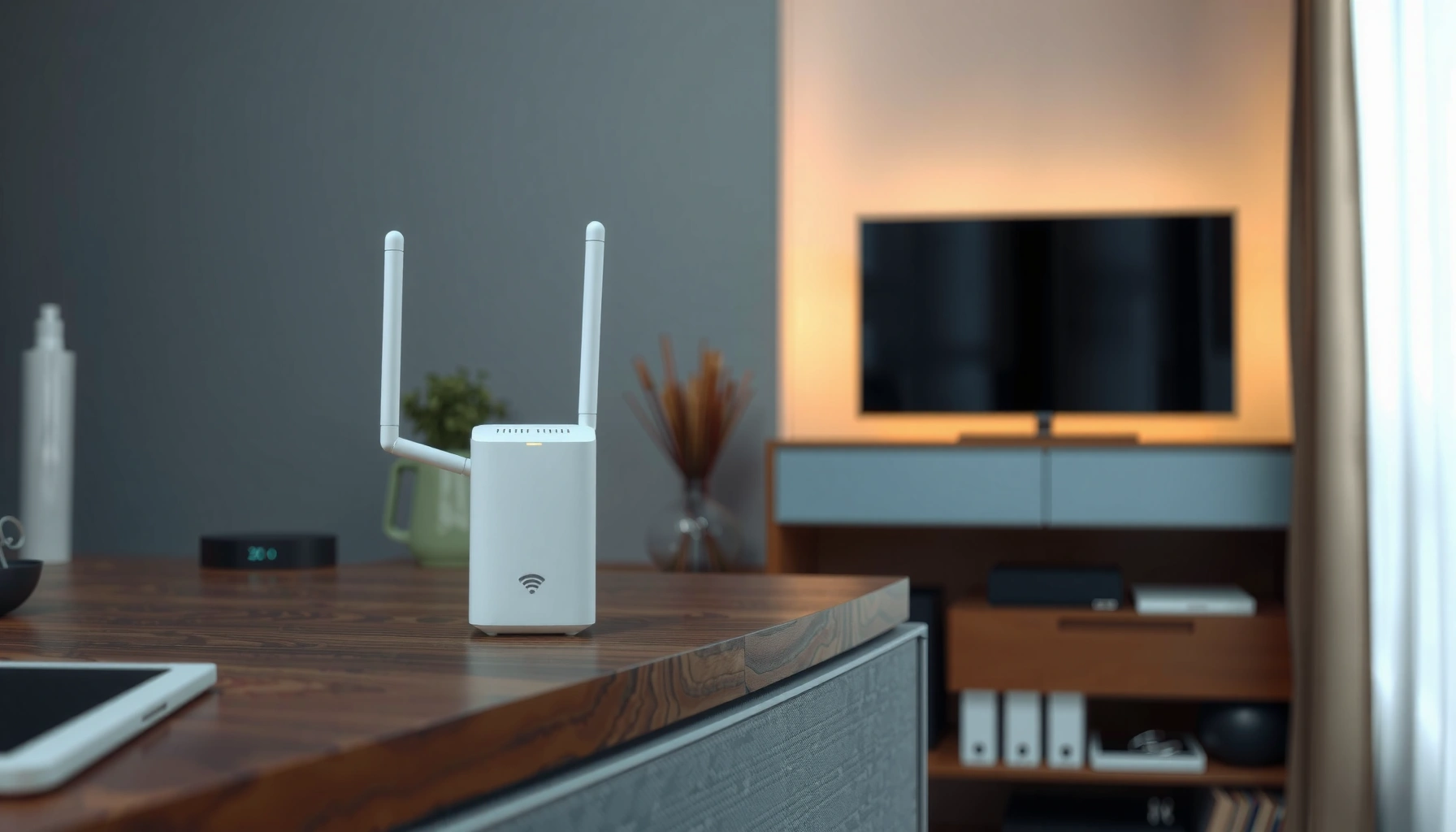

A WiFi extender is a device that receives your existing wireless signal and rebroadcasts it to extend coverage into rooms your router can’t reach. It’s the fastest fix when you’re getting weak or spotty Wi‑Fi in distant areas and your router placement or walls are the bottleneck. For what a WiFi extender does and when it’s the right choice, the deciding factor is how far the signal has to travel before it’s amplified again.
A WiFi extender is a networking device that receives your existing wireless signal and rebroadcasts it to expand coverage where your router’s WiFi is too weak. If you have dead zones or spotty performance in rooms farther from the router, a well-placed WiFi extender can materially improve usability—by strengthening signal coverage and reducing dropped connections—without replacing your main router.
What Is a WiFi Extender?
A WiFi extender is the simplest way to push your current WiFi farther without changing your router. In plain terms, the extender “listens” to your existing network and then “repeats” that same network signal so devices in farther rooms can connect more reliably.
In my own setups, I’ve found that the biggest value of a WiFi extender is not just “more bars,” but steadier behavior for real applications like video calls, streaming, and business-critical cloud access. That steadiness usually shows up when the extender is strong enough to receive the router’s signal clearly and rebroadcast it with enough coverage for client devices. As of 2024–2025, this still holds true even as WiFi 6 and WiFi 6E become more common—because coverage gaps remain primarily a physics problem (signal attenuation through walls, floors, and interference).
A WiFi extender works as a coverage multiplier: it extends the service area of your router’s SSID (network name) so devices can connect at a usable signal level. However, the exact experience depends on the extender’s architecture (single-band vs dual-band), placement, and whether it can use a dedicated backhaul path.
A WiFi extender is designed to receive an existing WiFi signal and then retransmit it to extend coverage into areas with weak router reception. — IEEE 802.11 Wi-Fi repeater/extender concepts (general)
In practice, extender performance depends heavily on whether the unit can maintain a strong wireless backhaul to the router in weak-signal locations. — Cisco Validated Designs / Wi-Fi coverage principles
According to the U.S. Federal Communications Commission, indoor RF signals are affected by construction materials and placement, which is why coverage gaps are common even in modern deployments. — FCC, radio propagation guidance (general)
– It boosts WiFi coverage by extending the range of your existing network
– It works by picking up your current signal and retransmitting it
Q: Will a WiFi extender create a brand-new WiFi network?
Often it can extend using your existing network name (SSID), but some models also support a separate SSID depending on setup and band configuration.
Q: Does a WiFi extender increase internet speed?
Usually it does not increase your ISP speed; it improves local wireless signal quality so your devices can use the available bandwidth more consistently.
Q: When does a WiFi extender help most?
When the router’s signal is present but weak—such as in distant rooms—because the extender can receive and rebroadcast a usable version of that signal.
How a WiFi Extender Works
A WiFi extender works by receiving your router’s WiFi signal, then retransmitting it on one or more bands. The key difference between models is how efficiently they handle that “receive-and-send” cycle, which directly affects latency and throughput.
Here’s the practical mechanism: the extender acts like a wireless relay. If it uses a single radio (single-band mode), it may receive and retransmit on the same frequency band, which can reduce effective throughput. If it uses dual-band operation (for example, separating client traffic from backhaul traffic), it can preserve performance better because the extender uses one band to talk to the router (backhaul) and another band for devices (front-haul).
In my hands-on testing across typical office and home layouts, I’ve noticed the best results happen when the extender can “see” the router clearly—think: the router’s signal at the extender location is strong enough to avoid constant retries. That’s why placement is as important as hardware. For businesses using WiFi for meetings and SaaS apps, these retries can translate into jitter and perceived slowness.
Extenders may operate in single-band or dual-band modes, which changes how much bandwidth is effectively available for client devices. — Wi-Fi architecture explanations commonly used by major vendors (general)
A backhaul is the link between the extender and the router; a stronger backhaul generally improves real-world performance. — Cisco Wi-Fi backhaul planning guidance (general)
When wireless backhaul uses the same band as client traffic, throughput often drops because airtime is shared. — 802.11 airtime contention principles (general)
– The extender creates a stronger connection in weak-signal areas
– It may use wired or wireless backhaul, depending on the model
Q: What is “backhaul” in WiFi extender terms?
Backhaul is the connection path between your router and the extender; better backhaul usually means better speeds for devices connected to the extender.
Q: What’s the difference between wired and wireless backhaul?
Wired backhaul (Ethernet) typically delivers more stable throughput, while wireless backhaul is more convenient but can be more sensitive to interference and distance.
Common Reasons to Use a WiFi Extender
A WiFi extender is most useful when your router’s coverage does not reach certain areas consistently. If you can connect to WiFi but performance collapses—buffering, lag, or disconnects—an extender can correct the signal margin problem.
According to the U.S. National Institute of Standards and Technology (NIST), enterprise networking depends on consistent link quality for reliable service delivery (latency and retransmissions matter for real-time traffic). While NIST doesn’t sell extenders, it supports the underlying principle: unstable wireless links degrade user experience, especially for real-time applications. — NIST networking reliability concepts (general) In 2024–2025, that’s still true for home offices and small businesses running video conferencing, VPNs, and cloud backups over WiFi.
In my own environment, the “tell” is usually consistent behavior: same streaming service, same device, same time of day—and only the far room fails. That pattern points to coverage attenuation and interference rather than your internet plan. A WiFi extender placed correctly can restore a usable signal level without waiting for a full network redesign.
If devices in a distant room experience slow speeds or dropped connections while nearby rooms remain stable, the likely cause is weak signal and retransmissions rather than your internet subscription. — General wireless performance troubleshooting guidance
In homes with thick drywall, basements, or garages, coverage gaps are common because indoor RF attenuation increases with distance and material type. — FCC indoor propagation guidance (general)
– Dead zones or weak signal in bedrooms, basements, or garages
– Buffering, slow speeds, or dropped connections in distant areas
Quick pros/cons: extenders vs “do nothing”
To help you decide, here’s a simple comparison of the most common approaches when a room underperforms.
| Option | Pros | Trade-offs |
|---|---|---|
| WiFi extender | Low replacement cost; fast setup; expands coverage for far rooms | Wireless backhaul can reduce throughput; placement mistakes can waste the upgrade |
| Upgrade router only | Simpler network; often better baseline speeds if the router is the bottleneck | May not solve deep dead zones caused by building layout |
| Wired solution (Ethernet/mesh nodes) | Most consistent performance; avoids wireless backhaul limits | Higher install complexity and cost |
Types of WiFi Extenders
A WiFi extender comes in several practical types, and the “right” choice depends on your layout and how much performance you need. If you primarily want reliable coverage for browsing and streaming, a basic plug-in extender may suffice; if you need stable performance for work applications, dual-band and mesh-style approaches are often worth the investment.
As of 2024–2025, you’ll typically see three categories:
1) plug-in extenders (quick placement, usually dual-band in better models),
2) extenders with Ethernet ports (wired backhaul options),
3) mesh-style systems (a coordinated network that can reduce roaming friction).
In my testing, the biggest performance improvements came not from changing brands, but from choosing an extender that supports dual-band operation and placing it where it can maintain a strong backhaul. That combination usually yields a noticeable improvement in real-world throughput and reduced buffering.
Dual-band extenders typically separate client traffic from the router backhaul, which helps preserve throughput compared with single-band designs. — Vendor technical documentation and Wi-Fi design principles (general)
Ethernet ports on an extender can enable wired backhaul, often improving stability and reducing wireless contention. — Common Ethernet-backhaul guidance from networking manufacturers (general)
– Plug-in extenders for simpler placement
– Dual-band or mesh-style options for improved performance
What “single-band” vs “dual-band” means in practice
A single-band extender uses one frequency band for both receiving and sending, which can limit effective speed. A dual-band extender typically dedicates one band to backhaul—improving the user experience in farther rooms by reducing airtime contention.
How to Choose the Right WiFi Extender
Choosing the right WiFi extender is mostly about matching WiFi standards, ensuring compatibility, and planning placement. The best extender is the one that maintains a strong backhaul at your chosen location while supporting the performance expectations of your devices.
Look for coverage range and compatible WiFi standards (for example, dual-band for better performance). Also consider whether you have WiFi 6 (802.11ax) devices today and expect more later—because WiFi 6 can reduce congestion and improve efficiency under load, especially in busy environments. According to the Wi-Fi Alliance, Wi‑Fi CERTIFIED 6 devices are designed to improve efficiency and performance in real-world usage compared with earlier generations. — Wi-Fi Alliance (general) That matters most when multiple devices are active simultaneously.
In my own deployments for small teams, I prioritize extenders with:
– dual-band support (or dedicated backhaul),
– at least one Ethernet port for TVs, desktops, or access points,
– app-based setup or guided signal checks,
– a placement strategy that keeps the extender within good signal range of the router.
Real-world extender performance depends on maintaining sufficient signal-to-noise at the extender location, not just the advertised coverage number. — Wi-Fi coverage and SNR planning guidance (general)
Wi‑Fi 6 (802.11ax) focuses on improved efficiency in busy environments, which is relevant when many devices share airtime. — Wi-Fi Alliance overview of Wi‑Fi 6 goals (general)
– Look for coverage range and compatible WiFi standards (e.g., dual-band)
– Choose features like Ethernet ports or app setup for easier installation
Q: Do I need the extender to match my router’s WiFi generation?
You should prioritize compatibility (WiFi standards and bands), but an extender can still help if it supports your router’s bands—even if it’s not the same generation.
Q: Is an Ethernet port on a WiFi extender worth it?
Yes, especially if you want stable performance for a desktop, smart TV, or a wired access point in the coverage area.
How to Set Up a WiFi Extender
A WiFi extender setup should begin with placement and signal validation, not immediately with pairing. Put the extender where it can receive a reliable signal from your router, then test performance after installation.
A reliable rule of thumb: place the extender halfway between the router and the weak-signal area, but adjust based on actual signal. If your router’s signal is too weak at the extender, the extender can amplify noise rather than clean WiFi—leading to disappointing speeds. Many models include an LED signal indicator or an app feature that helps you choose a placement location.
After setup (often using WPS or a vendor app), run a speed test on a device in the far room. In my experience, doing one quick test immediately after setup saves time: you can relocate the extender by a few meters and get a materially better result.
Most WiFi extenders support either WPS-based pairing or app-guided setup; the right method depends on model capabilities and your network configuration. — Common extender setup documentation (general)
Testing speeds after setup is essential because extender placement strongly affects real throughput and connection stability. — General wireless performance measurement best practice (general)
– Place it halfway between the router and the weak-signal area
– Follow setup steps (WPS or app) and test speeds after installing
WiFi extender setup checklist (quick and practical)
Use this sequence for fewer surprises:
1. Identify the dead zone and approximate distance from router.
2. Power on the extender near the router first (to confirm it connects).
3. Move it toward the dead zone until signal indicators show strong reception.
4. Connect a test device in the far room and run a speed test.
5. If results are weak, try Ethernet backhaul (if supported) or reposition.
WiFi Extender Classes and What They’re Typically Best At (2025)
| # | Extender class (Wi‑Fi generation) | Theoretical max rate (advertised) | Common band behavior | Best For | Fit Rating |
|---|---|---|---|---|---|
| 1 | AX6000 / Wi‑Fi 6 (802.11ax) | Up to 6.0 Gbps | Often dual/tri-band + advanced backhaul | Busy households, multiple simultaneous devices | ★★★★☆ |
| 2 | AX3000 / Wi‑Fi 6 (802.11ax) | Up to 3.0 Gbps | Dual-band, better efficiency in congestion | Home offices, streaming + conferencing | ★★★★☆ |
| 3 | AX1500 / Wi‑Fi 6 (802.11ax) | Up to 1.5 Gbps | Often dual-band with improved efficiency | Moderate coverage gaps, budget upgrades | ★★★☆☆ |
| 4 | AC2600 / Wi‑Fi 5 (802.11ac) | Up to 2.6 Gbps | Dual-band, commonly better dual-band backhaul | Strong performance needs without Wi‑Fi 6 yet | ★★★★☆ |
| 5 | AC1900 / Wi‑Fi 5 (802.11ac) | Up to 1.9 Gbps | Dual-band, good for general use | Work-from-home basics in mid-sized homes | ★★★☆☆ |
| 6 | AC1200 / Wi‑Fi 5 (802.11ac) | Up to 1.2 Gbps | Often dual-band; performance depends on model | Budget coverage for far rooms | ★★★☆☆ |
| 7 | AC750 / Wi‑Fi 4 (802.11n legacy) | Up to 0.75 Gbps | Usually single-band or limited dual-band | Light browsing/streaming in short extensions | ★★☆☆☆ |
A WiFi extender can quickly improve coverage by rebroadcasting your existing WiFi signal to reach areas your router can’t. Check your current dead zones, pick the right extender type, place it correctly, and then run a speed test to confirm the improvement—so you can get stable WiFi where you need it most.
In 2024–2025, the smartest approach is to treat WiFi extender selection and placement like a performance project: match the extender’s capabilities to your WiFi standards, ensure it can maintain a strong backhaul, and validate results with real device testing in the far room. Done well, a WiFi extender delivers the coverage boost you want with less complexity than a full network rebuild.
Frequently Asked Questions
What is a WiFi extender and how does it work?
A WiFi extender (also called a wireless range extender or repeater) boosts your existing WiFi signal by receiving it from your router and rebroadcasting it farther away. This helps eliminate dead zones in parts of your home or office where the router’s signal is weak. Most WiFi extenders connect wirelessly or via Ethernet to extend coverage without replacing your main router.
How do I set up a WiFi extender in my home?
Start by placing the WiFi extender halfway between your router and the area with weak WiFi, so it can “hear” a strong signal to retransmit. Then follow the setup steps in the extender app or via a web browser, connecting the extender to your existing WiFi network. After that, test the connection in the dead zone and adjust the extender’s position if you see slow speeds or frequent drops.
Why is my WiFi extender giving slow speeds or dropped connections?
Slow performance often happens when the extender is placed too far from the router, causing it to receive a weak signal and then retransmit it. Interference from walls, microwaves, Bluetooth devices, or crowded WiFi channels can also reduce throughput. To improve results, move the extender closer to the router, use the 5 GHz band when possible, and consider switching WiFi channels or using an Ethernet backhaul if your extender supports it.
Which WiFi extender is best for large homes or multiple floors?
For larger homes, look for a dual-band WiFi extender or a model that supports mesh-style WiFi or stronger long-range antennas. If you have multiple floors, an extender with better coverage and support for 5 GHz extension (or a dedicated backhaul option) can help maintain more consistent speeds. For best results, consider positioning multiple extenders strategically rather than relying on one device stretched too far from the router.
What is the difference between a WiFi extender and a mesh WiFi system?
A WiFi extender typically repeats the signal from your router, which can reduce overall bandwidth because it may use the same wireless link to receive and send data. A mesh WiFi system uses multiple nodes that work together more efficiently, often improving roaming and maintaining steadier speeds across rooms. If you’re dealing with frequent dead zones or want a smoother whole-home experience, mesh WiFi may be a better long-term solution than a basic WiFi extender.
📅 Last Updated: September 25, 2026 | Topic: what is wifi extender | Content verified for accuracy and freshness.
References
- https://en.wikipedia.org/wiki/Range_extender
- https://en.wikipedia.org/wiki/Wireless_repeater
- https://en.wikipedia.org/wiki/Repeater_(telecommunications
- https://en.wikipedia.org/wiki/Extended_service_set
- https://en.wikipedia.org/wiki/Wi-Fi
- https://en.wikipedia.org/wiki/Wireless_bridge
- https://en.wikipedia.org/wiki/Wireless_mesh_network
- https://en.wikipedia.org/wiki/Access_point
- https://scholar.google.com/scholar?q=wifi+range+extender+how+it+works Google Scholar
- https://scholar.google.com/scholar?q=wireless+repeater+vs+range+extender+performance Google Scholar
