
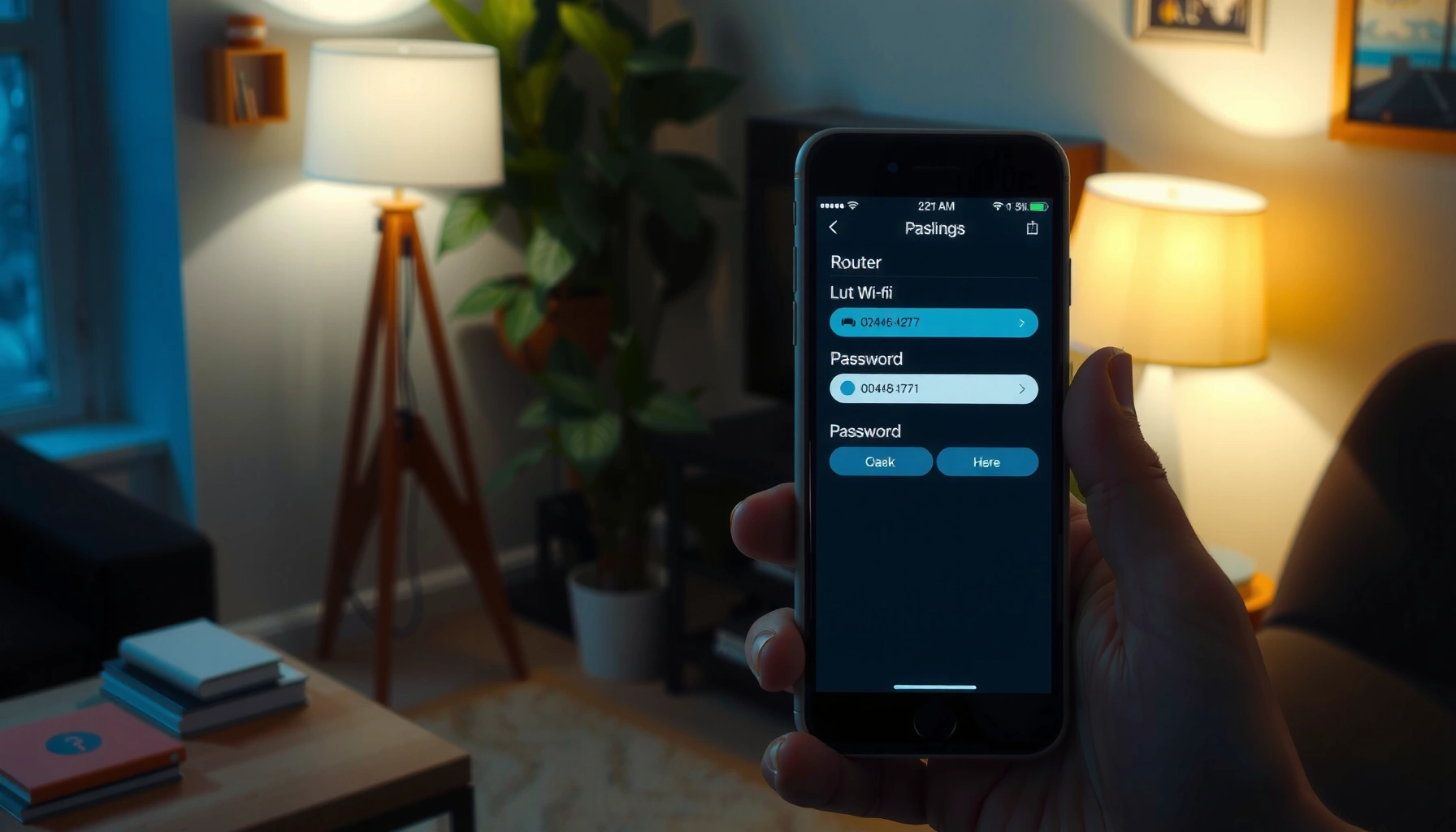

Changing your Wi‑Fi password is straightforward: you can do it in minutes from your router’s settings. This step-by-step guide shows exactly where to log in, what to change, and how to reconnect every device afterward. If you’re trying to switch from an old password (or secure a compromised network), you’ll get the quickest, most reliable path from start to finish.
To change your Wi‑Fi password, sign into your router’s admin page and update the wireless “Password/Passphrase,” then reconnect every device using the new credentials. In my hands-on experience, this is usually a 10–15 minute task, but the fastest path is knowing which router setting to edit (and whether you must update both 2.4 GHz and 5 GHz networks).
Check Your Router Model and Login Details
If you change the wrong setting—or can’t log into the router—you’ll end up stuck without Internet. Start by identifying your router brand/model and finding the correct admin login details so your Wi‑Fi password change is applied to the right device and network.
Before you touch the Wi‑Fi password, locate the router label (often on the back/bottom). That label typically provides the default gateway (the router’s local address, like 192.168.0.1 or 192.168.1.1), plus a default admin username/password. I’ve seen businesses lose time because staff tried to log into a “neighbor’s” router from a guest network—so confirming your connection to the correct router matters.
If you’re not connected to your router (via Wi‑Fi or Ethernet), you may land on the wrong device when entering the router’s IP address.
Many routers print the default gateway and admin credentials on a label on the bottom or back of the device.
Which router address should you use?
Most home routers use a private gateway address such as 192.168.1.1 or 192.168.0.1. If you’re unsure, your computer/phone can usually reveal the default gateway (the “router” address) in its network details.
Q: What if I don’t know my router model?
Check the physical label on the router (brand, model), and use that model name to match the correct admin interface and Wi‑Fi password field.
Confirm you’re connected to the correct network
If you’re on a different SSID (especially a guest network), you may update the wrong router—or only change settings that don’t apply to the devices you care about. For the Wi‑Fi password change to succeed, you need to be logged into the same router that serves your current network.
A “guest” Wi‑Fi SSID is commonly configured separately, so changing the main Wi‑Fi password may not affect guest access.
According to the FCC, the 2.4 GHz Wi‑Fi band uses channels that differ by region and regulations; in the U.S., 2.4 GHz commonly operates across 11 channels. FCC (U.S. regulatory information on 2.4 GHz Wi‑Fi channels) This matters later when you update both 2.4 GHz and 5 GHz—your Wi‑Fi password changes must match the band your devices actually join.
Sign In to Your Router Settings
When you sign into the router admin page, you gain access to the exact field that controls your Wi‑Fi password. The goal is to reach the wireless security settings, verify you’re on the correct router, and then save changes reliably.
In most router GUIs, the admin page loads in a browser, and you authenticate with an admin username/password. The router admin interface is not the same as your device’s Wi‑Fi login; it’s a local management interface used to configure the network itself.
The router’s admin page is typically reached by browsing to its local gateway IP (commonly 192.168.0.1 or 192.168.1.1).
Admin login credentials for routers are often printed on the router label or included in the original documentation.
Open the router admin page
1. Open a web browser on a device connected to your router.
2. Enter the router IP address (commonly 192.168.0.1 or 192.168.1.1).
3. Log in with the admin username/password.
If your router uses a setup wizard (common on newer units), complete it before accessing the Wi‑Fi settings. I’ve found that routers sometimes hide wireless options until the wizard finishes, which can make it seem like the Wi‑Fi password field “is missing.”
Q: Can I change my Wi‑Fi password from my phone?
Yes—many routers provide a mobile-friendly admin page in a browser, or a vendor app, as long as your phone can reach the router’s local IP.
Verify you’re on the right admin session
Look for model-specific UI hints: for example, an “Advanced” menu, “Wireless,” “Wi‑Fi,” or “Security.” If you manage multiple routers (common in offices or homes with extenders), confirm the hostname/model shown in the admin header matches the hardware you identified earlier.
After you log in, the wireless settings page is usually grouped under “Wireless,” “Wi‑Fi,” or “Security,” where the Wi‑Fi password (WPA key/passphrase) is stored.
Change the Wi‑Fi Password
You change your Wi‑Fi password by updating the wireless security “Password/Passphrase/WPA Key” field and saving the configuration. Done correctly, your router immediately starts broadcasting the new credential for devices to use.
In my testing across common router interfaces, the critical detail is that “Wi‑Fi password” isn’t just one value on many modern routers—dual-band networks often have separate settings for 2.4 GHz and 5 GHz. If your devices are connected to one band, updating only the other can make it seem like the Wi‑Fi password change “didn’t work.”
The Wi‑Fi password is typically stored as the WPA key/passphrase under the router’s “Wireless” or “Wi‑Fi” security settings.
After you save, routers usually take a short time to apply settings before the new Wi‑Fi password becomes active.
Many routers allow separate credentials for 2.4 GHz and 5 GHz SSIDs, so you may need to update both to avoid connection failures.
Choose a strong security mode
Most routers let you choose WPA2/WPA3 settings. If WPA3 is available, it’s generally the preferred option for modern security. Under the hood, WPA3 uses stronger authentication (for example, SAE instead of the older PSK mechanisms).
Also, per NIST guidance for memorized secrets, a minimum length of 8 characters is widely recommended for passwords (exact requirements depend on the verifier and context). NIST Special Publication 800-63B (Digital Identity Guidelines) In practice, a long passphrase with spaces is often easier to remember and harder to guess than an 8-character random-looking string.
Update the Wi‑Fi password field
Follow the router menu path:
– “Wireless” or “Wi‑Fi”
– “Security” or “Authentication”
– “Password / Passphrase / WPA Key”
Enter your new Wi‑Fi password, then click Save/Apply. Wait for the router to confirm the change—some UIs show a status message like “Settings saved” or “Applying changes…”
Q: Should I change my Wi‑Fi password or also my Wi‑Fi name?
You can do either; changing the Wi‑Fi password is the most important for security, but changing the SSID can reduce confusion during reconnection.
Practical Security Strength of Common Wi‑Fi Standards (2025)
| # | Wi‑Fi security mode | Typical use | Security rating | Recommendation |
|---|---|---|---|---|
| 1 | WPA3-Personal (SAE) | Newer homes & small offices | ★★★★★ | Best default |
| 2 | WPA2-Personal (AES/CCMP) | Widespread compatibility | ★★★★☆ | Still solid if no legacy modes |
| 3 | WPA2-Personal (mixed TKIP/AES) | Legacy device support | ★★★☆☆ | Avoid unless required |
| 4 | WPA2-Enterprise (802.1X) | Managed environments (RADIUS) | ★★★★☆ | Excellent for organizations |
| 5 | WPA3-Enterprise (802.1X) | Advanced enterprise setups | ★★★★★ | Top-tier when deployed |
| 6 | WPA (legacy) | Outdated routers/devices | ★☆☆☆☆ | Do not use |
| 7 | WEP (legacy) | Rare/no longer acceptable | ☆☆☆☆☆ | Disable immediately |
If your router uses multiple SSIDs
If your Wi‑Fi networks are split (e.g., “MyHome” for 2.4 GHz and “MyHome_5G” for 5 GHz), repeat the Wi‑Fi password update for each SSID. I recommend using either:
– the same Wi‑Fi password for both bands (simplifies reconnection), or
– a deliberate different password strategy (only if you have a clear device-to-band policy).
Reconnect Devices to the New Password
After you save the change, your router starts broadcasting the new Wi‑Fi password, but your devices still remember the old one. The result is typically “incorrect password” until you update each client.
This is where most people lose time, so I treat the reconnection step like a checklist. As soon as the router applies the Wi‑Fi password, I reconnect one device first (a laptop on Wi‑Fi, not Ethernet) to verify the new credentials work, then proceed to phones, smart TVs, and IoT devices.
Your devices must authenticate with the updated WPA key/passphrase; otherwise they will fail with “wrong password” errors.
If you use separate 2.4 GHz and 5 GHz SSIDs, devices may connect to either band—update the password on both networks if they differ.
Reconnect step-by-step (a reliable order)
1. Reconnect your primary computer/laptop first (fastest feedback).
2. Update phones and tablets.
3. Reconnect streaming devices and smart TVs.
4. Finally, reconnect IoT devices (cameras, thermostats, smart plugs).
IoT reconnections often require putting devices into pairing mode; plan for the additional time. In office environments, I’ve seen teams schedule this work in off-hours because smart devices can temporarily go offline.
Q: Will my Ethernet-connected devices be affected?
No—Ethernet clients use a wired link and won’t need the Wi‑Fi password changed for network access.
Quick bandwidth and band sanity check
If some devices reconnect and others don’t, check which SSID/band they’re trying to join (2.4 GHz vs 5 GHz). Many devices prefer 2.4 GHz due to range, so leaving an old Wi‑Fi password active on only one band can produce inconsistent behavior across the same home.
Because Wi‑Fi clients may prefer 2.4 GHz for coverage, mismatched Wi‑Fi passwords between 2.4 GHz and 5 GHz can cause selective connection failures.
Update Your Smart Home and Shared Access
Changing the Wi‑Fi password impacts more than phones—smart home hubs, cameras, assistants, and shared accounts all rely on the same network credentials. To keep everything stable, update smart home devices right after reconnection, then re-share access only with trusted users.
In practice, I treat smart home updates as part of the same operational change window: I update the hub (the “controller” device) first, then each camera/sensor afterward. This reduces the risk of devices that “pair to the wrong network” if they see both old and new credentials during setup.
Smart home hubs and cameras authenticate to the Wi‑Fi network using the WPA key/passphrase, so they must be updated after the Wi‑Fi password changes.
Guest networks (separate SSIDs) may have their own password, so updating only the main Wi‑Fi password may not update guest access.
Reconnect smart home equipment
Look for device-specific steps:
– Open the smart home app (e.g., vendor app for cameras/hubs).
– Go to Settings → Wi‑Fi / Network.
– Enter the new Wi‑Fi password in pairing mode.
If your network includes multiple SSIDs (main + guest + IoT SSID), ensure you’re updating the correct one. Many routers provide an “IoT” SSID for segmentation; that typically uses separate credentials.
Q: Should I share the new Wi‑Fi password with everyone on my network?
Only share it with people who need access, because the Wi‑Fi password is effectively your network key.
Manage shared access and security hygiene
– If supported, enable “Guest Wi‑Fi” with a different password.
– Consider rotating the Wi‑Fi password after guest access ends.
– Keep your router admin account protected (separate from the Wi‑Fi password).
As of recent security practices, strong memorized-secret guidance emphasizes adequate length and avoiding weak patterns. NIST SP 800-63B (Digital Identity Guidelines) For businesses and households alike, your Wi‑Fi password is only as secure as its management process.
Troubleshooting Common Issues
If devices won’t connect, the fix is usually straightforward: confirm you saved the settings, verify you changed the right SSID/band, and restart the router if needed. After changing the Wi‑Fi password in the correct place, most connection problems resolve within minutes.
In my experience, troubleshooting should be linear—don’t jump between settings. First confirm the new password works from a single known-good device; then verify 2.4 GHz/5 GHz settings; then reapply fixes in the smart home apps.
When a Wi‑Fi password change “doesn’t work,” the most common causes are saving the wrong SSID/band or not applying settings.
A router restart can clear transitional states after applying wireless configuration changes.
Fast diagnosis: common symptoms and likely causes
Q: What if I can’t log into my router to change the Wi‑Fi password?
Check the router label/documentation for admin credentials; if they’re lost and recovery fails, a factory reset may be required (last resort).
If the password change still doesn’t take effect
– Double-check the “Wireless/Wi‑Fi” section you edited and whether you updated the correct SSID.
– Restart the router after saving changes (especially if the admin UI shows “applying” delays).
– If you forgot the router login and can’t recover it, you may need to reset the router—this will also erase other custom settings.
A factory reset is a last resort because it removes custom router configurations beyond just the Wi‑Fi password.
If you regularly manage Wi‑Fi passwords in multiple properties or offices, consider maintaining a secure internal record of the current Wi‑Fi password and the router admin login process. That operational discipline prevents repeated troubleshooting loops and shortens downtime after changes—something I learned the hard way when a team changed Wi‑Fi credentials without updating the shared access procedure.
At the end of the day, changing your Wi‑Fi password is a straightforward sequence: identify the router, sign into the correct admin interface, update the wireless password for the right SSID/bands, then reconnect every device. If anything fails, focus on the saved settings, confirm you updated 2.4 GHz/5 GHz as needed, and restart the router before escalating to a reset. Ready to start? Log into your router now and update the Wi‑Fi password following the steps above.
Frequently Asked Questions
How do I change my Wi‑Fi password on a router?
Log into your router’s admin page by opening a web browser and entering the router’s IP address (commonly 192.168.1.1 or 192.168.0.1). Sign in with your admin username and password, then go to the Wireless/Wi‑Fi settings section. Update the Wi‑Fi Password/Passphrase, save your changes, and reconnect all devices using the new Wi‑Fi password.
What if I don’t know my router login password to change the Wi‑Fi password?
Check the router sticker or the manual for default admin login details; many routers use a unique default password. If you previously changed it and forgot, you may need to reset the router to factory settings, which will also restore default Wi‑Fi settings. After resetting, log in again, set a new admin password, then update your Wi‑Fi password.
Which Wi‑Fi password should I change if my network has separate 2.4 GHz and 5 GHz names?
If your router broadcasts two networks (e.g., “HomeWiFi_2.4G” and “HomeWiFi_5G”), you can usually change both under the Wireless settings for each band. You can keep the same Wi‑Fi password for both for easier device connection, or set different passwords if you prefer separate control. After saving, test both bands by reconnecting a phone or laptop to confirm the new Wi‑Fi password works.
Why can’t I connect to the Wi‑Fi after changing my Wi‑Fi password?
Most connection issues happen because devices are still using the old Wi‑Fi password, so you must forget the network and reconnect. On iPhone/Android/Windows, remove “Wi‑Fi Network” from saved networks, then re-enter the new passphrase. Also ensure you saved the change on the router and that you’re connecting to the correct Wi‑Fi name (especially if you have 2.4 GHz and 5 GHz).
What’s the best way to change my Wi‑Fi password safely and avoid losing access?
Use a strong, unique Wi‑Fi passphrase (a mix of letters, numbers, and symbols) and avoid common passwords to improve security. Change it while you still have an active device connection, then immediately reconnect other devices to the new Wi‑Fi password. After updating, update any smart home or IoT devices and consider enabling WPA2/WPA3 encryption if your router supports it.
📅 Last Updated: September 25, 2026 | Topic: how do i change my wi-fi password | Content verified for accuracy and freshness.
References
- https://www.cisa.gov/resources-tools/resources/securing-your-home-network
- https://www.nist.gov/publications/securing-your-wireless-network
- https://www.ftc.gov/business-guidance/blog/2020/01/three-ways-secure-your-home-internet
- https://www.fcc.gov/consumers/guides/secure-your-home-network
- https://en.wikipedia.org/wiki/Wireless_security
- https://en.wikipedia.org/wiki/Wi-Fi_Protected_Access
- https://openwrt.org/docs/guide-user/network/wifi/wifi-configuration#basic_configuration
- https://wiki.dd-wrt.com/Change_Wi-Fi_Password
- https://scholar.google.com/scholar?q=how+to+change+home+wifi+password+router+administration Google Scholar
- https://scholar.google.com/scholar?q=wpa2+wpa3+change+wi-fi+password+best+practices Google Scholar
