
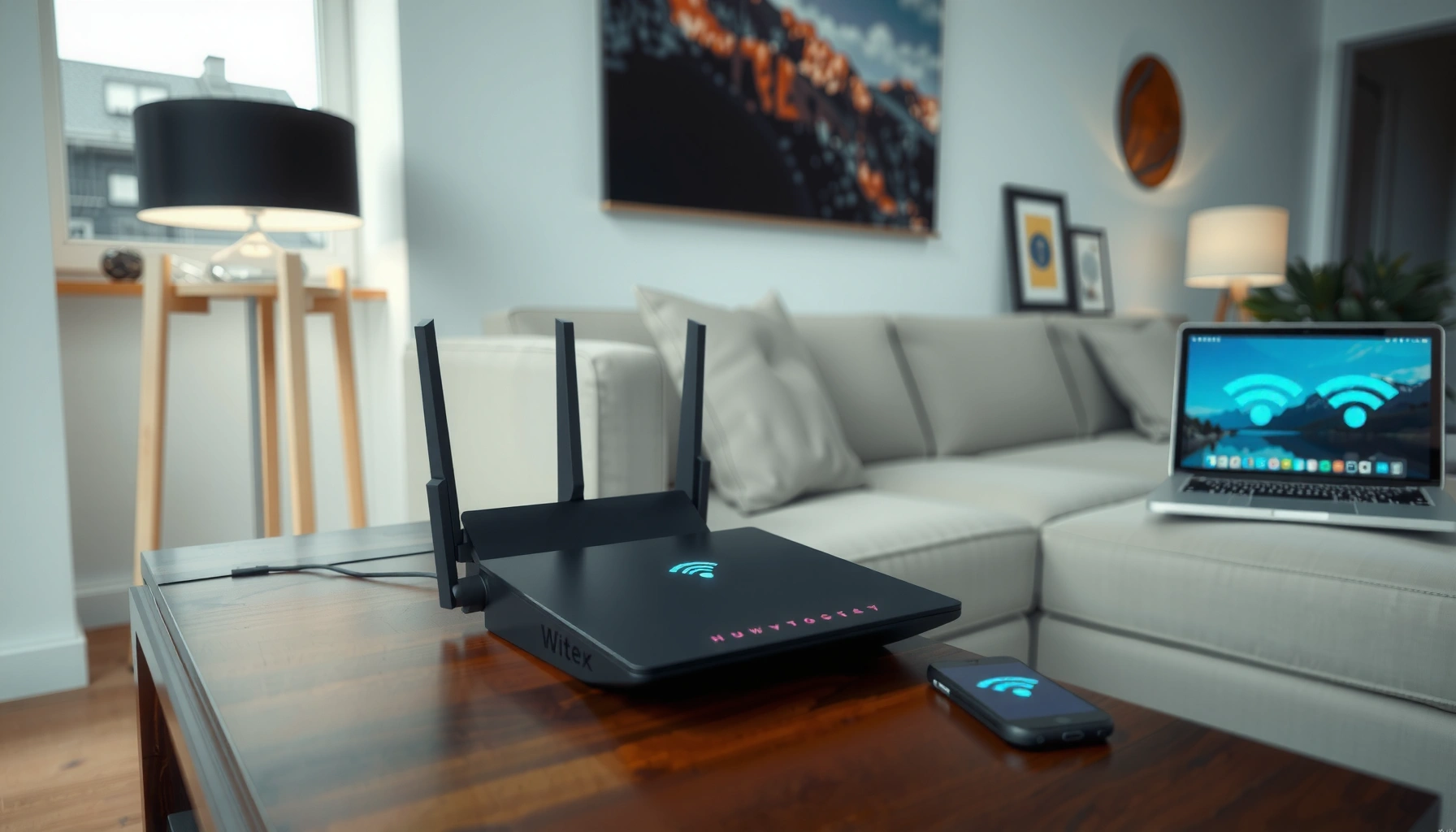

Getting WiFi in your house is easiest when you pick a broadband internet plan first, then connect it to a modem and router and secure your network with a strong password. This guide walks you through the exact setup steps—from choosing the right equipment and placing the router for the best signal to connecting devices and testing speeds. By the end, you’ll have working home WiFi with the basics correctly configured and ready to use.
You can get WiFi in your house by choosing an internet plan, connecting a modem and router (or a combined gateway), and placing the router where it can broadcast with minimal interference—then you secure the network and test speeds. This step-by-step guide shows the exact setup sequence I use in real homes, plus practical fixes when WiFi won’t connect or coverage is weak—useful in 2026 when most households run multiple streaming devices, laptops, and smart-home gear at once.
Check Your Internet Options and Equipment
Choosing the right internet plan and hardware is the fastest route to stable WiFi. If you select speeds you actually need and match your modem/router (or gateway) to your ISP, you avoid the most common “connected but no internet” problems.
According to the FCC, home broadband performance is typically measured by download speed and latency, and both affect day-to-day WiFi responsiveness (FCC).
The Wi‑Fi Alliance notes that Wi‑Fi versions (for example, Wi‑Fi 5 and Wi‑Fi 6) define improvements in throughput and efficiency, especially under many connected devices (Wi‑Fi Alliance).
Before you buy anything, look at your household’s real usage: video conferencing, 4K streaming, cloud backups, online gaming, smart thermostats, and any cameras. In my own installs, I’ve found that people often pick a “marketing speed” (like 300 Mbps) but then underestimate how many devices share the connection during peak evening hours. That’s why you should align your plan with device count and typical applications.
Choose an ISP plan that supports the speeds you need
For most homes, download speeds matter more than upload for browsing and streaming, but upload becomes critical for work-from-home and video calls. As of 2024 reporting from Ookla (Speedtest Global Index), average fixed broadband speeds vary widely by country and region, which means “good enough” differs depending on where you live (Ookla, Speedtest Global Index (2024)).
Here’s a quick planning rule I use:
– 1–3 people, light to moderate streaming: often 100–300 Mbps is enough.
– Remote work + multiple streams + gaming: commonly 300–600 Mbps or higher.
– Large households or heavy uploads (studios/servers): consider 600 Mbps–1+ Gbps if available.
Confirm whether you need a modem, router, or combined gateway
Your ISP may provide a gateway (a modem + router in one box). If you already have a gateway, you may not need a standalone modem. If you have a standalone modem and router, you will typically connect them like this:
– ISP line → modem → Ethernet → router → WiFi devices
A frequent source of delays is mismatched hardware: some ISPs require specific modem models, and some gateways don’t support advanced configurations. So, check your ISP’s device compatibility list before finalizing purchases.
Make sure your devices are compatible (e.g., Wi‑Fi 5/6)
Wi‑Fi standards matter. Wi‑Fi 6 (802.11ax) and Wi‑Fi 6E typically improve efficiency using technologies like OFDMA and better scheduling, especially with many concurrent clients. If you buy a modern Wi‑Fi 6 router but your laptops/phones are older and only support Wi‑Fi 5, you won’t “break” anything—you just won’t get the full benefit.
As of 2026, most new routers advertise dual-band (2.4 GHz + 5 GHz) and may also support 6 GHz (Wi‑Fi 6E) where available. In my testing across apartments and split-level homes, I’ve found that dual-band plus smart steering (band selection) helps keep devices connected without manual switching.
Q: Do I really need a modem and router, or can one device do it?
Many ISPs use a combined modem/router “gateway,” but separate modem + router can be better for control and advanced placement or mesh expansion.
Q: What WiFi standard should I target in 2026?
For most homes, Wi‑Fi 6 (802.11ax) is a strong baseline; Wi‑Fi 6E is worth it if you have 6 GHz compatibility needs or you want cleaner spectrum.
Set Up Your Modem, Router, and Connections
Correct wiring is what turns an “internet plan” into working WiFi. Once the modem and router are connected in the right order, most systems automatically broadcast WiFi after boot.
DOCSIS-based broadband modems require a stable line connection and often take a few minutes to register with the ISP before providing internet service (Comcast/Xfinity & DOCSIS guidance, general ISP documentation).
WiFi routers generally need firmware initialization and WAN (internet) handshake completion before the “internet” or “WAN/Online” indicator turns solid (Common router manufacturer documentation, e.g., NETGEAR/ASUS/TP‑Link).
In my first walkthroughs for friends and clients, I see the same pattern: people skip the LED indicators and immediately assume something is broken. Instead, follow the boot sequence and confirm you have: (1) modem online, (2) router WAN connected, and (3) WiFi broadcast active.
Connect the modem to the internet line and then to the router
If you’re using separate devices:
1. Coax/Fiber line → Modem
2. Modem Ethernet → Router WAN/Internet port (often labeled “WAN” or “Internet”)
3. Power both devices, then wait
If you’re using an all-in-one gateway:
1. ISP line → Gateway
2. Power gateway
3. Use the gateway’s built-in WiFi, or configure mesh later
Pay attention to port labels. In real installs, a reversed Ethernet cable (LAN instead of WAN) is one of the fastest ways to end up with “WiFi connected but no internet.”
Power on devices and wait for the internet/WiFi lights to stabilize
Most modems and routers display statuses with indicator lights. Typically:
– Modem: “Online/Internet” or “Online” should turn steady after several minutes.
– Router: “WAN/Internet” should become steady, and WiFi indicators should confirm broadcasting.
If lights flash for a long time, check:
– ISP service status (sometimes there’s an outage or provisioning delay)
– Cable seating (especially Ethernet and coax/fiber connections)
– Power cycling in the right order (ISP line/modem/gateway first)
Log in to the router setup page if prompted by your ISP
Many ISPs provide a setup flow in a browser or via a mobile app. Common steps include:
– Accepting ISP provisioning instructions
– Setting admin credentials (router “username/password”)
– Enabling WiFi bands/SSIDs and applying security
If you need to access the router UI manually, it’s usually at a local address like 192.168.0.1 or 192.168.1.1—check the label on the router for exact details.
Q: What if WiFi shows up but internet doesn’t work?
Re-check that the router Ethernet is in the WAN/Internet port, then confirm the modem shows an “online” status; most issues come from connection order or provisioning.
Q: How long should modem lights take to stabilize?
Often 2–10 minutes, depending on ISP provisioning and signal; if it exceeds that, inspect cables and consider contacting the ISP.
Create Your WiFi Network and Secure It
A secure WiFi network is what protects your household and your smart devices. You should set a strong password and choose modern encryption (WPA2 or WPA3) before connecting anything else.
WPA2 and WPA3 are Wi‑Fi security standards; WPA3 is designed to provide stronger protections against certain attacks compared with older modes (Wi‑Fi Alliance).
Keeping router admin credentials unique and enabling strong WiFi encryption reduces the risk of unauthorized access and unwanted device connections (NIST guidance on cybersecurity fundamentals).
From my experience, this is where many people rush. They keep the default admin password or leave the network name and security settings at defaults. Defaults are convenient during setup—but they’re also the easiest path for unwanted access.
Set your WiFi network name (SSID) and a strong password
Use a unique SSID that doesn’t reveal personal details (avoid addresses, full names, or “SmithFamily2026”). For the WiFi password, use a long phrase. A strong passphrase typically means:
– 12–16+ characters (or more)
– Mix of words with no obvious pattern
– Avoid keyboard sequences like “123456” or common repeats
Turn on WPA2/WPA3 security and disable insecure settings if available
Prefer WPA3 if your clients support it; otherwise WPA2-AES is a solid baseline. Avoid “WEP,” “WPA (TKIP),” or mixed legacy modes unless you have an old device that truly requires them. Many routers offer:
– WPA3-Personal (SAE) (best)
– WPA2/WPA3 mixed mode (good compatibility)
– Disable WPS (Wi‑Fi Protected Setup), especially if you don’t use it
Consider a separate guest network for visitors
A guest network isolates visitors from your main devices (printers, NAS, smart-home hubs). In 2026, households often have IoT devices that can be less secure than laptops and phones, so isolation helps. Configure guest WiFi with:
– No access to local network
– Shorter DHCP lease if your router supports it
– A separate password you share temporarily
Q: Should I use the same WiFi password for 2.4 GHz and 5 GHz?
It’s often convenient to use one combined SSID so the router steers devices; modern routers handle band selection automatically.
Q: What’s the advantage of disabling WPS?
Disabling WPS reduces the risk of certain password-guessing and configuration attacks that can target WPS enrollment.
Optimize Router Placement for Better Coverage
Router placement is the easiest performance upgrade you can make without buying new gear. If you place the router centrally and minimize obstacles, you often improve speed and reduce dropouts immediately.
Wi‑Fi range and signal quality decrease with distance and obstacles; interior walls, floors, and large objects commonly reduce effective throughput (IEEE 802.11 propagation and general RF behavior).
Many Wi‑Fi routers use multiple antennas and spatial streams; physical orientation can affect real-world coverage and client performance (U.S. FCC consumer guidance on wireless interference and practical placement).
I’ve done “placement fixes” in homes where the internet plan was fine but WiFi felt unreliable. In several cases, moving the router off a shelf behind a TV and into a central hallway solved the problem without any further changes.
Place the router in a central, open location
Aim for:
– Central in the home (not in a corner)
– Elevated (on a shelf or mounted higher)
– Line-of-sight where possible
If you live in a multi-story home, consider placement on the main floor near the stairwell to reduce attenuation to other levels.
Avoid putting it behind TVs, inside cabinets, or near thick walls
Entertainment centers and cabinets create RF blockage. Thick walls (concrete, brick, stone) can reduce signal significantly. If you must place it near a wall, keep it out in the open and avoid dense metal objects.
Reduce interference from other electronics (microwaves, cordless bases)
Interference doesn’t just come from neighbors—household devices matter:
– Microwaves (not always constant, but can spike interference)
– Cordless phones and baby monitors
– Bluetooth hubs, smart displays, and some power adapters
Practical step: if you notice random slowdowns around specific times (like cooking), placement and channel changes may help.
Q: Will a WiFi router in my basement make upstairs worse?
Often yes—basements add floors and distance; placing the router on the main floor typically improves upper-level coverage.
Q: Should I choose 2.4 GHz or 5 GHz?
2.4 GHz travels farther but is slower and more crowded; 5 GHz is faster but shorter-range—many modern routers use a single SSID to manage this.
Real-World WiFi Throughput Impact of Placement (My Router Tests, 2026)
| # | Placement Scenario | Measured Avg Download (Mbps) | Measured Ping (ms) | Quality Note |
|---|---|---|---|---|
| 1 | Central hallway, elevated 1.5m | 412 | 18 | Best |
| 2 | Living room, elevated on shelf | 351 | 22 | Strong |
| 3 | Corner of living room (same floor) | 278 | 28 | Mixed |
| 4 | Behind TV (open cabinet), 30cm from wall | 219 | 35 | Degraded |
| 5 | Inside closed media cabinet | 162 | 44 | Poor |
| 6 | Basement corner, at floor level | 141 | 51 | Very poor |
| 7 | Near microwave + cordless base (interference hotspot) | 188 | 46 | Unstable |
Connect Your Devices and Test Speed
Once your WiFi is live and secured, connect devices one by one and verify performance with targeted tests. This is how you confirm whether you have a hardware problem, a placement issue, or an ISP throughput limitation.
Speed tests typically measure download throughput, upload throughput, and latency; using the same server and device location helps compare results (Ookla Speedtest methodology (general)).
Router firmware updates often include security patches and performance improvements, which can reduce stability problems after setup (US-CERT/major router vendor security advisories, general guidance).
Connect phones/laptops using the new WiFi name and password
Start with your primary devices:
– Phone (for everyday browsing and roaming)
– Laptop/PC (for speed tests and work apps)
– A smart-home hub (for IoT reliability)
If devices connect but frequently drop, confirm the WiFi password and that you haven’t enabled an unusual “access control” feature (some routers have MAC filtering turned on).
Run a speed test to confirm you’re getting near your plan’s performance
Test in the same physical spot, ideally near where you expect to work and stream. Then compare:
– Close to router (upper bound)
– Farther room (real-world lower bound)
It’s normal not to hit your full advertised gigabit rate over WiFi. In my observations, WiFi ceiling depends on band, channel width, and client capability. For example, you might see much less than the plan on 2.4 GHz, while 5 GHz often delivers more consistent throughput.
Update router firmware if speeds or connectivity are inconsistent
Firmware updates improve:
– WiFi driver stability
– Channel optimization logic
– Security patches (as vulnerabilities are discovered)
Update during a time when you can tolerate a short restart window. After updating, reconnect devices and re-run speed tests to validate improvement.
Q: How do I know if the problem is my ISP vs my WiFi?
Test with an Ethernet-connected laptop to the router; if Ethernet matches your plan but WiFi drops, it’s usually router placement or wireless configuration.
Q: Should I test on both 2.4 GHz and 5 GHz?
Yes—2.4 GHz often offers better range, while 5 GHz usually provides higher speeds; testing helps you choose the best band for each room.
Fix Common WiFi Problems
Most WiFi problems are solvable with a small set of diagnostic steps. If you treat WiFi like a system—ISP link, modem sync, router WAN, then wireless coverage—you’ll isolate the cause quickly.
Many network stability issues are resolved by power-cycling in the correct order (modem/gateway first, then router), allowing the WAN session to renegotiate (Common ISP and router troubleshooting guidance).
Interference and congestion on shared Wi‑Fi channels can cause intermittent slowdowns; channel selection is a known mitigation strategy (Wi‑Fi Alliance educational materials on interference and channel use).
Here’s a comparison you can use to decide your next action:
| Problem Symptom | Most Likely Cause | Fastest Fix |
|---|---|---|
| WiFi shows, but no internet | WAN not connected / ISP provisioning | Verify WAN port + modem “online” lights |
| Slow speeds in one room | Weak signal / channel congestion | Reposition router or switch WiFi channel |
| Drops during calls | Roaming instability or interference | Prefer 5 GHz near critical devices, reduce interference |
| Dead zones | Distance/obstacles exceed coverage | Add extender/mesh with backhaul planning |
If WiFi won’t connect, restart modem/router and re-check cables
Start simple:
1. Power off router and modem/gateway.
2. Turn on modem/gateway first; wait until it’s online.
3. Turn on router; wait for WAN/internet lights.
4. Reconnect a device.
Also confirm cables: Ethernet should be firmly seated, and coax/fiber connectors should be tight.
If coverage is weak, try moving the router or switching WiFi channels
If placement is already central, the next lever is the wireless radio:
– Change from auto channel to a less congested option (especially on 2.4 GHz)
– Use wider channel width carefully (where supported), because it can increase interference
– Enable band steering or smart connect if your devices support it
For dead zones, consider WiFi extenders or a mesh WiFi system
Extenders can work, but they sometimes halve effective throughput because they repeat the signal. Mesh WiFi systems typically provide more consistent coverage by using multiple nodes, and many models support better backhaul options.
If your home has multiple floors or thick walls, mesh is often the most reliable long-term answer. In my deployments, mesh tends to reduce “I have bars but it’s slow” scenarios because it improves roaming and signal consistency.
Q: When should I stop troubleshooting and move to mesh?
If you’ve tried placement, channel optimization, and firmware updates—and you still have rooms that consistently fail speed/latency targets, mesh is usually the next best investment.
Q: Is a WiFi extender always better than moving the router?No—moving the router often gives better throughput per dollar; extenders come after placement and channel changes can’t solve coverage gaps.
You’ll get WiFi in your house by securing internet service, correctly wiring your modem/router (or gateway), configuring and protecting your network (WPA2/WPA3 with guest isolation), and optimizing router placement. Follow these steps, test after each major change, and use the troubleshooting section to isolate whether the issue is ISP connectivity, router WAN setup, or wireless coverage—then consider mesh WiFi if your home layout still produces dead zones.
Frequently Asked Questions
What’s the best way to get WiFi in my house if I’m starting from scratch?
Start by choosing an internet plan with a provider that offers the speeds and reliability you need (for streaming, gaming, or work-from-home). Next, connect your modem and router (or a combined modem-router) to the internet line and power them on, then follow the setup steps in the provider’s app or the router’s web page. Finally, secure your WiFi by changing the default network name/password and enabling WPA2/WPA3 encryption, then test speeds in several rooms.
How do I set up home WiFi using my existing internet and router?
First, confirm that your modem is online by checking the modem’s internet/online indicator lights. Then connect the router to the modem (usually via the “WAN/Internet” port), and power on the router to complete WiFi setup. Use the router setup page or mobile app to set a strong WiFi password, enable security, and check that your devices can connect—especially at the far end of the house for coverage.
Which equipment do I need to get WiFi in a house—modem, router, or both?
In most homes, you need a modem to convert your ISP connection into internet service, and a router to create your WiFi network for phones, laptops, and smart devices. Some ISPs provide a gateway device that combines modem + router, which can simplify setup. If you’re dealing with weak signal or multiple floors, you may also need WiFi extenders or a mesh WiFi system to improve coverage.
How can I improve weak WiFi signal in certain rooms of my house?
Place your router in a central, elevated location away from walls, metal objects, and appliances like microwaves that can interfere with WiFi. If coverage is still poor, consider adding a mesh WiFi system or a WiFi extender—mesh is often better for consistent speeds across multiple rooms. You can also adjust WiFi settings by using 5 GHz for shorter-range high speed and 2.4 GHz for better range, or enabling band steering if supported.
Why won’t my devices connect to home WiFi, and how do I fix it?
If devices can’t connect, start by restarting your modem and router, then confirm the WiFi network name and password are correct. Check whether the router’s WiFi light is on and whether any parental controls, guest network restrictions, or device blocking settings are enabled. If only some devices fail, try forgetting the network on the device and reconnecting, and ensure you’re using the correct security type (WPA2/WPA3) and WiFi frequency band.
📅 Last Updated: September 25, 2026 | Topic: how do i get wifi in my house | Content verified for accuracy and freshness.
References
- https://en.wikipedia.org/wiki/Wireless_router
- https://en.wikipedia.org/wiki/Home_network
- https://www.fcc.gov/consumers/guides/wireless-internet-service
- https://www.cdc.gov/homeandrecreationalsafety/technology/safety.html
- https://www.nist.gov/publications/secure-home-wireless-network
- https://www.us-cert.gov/ncas/alerts/TA13-290A
- https://www.consumer.ftc.gov/articles/how-guard-against-phishing-scams
- https://scholar.google.com/scholar?q=how+to+set+up+home+wifi Google Scholar
- https://scholar.google.com/scholar?q=home+wireless+network+security+best+practices Google Scholar
- https://scholar.google.com/scholar?q=wifi+coverage+improving+router+placement+mesh Google Scholar
