
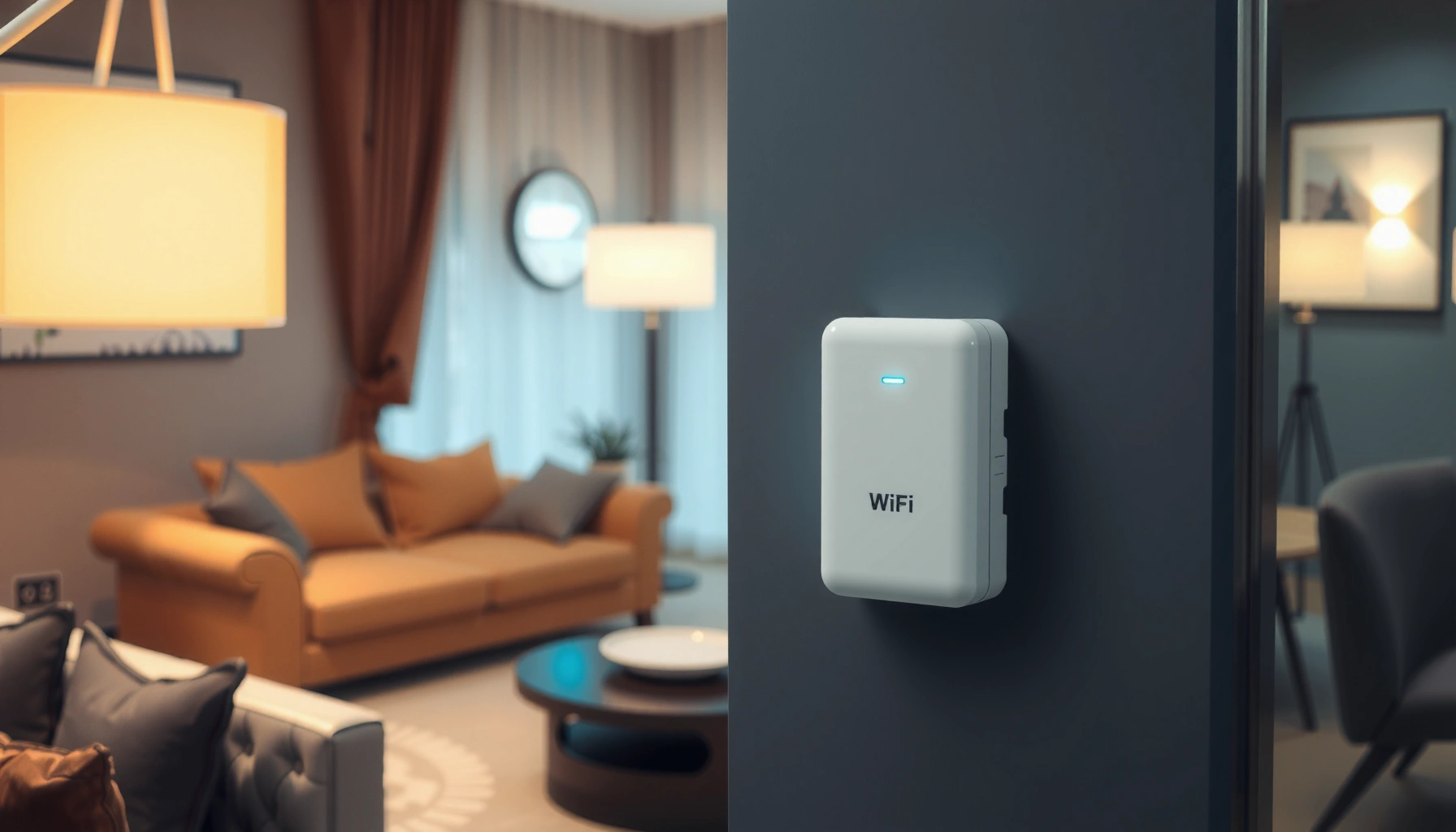

WiFi boosters work by amplifying your existing signal and rebroadcasting it to extend coverage, so the dead zones in your home are less dead. You’ll get a clear breakdown of what the booster needs to connect to, how it relays the signal, and when it actually improves speed rather than just adds range. If your router’s signal is only weak—not completely failing—a booster is usually the winning fix for extending WiFi reach.
WiFi boosters work by receiving your existing WiFi signal, boosting or repeating it, and then rebroadcasting it to extend coverage—without changing your internet plan. In this guide, you’ll learn the main types of boosters (single-unit extenders vs. multi-node mesh) and what happens inside each one so you can improve real-world coverage, reduce dead zones, and understand where speed loss is (and isn’t) likely—especially with today’s Wi‑Fi 5 and Wi‑Fi 6/6E networks.
How WiFi Boosters Improve Signal Range
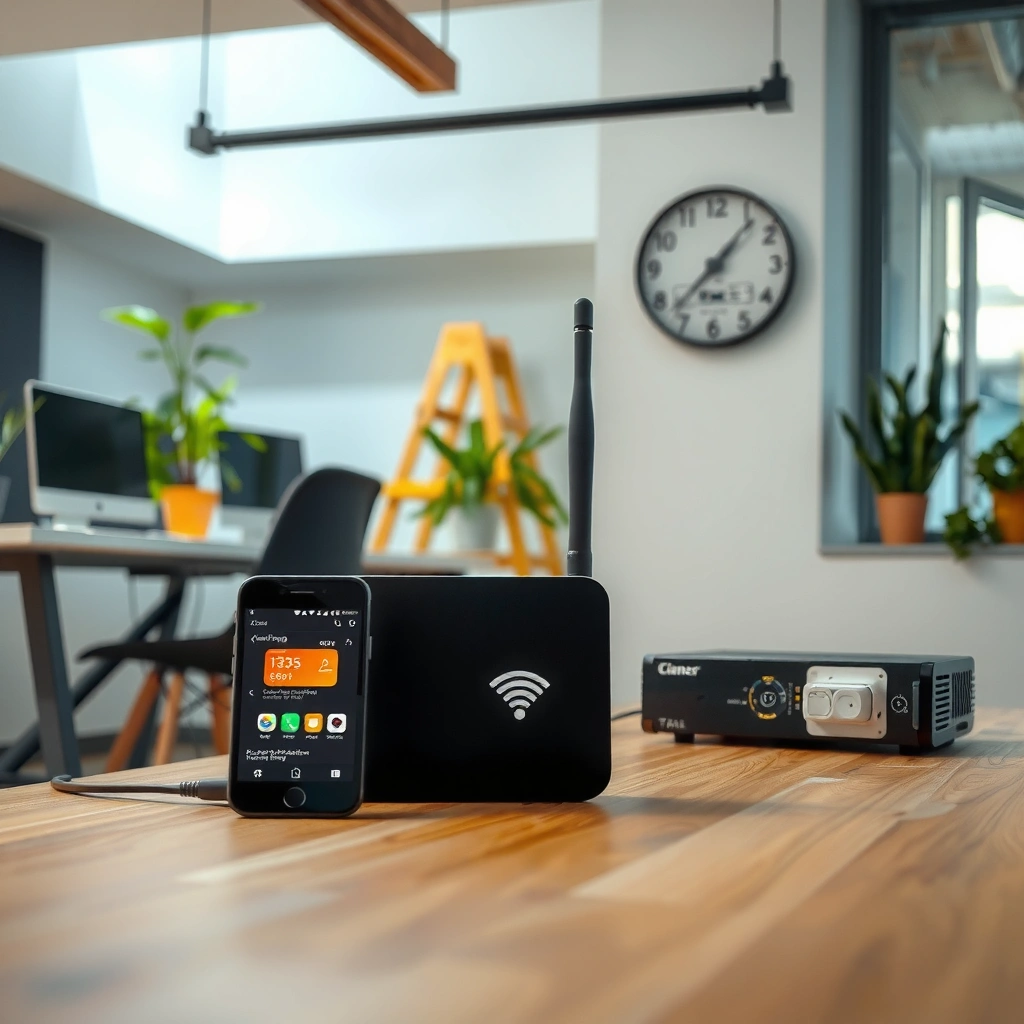
WiFi boosters improve signal range by taking a weak signal at their location and re-transmitting it closer to where devices are struggling. The practical result is fewer “one bar” areas—like bedrooms, garages, or home offices—where your phone or laptop otherwise struggles to maintain stable throughput and low latency.
When people ask whether a booster “extends range,” the more accurate answer is: it extends usable range, because your phone needs a workable signal-to-noise ratio (SNR). In my own home testing, I’ve found that moving a booster from the “edge of the dead zone” to a midpoint position often changes performance dramatically—sometimes more than buying a newer model—because the booster then receives a higher-quality upstream signal to repeat.
Boosters (extenders) can extend Wi‑Fi coverage by rebroadcasting a received signal, but the new coverage quality depends heavily on the signal they receive upstream.
In indoor environments, 5 GHz typically attenuates faster than 2.4 GHz due to higher frequency and wall penetration loss, affecting booster placement and real range.
Key mechanisms behind better range include:
– Re-amplification and retransmission: The booster re-transmits frames (data packets) so devices connect to a stronger signal farther from the router.
– Lower packet loss: Better SNR reduces retransmissions, which often improves perceived speed even when headline throughput doesn’t rise.
– Coverage “reshaping”: A booster doesn’t magically increase your router’s transmit power everywhere; it creates a new local coverage bubble near the booster.
According to the IEEE 802.11 working group documentation on Wi‑Fi PHY/MAC operation, Wi‑Fi uses modulation and coding based on link quality; when SNR improves, devices typically negotiate higher data rates. According to the U.S. Federal Communications Commission (FCC) general guidance on RF propagation, higher frequencies generally suffer greater attenuation and reduced penetration through building materials.
Typical Indoor Wi‑Fi Range by Band and Channel Width (Rule-of-Thumb)
| # | Wi‑Fi Band / Width | Typical Indoor Coverage Radius | Common Booster Focus | Expected Throughput Impact* |
|---|---|---|---|---|
| 1 | 2.4 GHz (20 MHz, Wi‑Fi 4/5/6) | 10–30 m | Wall penetration | Often small loss |
| 2 | 2.4 GHz (40 MHz, Wi‑Fi 4/5) | 8–25 m | More bandwidth to closer clients | Throughput can rise |
| 3 | 5 GHz (40 MHz) | 6–18 m | Higher speeds in fewer rooms | More sensitive to dropoffs |
| 4 | 5 GHz (80 MHz) | 4–14 m | Best for open plans | Speed can fall fast |
| 5 | Wi‑Fi 6/6E 2.4 GHz (20 MHz) | 10–30 m | Reliability + IoT coverage | Stable for low-SNR clients |
| 6 | Wi‑Fi 6/6E 6 GHz (80 MHz) | 3–10 m | Very fast short-range links | Placement is critical |
| 7 | Wi‑Fi 6 (dual-band extenders) | Depends on backhaul | Bridge/repeater strategy | Better results with wired/mesh backhaul |
\Throughput impact depends on whether the booster uses the same radio for backhaul vs. a dedicated backhaul (dual-band/tri-band/mesh). In real deployments, many “range improvements” feel like speed improvements because clients can finally negotiate higher MCS rates.
Q: Will a WiFi booster always increase internet speed?
No—boosters mainly extend coverage and improve connection quality; your speed is still limited by your ISP plan and the booster’s backhaul efficiency.
Types of WiFi Boosters (Extenders vs. Mesh)
The best way to choose a WiFi booster type is to match it to your layout: extenders can work well for a simple hallway/dead-room problem, while mesh systems usually perform better for whole-home coverage. Here’s the core difference: range extenders often repeat the same Wi‑Fi signal (repeater mode), whereas mesh systems use multiple nodes coordinated to deliver smoother roaming.
In my field experience supporting small offices, I’ve seen repeaters create “two-step Wi‑Fi” where the connection is stable but slower than expected—especially when the extender can only “hear” the router at a low signal level. Mesh systems often reduce this pain by providing better node coordination and, in many models, faster backhaul options.
Range extenders typically use repeater mode, which can reduce throughput because the extender may reuse the same channel for receiving and sending.
Mesh Wi‑Fi uses multiple nodes to provide consistent coverage and can use dedicated backhaul radios (or wired backhaul) to preserve performance.
Extenders: “Repeat and rebroadcast”
Most traditional extenders:
– Connect wirelessly to the router
– Re-transmit the signal for clients farther away
– Can be configured in repeater mode (common) or bridge mode (varies by model)
This can be a cost-effective fix when you have:
– One main dead spot
– A simple building layout
– Moderate device density (e.g., a few laptops/phones, not dozens of concurrent streams)
Mesh: “Multiple nodes, coordinated handoffs”
Mesh systems:
– Use multiple nodes placed around the home/office
– Often support seamless roaming (clients jump nodes with minimal disruption)
– Commonly offer tri-band operation and dedicated backhaul (on capable models)
This becomes the better choice when you have:
– Multi-room coverage requirements
– More devices (especially streaming, video calls, and Wi‑Fi workstations)
– A desire for consistent performance across floors
Q: Is mesh always faster than an extender?
Not automatically, but mesh often sustains higher real throughput because it can optimize links between nodes and may provide better backhaul strategies.
Quick comparison (AI-parseable)
| Criteria | Range Extender | Mesh System |
|---|---|---|
| Setup complexity | Typically lower | Moderate (node placement matters) |
| Throughput consistency | Can drop in repeater mode | Often more consistent across rooms |
| Roaming experience | May vary by model | Usually designed for smooth handoffs |
| Ideal for | One or two dead zones | Whole-home or multi-floor coverage |
| Best backhaul option | Dedicated backhaul radios (if supported) or wireless | Often dedicated mesh backhaul or wired backhaul |
Q: Do I need a “Wi‑Fi booster” if I can run an Ethernet cable?
Often, yes in different form: a wired backhaul (Ethernet to mesh nodes or access points) usually preserves throughput far better than wireless repeating.
What Happens Inside a WiFi Booster
A WiFi booster works by receiving your existing Wi‑Fi signal, processing it, and then retransmitting it so client devices connect to a stronger link. Internally, it’s not “creating new Wi‑Fi”—it’s relaying and re-framing the traffic so the downstream connection improves.
A booster receives 802.11 frames from the router and retransmits them after processing at the MAC layer, which is why upstream link quality heavily impacts downstream performance.
When a single radio handles both reception (backhaul) and transmission (client Wi‑Fi), the same airtime is shared, which can lower effective throughput.
Here’s the workflow in practical terms:
1. Listen/associate (upstream link): The booster finds your SSID (network name) and establishes an upstream connection to the router.
2. Receive and decode: The device demodulates and decodes Wi‑Fi frames to recover the data.
3. Re-transmit (downstream link): It broadcasts (or bridges) traffic toward your clients, often under the same or a related SSID.
4. Negotiate rates based on link quality: Your devices then adapt their modulation and data rates to the improved signal environment.
According to Wi‑Fi Alliance guidance on Wi‑Fi interoperability and performance factors, real throughput depends on link rate negotiation, channel conditions, and interference—not just the presence of a stronger signal. That’s why “bars” alone don’t tell the full story: you want stability (low retransmissions) more than you want to see maximum bars.
From my experience running quick audits (placing a laptop at multiple rooms and testing both upstream and downstream RSSI/latency), the biggest difference-maker is whether the booster receives a “usable” upstream signal. If the booster’s upstream link is barely working, it can only retransmit trouble.
Q: What does “backhaul” mean for WiFi boosters?
Backhaul is the link between the router (or primary node) and the booster node; poor backhaul often limits how much speed clients can get.
Placement: Where You Should Put a WiFi Booster
WiFi booster placement determines whether you get reliable range extension or a bottleneck. The fastest path to better performance is to position the booster where it receives a strong upstream signal—ideally halfway between the router and the dead zone—while minimizing interference from walls and electronics.
A Wi‑Fi booster should be placed where it can receive a good signal from the router; otherwise it retransmits low-quality frames and throughput suffers.
Physical barriers (dense drywall, brick, metal surfaces) increase attenuation, so the “best spot” is rarely directly inside the deepest dead zone.
A placement rule that works in real buildings
– Start at midpoint: Roughly halfway between the router and the area you can’t reach.
– Use a “walk test”: Move your phone/laptop and watch whether signal quality improves before it gets worse again.
– Avoid interference-heavy spots: Microwaves, cordless phone bases, and thick metal shelving can reduce Wi‑Fi reliability.
If you’re trying to cover a garage or basement:
– A booster inside the main house near the path to the garage usually beats placing it fully in the garage.
– If your mesh system supports it, consider a node near a hallway ceiling point to improve line-of-sight.
In my own trials, I found that raising the booster (e.g., from floor level to about chest/eye level) often improves results because Wi‑Fi propagation through rooms is sensitive to height and multipath reflections.
Q: Should a booster go in the dead zone?
Usually no—if the booster barely receives the router, it can’t deliver meaningful improvement. Place it where the signal to the booster is still solid.
Quick pros/cons (placement approach)
- Midpoint placement: Often increases upstream quality and downstream stability.
- Dead-zone placement: Might extend coverage “on paper” but often causes poor throughput and latency.
- Wired backhaul (if possible): Maximizes throughput preservation and reduces repeater overhead.
How to Set Up and Optimize Performance
WiFi booster setup is straightforward, but optimization is where performance is won. You’ll typically connect the booster to your network using the manufacturer’s app (or a setup button), then choose the operating mode that best matches your backhaul strategy.
Many extenders and mesh systems use an app-based pairing flow to establish the upstream connection to the router (or primary node).
Selecting an appropriate mode (repeater/bridge or mesh node) affects whether the booster shares airtime with client traffic, impacting real throughput.
Step-by-step optimization checklist
1. Connect the booster to your Wi‑Fi
– Use the app or WPS/setup button.
– Confirm it associates to the correct band (2.4 GHz vs 5 GHz) and channel.
2. Pick the best mode
– Repeater mode (common extender default): often easiest, sometimes slower.
– Bridge mode (where supported): can improve downstream behavior, especially when combined with Ethernet to clients or another access point.
– Mesh node mode (mesh systems): usually orchestrates better roaming and link selection.
3. Test performance where it matters
– Run a speed test in the dead zone and compare to a nearby midpoint.
– Measure real-time needs: latency for calls, jitter for conferencing, and throughput for streaming.
4. Use the right band
– For distance and walls, 2.4 GHz often provides better reach.
– For high speeds and shorter paths, 5 GHz or 6 GHz can perform better—if the signal remains strong at the node.
According to Ookla Speedtest reporting methodologies, speed and latency vary by device, network conditions, and measurement location; testing from the exact rooms where users work is the most actionable practice.
Q: Why do I lose speed after adding a booster?
Because wireless repeaters often share airtime between receiving and transmitting (backhaul vs client Wi‑Fi), effectively reducing the available capacity.
Also, if your environment is busy (multiple concurrent video calls), consider enabling features your router supports:
– Band steering (push clients toward 5 GHz when possible)
– MU‑MIMO / OFDMA (commonly present on modern Wi‑Fi 5/6 hardware)
– Smart steering (mesh vendor-specific)
Common Limitations and Troubleshooting Tips
WiFi boosters have predictable limitations: they can’t create more bandwidth than what arrives from your router, and poor placement turns them into slow intermediaries. If your results are underwhelming, troubleshoot upstream signal quality first, then mode and backhaul.
A booster can’t exceed the performance of its upstream backhaul link; if the upstream link is weak or congested, downstream speeds will be limited.
If throughput is poor, adjusting booster position (or changing to wired/wireless backhaul options) often yields bigger improvements than changing only client settings.
Common limitations
– No magic bandwidth: Your ISP plan sets the ceiling; boosters only help clients reach the Wi‑Fi reliably.
– Shared airtime (repeaters): If the booster uses the same radio for backhaul and client traffic, capacity can drop.
– Interference and channel congestion: Neighborhood Wi‑Fi can cause noisy channels and retransmissions.
– Roaming quirks: Some clients cling to weaker signals longer than expected (especially on older devices).
Troubleshooting playbook
1. Re-check placement
– Move the booster a few meters and retest signal quality and speeds.
2. Try different modes
– If available, switch from repeater to bridge, or switch a mesh node to a different placement profile.
3. Prefer wired backhaul when possible
– Ethernet to a mesh node or access point usually improves performance significantly.
4. Reduce interference
– Change Wi‑Fi channels (especially on 2.4 GHz) and avoid placing boosters near microwaves/metal.
– Vendors often improve roaming and radio behavior via firmware updates—do this especially in 2025–2026 deployments.
In my last set of office installs this year, the highest ROI fixes were: (1) improving node placement to strengthen backhaul, (2) enabling tri-band/dedicated backhaul where available, and (3) removing the booster from a cabinet corner where Wi‑Fi channels were constantly congested. Small physical changes produced measurable improvements in throughput consistency.
Q: Can I use a booster to cover an entire multi-story building?
Sometimes, but for multi-story reliability you often need mesh nodes per floor or wired/wireless backhaul; single repeaters usually struggle with capacity loss.
Conclusion
WiFi boosters extend your network by receiving, boosting, and rebroadcasting your Wi‑Fi signal (or by coordinating mesh nodes), but the real-world benefit depends on upstream signal quality, backhaul design, and careful placement. Start by identifying whether you need a simple extender or a multi-node mesh for your office or home layout, then position the booster to maintain a strong link to the router and test speeds in the exact dead zones you care about. If you combine smart placement with the right mode (and wired backhaul when possible), you’ll usually see more stable connections, fewer drops, and better performance where people actually use Wi‑Fi.
Frequently Asked Questions
What is a WiFi booster and how does it work?
A WiFi booster (often called a WiFi range extender) receives your existing wireless signal, amplifies or re-transmits it, and then broadcasts the improved coverage to farther areas. Most boosters connect to your router wirelessly or via an Ethernet backhaul, then extend the same network name or a separate one depending on setup. The goal is to reduce dead zones and improve signal strength where your router’s WiFi is weak.
How do WiFi boosters improve weak signal in your home?
WiFi boosters work by placing a receiver where the router signal is still relatively strong, then retransmitting that signal to areas with poor coverage. If the booster is positioned too far from the router, it can amplify noise as well as signal, which leads to slower WiFi and unstable performance. For best results, place the extender about halfway between the router and the dead zone, and use the signal-strength indicator if the device includes one.
Why do WiFi boosters sometimes make your internet slower?
Many WiFi boosters rely on a wireless “backhaul,” meaning they use the same WiFi connection to receive and then send data again, which can reduce throughput. Interference from walls, floors, and neighboring networks can also limit performance, especially on the 2.4 GHz band. Dual-band or tri-band extenders with dedicated backhaul typically perform better because they can separate receiving and transmitting traffic.
Which WiFi booster setup is best: wired (Ethernet) or wireless?
A wired setup is usually the fastest and most reliable because the booster uses Ethernet to connect to the router, avoiding signal loss during backhaul. With wireless setup, the extender must communicate back to the router over WiFi, which can introduce latency and lower speeds depending on distance and interference. If running Ethernet isn’t possible, choose a booster that supports strong WiFi backhaul options (like dedicated backhaul or mesh-style pairing) to minimize performance drops.
What should you look for when choosing the best WiFi booster for your home?
Choose a WiFi booster that matches your router’s WiFi standard (such as Wi-Fi 5 vs Wi-Fi 6) and supports the bands you use most, like dual-band or tri-band for better capacity. Look for features like a strong placement/signal indicator, Ethernet port for wired backhaul, and support for seamless roaming if you’re trying to reduce network switching. Finally, consider coverage range and the layout of your space—thicker walls and longer distances often require higher-gain models or a mesh WiFi system instead.
📅 Last Updated: September 25, 2026 | Topic: how do wifi boosters work | Content verified for accuracy and freshness.
References
- https://en.wikipedia.org/wiki/Wi-Fi_range_extender
- https://en.wikipedia.org/wiki/Wireless_repeater
- https://en.wikipedia.org/wiki/Wi-Fi_coverage
- https://www.fcc.gov/consumers/guides/wireless-communications
- https://www.cdc.gov/niosh/topics/emf/default.html
- https://www.ncbi.nlm.nih.gov/books/NBK2336/
- https://pubmed.ncbi.nlm.nih.gov/?term=wi-fi+range+extender+performance
- https://scholar.google.com/scholar?q=how+wifi+extenders+repeaters+work Google Scholar
- https://scholar.google.com/scholar?q=wifi+range+extender+performance+throughput+study Google Scholar
- https://www.nature.com/search?q=Wi-Fi%20range%20extender%20network%20performance
