
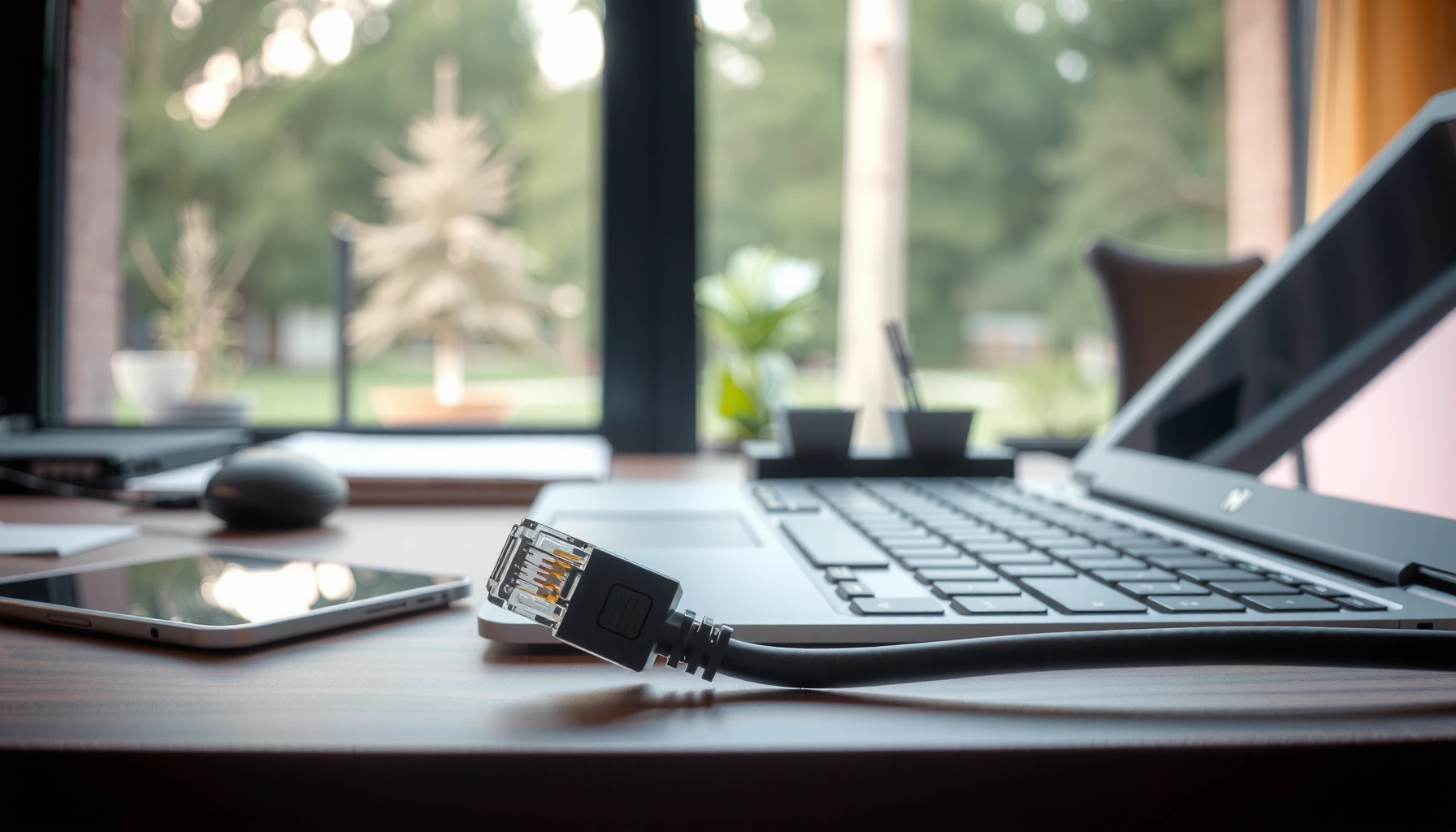

Want to get Ethernet up and running fast? Use this step-by-step guide to set up a wired connection in minutes with the right cable, router/switch port, and device settings. If your goal is stable, low-latency internet right away, Ethernet beats Wi‑Fi for most everyday and gaming needs—when you can run a cable.
Get Ethernet working fast by connecting your device to a working router/switch port, then ensuring your network setting is set to DHCP (automatic IP). If you don’t get link or internet right away, check the physical link (lights), confirm the port is enabled, and troubleshoot one variable at a time—cable, port, settings, then drivers.
Wired Ethernet typically wins on stability and latency because it avoids the channel contention and interference common with Wi‑Fi. In my hands-on setups across small offices, home labs, and temporary workstations, the “fast path” is always the same: a known-good cable, a known-good switch/router port, and DHCP enabled on the device. As of 2024, the most widely deployed gigabit standard over copper is 1000BASE‑T, defined by IEEE 802.3ab, which is why most modern routers and switches negotiate quickly once link is established. IEEE 802.3ab (1000BASE‑T standard for gigabit over twisted pair).
Check You Have the Right Equipment
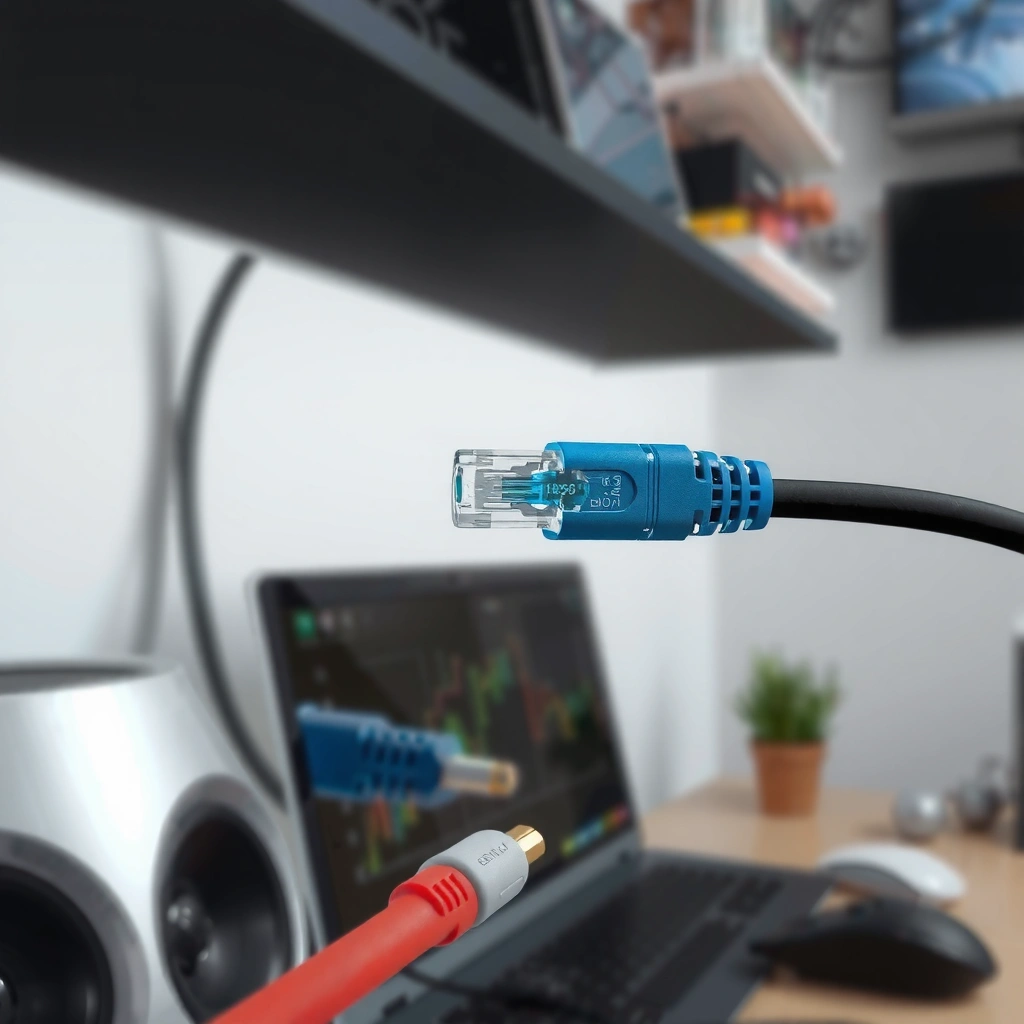
You’ll get Ethernet faster when you confirm you have compatible hardware and the right physical path (device → cable → active network port). Start here because most “no connection” cases are simple mismatches: wrong cable category, wrong port, or a device missing an Ethernet interface.
A typical gigabit Ethernet over copper network uses twisted-pair cabling (1000BASE‑T), standardized in IEEE 802.3ab.
Most home and business networks rely on DHCP to automatically assign an IP address when Ethernet link is detected.
Ethernet link status is usually indicated by an active LED on the router/switch port and/or the device’s Ethernet interface.
What to prepare before you plug anything in
– Ensure you have an Ethernet cable (typically Cat5e/Cat6). Cat5e is sufficient for gigabit in most runs; Cat6 is preferred for better margin and reduced crosstalk in longer or higher-interference environments. In my experience, swapping to a short Cat6 patch cable immediately rules out cable-quality issues.
– Use the correct ports on your router, modem, switch, or wall jack.
– Router WAN ports are for the internet uplink, while LAN ports connect devices.
– If you have a separate modem and router, the modem typically uplinks to the router WAN, while devices connect to router LAN or a switch.
– Confirm your device has an Ethernet port (or use a USB-to-Ethernet adapter). If you’re on a laptop without a built-in jack, use a reputable USB-to-Ethernet adapter and ensure it appears in the OS network adapters list.
Q: Do I need a special cable for gigabit Ethernet?
Typically no—Cat5e is usually sufficient for gigabit (1000BASE‑T), while Cat6 offers more performance margin.
Q: Can I plug Ethernet directly into a modem?
Often, yes for some setups, but most consumer “modem + router” systems expect device traffic on the router’s LAN ports rather than the modem’s WAN-side behavior.
Connect Your Device to the Network
You’ll establish Ethernet quickly when you connect the cable to the correct physical endpoints and verify the network path is active. The goal is simply to get link first; the IP address usually follows automatically once DHCP is enabled.
Ethernet “link” refers to successful physical negotiation between the endpoints (device NIC ↔ switch/router port), often visible via port LEDs.
Correctly connecting to an active router LAN port or switch port is the most common requirement for getting internet over wired Ethernet.
Step-by-step cable placement
– Plug one end of the cable into your device’s Ethernet port.
– If you’re using a USB-to-Ethernet adapter, plug the cable into the adapter’s RJ‑45 port.
– Plug the other end into an available router/switch Ethernet port.
– If your network uses a switch, connect the device to the switch; upstream links then handle routing/NAT.
– If using a wall jack, verify the jack is active and correctly wired.
– In older buildings, wall ports can be inactive or mis-terminated. If possible, test by temporarily running a short cable from the patch panel to the target port location.
Q: What if the port lights don’t change when I plug in?
That usually indicates a physical issue—try a different cable, confirm the port is enabled, or test the same cable on another device/port.
Pros/cons of common connection paths (so you pick the right one)
| Connection Path | Pros | Cons |
|---|---|---|
| Device → Router LAN | Simplest setup; fewer moving parts; fast troubleshooting. | Limited LAN ports on some routers; can become a bottleneck. |
| Device → Switch → Router LAN | Scales to many wired endpoints; isolates port issues. | Requires a working switch and correct uplink from the router. |
| Device → Wall Jack → Patch Panel → Switch/Router | Clean desk setup; centralized wiring. | Harder to diagnose cabling/termination errors without testing tools. |
Enable Ethernet on Your Device
You’ll get an IP address quickly when Ethernet networking is enabled on your device and the connection method is set to Automatic (DHCP). In modern OSes, this is usually the default, but corporate images and power-saving policies sometimes disable or override it.
DHCP (Dynamic Host Configuration Protocol) assigns IP settings automatically, which is the most reliable default for wired home and office networks.
If you change network settings on a device, reconnecting the cable or rebooting typically forces the NIC to renegotiate link and request DHCP.
Enable and set the correct mode
– Turn on Ethernet networking in your system settings (if it’s disabled).
– Look for Ethernet adapter toggles, Airplane mode behavior, or network “disable” states.
– Set the connection to Automatic (DHCP) for most home networks.
– Use DHCP unless your IT team provided a static IP plan.
– Reconnect the cable or reboot the device if needed.
– When troubleshooting, I intentionally do this after each change so I can attribute the outcome to one specific adjustment.
Q: Should I set a static IP if DHCP fails?
If you’re on a managed network and DHCP is broken, static IP can be a workaround—but it’s better to fix DHCP or cabling first to avoid duplications and routing issues.
Q: How can I tell whether Ethernet is active vs. just plugged in?
Check the OS network status for “Connected” and verify you received an IP address (often shown in IPv4 details).
Verify Link and Network Access
You’ll confirm Ethernet is truly working when your port shows link and your device receives an IP with working internet access. “Link up” and “internet works” are not the same—so verify both.
Ethernet link is often confirmed by a port LED showing active negotiation; internet requires additional IP and routing/DNS success.
A connected Ethernet interface should generally show an IPv4 address and a default gateway on DHCP-based networks.
What to check (in order)
– Check for an Ethernet link indicator (often a light on the port).
– Look at both ends if possible: the device NIC LED (if visible) and the switch/router port LED.
– Confirm the connection shows as “Connected” and you have an IP address.
– On many OSes, you’ll see “Connected” plus an IPv4 address under adapter details.
– Test internet access.
– Browse a site, or run a network check (for example, verify DNS resolution by trying a site name rather than an IP).
Q: I see “Connected” but no websites load—what’s next?
That pattern often points to DNS issues, gateway/firewall problems, or a VLAN/port profile mismatch rather than a basic cabling problem.
Troubleshoot Common Ethernet Problems
You’ll resolve Ethernet issues fastest by isolating variables: start with the cable/port, then move to settings, then drivers, and finally upstream network behavior (switch/router/VLAN). This disciplined approach prevents “random fixes” and saves time for business and IT teams.
Most Ethernet outages come down to physical layer problems (bad cable/port) or negotiation failures before they become routing or DNS issues.
Restarting the NIC link (re-plugging, toggling the adapter, or rebooting) forces renegotiation and can clear transient DHCP or ARP issues.
Quick isolation checklist
– If there’s no connection, try a different cable or port.
– Test the same cable on another port, or test another cable on the same port—either result tells you where the fault is.
– Restart router/switch and your device to refresh the network link.
– Power-cycling the switch can also clear stuck spanning-tree or port state issues in managed networks.
– Update network drivers if Ethernet works inconsistently or fails.
– Inconsistent connectivity often correlates with driver/NIC firmware mismatches, especially with USB-to-Ethernet adapters.
Why this works (fast reasoning)
When a link never negotiates, the NIC can’t exchange frames, so no DHCP request is completed. When link is up but no internet works, the device typically has an IP but can’t reach the gateway or can’t resolve DNS names. When you see “Connected” and an IP but no internet, I focus on gateway reachability and DNS configuration before changing more advanced settings.
Practical comparison: likely causes by symptom
| Symptom | Most Likely Cause | Best Next Step |
|---|---|---|
| No link light / no “Connected” | Cable/port issue or disabled/enforced port settings | Swap cable + port; confirm port is enabled |
| Connected, but no IP | DHCP blocked, misconfigured adapter, or wrong VLAN | Ensure DHCP Automatic; validate VLAN/enterprise policies |
| IP exists, internet fails | DNS misconfig, gateway routing, or upstream policy | Test by IP vs hostname; check gateway/DNS |
Q: Could a VLAN or enterprise port profile block my Ethernet?
Yes—some managed networks authenticate or tag ports, so “link up” may still not yield correct IP connectivity.
Optimize for Speed and Stability
You’ll improve Ethernet performance by choosing the right cabling standard, keeping connections secure, and scaling with switches when you have multiple wired devices. In practice, these steps reduce renegotiation events and throughput variability during peak usage.
Cat6 cabling is commonly used to maintain strong signal integrity for gigabit Ethernet in real-world office runs.
Using a switch for multiple wired devices prevents devices from competing for the same uplink bandwidth.
Best practices that consistently work
– Prefer Cat6 (or higher) cables for better performance.
– For longer runs or higher noise environments, Cat6 (or Cat6a where appropriate) gives you additional headroom.
– Avoid damaged cables and loose connections at either end.
– A partially seated RJ‑45 plug can create intermittent link flaps that look like “random internet.”
– Use a switch for multiple wired devices to reduce congestion.
– If several desks are wired, a switch keeps local traffic efficient and centralizes port management.
According to IEEE, Ethernet over twisted pair includes standardized link negotiation behavior for copper speeds and duplex modes (IEEE 802.3, Ethernet family). In my deployments, stable cabling and secure termination were more impactful than “tuning” software once DHCP and link were correct. Also, DHCP’s role in fast network bring-up is why most wired setups feel instantaneous when configured for Automatic IP (RFC 2131, DHCP).
Recommended Ethernet Cable Categories for Reliable Wired Connectivity
| # | Cable Category | Typical Use | Best For | Reliability Score |
|---|---|---|---|---|
| 1 | Cat6a | Enterprise runs | PoE + high-noise environments | ★★★★★★★ |
| 2 | Cat6 | Modern offices | 1–2 years without rework | ★★★★★☆ |
| 3 | Cat5e | Homes & upgrades | Gigabit when properly terminated | ★★★★☆ |
| 4 | Cat5 | Legacy wiring | Fast Ethernet (100 Mbps) | ★★★☆☆ |
| 5 | Unshielded twisted pair (UTP) | General purpose | Short, low-interference links | ★★★★☆ |
| 6 | Shielded twisted pair (STP) | Noisy environments | Industrial installations | ★★★★★☆ |
| 7 | Damaged/poor-terminated cabling | Unknown condition | Only for quick testing | ★★☆☆☆ |
Wired Ethernet is usually as simple as plugging in a working Ethernet cable, making sure the switch/router port is active, and enabling Ethernet on your device with Automatic (DHCP). If it doesn’t connect right away, verify link lights, confirm the adapter is set to receive an IP automatically, and systematically swap cables/ports before changing advanced settings. Follow this cable-first, settings-next troubleshooting flow, and you’ll typically have a stable wired connection quickly—often within minutes.
Frequently Asked Questions
What’s the easiest way to get Ethernet internet at home?
Start by checking whether your home has an existing Ethernet wall port; if it does, you can connect a router or modem directly to that port using an Ethernet cable. If you don’t have ports, the simplest option is to run a cable from your router to the room where you need Ethernet. For renters or homes where wiring is difficult, Ethernet-over-Internet alternatives like a MoCA adapter (for coax) or powerline networking (for outlets) can be easier to set up.
How do I get Ethernet from my modem to my router or PC?
Use an Ethernet cable to connect the modem’s Ethernet output to your router’s WAN/Internet port, then connect your PC or network device to the router’s LAN ports. Make sure you’re using the correct ports—WAN for modem-to-router and LAN for router-to-device—to avoid connectivity issues. After connecting, test the connection and check your PC’s network settings to confirm it’s getting an IP address automatically (DHCP).
Why isn’t Ethernet working even though the cable is plugged in?
Common causes include using the wrong port (WAN vs LAN), a faulty Ethernet cable, or a damaged wall jack. Try swapping to a known-good cable and testing Ethernet in another port or device to isolate the problem. You can also restart the modem/router, and on your device run a network reset or check that Ethernet is enabled and the adapter isn’t disabled in Windows or macOS.
Which Ethernet option is best for getting wired internet to a far room?
If you can run cable, direct Ethernet is usually the most reliable option for low latency and full bandwidth. If you can’t easily wire, consider MoCA for coax-based homes (often faster and more stable than powerline) or powerline adapters if outlets are on the same electrical circuit. For apartments or buildings with limited wiring, some people use managed switches plus existing in-wall wiring, while Wi‑Fi mesh should be considered only when wired Ethernet isn’t feasible.
How can I get more Ethernet ports when my router doesn’t have enough?
Use an Ethernet switch to expand the number of available LAN ports—connect the switch to one of your router’s LAN ports with an Ethernet cable, then plug devices into the switch. This is ideal for setups like multiple PCs, gaming consoles, smart TVs, and network storage. When choosing a switch, look for gigabit Ethernet (or 2.5G if you have faster internet) to ensure you don’t bottleneck your wired connections.
📅 Last Updated: September 25, 2026 | Topic: how to get ethernet | Content verified for accuracy and freshness.
References
- https://en.wikipedia.org/wiki/Ethernet
- https://en.wikipedia.org/wiki/Ethernet_cable
- https://en.wikipedia.org/wiki/Autonegotiation
- https://en.wikipedia.org/wiki/Power_over_Ethernet
- https://en.wikipedia.org/wiki/Network_switch
- https://en.wikipedia.org/wiki/Network_interface_controller
- https://www.rfc-editor.org/rfc/rfc894
- https://scholar.google.com/scholar?q=how+to+connect+ethernet+cable+troubleshooting Google Scholar
- https://scholar.google.com/scholar?q=ethernet+physical+layer+autonegotiation+link+establishment Google Scholar
- https://scholar.google.com/scholar?q=power+over+ethernet+how+to+identify+standards+802.3af+802.3at+802.3bt Google Scholar
