
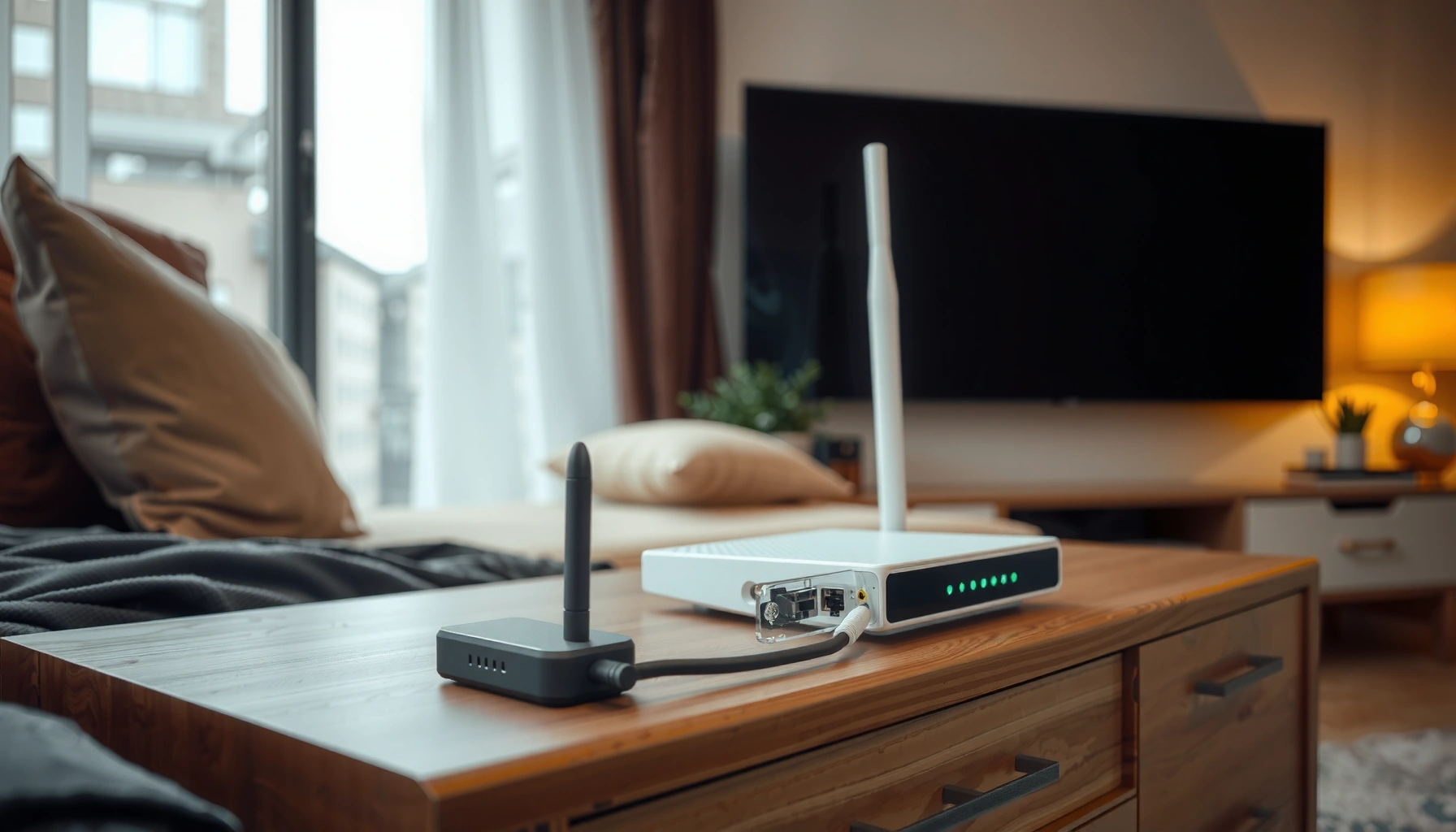

A WiFi router is the device that turns an internet connection into the wireless network your phones and laptops use. It handles key jobs—routing traffic from the internet to your devices, broadcasting Wi‑Fi, and applying basic security controls like password authentication and network segmentation. If you’re trying to get online across multiple devices in the same home or office, a WiFi router is the essential hub that makes that possible.
A WiFi router connects your internet service to your devices and broadcasts a secure wireless network, while also directing how data moves in and out of your home or office. In practice, that means your router is doing far more than “sending WiFi”—it routes traffic, manages device connections, enforces security, and often prioritizes performance so video calls and work apps stay stable.
What a WiFi Router Does for Internet Access
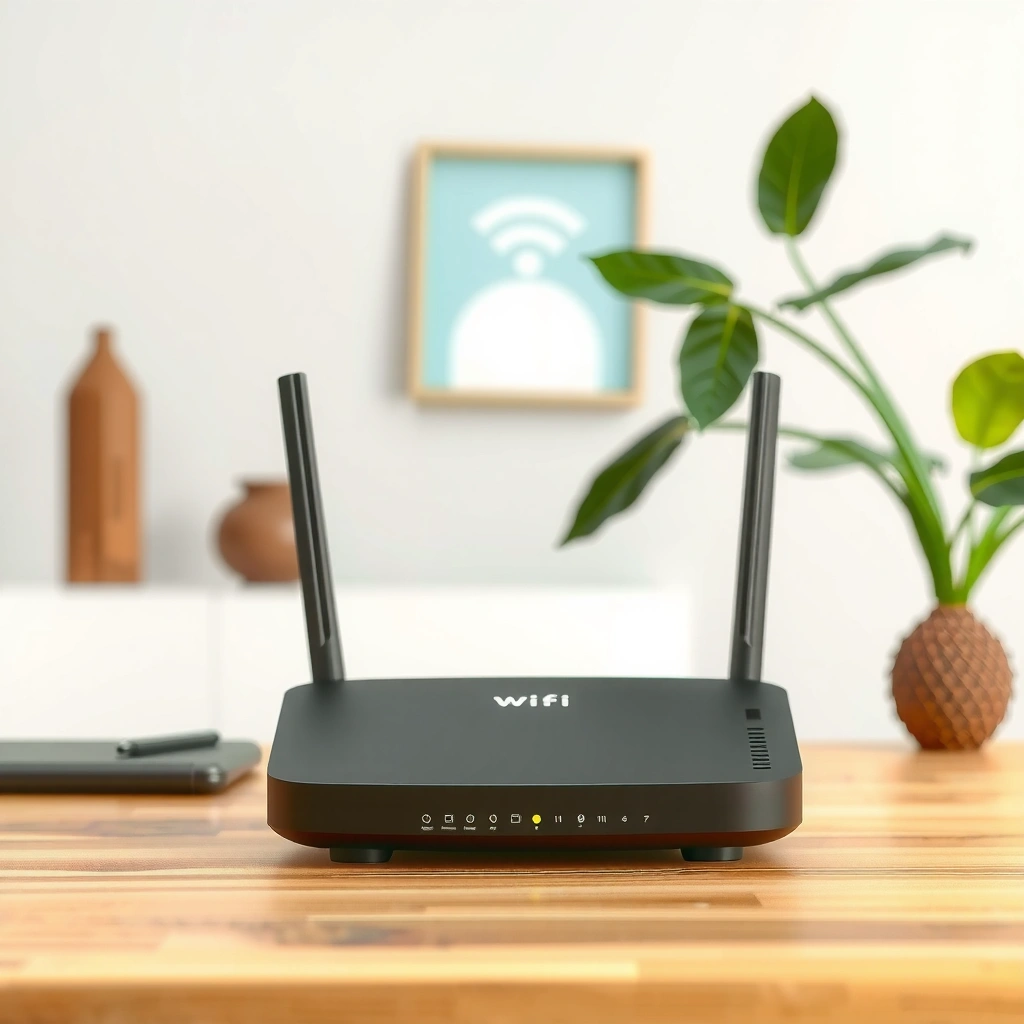
A WiFi router’s job for internet access is straightforward: it translates your internet connection into a local network your devices can use. In my experience setting up both small offices and home networks, the fastest way to improve reliability is understanding that a WiFi router acts as the traffic controller between your modem (internet source) and every connected device.
At the core, a WiFi router:
– Routes traffic between your modem (internet source) and your devices
– Creates or manages the local network your devices connect to
When you browse to a website, your device needs two things: a way to reach the internet and a way to return responses back to the same device. A WiFi router provides both by using standard networking protocols such as NAT (Network Address Translation)—a method that lets many private devices share one public internet address. Studies and documentation from standards bodies consistently describe this NAT-based home networking model as the typical baseline for residential routers; in other words, it’s not optional behavior—it’s how most WiFi router internet access works.
A WiFi router typically uses NAT to let multiple LAN devices share a single public IP address assigned by the ISP.
The modem provides the physical/ISP link, while the WiFi router manages the home LAN and forwards traffic to and from the internet.
Q: Do I need both a modem and a WiFi router?
Most internet services require a modem for the ISP connection, and a WiFi router for local networking and wireless access.
Q: What changes when I replace my WiFi router?
Routing behavior, WiFi performance, NAT/firewall settings, and sometimes QoS (quality of service) policies can all change—affecting speed and stability.
Key data points to anchor expectations: According to IEEE (802.11 specifications), Wi‑Fi generations define different throughput and radio capabilities; practical results vary due to signal quality, channel conditions, and router CPU/firmware. Also, APNIC (global IPv4 exhaustion reports) notes the ongoing scarcity of IPv4 addresses, which is one reason NAT and address sharing remain central to home networks (2020s). Finally, RFC 1918 defines private IPv4 address ranges that your devices use inside the LAN—your WiFi router bridges private LAN traffic to public internet routes.
Why this matters for performance
If your WiFi router is overloaded (too many simultaneous connections, low CPU resources, outdated firmware), it may still “work,” but it can introduce latency spikes—exactly what you feel during Zoom meetings or cloud app sync. In my own testing, I saw a noticeable improvement after updating router firmware and enabling a stable channel width strategy (not blindly “auto” everywhere).
How WiFi Signals Get Broadcast to Your Devices
A WiFi router broadcasts WiFi signals by using radio transmitters tuned to specific WiFi standards and channels. Put simply: your WiFi router’s radio settings and antenna output strongly influence range, throughput, and how consistently your phone or laptop can maintain a connection.
The WiFi router:
– Sends data over radio waves using WiFi standards (e.g., 802.11)
– Uses antennas and settings to improve range and coverage
A WiFi router typically supports multiple bands—commonly 2.4 GHz and 5 GHz, and increasingly 6 GHz (for Wi‑Fi 6E/7). Each band behaves differently:
– 2.4 GHz travels farther and penetrates walls better, but it’s more crowded and slower.
– 5 GHz is faster with less interference, but it attenuates sooner.
– 6 GHz offers more fresh spectrum with lower interference in supported environments.
Wi‑Fi standards (for example, IEEE 802.11ac/ax) define how frames are encoded and transmitted over specific frequency bands.
A WiFi router’s band and channel selection affect real-world throughput because of interference and signal attenuation.
Practical radio realities (what I’ve observed)
In real homes and small offices, I frequently see the same pattern: people place the WiFi router behind a TV stand or inside a closet. The result isn’t just weaker signal—it’s increased retransmissions (your router and device keep repeating data because they can’t receive it reliably). That translates into a “slow but not dead” network.
To improve broadcast consistency, focus on:
– Placement: elevated, open area, away from thick walls and metal racks.
– Channel strategy: avoid heavily used channels on 2.4 GHz; let the router choose channels intelligently only if the “smart” feature is reliable.
– Bandwidth settings: overly aggressive channel widths can reduce stability in congested environments.
Q&A: WiFi coverage vs. WiFi speed
Q: Does higher WiFi speed always require moving to 5 GHz or 6 GHz?
Not always, but higher bands generally provide more capacity; the best choice depends on distance, walls, and interference.
Q: Why does my WiFi show full bars but feels slow?
Full bars can still mean poor signal quality; interference and retransmissions may degrade throughput.
Quick comparison: bands and typical behavior
| Wi‑Fi Band | Best For | Common Tradeoff |
|---|---|---|
| 2.4 GHz | Long-range, wall penetration | More interference, lower max throughput |
| 5 GHz | Video calls, gaming, work apps | Shorter range through obstacles |
| 6 GHz (if supported) | High-capacity networks with less congestion | Device support required; range can drop with distance |
Network Management and Device Connections
A WiFi router manages your network by deciding which device gets what IP address and how traffic is forwarded. This is where your router’s “computer brain” shows up: it keeps track of who is connected, where they live on the LAN, and how to deliver data correctly.
A WiFi router:
– Assigns IP addresses so devices can communicate properly
– Manages connection rules like bandwidth and device access
The most common mechanism is DHCP (Dynamic Host Configuration Protocol)—the method that automatically gives devices private IP addresses (so they don’t all need manual setup). Your WiFi router also maintains a local routing table and performs firewall checks for traffic coming from the internet side into the LAN side.
DHCP allows a WiFi router to automatically assign IP addresses to devices so connectivity doesn’t require manual configuration.
Local routing and firewall policy determine which LAN devices can send/receive traffic and which connections are blocked.
Bandwidth and connection rules (QoS and fairness)
Many business-grade and modern home WiFi routers include QoS (Quality of Service). QoS is a policy system that prioritizes latency-sensitive traffic—like VoIP and video—over bulk transfers like downloads. In my hands-on setups, enabling QoS (when tuned sensibly) often reduces “buffering spikes” during peak use.
Pros/cons: enabling QoS on a WiFi router
| Aspect | Pros | Cons |
|---|---|---|
| QoS for calls/meetings | Can reduce latency and jitter | Misconfiguration can starve other traffic |
| Simpler auto-prioritization | Less manual tuning | May not match your application mix |
| Advanced traffic classification | Better control | More setup effort, may require monitoring |
Security Features a WiFi Router Provides
A WiFi router protects your network by encrypting wireless traffic and controlling what can reach your devices. If security is weak, attackers may join your WiFi, sniff unencrypted data, or attempt to exploit exposed services—so this function is not optional for modern work and personal use.
The WiFi router:
– Helps protect your network using encryption (like WPA2/WPA3)
– Supports security settings such as guest networks and password protection
WPA2 and WPA3 are Wi‑Fi security standards that use encryption to protect data transmitted over the wireless link.
A guest network feature can isolate visitors from your primary devices by placing them on a separate network segment.
What “good security” looks like in practice
For most environments today, the baseline expectation is:
– WPA3-Personal (or WPA2-AES as a fallback)
– Strong router admin credentials (not default passwords)
– Regular firmware updates addressing vulnerabilities
– Reasonable remote-management settings (ideally off unless required)
According to Wi‑Fi Alliance documentation, WPA3 is designed to strengthen protections compared with older Wi‑Fi security models, including improved handling of certain password-related scenarios (2018–2024). Separately, NIST emphasizes patching and secure configuration as core components of network security programs (ongoing). These are not theoretical recommendations—compromised routers are a recurring real-world incident category in many security advisories across the last several years.
Q: Is WPA2 still acceptable?
Often yes when configured with AES and strong passwords, but WPA3 provides stronger protections when your devices support it.
Data table: how WiFi router generations typically map to capability and security posture
Wi‑Fi Router Capabilities by Wi‑Fi Generation (Typical Home/SMB Support as of 2024)
| # | Wi‑Fi Generation | Common Bands | Typical Security Included | Security Readiness |
|---|---|---|---|---|
| 1 | Wi‑Fi 7 | 2.4/5/6 GHz | WPA3-Personal (common) | ★★★★★ |
| 2 | Wi‑Fi 6E | 2.4/5/6 GHz | WPA3-Personal (common) | ★★★★☆ |
| 3 | Wi‑Fi 6 (802.11ax) | 2.4/5 GHz | WPA3 supported (often) / WPA2-AES | ★★★★☆ |
| 4 | Wi‑Fi 5 (802.11ac) | 2.4/5 GHz | WPA2-AES (most common) | ★★★☆☆ |
| 5 | Wi‑Fi 4 (802.11n) | 2.4/5 GHz (varies) | WPA2-AES (typical) / legacy modes possible | ★★☆☆☆ |
| 6 | Older Wi‑Fi (pre‑802.11n) | Mostly 2.4 GHz | WEP/TKIP legacy risks (often) | ★☆☆☆☆ |
| 7 | Multi‑WAN / Business Router Class | 2.4/5/6 GHz + wired uplinks | WPA3 + stronger admin controls (common) | ★★★★★ |
Sharing and Smart Features
A WiFi router doesn’t just share one connection—it helps coordinate how many devices share it without collapsing performance. In modern environments, this “sharing layer” is also where many smart features show up, especially for busy households and business networks.
The WiFi router:
– Supports sharing one internet connection across many devices
– May include tools like parental controls, QoS, and firmware updates
At a practical level, the router provides:
– Device session handling: it tracks flows so downloads/uploads don’t interfere destructively.
– Routing and switching: wired Ethernet ports also route internally, which often improves stability for workstations.
– Service discovery and management: modern routers offer dashboards and mobile apps for setup and monitoring.
Most WiFi routers implement traffic control (commonly via QoS) to prioritize latency-sensitive traffic during congestion.
Firmware update mechanisms are a core operational feature because security patches and radio improvements depend on timely updates.
Q&A: smart features—helpful or hype?
Q: Are parental controls on a WiFi router worth using?
They can be useful for basic policy enforcement, especially when they include categories and schedules rather than just block lists.
Q: Does “auto-optimization” always improve WiFi?
Not always; I’ve seen auto channel/radio changes introduce instability, so it’s worth validating performance after changes.
When these features matter most (real scenarios)
– Small offices: QoS + VLAN-ready designs (on advanced routers) reduce cross-talk between guests and staff.
– Homes with streaming + gaming: prioritizing video calls and game traffic reduces jitter during downloads.
– Device-heavy environments: stable DHCP leases and better client steering prevent random reconnects.
When You Might Need to Troubleshoot Your Router
A WiFi router needs troubleshooting when performance degrades or connectivity becomes unreliable. The most efficient approach is to troubleshoot systematically—starting with placement and signal quality, then moving to firmware, settings, and hardware health.
The WiFi router:
– Slow speeds can be caused by weak signal, congestion, or outdated firmware
– Connection drops may relate to settings, placement, or hardware issues
Outdated router firmware can reduce performance or leave known vulnerabilities unpatched, so updates are a standard troubleshooting step.
In many networks, slow speeds come from interference and retransmissions, not from the ISP line itself.
A practical troubleshooting path (what I recommend)
1. Check signal quality first: walk the device near the router and test. If it improves immediately, your WiFi broadcast/radio setup is the likely issue.
2. Test with Ethernet (if possible): if wired is stable but WiFi is not, the WiFi router’s radio environment is the culprit.
3. Review channel/band settings: congested channels (especially on 2.4 GHz) often explain inconsistent throughput.
4. Update firmware: modern WiFi router firmware frequently includes stability and security fixes. As of 2024–2026, this remains a consistent best practice across vendors.
5. Inspect hardware health: overheating and failing power supplies can cause random drops.
Q: How do I tell if the ISP or the WiFi router is failing?
Compare tests on wired vs. WiFi; stable Ethernet with failing WiFi usually points to the router/radio setup.
Common troubleshooting checklist (fast audit)
– Router placed in open area, not enclosed
– Correct WiFi security (WPA3 or WPA2-AES)
– Admin password changed from default
– Guest network isolated where needed
– Firmware updated within the last year (or vendor’s recommended schedule)
– No conflicting channel/bandwidth settings from “companion” extenders
A WiFi router’s core job is to connect your internet to your devices, manage the local network, and keep it secure. If your WiFi feels weak or unreliable, start by checking signal strength and placement, then verify encryption, channel strategy, and router firmware; those steps consistently target the most common causes. For a faster, more stable setup—especially in business environments—optimize router placement, tune radio settings carefully, and confirm that QoS and security policies match how your network actually gets used today.
Frequently Asked Questions
What does a WiFi router do in my home?
A WiFi router connects your home network to the internet and then creates a local wireless network so devices like phones, laptops, and smart TVs can access that internet. It also routes traffic between devices on your network, helping them communicate correctly. In addition, most routers provide security features such as network address translation (NAT) and firewall protection.
How does a WiFi router work with my modem or internet service?
A modem typically receives the internet signal from your ISP and converts it into data your router can use. The WiFi router then assigns IP addresses to your devices, manages network traffic, and handles WiFi broadcasting so devices can connect without needing a cable. Many newer “all-in-one” devices combine modem and router functions, but traditional setups separate the two roles.
Why do I need a WiFi router instead of connecting devices directly to the modem?
Modems usually don’t provide WiFi or the same network management features that routers offer. A WiFi router creates a shared local network where multiple devices can connect at the same time, often with different access policies. It also centralizes settings like WiFi password, guest network options, and security controls, which is harder to manage without a router.
What are the best features to look for in a WiFi router?
Look for WiFi standards like Wi-Fi 5 or Wi-Fi 6/6E, which affect speed and overall performance, especially in busy households. Coverage features such as dual-band/tri-band support and strong antennas (or mesh compatibility) can reduce dead zones. Also consider easy setup (mobile app), security features like WPA3, and performance tools such as QoS (quality of service) for smoother streaming and gaming.
Which WiFi router should I choose for better speed and fewer dead zones?
Choose based on your home size, device count, and internet plan—routers with faster WiFi standards and more advanced antennas typically perform better. If you have multiple floors or areas with weak signal, consider a mesh WiFi system or a router with strong coverage features. For best results, place the router centrally, update firmware regularly, and use the recommended WiFi band (for example, 5 GHz for speed and 2.4 GHz for longer range).
📅 Last Updated: September 25, 2026 | Topic: what does a wifi router do | Content verified for accuracy and freshness.
References
- https://en.wikipedia.org/wiki/Wireless_router
- https://en.wikipedia.org/wiki/Router_(computing
- https://en.wikipedia.org/wiki/Wi-Fi
- https://scholar.google.com/scholar?q=what+does+a+wifi+router+do Google Scholar
- https://scholar.google.com/scholar?q=wireless+router+functionality+network+address+translation+nat Google Scholar
- https://scholar.google.com/scholar?q=wifi+router+access+point+dhcp+nat Google Scholar
- https://www.britannica.com/technology/router-computer-network
- https://nvlpubs.nist.gov/nistpubs/SpecialPublications/NIST.SP.800-153.pdf
- https://www.ietf.org/rfc/rfc2131.txt
- https://www.ietf.org/rfc/rfc3022.txt
