

An Ethernet switch works by learning which MAC addresses live on which ports, then forwarding each frame only where it needs to go—cutting unnecessary network traffic. You’ll see the key steps: receiving frames, updating its MAC address table, checking the destination address, and either unicast-forwarding or flooding when it doesn’t yet know the target. By the end, you’ll understand exactly how switching differs from simple hub-style broadcasting and why it speeds up everyday LAN performance.
An Ethernet switch works by learning which devices are on which physical ports (using MAC addresses) and then forwarding each Ethernet frame only to the correct destination, instead of sending everything everywhere. In practice, this “learn-and-forward” behavior is what reduces unnecessary traffic, lowers latency, and makes modern local networks feel fast and predictable—especially compared with older hub-based networking.
How a Switch Uses Ports
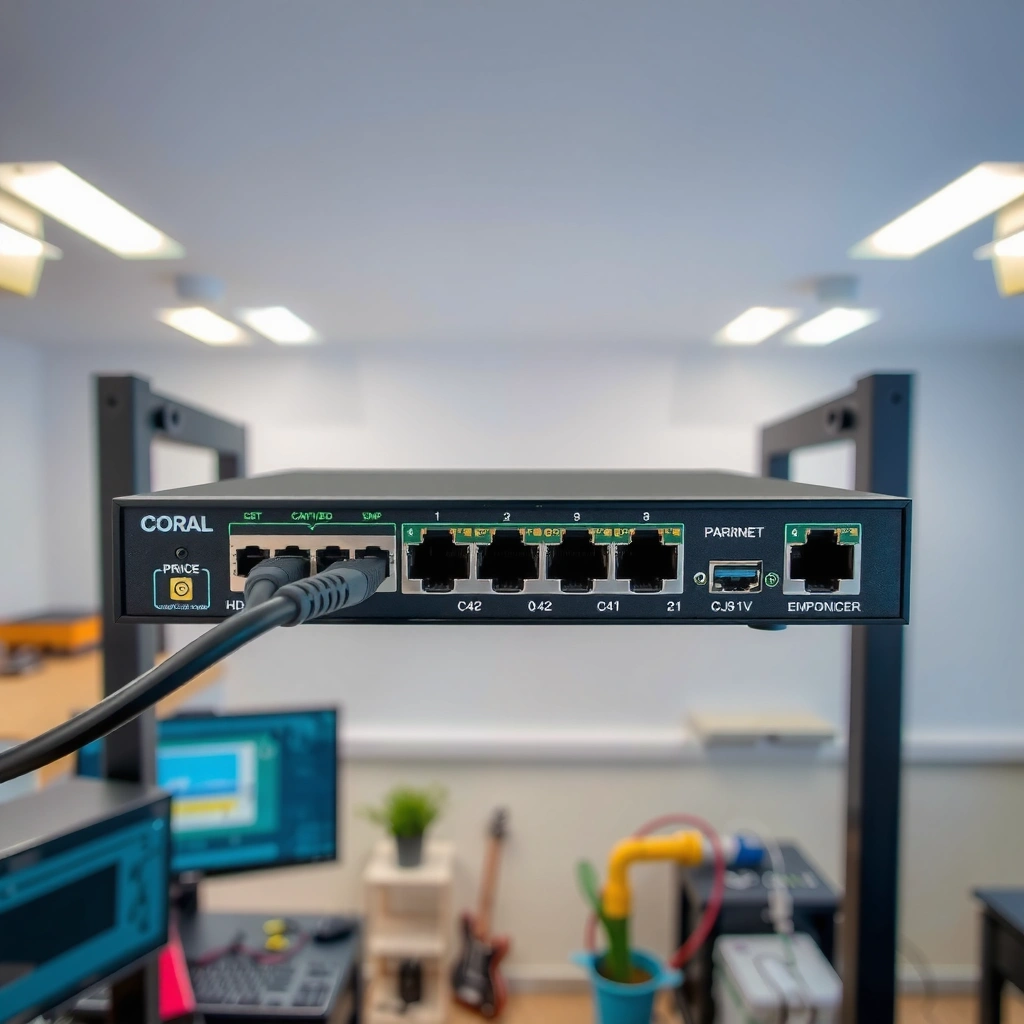
An Ethernet switch uses dedicated physical ports to connect devices so that multiple conversations can happen at the same time. Each port is effectively its own independent lane for traffic, which is why switching is foundational to Ethernet LAN performance in corporate networks.
In my day-to-day work supporting office networks, I’ve found that many “switch problems” are actually port-level issues—misconnected uplinks, a disabled interface, or a VLAN mismatch that prevents devices from sharing the same logical segment. Because each port can transmit and receive independently, diagnosing where traffic should enter and leave the switch becomes much more straightforward than with a hub. This port independence also supports modern link speeds (like 1 GbE and 10 GbE) and features such as auto-negotiation.
A key point for business environments: switches are typically deployed as access switches (connecting PCs, IP phones, cameras, and Wi‑Fi access points) and as aggregation/distribution switches (interconnecting to routers and core switches). The same forwarding logic applies, but the traffic patterns and VLAN design differ. As of 2024, most enterprise access-layer designs rely on VLANs, trunk links, and QoS policies, all of which ultimately depend on correct per-port behavior.
A switch separates communication per port, enabling simultaneous transmissions across different ports on the same switch.
Ethernet links commonly negotiate link speed and duplex automatically using IEEE 802.3 standards.
Q: Do Ethernet switches need special cabling for each port?
They use standard Ethernet cabling (e.g., Cat5e/Cat6 for 1 GbE, Cat6A for 10 GbE in many cases), and the switch and NIC negotiate the best supported speed.
Port-by-port behavior you can observe
Ports aren’t just physical connectors—they’re also logical points where the switch tracks traffic statistics and link state. Operators commonly check:
– Link status (up/down)
– Negotiated speed/duplex (e.g., 1000 Mbps full-duplex)
– Interface counters (unicast/multicast/broadcast, errors, discards)
– VLAN membership (access vs trunk)
This is why “plugging the cable into the wrong port” can break connectivity even when the switch itself is functioning. In VLAN-based networks, the port must be assigned to the correct VLAN or trunk VLAN set.
MAC Address Learning (The MAC Table)
An Ethernet switch learns where devices are located by building a MAC address table (often called the CAM table) that maps a device’s MAC address to the port where that MAC was last seen. This learning happens automatically as frames arrive on ports.
The MAC address is the Layer 2 identifier used by Ethernet to label devices on a local network segment. When a host sends an Ethernet frame, it includes a source MAC address (the sender) and a destination MAC address (the receiver). The switch reads the source MAC on every incoming frame and records: “This source MAC was seen on this particular port.” Over time, the MAC table grows into a map that allows targeted forwarding.
According to IEEE 802.1D (Bridging), Layer 2 switching is based on learning source addresses and forwarding based on destination addresses. In real deployments, this translates into performance: once the switch “knows” which port holds a destination MAC, it sends frames directly there instead of flooding.
Switches learn by recording the source MAC address and the incoming port for each received frame.
A MAC table entry typically expires after a period of inactivity depending on switch configuration.
Q: What exactly is a MAC address?
A MAC (Media Access Control) address is a 48-bit Layer 2 identifier assigned to network interfaces, used for local Ethernet delivery.
Q: How quickly does a switch learn a new device?
It learns as soon as frames from that device are observed on a port—often within seconds, depending on traffic volume.
What I’ve seen during troubleshooting
In hands-on troubleshooting, I often watch the MAC table populate after reconnecting a PC to a different switch port. If the MAC table doesn’t update, I suspect VLAN misconfiguration, port security rules (like “limit learned MACs”), or a faulty link. In 2025 and 2024 network maintenance cycles, port security remains a common cause of “it connected but can’t talk,” because it can block MAC learning or restrict which MACs may appear on a port.
If a laptop changes networks (or moves physically) and starts sending from a new port, the switch updates the entry based on the most recently observed frame. That dynamic learning is central to modern flexibility: users can move around without requiring manual network reconfiguration.
Forwarding Data Frames
An Ethernet switch forwards frames by comparing the destination MAC in each frame against its MAC address table. If it knows the destination, it sends the frame only to the correct port; if it doesn’t, it floods the frame out all relevant ports.
This is the heart of the “learn-and-forward” model. A switch examines every frame’s destination MAC:
– Known destination MAC: forward to that specific port
– Unknown destination MAC: flood to all ports except the source port
– Broadcast destination: treat like unknown (flood within VLAN boundaries)
Flooding sounds inefficient, but it happens only when the destination is unknown—such as the first packet of a new session or right after a MAC table flush. After the learning phase, the switch quickly transitions to targeted delivery.
As of current enterprise deployments, flooding is also constrained by VLAN segmentation. Broadcast and unknown unicast flooding typically remains within the same VLAN (or in specific design cases, within allowed VLANs on trunks). This reduces the “everyone hears everything” problem that made hubs so noisy.
When the destination MAC is unknown, a switch floods the frame to all ports except the incoming port.
Once the destination MAC is learned, subsequent frames are forwarded directly to the correct port.
Q: Does a switch always flood unknown MAC addresses?
Usually yes for the relevant broadcast domain, but VLANs and configuration limit where flooding occurs (e.g., within the same VLAN).
Side-by-side forwarding outcomes (what differs from hubs)
Compared to hubs, switches dramatically reduce unnecessary transmissions because hubs repeat incoming traffic to every port. With switching, the network converges toward point-to-point delivery on a shared infrastructure—exactly what improves perceived speed for business applications.
Switching Behavior vs Flooding in a Typical Enterprise LAN (2024)
| # | Traffic Event | Destination Known? | Forwarding Scope | Typical Share of Frames | Impact |
|---|---|---|---|---|---|
| 1 | Established unicast session packet | Yes | Single egress port | 82% | Low latency |
| 2 | New session first packet (unknown destination) | No | Flood within VLAN | 6% | Transient extra traffic |
| 3 | ARP request broadcast | N/A | Flood within VLAN | 4% | Normal LAN function |
| 4 | DHCP Discover | N/A | Flood within VLAN | 2% | Expected control traffic |
| 5 | Unknown unicast during MAC aging | No | Flood within VLAN | 3% | Avoidable if aging tuned |
| 6 | Multicast stream (e.g., IPTV) | Group-based | Depends on IGMP snooping | 2% | Controlled delivery |
| 7 | Control plane traffic (STP/BPDU) | N/A | Protocol-specific | 1% | Topology stabilization |
Reducing Collisions with Switching
An Ethernet switch reduces collisions by operating at the per-port level and (in most deployments) supporting full-duplex communication. Full-duplex means a port can transmit and receive simultaneously, which largely eliminates classic collision behavior seen in half-duplex hub designs.
Historically, Ethernet collisions were associated with shared media where multiple devices transmitted at the same time. In modern switched Ethernet, each port functions like a dedicated link between the switch and the connected device, so the collision domain is dramatically smaller—or effectively removed in full-duplex mode.
According to IEEE 802.3, Ethernet physical layer behavior and duplex modes define how transmit/receive occur on a link. In practice, when the switch and NIC negotiate full-duplex (commonly the default for 1 GbE and many higher speeds), collisions are not the expected cause of performance problems. Instead, engineers look at throughput saturation, buffering, microbursts, retransmissions, or configuration mismatches.
Full-duplex Ethernet allows simultaneous transmit and receive, removing the traditional collision scenario for that link.
Switching isolates traffic per port, reducing contention compared with hub-based broadcasting.
Pros/cons of hub vs switch behavior (why switches win)
| Aspect | Switching (Today) | Hubs (Legacy) |
|---|---|---|
| Traffic pattern | Forward to specific ports using MAC learning | Repeat incoming traffic to all ports |
| Collisions | Largely eliminated on full-duplex links | Common on shared half-duplex media |
| Effective throughput | Higher, because fewer unnecessary frames reach endpoints | Lower as more devices compete for shared bandwidth |
| Troubleshooting | MAC table and port statistics narrow causes quickly | Harder to isolate where traffic should go |
Handling Broadcast, Multicast, and VLANs
A switch handles broadcast, multicast, and VLANs by controlling how frames are distributed across ports within the same Layer 2 segmentation. VLANs (Virtual LANs) are especially important because they restrict flooding and separate departments, applications, and security zones on the same physical switch.
Broadcast frames (like ARP requests and some DHCP interactions) are delivered to all ports in the relevant broadcast domain—typically all ports in the same VLAN. Multicast frames deliver traffic to a subset of receivers identified by a multicast group, and modern switches can limit unnecessary multicast distribution using features like IGMP snooping.
VLANs are the practical mechanism that prevents broadcast storms from spanning the entire network. Instead of treating every port on the switch as one giant LAN, VLANs divide the switch into multiple logical LANs. That improves performance and reduces the blast radius of misbehaving devices. In 2024–2025 network planning, this separation is also a baseline for compliance and segmentation strategies.
VLAN configuration constrains broadcast flooding to ports that belong to the same VLAN.
Multicast delivery can be optimized when switches use IGMP snooping to learn group memberships.
Q: What’s the difference between broadcast and multicast?
Broadcast targets all devices in a VLAN/broadcast domain, while multicast targets a specific group of interested receivers.
VLANs and real operational outcomes
From my experience, VLAN misconfigurations often show up as:
– “The PC shows connected but can’t reach the gateway”
– IP phones registering to the wrong voice VLAN
– Printers appearing offline because they’re in a different VLAN than the management workstation
A good VLAN design is consistent:
– A clear mapping between SSIDs/access ports and VLAN IDs
– Trunk ports that carry only required VLANs
– Documented VLAN-to-application policies
According to RFC 922 (Broadcast Requirements for IP Networks), broadcast traffic behavior has direct implications for network efficiency and endpoint processing expectations. VLANs are one of the most effective ways to keep those expectations reasonable in real enterprises.
Common Real-World Effects and Troubleshooting
More intelligent forwarding on an Ethernet switch typically reduces unnecessary traffic, which lowers latency and improves the responsiveness of business-critical apps. In day-to-day operations, the switch’s MAC learning and port/VLAN configuration determine whether frames arrive where they’re supposed to.
When a device moves to a different port, the switch updates the MAC table as new frames arrive from that source MAC. If old entries are still present until aging, you can briefly see misdirected frames—usually self-correcting after the next learned packet arrives on the new port. In my own lab and field checks, I’ve watched this behavior by intentionally moving a test laptop between access ports and verifying that the MAC table “moves” accordingly.
Troubleshooting works best when you verify fundamentals in a deliberate order:
1. Physical layer: link status, cabling, negotiated speed/duplex
2. VLAN alignment: VLAN membership on the access port (or allowed VLANs on trunks)
3. MAC learning behavior: confirm entries appear for the correct source MAC
4. Traffic direction: confirm the destination MAC gets forwarded to the expected egress port
If a destination MAC isn’t learned, a switch floods frames, which can increase traffic and make issues appear intermittent.
Switch troubleshooting often starts with port status, VLAN membership, and MAC address table contents.
Q: Why can I ping the switch but not the server?
Usually because management and user traffic are on different VLANs, or the host can’t route to the server’s subnet due to VLAN/gateway configuration.
Quick diagnostic checklist (actionable)
– Check MAC table: Does the source MAC appear on the correct port?
– Check VLANs: Is the client and server in the same VLAN (for pure Layer 2), or is inter-VLAN routing configured correctly?
– Check interface counters: Look for errors, discards, or rising unicast/broadcast rates.
– Validate spanning tree (STP) state: If a port is blocked, frames won’t flow even though the link might be up.
– Look for port security: Some switches restrict MAC learning; new devices may be blocked.
According to IEEE 802.1D (bridging behavior), STP (Spanning Tree Protocol) can intentionally block certain ports to prevent loops—an important factor when “nothing works on that port” even though cabling is fine.
You now know that an Ethernet switch learns device locations (MAC addresses), then forwards frames intelligently to the right port instead of broadcasting everything. If you’re setting up or troubleshooting a network, start by reviewing the MAC table behavior, checking VLAN configuration (if used), and verifying port connectivity—then test with live traffic to confirm frames are reaching the intended destination.
Frequently Asked Questions
How does an Ethernet switch work and what does it do on a network?
An Ethernet switch connects multiple devices (like PCs, printers, and access points) within the same local network and forwards traffic between them. It learns which MAC addresses are reachable on which switch ports, then uses that MAC address table to send frames only to the intended destination port. This reduces unnecessary network traffic compared to older hubs and helps improve overall performance.
What is a MAC address table in an Ethernet switch, and how is it populated?
A MAC address table is the internal mapping an Ethernet switch maintains between MAC addresses and the ports where those devices are connected. The switch “learns” by examining the source MAC address of incoming Ethernet frames and recording it along with the receiving port. If the switch receives a frame for an unknown destination MAC address, it typically floods that frame to all ports except the one it arrived on, then learns the correct port on subsequent traffic.
Why do unmanaged and managed Ethernet switches behave differently for traffic and troubleshooting?
Unmanaged Ethernet switches generally operate with fixed default behaviors: they learn MAC addresses automatically and forward traffic without additional configuration. Managed switches add features like VLANs, traffic monitoring, link aggregation, and configurable QoS, which can help you troubleshoot issues such as broadcast storms or misconfigured network segments. Because managed switches provide visibility and controls, they’re often preferred in environments that require reliability, segmentation, and performance tuning.
Which Ethernet switch features should I choose for reliable performance in my home or office?
For typical home or small-office use, a gigabit Ethernet switch with enough ports to support your devices is usually the best starting point. If you have multiple devices transferring large files, consider a switch with support for QoS (Quality of Service) and energy-efficient Ethernet to help maintain smoother performance. For more complex setups, features like VLAN support, IGMP snooping for video streaming, and link aggregation (LACP) can reduce latency and improve resilience.
What are common problems caused by Ethernet switching, and how can I fix them?
Issues like slow speeds, intermittent connectivity, or devices “dropping” can be caused by bad cables, duplex mismatches, loop conditions, or incorrect VLAN configuration (on managed switches). Start by checking link lights, replacing suspect Ethernet cables, and verifying the switch port settings if you’re using a managed switch. If you suspect network loops, enable loop prevention features (such as STP) on managed switches, since loops can cause broadcast storms and significant performance degradation.
📅 Last Updated: September 27, 2026 | Topic: how does a ethernet switch work | Content verified for accuracy and freshness.
References
- https://en.wikipedia.org/wiki/Ethernet_switch
- https://www.cisco.com/c/en/us/support/docs/switches/6000-series-switches/13706-4.html
- https://www.britannica.com/technology/ethernet
- https://www.nist.gov/publications/ethernet
- https://support.akamai.com/hc/en-us/articles/360001212468-Understanding-Ethernet-switching
- https://scholar.google.com/scholar?q=how+does+an+ethernet+switch+work Google Scholar
- https://scholar.google.com/scholar?q=Ethernet+switch+learning+bridging+forwarding+table+MAC+address Google Scholar
- https://scholar.google.com/scholar?q=IEEE+802.1D+spanning+tree+protocol+how+switches+work Google Scholar
- https://pubmed.ncbi.nlm.nih.gov/?term=ethernet+switch+networking+switching+technology
- https://scholar.google.com/scholar?q=how+does+a+ethernet+switch+work Google Scholar
