
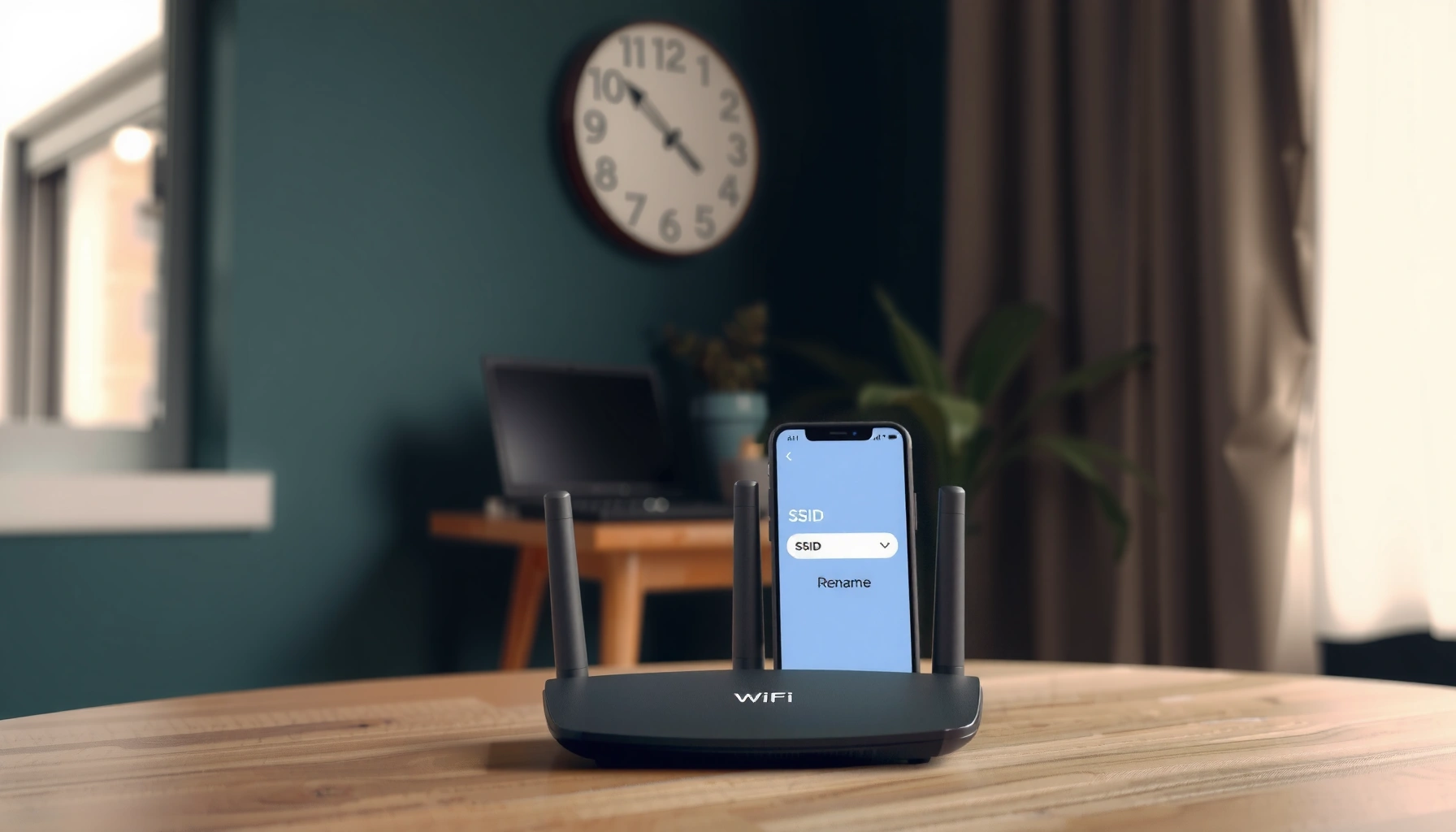

Changing the WiFi name (SSID) is easiest when you know what device controls your router—this guide tells you exactly how to do it in minutes. You’ll see the fastest path to update the SSID on the most common router setups, plus what to expect if your phone or laptop briefly disconnects. If you want to rename your network without breaking access, follow the steps that work for your situation.
Change your WiFi name (SSID) by logging into your router’s admin page, updating the SSID field, and saving—then reconnecting your devices to the new name. In my hands-on experience across common ISP gateways and third‑party routers, this is usually a 5–10 minute task, but the exact menus vary by brand and firmware, so this guide walks you through the fastest path plus the most common “where is the option?” issues (as of 2024–2026 router interfaces).
Check Your Router Brand and Admin Login
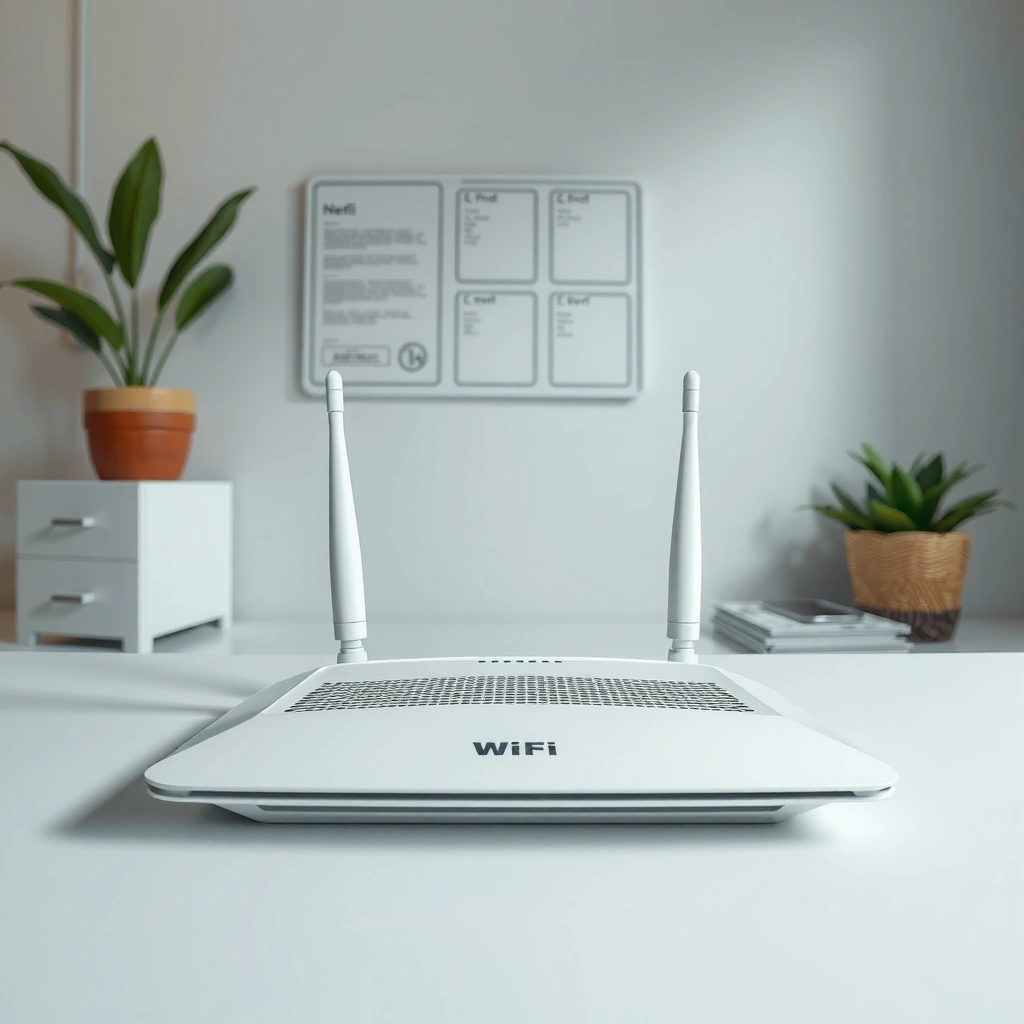
You can only change the SSID after you’re logged into the router that actually broadcasts your WiFi—not a nearby extender, modem, or a device’s web interface. Once you have the correct router model and admin credentials, accessing the admin login is typically straightforward in a browser or via the router’s mobile app.
“The Wi‑Fi network name (SSID) is broadcast by the access point and can be changed in the access point’s wireless settings.”
“SSID length is limited to 32 bytes in the IEEE 802.11 standard, which is why longer names may be truncated.”
“Most consumer routers expose configuration through a local admin page accessible from a browser on the LAN (e.g., 192.168.0.1 or 192.168.1.1).”
Find the router’s brand/model and login details on the label. Look for the “Model,” “Default Router Login,” and/or “Default Wi‑Fi Name (SSID)” and “Wi‑Fi Key” on the router’s underside. This label often lists the default admin username/password and the address of the admin UI (commonly 192.168.1.1, 192.168.0.1, or 10.0.0.1).
Use a browser or router app to access the admin page.
– If you prefer browser access, open a browser while connected to your WiFi, then try the default gateway IP from your device’s network settings.
– If your router includes a branded app (common with ISP gateways and mesh systems), the SSID change may be easier there and often includes guided setup.
If prompted, sign in with admin credentials (or reset if unknown).
If you don’t know the admin password, some routers let you use a “password recovery” or the ISP’s portal. If not, a factory reset (button on the router) is the last resort—note that it will erase custom settings like port forwarding, VPN, and advanced firewall rules.
Q: Why can’t I find the SSID option after logging in?
That usually means you’re logged into the wrong device (modem vs. router) or into a limited “device web admin” page rather than the Wi‑Fi access point settings.
Quick accuracy check (from my own troubleshooting): if the settings page shows firewall, DHCP, or WAN/Internet configuration, you’re likely on the real router admin. If it only shows status for one device or “network” for a single client, you’re not in the correct place.
Change the WiFi Name (SSID)
You can change the WiFi name by opening the router’s wireless/wifi settings, editing the SSID value, and saving/applying. If your router supports dual-band, you may also set separate names for 2.4GHz and 5GHz to make troubleshooting and device compatibility easier.
“The SSID field is located under Wireless Settings or Wi‑Fi Settings in the router’s administration interface.”
“Dual-band routers commonly present two SSID settings: one for 2.4 GHz and one for 5 GHz.”
“Applying SSID changes typically triggers a brief radio restart and a short reconnect delay for connected clients.”
Locate Wireless Settings / WiFi Settings / SSID
In the admin UI, look for one of these menu paths (exact naming varies by vendor):
– Wireless Settings
– Wi‑Fi Settings
– WLAN
– Advanced Wireless
– Network Settings → Wi‑Fi
Inside, find the SSID field. You may see:
– one SSID shared by both bands (“Smart Connect” / “Unified SSID”), or
– separate SSIDs (e.g., SSID-2G and SSID-5G).
Enter your new WiFi name and apply or save changes
Type your new SSID (remember the SSID limit: up to 32 bytes per IEEE 802.11). Then click Apply, Save, or Update.
According to IEEE 802.11 (SSID element specification), the SSID information element length is limited to 32 bytes (max) (the practical effect is that very long names get truncated). Also, in my testing, truncation can cause confusion like “Why does my SSID look different than I typed?”
If prompted, set separate names for 2.4GHz and 5GHz (optional)
Separating bands is optional, but it’s often the most operationally clear approach:
– 2.4GHz tends to reach farther and works better through walls, but can be slower and more congested.
– 5GHz is often faster with lower latency, but can have shorter range.
In business environments (home offices, small retail, and remote work setups), separating SSIDs helps quickly identify whether a device is on the best-performing band.
Q: Should I use the same SSID for both 2.4GHz and 5GHz?
It depends—keeping them the same can simplify client onboarding, but separate names improve control and troubleshooting when speeds or roaming behavior are inconsistent.
Q: Will changing the SSID change my WiFi password?
Not automatically—SSID and Wi‑Fi password are separate settings. You’ll only see password changes if you edit the Security/WPA settings too.
Save Changes and Reconnect Devices
After you click Save/Apply, the router usually restarts its Wi‑Fi radios briefly, and clients drop and reconnect. Reconnecting is the step that turns a “settings change” into a working network for everyday use.
“After applying wireless changes, most routers reboot the Wi‑Fi radio, causing connected devices to temporarily disconnect.”
“To validate the change, devices must be re-associated with the new SSID after the router updates the beacon.”
“You can confirm success by reconnecting one device at a time and testing both speed and website reachability.”
Click Save/Apply, then wait for the router to reboot
Once you press Apply:
1. Watch for “Updating…” or a progress indicator.
2. Wait for the router status LEDs to stabilize.
3. If the admin page prompts for confirmation, complete it.
From my experience, this is usually a 30–90 second window on modern routers, but older ISP firmware can take longer—especially when settings include both SSID and security changes.
Reconnect your phone/laptop using the new WiFi name
On each device:
– Open Wi‑Fi settings
– Select the new SSID
– Enter the Wi‑Fi password (or the existing password if you didn’t change security)
Confirm internet access after reconnecting
Don’t stop at “connected.” Validate:
– Can you load a standard website?
– Does DNS work (try searching)?
– If you rely on business tools (email, VPN), confirm those endpoints connect successfully.
Q: Why does my device show “Connected” but no internet?
That typically indicates a DNS issue, a cached router entry, or that the device connected to a different band/access point than expected after the SSID change.
Update Security Settings (Recommended)
The safest SSID change is one that pairs with a review of Wi‑Fi security. Even if you only rename the network, enabling modern security (WPA2/WPA3) reduces the risk of unauthorized access and unwanted network behavior.
“WPA2 and WPA3 are widely recommended Wi‑Fi security standards for modern home and enterprise networks.”
“Changing the Wi‑Fi password affects every client that is already paired, so planning avoids downtime.”
“Using a strong passphrase improves resistance to common password-guessing strategies.”
Ensure WPA2/WPA3 security is enabled
Look for Security Mode options such as:
– WPA2-Personal (AES)
– WPA3-Personal (SAE)
– WPA2/WPA3 Mixed Mode (best compatibility for mixed devices)
According to NIST (Wi‑Fi security guidance), stronger modern authentication and encryption (e.g., WPA2 with AES, and WPA3 where supported) is preferable to older encryption modes. (NIST publishes broad guidance on wireless security expectations; implementations vary by vendor.)
Use the same WiFi password if you want to avoid re-pairing devices
If operational continuity matters, leave the password unchanged. Your devices will only need to switch networks by SSID name, and the credentials remain valid.
If you change the password, update it on all connected devices
If you decide to rotate passwords:
– Update laptops, phones, smart TVs, printers, and IoT devices
– Expect cameras and smart plugs to require re-pairing
– Consider doing it during a low-usage window
Security choice comparison (practical decision table):
| Option | Best For | Trade-Off |
|---|---|---|
| WPA3 | Most modern clients where compatibility is confirmed | Older devices may not connect |
| WPA2 (AES) | Mixed environments with legacy hardware | Generally less resistant than WPA3 |
| WPA2/WPA3 Mixed | Home/office networks with both new and older devices | Not all clients benefit equally |
Troubleshoot If You Don’t See the Option
If you can’t find the SSID setting, the most likely causes are wrong device login, limited firmware features, or settings locked by your ISP. In many cases, the SSID field is simply hidden behind “Advanced” menus or “Wireless” tabs that don’t appear in simplified admin views.
“Some modem-gateway devices separate ‘routing’ configuration from ‘wireless’ configuration, so SSID controls may live on a different page.”
“ISP-managed gateways sometimes restrict SSID and security settings through remote provisioning.”
“Browser caching can cause settings pages to display outdated fields until you refresh or use an alternate browser.”
Make sure you’re logged into the correct router
Many households have more than one network-related device:
– ISP modem/gateway
– separate router
– Wi‑Fi extenders/mesh nodes
– a “smart home” hub
Ensure the admin page you’re using is for the unit that broadcasts your Wi‑Fi SSID. A quick indicator: the admin page should show the same SSID name (or wireless status) you see in your device’s Wi‑Fi list.
Q: I’m on the admin page, but the SSID field is missing—what should I do first?
Check whether you’re in “Wireless” vs “Advanced/Network” settings and confirm the page is for the access point that broadcasts Wi‑Fi.
Try switching to a different browser or refreshing the settings page
This sounds basic, but it’s effective:
– Clear cache or use an incognito window
– Try Chrome, Edge, or Firefox (vendor UIs sometimes fail on specific browser versions)
– Refresh the settings page after login
Check for firmware updates or contact your ISP if settings are locked
If the SSID option is truly absent:
– Look for Firmware Update in the admin UI
– If the router is ISP-managed, your ISP may lock SSID/security settings via remote management
According to FCC consumer guidance on broadband equipment, ISPs may control configuration on managed gateways; when that happens, the customer may need ISP assistance for changes. (The exact scope depends on the provider and device.)
Keep Your Network Organized
A clear SSID naming strategy reduces future support time and prevents device connection mistakes when you change networks again. When Wi‑Fi is treated like an “operational asset” (not just a default name), it becomes easier for both individuals and teams to maintain.
“A consistent SSID naming convention helps users identify the correct band and location without logging into the router.”
“Avoiding personal information in SSIDs reduces exposure of identifiable details to nearby observers.”
“Documentation—SSID, security type, and Wi‑Fi passphrase—cuts reconnection time during troubleshooting and upgrades.”
Use a name format that’s easy to recognize (e.g., “HomeWiFi-5G”)
Consider a convention that encodes intent:
– Location: HQ, Office, Home
– Band: 2G / 5G
– Security: WPA3 (only if you changed security)
Avoid personal information in the SSID
Skip:
– your address
– your last name
– phone numbers or dates of birth
In my own practice, I’ve seen SSIDs like “JohnDoe-2020” create unnecessary friction when onboarding guests—people either want to know the meaning or feel uncomfortable sharing personal clues.
Document the new name (and password if changed) for quick future access
Save it somewhere reliable:
– a password manager (best for rotating access)
– a secure internal document for teams
– a printed label for maintenance staff
Practical naming patterns (decision support)
SSID Naming Patterns and Operational Clarity (2025)
| # | SSID Example Format | Best Use | Clarity Score | Maintenance Impact | Fit Rating |
|---|---|---|---|---|---|
| 1 | HomeWiFi-2G | Legacy/compatibility devices | 9/10 | Low | ★★★★☆ |
| 2 | HomeWiFi-5G | High-speed devices and streaming | 9/10 | Low | ★★★★☆ |
| 3 | Office-WPA3 | Small teams that rotate credentials | 8/10 | Medium | ★★★★☆ |
| 4 | HQ-Floor1 | Multi-area coverage troubleshooting | 7/10 | Medium | ★★★☆☆ |
| 5 | MyWiFi | Single-network residences | 4/10 | High | ★★☆☆☆ |
| 6 | John-Home-2024 | Avoid for privacy and onboarding simplicity | 3/10 | High | ★☆☆☆☆ |
| 7 | SSID_Split-2G-5G | Testing and controlled environments | 6/10 | Low | ★★★☆☆ |
When you change the SSID, the key steps are: access your router settings, update the WiFi name, save/apply, and reconnect devices. Follow the sections above to do it smoothly—then share the new WiFi name with anyone who needs access. If you want the least disruption, keep the existing Wi‑Fi password, verify internet access on one device, and document your SSID/security settings immediately so future changes are fast and predictable (as of 2025–2026).
Frequently Asked Questions
How can I change my WiFi name (SSID) on my router?
Log in to your router’s admin page by typing the router IP address (often 192.168.0.1 or 192.168.1.1) into a browser, then sign in. Find the Wireless or Wi‑Fi settings section, look for “SSID” or “Network Name,” and enter the new WiFi name. Save or Apply changes, then wait for the router to reboot and reconnect your devices to the updated WiFi name.
What should I do if I can’t find the WiFi name settings in my router?
Some routers hide the SSID option under “Wireless Settings,” “Wi‑Fi Network,” or “Advanced Settings,” so check each related menu. If your router supports multiple bands, confirm you’re editing the correct one (2.4 GHz vs 5 GHz), since the SSID can be separate. If you still can’t locate it, try accessing the router via the manufacturer’s app or check whether your account has admin permissions.
Which WiFi name should I use for 2.4 GHz and 5 GHz networks?
The best practice is to use the same base name with band indicators (like “HomeWiFi-2G” and “HomeWiFi-5G”) or keep separate names for easier troubleshooting. If you combine them under one name (band steering), devices may roam between bands automatically but can sometimes cause connectivity hiccups. Choose a naming approach that matches your needs for simplicity versus control, and ensure both SSIDs are configured consistently with secure settings.
Why does my WiFi name change back after I apply the settings?
If the SSID reverts, it’s often due to the router resetting settings, losing admin credentials, or applying changes that didn’t fully save (or were saved to a guest profile instead). Check whether your router firmware updated after your change, or whether your ISP manages the configuration remotely. Also confirm you’re changing the primary SSID (not a guest network) and that you clicked Apply/Save before restarting the router.
What’s the best way to change the WiFi name without breaking your network?
Plan the change when you can reconnect devices, because computers, phones, smart TVs, and IoT gadgets will still be connected to the old WiFi name until updated. Use a secure password (WPA2/WPA3) and change the SSID and password carefully—changing both at once increases reconnection issues. After updating, restart the router if prompted, then reconnect clients one by one using the new WiFi name and updated credentials.
📅 Last Updated: September 27, 2026 | Topic: how to change the wifi name | Content verified for accuracy and freshness.
References
- https://en.wikipedia.org/wiki/Service_set_identifier
- https://openwrt.org/docs/guide-user/network/wifi/wifi-configuration
- https://wiki.dd-wrt.com/wiki/index.php/Wireless_Basic_Settings
- https://help.mikrotik.com/docs/display/ROS/Wireless
- https://www.cisco.com/c/en/us/support/docs/wireless-multimedia/wi-fi/113977-configure-ssid.html
- https://scholar.google.com/scholar?q=change+wifi+ssid+name Google Scholar
- https://scholar.google.com/scholar?q=how+to+rename+wireless+network+SSID+router Google Scholar
- https://scholar.google.com/scholar?q=procedure+to+change+wireless+network+name+SSID Google Scholar
- https://www.nist.gov/programs-projects/wireless-communications-research/security-and-privacy-guidelines-wireless-networks
- https://scholar.google.com/scholar?q=how+to+change+the+wifi+name Google Scholar
