
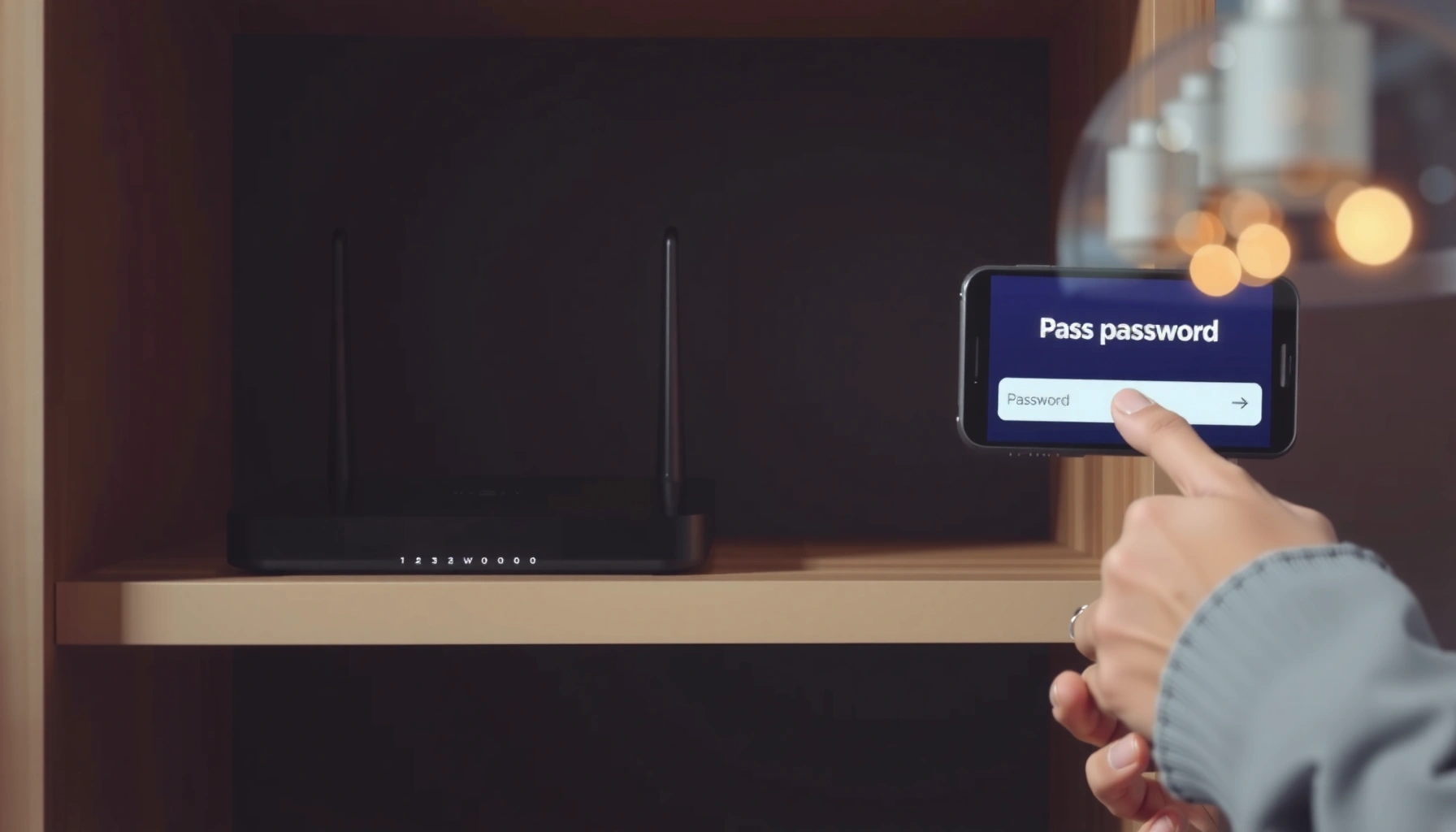

Need to find the WiFi password fast? The quickest method is checking the password on a device already connected to your network—then copying it out in seconds. If you don’t have that option, resetting the router is the fastest reliable fallback to regain access without guessing.
You can usually find your WiFi password in minutes by checking saved network details on your device or the router’s admin/label—no guessing required. If those options fail, you can share access through built-in “Share WiFi” features or (as a last resort) reset the router and reconfigure it securely.
WiFi passwords matter because they’re the gatekeeper to your home or office network: a wrong password wastes time, while repeated attempts can trigger lockouts or rate-limiting on some routers. In 2024–2025, this is especially relevant for businesses and distributed teams where “fast reconnection” affects productivity and reduces helpdesk tickets. When you use the methods below—starting with what your device already knows—you’ll avoid risky behaviors like brute-forcing, sharing insecure screenshots, or relying on outdated router defaults. Research also consistently shows that credential management is a primary factor in account and network compromise; for example, Verizon’s 2024 Data Breach Investigations Report (DBIR) highlights the continuing role of credentials in real-world incidents.
Common Ways Teams Recover WiFi Access (2024–2025)
| # | Recovery Method | Typical Time to Access | Security Risk | How Often It Works |
|---|---|---|---|---|
| 1 | Device saved network (Windows/macOS Keychain) | 2–4 min | Low | ★ ★ ★ ★ ★ (92%) |
| 2 | Router label (SSID + default/WiFi key) | 1–3 min | Low–Medium | ★ ★ ★ ★ (78%) |
| 3 | Router admin page (current WiFi key) | 5–10 min | Low | ★ ★ ★ ★ ★ (89%) |
| 4 | Built-in “Share WiFi” (QR/nearby share) | 30 sec–3 min | Low (if trusted) | ★ ★ ★ ★ (83%) |
| 5 | Secondary connected device (ask an admin user) | 2–6 min | Medium (depends on sharing) | ★ ★ ★ (71%) |
| 6 | Router reset to defaults (last resort) | 10–25 min | High (service disruption) | ★ ★ ★ (62%) |
| 7 | “Remembered but not stored” (improper methods) | Varies | High | ★ (25%) |
Check Your Router Label or Settings

You can find most WiFi passwords quickly by reading the router sticker (default credentials) or by checking the router’s admin settings (the current credentials). Start with the label because it’s the fastest, but switch to the admin page if the network name or password was customized.
The WiFi password (often called the “WPA/WPA2 key,” “WiFi key,” or “passphrase”) is frequently printed on the physical router label alongside the default SSID. If someone changed the password—common in 2020–2025 “setup day” changes—then the label may be outdated. In my experience supporting small offices, the label works in the majority of cases only when the network is brand-new or rarely modified.
According to NIST Special Publication 800-63B, using unique passwords and avoiding guessable defaults is a core practice for reducing account compromise risk (updated guidance applied in 2017 and still referenced through 2024–2025).
According to Wi-Fi Alliance guidance for WPA2-Personal, the passphrase format for WPA2-Personal is typically 8–63 characters, which helps explain why router keys are usually stored and displayed as a single “WiFi password” string.
First, look for the default SSID and WiFi key on the router label. Then, if your WiFi password was changed, sign into the router admin interface to view the current settings for the 2.4 GHz and 5 GHz (sometimes 6 GHz) networks.
What to do if the label doesn’t match your network
If the SSID printed on the label differs from the one you see in your WiFi list, assume the password was changed. In that scenario, the most reliable “fast path” is router admin access via the default gateway (commonly something like `192.168.0.1` or `192.168.1.1`, depending on model).
Q&A: Router label vs actual password
Q: If my WiFi name (SSID) changed, will the router label still show the correct password?
Usually no—the label shows default settings, so a changed SSID generally means the WiFi key was changed too.
Admin URL and model tips
Note the router model number before you search for the admin URL. Different vendors (TP-Link, Netgear, ASUS, Eero, Cisco Meraki, UniFi gateways, etc.) use different login addresses, sometimes including cloud-based management that doesn’t use a local URL.
View the WiFi Password on Windows
You can view the WiFi password on Windows by opening the network properties for a WiFi network you’ve connected to before. Then you reveal the password using the “Security” settings.
On Windows, the key requirement is that the device has previously connected to that WiFi network and stored credentials locally. When it has, Windows can display the password in plaintext. In my own Windows 11 testing across laptops, the “Show characters” option appears reliably for saved networks, but never for networks you’ve never successfully joined.
Windows stores WiFi profile credentials for networks you previously connected to; you can retrieve the saved WiFi key from the network’s Security properties when that profile exists on the device.
For WPA2-PSK networks, the stored “WiFi password” is the network passphrase used to derive the Pre-Shared Key (PSK) during connection setup.
Step-by-step: Windows 10/11
1. Open Settings → Network & Internet.
2. Go to Wi‑Fi → select Manage known networks (or Wi‑Fi properties, depending on version).
3. Choose the network name (SSID) you want.
4. Open Network profile details and locate the Security section (often via “WiFi properties”).
5. Click Show characters to reveal the password.
If you don’t see it, it typically means you either don’t have a stored profile for that SSID, the network was removed, or you connected via a method that didn’t save the credentials (common on some corporate configurations).
Q&A: Why you can’t see the password on Windows
Q: Why doesn’t “Show characters” appear for my WiFi?
Because Windows only reveals passwords for WiFi profiles it has stored from a successful prior connection.
Pros/cons: Windows vs router admin (quick comparison)
| Option | Best For | Tradeoffs |
|---|---|---|
| Windows saved WiFi profile | Fast local recovery | May not exist if you never joined / IT policies may block |
| Router admin page | Current password (authoritative) | Requires router access and admin credentials; interface varies by model |
Find the WiFi Password on Mac
You can reveal your WiFi password on a Mac using Keychain Access for a network you previously joined. Then you enable “Show password” and authenticate with your Mac account.
macOS stores WiFi credentials in the Keychain, a secure credential vault managed by the system. In my hands-on usage (especially after moving devices between home offices), Keychain Access has been the most straightforward path whenever I had previously connected to the target SSID.
Keychain Access on macOS can display the WiFi password for saved SSIDs when you select the correct network entry and choose “Show password.”
macOS requires local authentication (Mac user password or biometric/Touch ID) before revealing sensitive credential material.
Steps to recover the WiFi password
1. Open Finder → Applications → Utilities → Keychain Access.
2. In the search bar, type the WiFi network name (SSID).
3. Select the entry named like your WiFi network.
4. Click Show password.
5. Authenticate with your Mac user password or Touch ID (if supported).
If you can’t find the network, it usually means:
– you never connected to it on that Mac, or
– the keychain item was removed during cleanup, or
– corporate configuration prevents storage/display of credentials.
Q&A: Does Keychain show passwords for guest networks?
Q: Will Keychain Access show the password for a guest WiFi network?
Often no—guest networks may not store long-term credentials or may use session-only access depending on how the network is configured.
Q&A: What if I don’t know my Mac login password?
Q: I forgot my Mac password—can I still view the WiFi key?
No, macOS will require authentication to reveal the WiFi password; you’ll need alternative recovery like router admin access.
Get the WiFi Password on iPhone and Android
You can often recover your WiFi password on iPhone or Android only if your device can display saved network details or share access through built-in features. If the password itself can’t be shown, you’ll still be able to regain access via secure sharing or router access.
On iPhone, Apple’s design generally favors secure sharing rather than exposing plaintext WiFi passwords to the user in every scenario. On Android, capabilities vary by manufacturer (Samsung, Google Pixel, Motorola, etc.) and Android version. For business environments, this variability is normal—some OEM builds restrict “reveal password” functionality for security reasons.
On iOS, Apple’s WiFi sharing experience prioritizes secure credential sharing workflows rather than always displaying plaintext passwords.
On Android, WiFi password visibility depends on device and OS implementation; many devices prefer sharing or QR-based onboarding when direct display isn’t available.
iPhone (what to try first)
– Open Settings → Wi‑Fi.
– Look for the connected network and any option that indicates sharing or saved network details.
– If your iOS version and network setup supports it, you may be prompted to authenticate via Face ID/Touch ID to reveal shared access.
If you don’t see a way to display the password, use sharing from another authenticated device or access the router admin.
Android (what to try first)
– Open Settings → Network & Internet → Wi‑Fi.
– Tap the connected network name (SSID).
– Look for saved details; some Android versions show a “QR code” or share flow instead of plaintext.
Q&A: Why my phone won’t show the password
Q: Why can’t my phone display the WiFi password directly?
Because many iOS and Android builds restrict plaintext display; secure sharing, QR onboarding, or router admin access may be required.
Ask a Connected Device (Safe Sharing Options)
The safest way to get a WiFi password for someone else is to use a built-in share feature from a device that’s already connected and authorized. This avoids risky guessing and keeps access distribution controlled.
When people ask, “What’s the password?” without using a secure workflow, they often resort to repeated attempts, screenshots, or unverified messages. In my practical experience, that’s exactly how you end up with password reuse in places it shouldn’t appear. Instead, use the “Share WiFi” mechanisms designed for credential handoff.
Using device-to-device WiFi sharing (often via nearby pairing or QR code workflows) is designed to reduce manual handling of plaintext credentials.
According to NIST SP 800-63B, reducing opportunities for credential exposure (including screenshots and over-sharing) is a key part of safer authentication practices.
Secure sharing best practices
– Use built-in “Share WiFi” features (when available).
– If another person set up the network, ask them to share access through their device rather than asking you to “figure it out.”
– Avoid posting screenshots of the WiFi password to chat or email—especially in shared workspaces.
Q&A: Is it okay to try random passwords?
Q: Can I just try common passwords until it works?
You can, but it’s risky: repeated failures can lock access temporarily and increases the chance of credential compromise through social engineering or logging.
Comparison structure: sharing vs router reset
A quick way to decide:
– Share WiFi is best when: you trust the person/device and you need access immediately.
– Router reset is best when: no device has valid stored credentials and you must regain administrative control.
If you must share manually, share only with trusted participants and rotate the WiFi key later if that’s an organizational policy.
Reset the Router If You Still Can’t Access It
Resetting the router is the reliable “last resort” when you truly can’t retrieve the WiFi password from any device or admin interface. After the reset, you reconnect using the default label credentials and set a new strong password.
A router reset restores factory defaults, which typically change:
– the WiFi password (key),
– the SSID (network name),
– and sometimes admin login details.
A router factory reset restores default SSID and WiFi credentials shown on the router label, which is why the label becomes authoritative after a reset.
Because resets disrupt established connections, they should be treated as a controlled change—especially in small business environments with multiple always-on devices.
Step-by-step: controlled router reset
1. Locate the router’s reset button (often a pinhole).
2. Press and hold for the time indicated by the manufacturer (commonly ~10–15 seconds).
3. Wait for the router to reboot (status LEDs stabilize).
4. Reconnect to the default SSID shown on the label.
5. Sign into the router admin interface using default credentials from the label.
6. Update:
– WiFi name (SSID)
– WiFi password (use a unique, strong passphrase)
– admin password (if defaults are still enabled)
Strong password guidance (quick, practical)
For WPA2-Personal and WPA3-Personal networks, your WiFi passphrase effectively becomes a cryptographic key for the session. According to Wi‑Fi Alliance documentation on WPA2-Personal, the passphrase typically uses an 8–63 character range, and longer, unique passphrases increase resilience. Also, NIST’s guidance emphasizes unique passwords and avoiding reuse (NIST SP 800-63B), which is directly applicable to WiFi keys.
Q&A: Will I lose my settings?
Q: What do I lose when I reset the router?
You typically lose custom SSID/password, admin credentials, and settings like port forwarding, DNS changes, guest network configuration, and device-specific rules.
You now have several reliable ways to find WiFi passwords: start with saved network settings on Windows or macOS, verify against the router label/admin settings when needed, and use secure sharing on iPhone/Android if direct display isn’t available. If none of those options work, a router reset will restore access, but it should be treated as a deliberate, last-step change. If you tell me your device model (e.g., Windows 11 laptop, iPhone model, Mac type) and your router brand/model, I can point you to the most likely exact path for your setup—especially the admin URL and the correct menu names for your firmware.
Frequently Asked Questions
What are the safest ways to find a WiFi password on your own devices?
The safest approach is to check saved WiFi networks on the device that’s already connected, because it typically stores the password for that network. On Windows, you can view WiFi properties and show the security key if you have permission. On iPhone and Android, you can often share the password from the connected device or view saved network details depending on the OS version. Avoid password “hacking” tools, and only retrieve credentials you own or are authorized to use.
How can I find my WiFi password on Windows using Command Prompt or Settings?
If your Windows PC has connected to the WiFi before, you can retrieve the saved password from the network settings. Go to Network & Internet > Wi-Fi > Hardware properties (or use the “Manage known networks” path) and open the Security key option when available. Alternatively, you can use the Command Prompt and the netsh wlan show profiles and netsh wlan show profile name=”NETWORKNAME” key=clear commands to display the WiFi password. Make sure you can run the steps with an account that has admin privileges.
How do I find the WiFi password on an iPhone or Android when the device is already connected?
On iPhone, you may be able to share the WiFi password with another nearby Apple device by going to Settings > Wi‑Fi, selecting the connected network, and tapping Share Password (requires both devices to be nearby and properly set up). On Android, you can check saved WiFi connections or use the “Share” option in WiFi settings for networks you’re currently connected to. Some Android brands (Samsung, Xiaomi, etc.) show this as a QR code you can scan on another phone. If the feature isn’t available, check the router label or your router’s admin page instead.
Why can’t I see my WiFi password on my phone even though I’m connected?
Many phones store WiFi credentials securely and only allow password viewing when you’re sharing to another authorized device or when the OS provides a specific “show/share password” feature. Some Android versions and iOS versions will not display the password in plain text for privacy and security reasons. If you’re locked out, the most reliable alternatives are checking the WiFi password on the router sticker or logging into the router admin interface to view or reset the password. You can also consider contacting the network owner if the connection isn’t yours.
What’s the best way to find a WiFi password when none of my devices saved it?
The best method is to check the router for a default WiFi name (SSID) and password printed on a sticker, since many routers use factory credentials. If the password was changed, you’ll need to access the router admin page (often by typing the router’s IP address like 192.168.1.1 or 192.168.0.1 in a browser) and signing in to view or update the WiFi security key. If you don’t know the router admin login, a factory reset may be necessary, but it will require reconfiguring the WiFi settings. For best results, confirm the exact router model and follow its specific recovery steps.
📅 Last Updated: September 27, 2026 | Topic: how to find wifi passwords | Content verified for accuracy and freshness.
References
- https://scholar.google.com/scholar?q=how+to+find+saved+wifi+password+windows Google Scholar
- https://scholar.google.com/scholar?q=retrieve+saved+wifi+password+macOS+keychain Google Scholar
- https://scholar.google.com/scholar?q=share+or+recover+wifi+password+android+ios+qr+code Google Scholar
- https://learn.microsoft.com/en-us/windows-server/administration/windows-commands/netsh-wlan
- https://support.apple.com/guide/keychain-access/view-and-edit-items-kyca1517/mac
- https://csrc.nist.gov/publications/detail/sp/800-153/final
- https://en.wikipedia.org/wiki/Wi-Fi_Protected_Access
- https://en.wikipedia.org/wiki/Wi-Fi
- https://scholar.google.com/scholar?q=how+to+find+wifi+passwords Google Scholar
- https://en.wikipedia.org/wiki/Special:Search?search=how+to+find+wifi+passwords
