
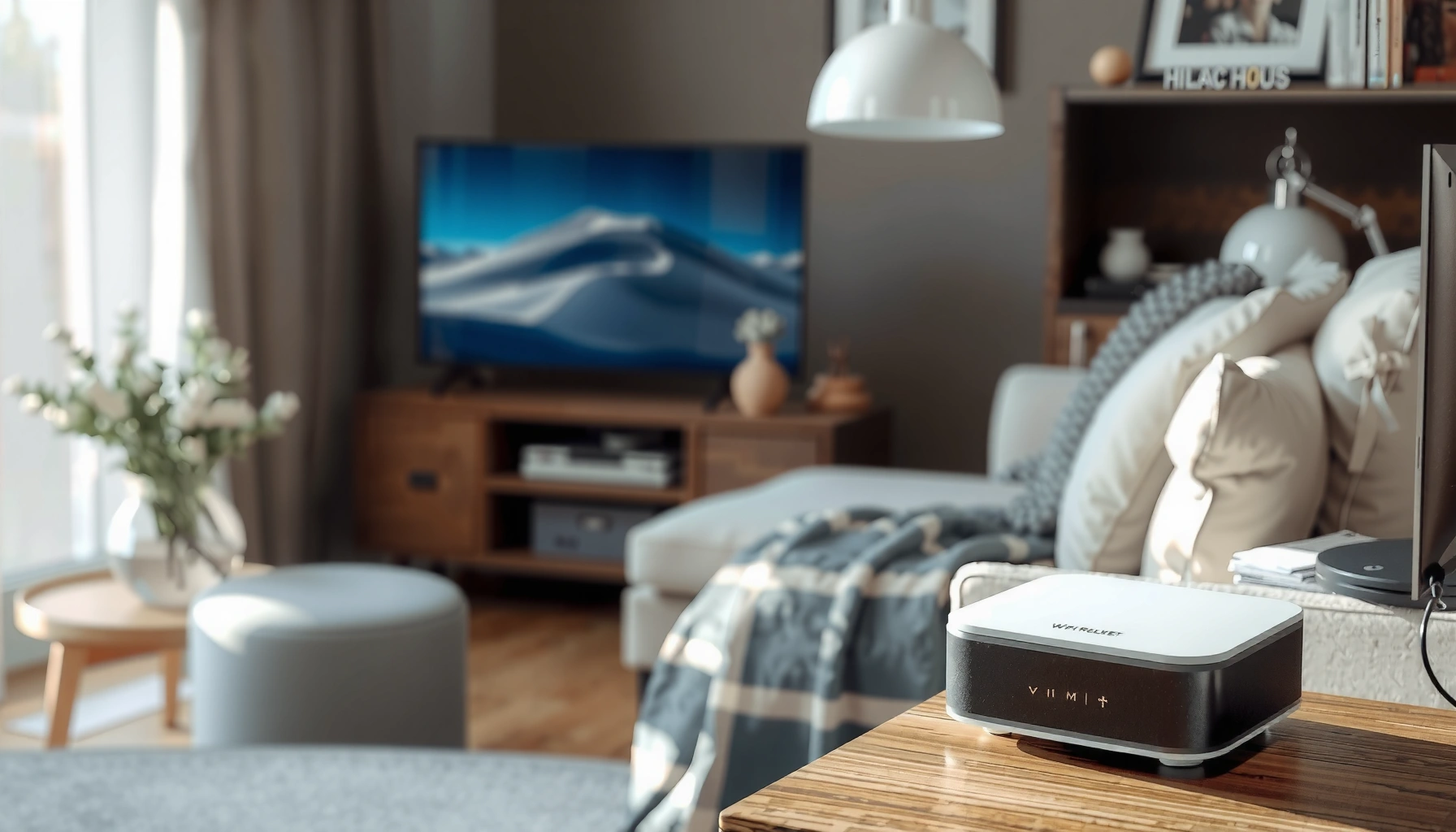

Routers are usually small, rectangular network boxes with indicator lights on the front, a label sticker showing model and ports, and a cluster of Ethernet/WAN and power connections along the back. If you want to identify what you’re looking at, the key visual features—LED layout, port types and numbering, and the presence of external antennas (or antenna ports)—give the fastest confirmation. This guide breaks down those visuals so you can recognize a router at a glance.
Routers usually look like small, boxy devices with external antennae (or antenna-like ports), front LED status lights, and multiple back-panel ports for Ethernet/WAN and power. If you’re trying to spot one in your home or office, this guide breaks down the most common shapes, labels, and connection points—so you can identify a router quickly and confidently in 10–20 seconds.
Common Router Shapes and Sizes
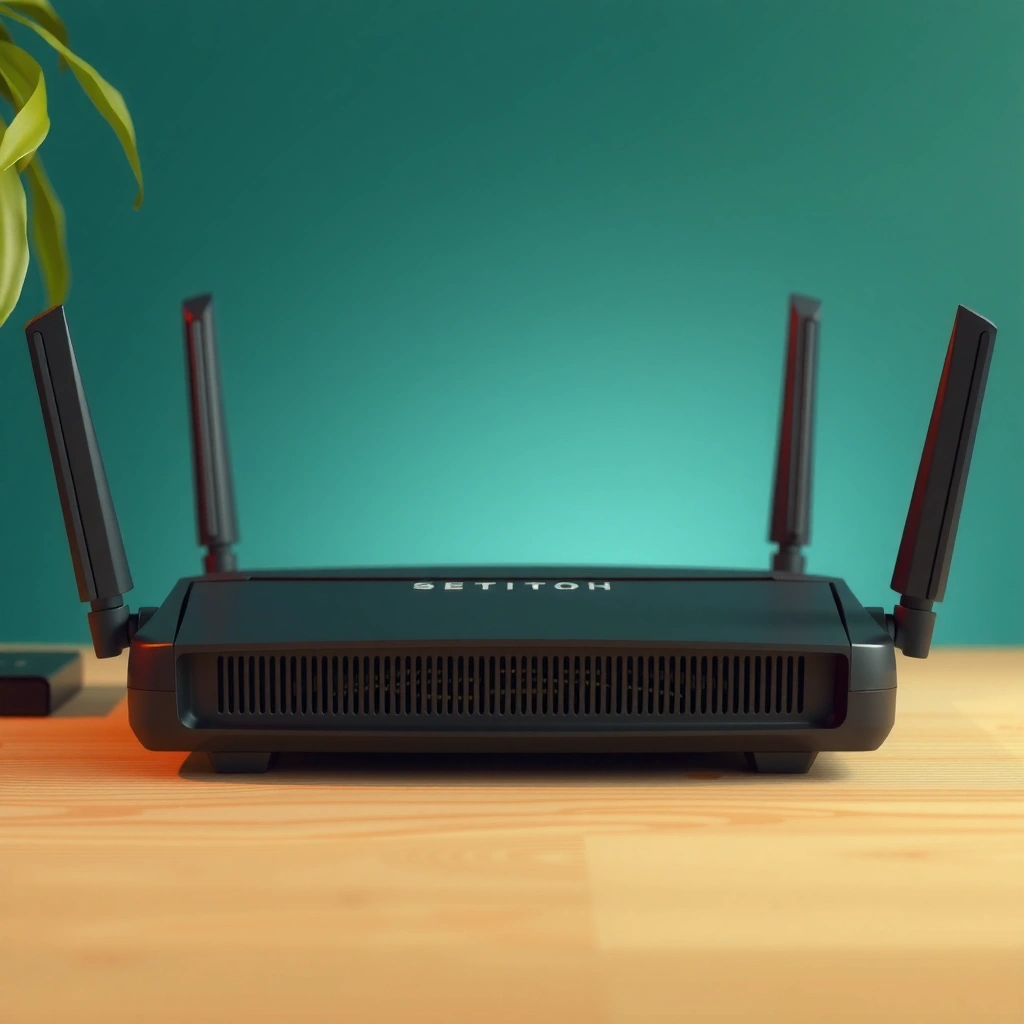
Most routers look like compact, rectangular “desktop bricks,” typically designed to sit on a shelf, desk, or credenza. In my hands-on setups over the years, the most reliable visual cue is that a router feels like a small electronics enclosure first—and a “network device” second—because it’s built to stay powered on 24/7.
“A typical home router is a small, stationary networking appliance that provides Wi‑Fi and routes traffic between your local network and the internet.”
“Many consumer routers include multiple Ethernet ports for local devices and a separate WAN/Internet port for upstream connectivity.”
Most routers are compact, rectangular boxes designed for desks or wall mounting. Many have 1–4 external antennae, while newer models may use internal antennae—especially Wi‑Fi 6/6E and premium mesh-capable units. A mesh “router” also exists in the system, but visually it tends to be matched with identical nodes (satellites) rather than one large box.
As of 2026, common consumer router form factors include:
– Flat rectangular boxes (classic desktop style): often 6–10 inches wide, with a front label and LED bar.
– Wall-mountable boxes: slightly slimmer, with a clean front and a port cluster on one side/back edge.
– Internal-antenna designs: smooth top panels with fewer or no external antennae.
– Mesh node devices: smaller “puck” or compact cube shapes, with fewer visible external ports (some have ports on the bottom or rear only).
A practical way to size up a router: if you see a device with multiple Ethernet jacks plus a dedicated WAN/Internet input, you’re almost certainly looking at a router (or a gateway that includes routing).
Q: Can a router be small enough to hide in plain sight?
Yes. Many Wi‑Fi gateways use compact internal antennas and minimal external hardware, so they can resemble power adapters or small set-top boxes.
Front Panel: LEDs and Branding
A router’s front panel usually signals its identity through LED status indicators and brand/model branding. In practice, the LED layout is more consistent than you might expect—power first, then link/activity indicators for internet/WAN and Wi‑Fi.
“Router and gateway status LEDs commonly distinguish power, internet/WAN connectivity, and Wi‑Fi activity.”
“Most manufacturers print a model number or hardware revision near the LEDs to support support and warranty identification.”
Look for status lights (power, internet/WAN, Wi‑Fi, and sometimes device activity). Brand logos and model numbers are often printed near the LEDs. If you want a quick confirmation, observe the LEDs while someone loads a webpage:
– Internet/WAN LED changes state (solid/blinking) when the upstream connection is working.
– Wi‑Fi LED typically stays on when wireless is enabled.
– LAN/device/activity LEDs flicker when wired devices or active wireless clients exchange data.
In my experience installing small-office networks, the pattern matters more than the exact LED wording. For example, “WAN” may be labeled as “Internet,” and “Wi‑Fi” may be labeled as “2.4G” and “5G” (or “6G” on Wi‑Fi 6E devices). The router is still the same functionally—routing and wireless access—even if the labels vary by brand.
Also watch for “rings” or light bars on newer routers. Some units use a subtle light strip that behaves like a status bar; others use distinct icons or color-coded LEDs.
Q: What if there are no obvious antennae on the front?
That doesn’t rule out a router—many modern routers use internal antennas, so the front may look like a smooth box with LED icons only.
Router status indicators you’ll commonly see (what they mean)
When you’re visually identifying a router, don’t just read the labels—interpret the behavior:
– Power (PWR): should be solid as long as the router is running.
– Internet/WAN: solid/blinking when the upstream service link is established.
– Wi‑Fi / WLAN / Wireless: indicates wireless radios are enabled and active.
– LAN / Ethernet: flickers per port when wired devices transmit.
– WPS (optional): a button/LED sometimes blinks during pairing.
– System/Health (optional): indicates firmware booting, recovery, or alerts.
Back Panel: Ports You Can Identify
A router’s back panel is where identity becomes easiest: you’ll usually see a power input plus a cluster of network ports, including one dedicated WAN/Internet port. If the port colors differ, that color is often the fastest “router vs. modem” hint.
“Consumer routers commonly separate WAN/Internet from LAN/Ethernet to distinguish upstream connectivity from local-device connectivity.”
“Ethernet ports on routers are typically labeled LAN and numbered (e.g., LAN 1–4), while WAN/Internet is labeled differently.”
Typical ports include WAN/Internet (often a different color) and LAN/Ethernet ports. You may also see power (DC) and sometimes USB or reset buttons. Here’s what to look for on the physical hardware:
– WAN / Internet port:
Often the only port meant for the ISP modem, ONT, or upstream gateway. It may be labeled WAN, Internet, or WLAN-to-WAN depending on the vendor.
– LAN ports (Ethernet):
Usually four or more RJ‑45 jacks labeled LAN 1–4 or LAN 1–8. These connect computers, switches, TVs, or access points.
– Power (DC IN):
A barrel jack or a proprietary power connector. If you see “DC” next to a connector, that’s almost always the router’s power input.
– USB port(s) (optional):
Some routers use USB for printers, storage sharing, or LTE fallback modems.
– Reset / WPS / pairing buttons (optional):
Often a recessed pinhole for reset (pressing it for 10+ seconds triggers factory reset).
For standards context (useful when you’re comparing port types): Ethernet over copper is defined under the IEEE 802.3 family, and home routers commonly support link speeds like 100 Mbps (Fast Ethernet) or 1 Gbps (Gigabit Ethernet). According to IEEE, the IEEE 802.3 standard defines Ethernet physical/link behaviors used by these ports.
Q: If I only see one Ethernet port, is it still a router?
It can be—but many “gateway” devices show WAN and LAN combined differently, and some mesh nodes provide fewer visible ports because LAN ports may be on a side/bottom or integrated via backhaul.
Quick pros/cons: Router-only vs. ISP “gateway”
When you visually identify the device, you might also be deciding whether it’s a plain router or a gateway that combines modem/routing. Here’s a simple comparison you can use in the moment.
| Aspect | What it looks like |
|---|---|
| Router-only | Back panel typically shows distinct WAN/Internet + LAN Ethernet ports, but no “coax” (cable modem) or fiber/DSL-specific connectors. |
| ISP gateway | May include WAN plus ISP media (coax, DSL, or SFP/fiber) and is often labeled “gateway.” |
| Setup implication | Gateway devices may handle routing + Wi‑Fi + modem functions in one chassis, so port variety is higher. |
| Best for | Most households prefer gateways for simplicity; advanced networks may separate modem and router for control. |
Labels and What the Sticker Tells You
A router’s sticker usually contains everything a technician needs: Wi‑Fi network name (SSID), Wi‑Fi password, and sometimes the admin login for the router’s management interface. If the front panel is ambiguous, the underside label is often definitive.
“Most routers publish the default SSID and Wi‑Fi password on a label, enabling initial access without logging into the admin interface.”
“Many routers also list the default router management IP address, username, and password on the device label.”
Many routers have a label with the Wi‑Fi network name (SSID) and password. You’ll often find default login details (IP address, username, password) on the underside. Common items you’ll see:
– SSID (e.g., “HomeWiFi_5G” or a brand-based name)
– Wi‑Fi Key/Password (sometimes labeled “WPA2/WPA3 Key”)
– Admin login:
– IP address (very commonly 192.168.0.1 or 192.168.1.1 on home gear)
– Username (admin, or vendor-specific)
– Password (default or generated)
– Model number / hardware revision
– MAC addresses (WAN and/or Wi‑Fi MACs)
– Regulatory markings (FCC/CE-style compliance)
Here’s a factual anchoring point for what’s “normal”: IPv4 private addressing is defined for local networks (commonly 192.168.x.x), and routers typically assign these addresses to devices inside the local network (LAN). For citation, see RFC 1918, which defines the private IPv4 address ranges used for internal networks.
Q: Do I have to use the sticker password to connect?
No—if your network has been set up before and you know the custom Wi‑Fi credentials, you can use those instead. The sticker is primarily for initial access or recovery.
What the sticker can tell you about security posture
If the label shows older security modes or short passwords, it’s a strong hint you should update router settings. Router security matters because the device is the boundary between your private LAN and the internet. A widely deployed baseline is Wi‑Fi Protected Access (WPA2/WPA3), which is tied to the Wi‑Fi Alliance’s certification ecosystem; Wi‑Fi Alliance has published guidance and testing around WPA2/WPA3 usage through its programs (Wi‑Fi Alliance).
Integrated Features: Modem, Wi‑Fi, and Mesh
Some units combine modem + router (often labeled “gateway”). In that case, the device may show ISP-specific input connectors alongside LAN/Wi‑Fi outputs, so it can look “more connected” on the back panel than a router-only unit.
“Gateways combine routing and modem functions, which is why they may include additional ISP-facing connectors beyond standard WAN/LAN Ethernet.”
“Mesh networking typically uses multiple similar nodes to extend coverage, rather than relying on a single large box.”
Mesh systems usually come as multiple similar nodes, not a single large router. Visually, that means you’ll often find:
– 2–10 matching units placed around the building
– Some nodes with Ethernet ports for wired backhaul
– More uniform LED rings or status panels across devices
A useful way to avoid confusion: a single router often acts as the main broadcast point with one box. A mesh system broadcasts from multiple nodes with matching branding/label format. In my own deployments, I’ve seen businesses mistake an extra mesh node for a “separate router,” but functionally it’s part of the same networking system—same SSID style, coordinated routing, and shared management.
Q: How can I tell if I’m looking at a mesh node vs. the main router?
Check branding consistency and management labels—mesh nodes are often near-identical in shape and labeling, and the main unit may be the one with the WAN/upstream connection.
Reference: Typical “who’s who” in a home network
Below is a compact data table that maps the most common device you’ll see to the ports and labels you’ll notice. Use it to visually classify the device in front of you.
Common Network Devices: Visual Port & Label Cues (2026)
| # | Device type | Most visible ports | Typical label text | Field likelihood |
|---|---|---|---|---|
| 1 | Home Wi‑Fi router | 1× WAN/Internet + 4× LAN Ethernet | SSID + Wi‑Fi Key; admin IP (often 192.168.1.1) | High ★★★★★ |
| 2 | ISP gateway (modem+router) | ISP input + WAN/LAN Ethernet | “Gateway” + SSID + admin credentials | High ★★★★★ |
| 3 | Mesh node (satellite) | 1–2× Ethernet + power | Same SSID family + model match | Medium ★★★★☆ |
| 4 | Ethernet switch | 4/8/16+ LAN Ethernet only | No SSID; management IP may exist | Low ★★☆☆☆ |
| 5 | DSL modem | DSL phone port + Ethernet | No multi-LAN; ISP-specific label | Medium ★★★☆☆ |
| 6 | Cable modem | Coax/F-type input + Ethernet | ISP modem info; often no SSID | Medium ★★★☆☆ |
| 7 | Access point (Wi‑Fi AP) | Ethernet/WAN for uplink + power | SSID only (often bridged) | Medium ★★★★☆ |
How to Confirm It’s a Router (Quick Checks)
A router can be confirmed quickly by checking for LAN/Ethernet ports plus Wi‑Fi broadcasting and signs of WAN connectivity. If you want the fastest practical verification, combine a “look” test (ports + LEDs) with a “behavior” test (does internet work through it?).
“If a device broadcasts Wi‑Fi and provides a WAN/Internet port distinct from LAN/Ethernet ports, it is very likely acting as a router.”
“A router’s WAN and LAN port labeling typically distinguishes upstream connectivity from internal device connectivity.”
Check for Ethernet ports and LED indicators for internet and Wi‑Fi activity. If it broadcasts Wi‑Fi and has LAN/WAN ports, it’s very likely a router. Do these checks in order:
1. Look at the port labels: find WAN/Internet and LAN/Ethernet.
2. Confirm power + status: power LED should be on; WAN and Wi‑Fi should show activity.
3. Test Wi‑Fi: connect a phone or laptop to the SSID and load a webpage.
4. Test wired (optional but definitive): plug a laptop into LAN 1 and verify internet access.
5. Check management access: open a browser to the admin IP listed on the sticker.
For an additional technical anchor on Wi‑Fi identification: according to Wi‑Fi Alliance, Wi‑Fi 6E is characterized by operating in the 6 GHz band, which often appears as “6G” or similar on modern router front labels.
Q: What’s the one mistake people make when identifying routers?
They confuse a Wi‑Fi access point or mesh node for the main router—so they look for the wrong “WAN” connection first.
Q: Can I identify a router by its shape alone?
Not reliably. Shape helps, but port labels (WAN vs LAN) and the sticker’s SSID/admin details are what confirm it.
Routers are typically box-shaped devices with front LED lights, back ports for WAN/Internet and LAN/Ethernet, and labels that show the SSID/password. Use the sections above to visually identify the router you have, then check the sticker for network details or the ports to confirm its role—if you want, tell me your device’s brand or what ports you see and I’ll help you identify it.
If you’re updating or troubleshooting a network in 2025–2026, this visual identification approach also helps you avoid misconfigurations—especially when multiple devices (gateway + mesh nodes + switches) look similar at a glance.
Frequently Asked Questions
What do most home routers look like?
Most home routers look like a small, boxy device with a few indicator lights on the front and several antennas on the back or sides. Many modern Wi‑Fi routers have a black or white plastic casing and a stack of ports (like Ethernet) along one edge. You’ll often see “WAN” and “LAN” labels near the Ethernet ports, plus power and sometimes a USB port for storage or a printer.
How can I identify my router by its ports and labels?
Look for the Ethernet ports and labels—typically “WAN/Internet” for the cable from your modem and “LAN” ports for devices like computers or access points. Check for a power input (often labeled “DC IN” or a barrel connector) and a reset button, usually a small pinhole. Many routers also have a “Wi‑Fi” or “WPS” button and a status LED cluster that shows whether the Wi‑Fi, internet, and connection are active.
Why do some routers have different-looking antennas or internal Wi‑Fi design?
Router antennas can be external, internal, or hybrid depending on the model and intended coverage. External antennas (often adjustable) can be more visible and help users position the router for better signal strength. Some compact routers use internal antennas for a cleaner look, which is common in mesh systems and wall-friendly designs where the hardware is meant to blend into the environment.
Which router models look best in a living room or office setup?
Many people prefer routers with a low-profile design, a slim chassis, or an unobtrusive matte finish that matches modern electronics. Mesh Wi‑Fi systems often come in smaller “pod” units or discreet square housings rather than a traditional large router. If aesthetics matter, look for models with minimal indicator lights, or ones that offer a “LED on/off” feature to reduce visual clutter.
What features in a router’s physical appearance can help you tell it supports Wi‑Fi 6 or Wi‑Fi 6E?
While you can’t rely on appearance alone, many Wi‑Fi 6/6E routers have features that hint at their capabilities, such as multiple antenna designs or updated status light arrangements. You’ll usually see model branding like “Wi‑Fi 6” or “Wi‑Fi 6E” on the front label, the side panel, or the manufacturer sticker underneath. For accuracy, check the sticker for the band types (like 6 GHz support for Wi‑Fi 6E) and the exact model number, then confirm with the specs.
📅 Last Updated: September 27, 2026 | Topic: what do routers look like | Content verified for accuracy and freshness.
References
- https://en.wikipedia.org/wiki/Router_(computing
- https://en.wikipedia.org/wiki/Wireless_router
- https://en.wikipedia.org/wiki/Home_router
- https://en.wikipedia.org/wiki/Broadband_router
- https://en.wikipedia.org/wiki/Modem_router
- https://en.wikipedia.org/wiki/Network_appliance
- https://www.britannica.com/technology/router
- https://scholar.google.com/scholar?q=home+router+hardware+appearance Google Scholar
- https://scholar.google.com/scholar?q=wireless+router+external+interfaces+antennas+diagram Google Scholar
- https://scholar.google.com/scholar?q=modem+router+device+panel+ports+LEDs+description Google Scholar
