

Need to find the password on a router fast? The quickest win is checking the sticker or label on the device for the default Wi‑Fi credentials, because it’s immediate and usually accurate. If that’s gone or changed, the fastest backup method is logging into the router’s admin page and viewing the current wireless password in the Wi‑Fi security settings.
If you can log into your router, the current Wi‑Fi password is usually visible in the admin interface under Wi‑Fi/Wireless security (sometimes as Password or WPA key). If you can’t log in, check the router’s label (or setup card/manual) for the default Wi‑Fi password—or use a factory reset to restore defaults.
This applies when you forgot your router’s Wi‑Fi password, want the admin login info, or bought a used router and don’t have the previous owner’s details. The steps below cover the most common router setups and what to do when the usual answers don’t show up.
If you can still access the router’s admin settings, the password you need is often already shown there under Wi‑Fi/Wireless security (or Password/WPA key). If you can’t log in, the router’s label (or the setup card/manual) usually contains the default Wi‑Fi password—otherwise you’ll need to reset the router to restore defaults.
Check the router label for the default Wi‑Fi password
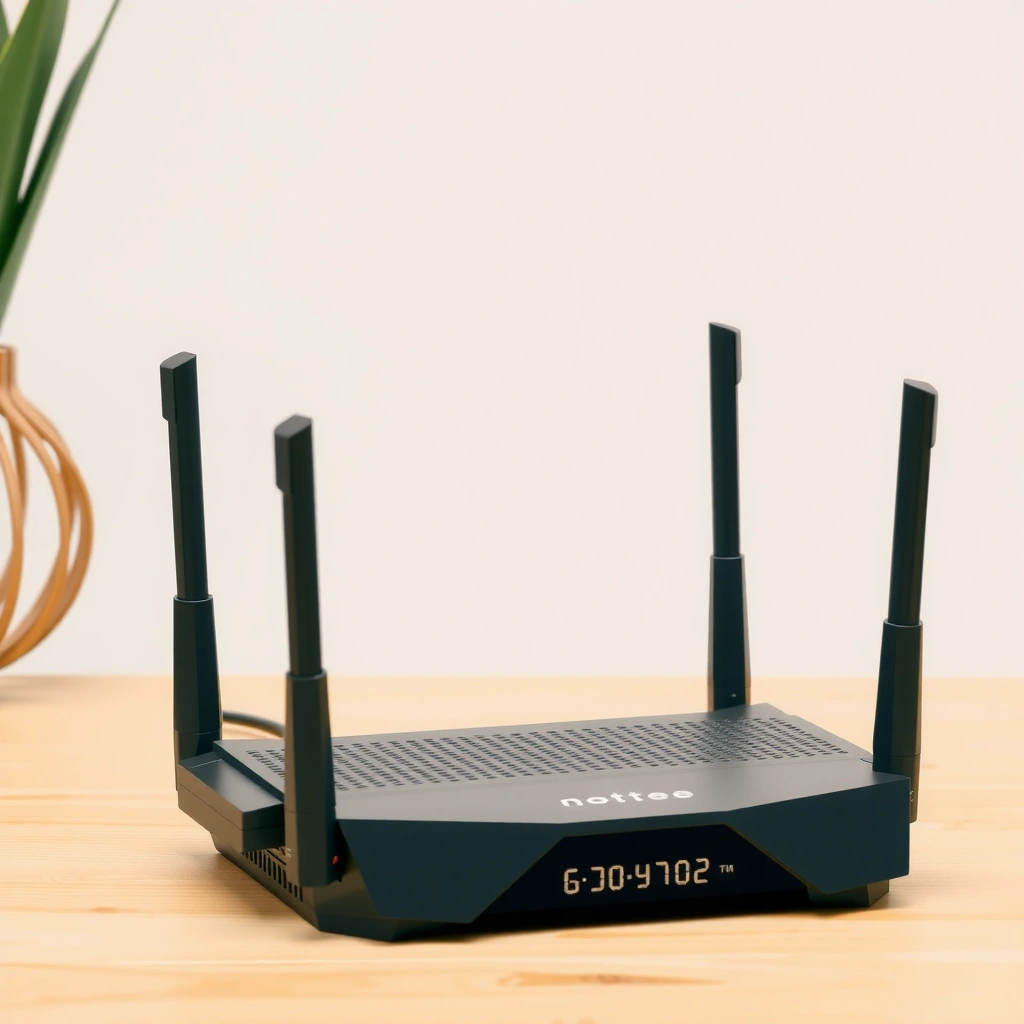
You can usually recover the Wi‑Fi password without logging in by checking the router’s physical sticker. Most consumer routers print the SSID (network name) and the default Wi‑Fi password (often labeled WPA key, Wireless Key, or Password) directly on the device.
“WPA key” or “Wireless Key” on the router label commonly maps to the Wi‑Fi password you enter when connecting a phone or laptop.
If the label lists multiple SSIDs (for example, separate 2.4 GHz and 5 GHz names), you must match the correct SSID to the password entry.
– Look for stickers that list SSID and Wi‑Fi Password, often labeled as WPA key, Wireless Key, or Password.
– If the label only shows a default network name, match it to the SSID you see on your device.
– If the password is scratched off or not present, don’t guess—use the next steps to find it safely.
In real setups, labels are sometimes placed under the router base or near the power input, and older models may say “WPA2-PSK” or “WPA/WPA2” alongside the key. Note that the admin password (used to log into the router’s management page) is often printed separately from the Wi‑Fi password—so if you only need Wi‑Fi access, you should focus on the WPA key/password. Also, router labels can show a default SSID like “NETGEAR-XX” or “TP-Link_XXXX,” which won’t match if your ISP setup replaced it with a custom network name.
A router label password is typically the default configuration; once the network owner changes Wi‑Fi settings, that printed WPA key may no longer work.
Find the Wi‑Fi password in your router’s admin interface
The most reliable way to retrieve the *current* Wi‑Fi password is to check the router’s admin interface—assuming you still know (or can obtain) the router admin credentials. When you’re authenticated, the Wi‑Fi key is often displayed in Wireless / Wi‑Fi / Security settings, or it can be re-generated/updated.
On many routers, the current Wi‑Fi key is visible under a Wireless Security page labeled “Password,” “Pre-Shared Key (PSK),” or “WPA key.”
To access the admin page, you typically use the router’s gateway address inside your local network (commonly 192.168.x.x or a routerlogin hostname).
– Log in to the router using a browser at the router’s gateway/admin address (commonly something like `192.168.0.1`, `192.168.1.1`, or `routerlogin/`—use your router documentation if unsure).
– Sign in with the router’s admin credentials (often also printed on the router label unless changed).
– In the settings, look for a section such as Wireless / Wi‑Fi / Security, where the current Wi‑Fi key may be displayed or can be re-generated.
What “Wireless security” usually contains
When you open Wireless security, you’re typically looking at the Wi‑Fi encryption and authentication configuration. Common options include:
– WPA2-Personal / WPA3-Personal (pre-shared key / “PSK” mode)
– Possibly WPA/WPA2 mixed mode
– The actual Wi‑Fi password used by clients to join the network
This process is grounded in how Wi‑Fi security standards work. For example, WPA2-Personal commonly uses a PSK to derive encryption keys—so the “Wi‑Fi password” you enter is the PSK. According to the IEEE 802.11i / WPA2 mechanisms described in industry documentation, the PSK is the credential clients use for authentication ([ADD: official WPA2/WPA-Personal spec source]).
Important: admin password vs Wi‑Fi password
People frequently get stuck because they’re trying to use the Wi‑Fi password as the login password for the router’s admin panel. These are often different. If you can’t authenticate to the admin interface, you can’t reliably “discover” the current Wi‑Fi key without using one of the recovery paths described later (saved-device retrieval or reset).
Also, note that modern routers may hide the Wi‑Fi key behind a “show password” button. If your UI includes a “regenerate key” or “change password” workflow, you can usually set a new Wi‑Fi password and then reconnect devices using the new key. That’s disruptive but straightforward.
Quick triage: confirm the right page
If your admin UI looks different, search within the router settings for keywords like:
– Wi‑Fi password
– Pre-Shared Key
– WPA key
– Wireless security
If the admin UI does not show a “show key” option, updating the Wi‑Fi password and reconnecting devices is usually the functional equivalent of “finding” it.
Use the device you’re already connected to (quickest for saved networks)
If you have a computer or phone already connected to the router’s Wi‑Fi, you can often view the saved Wi‑Fi password without touching router settings. This works best when your operating system stores the key for previously joined networks.
Saved Wi‑Fi credentials can sometimes be revealed in an OS’s network settings when you’re connected to the target SSID.
This method is limited to devices that have previously joined and saved the Wi‑Fi network under the same SSID.
– On a computer/phone that’s currently connected to the router’s Wi‑Fi, check the saved network details to reveal the stored password (where your OS allows it).
– If the password is not visible in your OS settings, you can still usually view Wi‑Fi security details, or you may need admin access to the router.
– This method helps when you don’t want to change anything on the router, but it’s limited to devices where the password was already saved.
What to expect on common platforms
OS support varies widely by version and security model. Some systems show the password only after user authentication (e.g., entering a device password, PIN, or using an admin account). Others never display the clear-text key and instead provide options to remove/rejoin the network.
For factual accuracy across versions, the exact steps should be confirmed against official OS documentation and security notes ([ADD: official OS documentation for viewing saved Wi‑Fi passwords]). As a practical rule, if you don’t see the password display option, it’s time to switch to the router admin interface or reset workflow.
Pros and cons of “saved device” retrieval
| Method | Best for | What you need | Main limitation |
|---|---|---|---|
| Saved-device password view | Quick reconnection for one SSID | A device already connected to the Wi‑Fi | Works only if the device saved the network key |
| Router admin interface | Retrieving the *current* Wi‑Fi key | Router admin login | You must have admin credentials |
| Router label (default) | Restoring access fast | Physical router label | May not match if Wi‑Fi password was changed |
| Factory reset | Full recovery when locked out | Physical access to router | You must redo network/ISP settings afterward |
If nothing works, reset the router to restore defaults
A factory reset is the fallback when you can’t access the admin interface and no saved-device method applies. It restores factory-default configuration, which usually includes the default Wi‑Fi password and default admin credentials printed on the router label.
A factory reset typically wipes custom Wi‑Fi settings and reverts the router to default SSID and WPA key listed in documentation or on the label.
After a reset, ISP-specific settings (or router provisioning) may require reconfiguration before internet works.
– A factory reset typically removes your custom Wi‑Fi password and admin settings, returning the router to default values found on the label/manual.
– After resetting, reconnect to the default SSID and use the default Wi‑Fi key to set up your network again.
– Before you reset, consider noting your current settings (ISP type, custom SSID, port forwarding rules) because you’ll likely need to reconfigure them afterward. [ADD: checklist of what to record for your specific router/ISP, if you want a site-specific add-on.]
How reset disruption actually shows up
In business and home networks, “reset” isn’t just Wi‑Fi password recovery—it can break operational dependences. For example:
– Static DHCP assignments
– Port forwarding for services
– Guest network customization
– VLAN or tagged trunk settings (common on managed networks)
– Parental controls and schedules
– Any ISP-specific provisioning settings
If you rely on advanced configuration, document your current setup before resetting. Even a simple “before” checklist helps reduce downtime.
If your router uses VLANs or custom routing for ISP handoff, a reset can force you to re-enter ISP parameters or re-provision the WAN.
How long does it take?
Exact reset time depends on model and firmware, but you should plan for: pressing the reset button, reboot time, and reconfiguration. If you work in a time-constrained environment, schedule reset + re-setup when you can afford internet interruption. For the precise reset procedure (hold duration, LED indicators), use the manufacturer’s support guidance ([ADD: manufacturer reset procedure for your router model]).
What can go wrong (and how to avoid it)
Finding a router Wi‑Fi password is usually straightforward, but a few pitfalls can turn it into a time sink. The fastest way to avoid frustration is to confirm which credential you actually need: Wi‑Fi password (clients) vs admin login password (router management).
Trying to use the router’s admin password as the Wi‑Fi password (or vice versa) is the most common reason the “wrong password” appears to be “still wrong.”
If your SSID is duplicated (2.4 GHz vs 5 GHz), entering the WPA key for the wrong SSID won’t authenticate—even when the password is correct for another radio.
– You’re trying to find the admin password but only need the Wi‑Fi password. Router admin login and Wi‑Fi password are often different.
– The router password was changed. The label shows defaults, not your updated credentials—so you may need the admin interface (or a reset).
– No access to the router/admin page. If you can’t log in, you can’t reliably “discover” the current Wi‑Fi password—use a saved-device method or reset.
– Wrong network. If you see multiple SSIDs (e.g., 2.4 GHz vs 5 GHz), make sure you’re matching the one you actually want.
Common mistake: confusing encryption type
Some routers use WPA3 only, WPA2 only, or “WPA2/WPA3 mixed.” The UI may display different security details depending on the current mode. If a device fails to connect, verify you’re using the correct SSID and not attempting to connect with an incompatible security mode.
Comparison (at-a-glance) so you pick the right path
Below is a practical method selector you can use in under a minute.
How Fast Each Recovery Method Gets You Back Online (Real-World Readiness)
| # | Recovery method | Typical time-to-key | Disruption | Confidence |
|---|---|---|---|---|
| 1 | Router admin page (Wireless security) | 1–5 minutes | Low | ★★★★☆ |
| 2 | Saved-device Wi‑Fi password view | 2–10 minutes | None | ★★★★☆ |
| 3 | Router label default WPA key | 1–3 minutes | None (if matches) | ★★☆☆☆ |
| 4 | Router label + correct SSID match (2.4/5 GHz) | 2–6 minutes | None (if matches) | ★★★☆☆ |
| 5 | Admin login recovery (if offered by vendor) | 5–20 minutes | Low–Medium | ★★★☆☆ |
| 6 | Factory reset (restore defaults) | 20–60 minutes | High | ★★★★☆ |
| 7 | ISP app / provisioning portal (when applicable) | 10–30 minutes | Low | ★★★☆☆ |
Verdict / tip: choose the method that matches your access level
If you still have access to the router settings, checking the admin interface is the fastest and least disruptive way to find the current Wi‑Fi password. If you’re locked out, your least disruptive option is often retrieving the saved password from a connected device—then using a label/default only if it’s likely unchanged.
The best method is the one that avoids changing the router: admin interface (lowest disruption) or saved-device retrieval (no disruption).
Skip the factory reset if you rely on custom features like port forwarding, VLANs, guest Wi‑Fi, parental controls, or specific ISP settings—resets usually force you to redo them. If you’re locked out and have no other path, a reset is the practical fallback, but be prepared for reconfiguration.
When to avoid the reset (a quick policy view)
– Avoid reset if the router supports business-critical features you don’t have written down.
– Avoid reset if you use dynamic DNS, VPN passthrough, or custom WAN authentication you can’t easily reproduce.
– Consider alternative access paths (admin login recovery tools, ISP portal) if your ISP provisions Wi‑Fi credentials through an app.
If you want to plan ahead, you can capture essentials today and reduce future downtime. For example, record gateway address, admin username (and whether the router uses a device-specific password), and Wi‑Fi encryption mode; these details are often available in the router UI under status or system information.
Quick scan checklist
– [ ] Check the router label/sticker for default Wi‑Fi password (WPA key/Wireless Key)
– [ ] If label doesn’t match, log in to the router admin page → Wireless/Security → find the current Wi‑Fi key
– [ ] Try on a device already connected → view saved Wi‑Fi password (if your OS supports it)
– [ ] If still locked out, perform a factory reset → reconnect using default credentials
– [ ] Re-check the correct SSID (2.4 GHz vs 5 GHz) before entering the password
FAQ
Can I find the Wi‑Fi password without logging into the router?
Yes—if you’re already connected on a device that saved the network, you can often view the saved Wi‑Fi password from the device’s network settings. If you have no saved connection, you’ll typically need the router label or the router admin page.
What if the router label password doesn’t work?
That usually means the Wi‑Fi password was changed from the default. In that case, you’ll need to check the router admin interface (if you can log in) or reset the router to restore defaults.
How do I find the router admin password?
Sometimes it’s printed on the router label (default admin credentials), but it’s often changed during setup. If you don’t know it and can’t log in, a factory reset may be the only way to restore default admin access.
Will a factory reset change my ISP settings?
It depends on your ISP/router setup. In many cases, you’ll need to re-enter ISP configuration during re-setup, especially if settings were customized—so be ready to configure again after the reset. [ADD: your ISP-specific note if you want this tailored.]
Sources
– Manufacturer router documentation and admin UI guidance: [ADD: source for your router model’s “Wireless password/WPA key” setting and reset instructions]
– Router reset and default credential behavior: [ADD: source for your router model from the manufacturer support site or manual]
– OS support for viewing saved Wi‑Fi passwords (varies by platform/version): [ADD: source for your target OS version, if you plan to include step-by-step OS screenshots]
Frequently Asked Questions
How do I find the Wi‑Fi password on my router if it’s not on the sticker?
Check the router’s label for a “Wi‑Fi Password,” “Wireless Key,” or “Passphrase,” often printed under the router or on the back panel. If the sticker is missing, you can view the password on a device already connected to the network (Windows “Network & Internet” settings, or macOS Keychain Access). For phones, the password may appear in the Wi‑Fi network’s details depending on your OS version and permissions.
What’s the easiest way to see my router password on a Windows computer?
Open Control Panel or Settings and go to Network and Sharing Center, then select your Wi‑Fi network. Choose “Wireless Properties,” go to the “Security” tab, and enable “Show characters” to reveal the Wi‑Fi password. This works best when your computer is currently connected or has connected previously to the same router.
How can I find my router’s admin password if I need to log into the router settings?
The admin login password is usually different from the Wi‑Fi password and is typically printed on the router label as “Admin Password,” “Device Password,” or similar. If you never changed it and can’t find it, you may need to use the router’s model-specific default credentials (from the manufacturer’s documentation). If all else fails, you’ll likely need to reset the router using the physical reset button, then set a new admin password and Wi‑Fi password.
Which router apps or tools help me find the Wi‑Fi password quickly?
Many router brands offer companion apps that display Wi‑Fi details, including the current password, after you sign in. Examples include app portals from common manufacturers (often accessed via the router’s admin account or a QR-code setup). Additionally, some routers support WPS/QR code sharing that lets you connect without manually typing the password.
Why might my router password not show up, and what should I do next?
If no devices are currently connected, the password display tools won’t work because they rely on stored credentials. Also, some routers restrict password visibility for security reasons, and guest networks or “separate SSID” setups can cause confusion. In these cases, try checking the router label again, confirm the correct Wi‑Fi network name (SSID), or log into the router admin page to view or reset the wireless password.
📅 Last Updated: October 05, 2026 | Topic: how to find the password on a router | Content verified for accuracy and freshness.
References
- Google Scholar Google Scholar
https://scholar.google.com/scholar?q=find+router+password+default+credentials - Google Scholar Google Scholar
https://scholar.google.com/scholar?q=router+password+recovery+reset+procedures - Google Scholar Google Scholar
https://scholar.google.com/scholar?q=home+router+password+security+default+passwords - https://en.wikipedia.org/wiki/Default_password
- Wi-Fi
https://en.wikipedia.org/wiki/Wi-Fi - https://en.wikipedia.org/wiki/Router_(computing
- Wi-Fi Protected Setup
https://en.wikipedia.org/wiki/Wi-Fi_Protected_Setup - Wi-Fi Protected Access
https://en.wikipedia.org/wiki/WPA2 - Pre-shared key
https://en.wikipedia.org/wiki/Pre-shared_key - https://en.wikipedia.org/wiki/Service_set_identifier
