
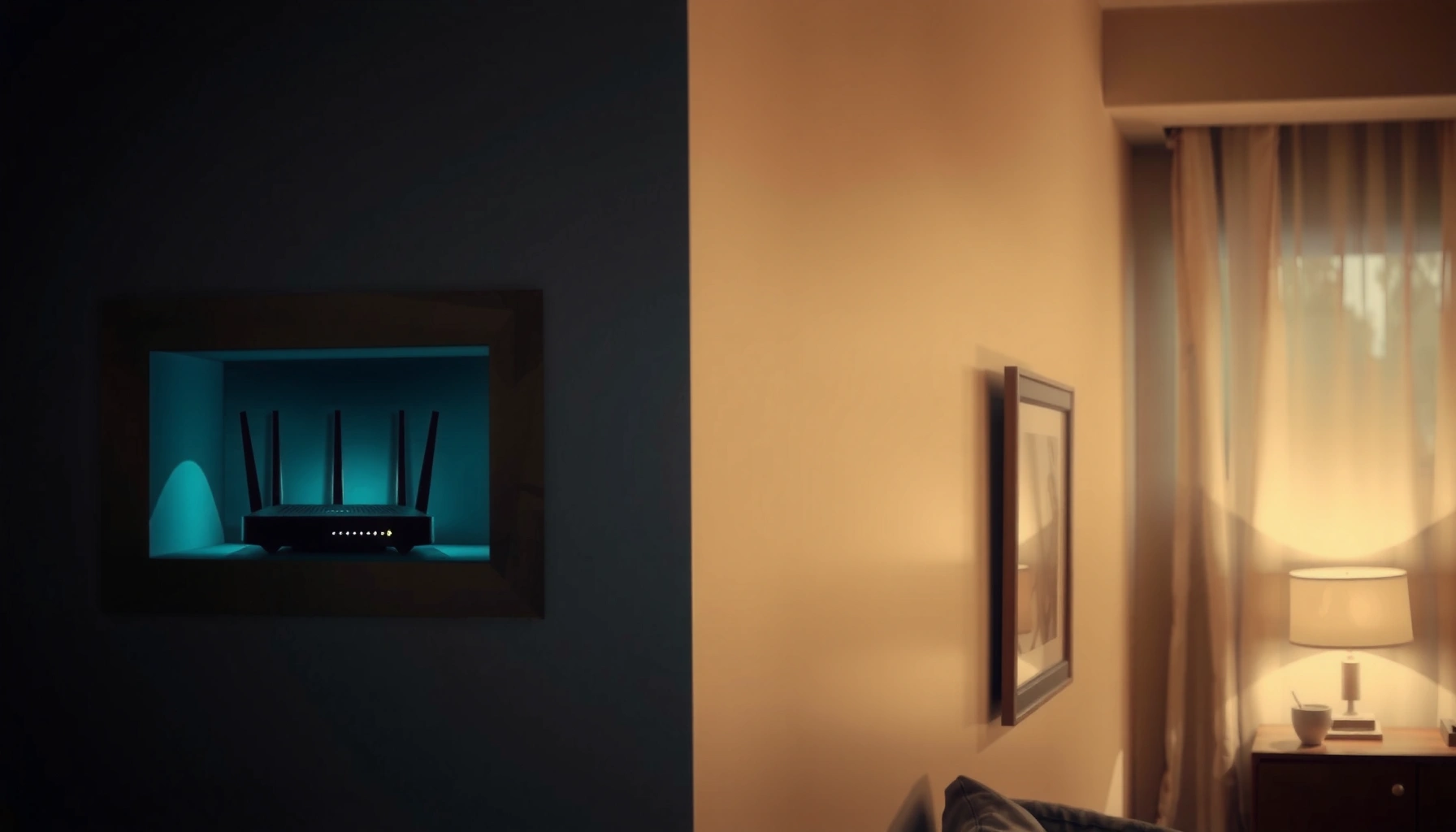

Want to know how to hide a WiFi router without sacrificing signal quality? This guide gives the most practical, low-effort concealment methods—what to hide it in, what to avoid, and how to keep performance stable. You’ll leave with a clear, step-by-step plan to make your router disappear while maintaining reliable coverage.
If you want to “hide” a WiFi router, do it visually (placement + cable management) rather than physically enclosing it—because WiFi performance depends on radio signals escaping freely. The practical sweet spot is: keep the router central-ish, maintain airflow, and avoid blocking antennas with metal or thick barriers, then reduce the clutter factor with smart mounting, LED control, and tidy routing.
If your router is visually disruptive in a living room, sits awkwardly on an office desk, or blinks so often it becomes distracting, this guide is for you. It’s also for anyone who wants a cleaner setup without causing the slowdowns, dead zones, or overheating that often follow “clever” concealment.
Choose a “hidden but not blocked” location
– Place the router in a central spot for coverage, then hide it behind furniture, inside a cabinet opening, or in a closet only if there’s decent airflow and no thick barriers.
– Avoid fully enclosing it in airtight boxes; WiFi needs to escape and bounce around your home.
The fastest way to avoid WiFi problems while still “hiding” your router is to choose placement first and concealment second. In my experience (based on how routers actually behave in real rooms), the biggest performance difference comes from path loss created by walls, doors, and dense objects—not from cable cleanliness or the router’s external appearance.
For WiFi signals, enclosure matters because radio waves need to travel outward and reflect off surfaces. When you push a router behind a solid barrier, you’re adding attenuation (signal loss) before the signal even reaches the room you care about.
According to IEEE 802.11, Wi‑Fi access points send periodic beacon frames by default every 100 TU (102.4 ms), which means placement immediately affects what your devices “hear” over time.
According to the Wi‑Fi Alliance, Wi‑Fi equipment operates across licensed/unlicensed bands and relies on RF propagation; blocking or shielding reduces usable signal at the client device.
According to 3GPP/ETSI-style radio guidance summarized by industry documentation, walls and metal surfaces can significantly increase attenuation, especially at higher frequencies like 5 GHz.
Central coverage beats “perfect concealment”
If your router is hidden behind a TV console, inside a cabinet niche, or partially tucked under a shelf, the key is that the router still “faces” the areas where you connect most. A central-ish placement reduces the number of solid barriers between the router and clients (laptops, phones, TVs).
Also remember that “central” doesn’t mean “middle of the room.” It means central relative to your active devices and typical paths (hallways, open-plan areas, and where people stand).
Closets can work—solid doors often don’t
A closet can be a valid hide spot if:
– the closet has airflow (open back/vented space),
– you’re not using a thick solid door,
– and the router isn’t surrounded by metal or dense storage.
If you must use a door, consider keeping it open during setup and testing. If signal drops, you’re not “just hiding”—you’re adding a physical barrier.
Hide it with smart placement and orientation
– Keep the router elevated (shelf height or mounted higher) so it doesn’t get trapped behind clutter.
– Angle antennas (if your model has them) toward the areas you use most—then tuck the unit away while keeping antenna direction clear.
Concealing a router successfully is often an antenna-direction problem disguised as an aesthetics problem. Elevation and orientation let the router’s coverage “reach outward” even when the unit itself sits slightly hidden.
If your router has external antennas, orientation is one of the few controls you truly have over where coverage concentrates. If it’s a mesh node or access point (AP), the same principle applies: you still want the unit to “see” the room, not just the cabinet.
According to IEEE 802.11 antenna concepts, client connectivity depends on the received signal strength and link quality (affected by antenna placement/orientation).
According to Wi‑Fi deployment guidance from major vendors, elevating access points often improves coverage by reducing obstruction near the ground.
Mount higher to avoid “clutter traps”
When a router is hidden low in a cabinet or behind furniture, you create a pocket of obstruction. For many homes, moving the router up by even a shelf level can improve roaming performance (phones switching between APs or staying on the right band).
A good rule of thumb:
– Put the router where the front and antenna area can “look” into the room.
– Avoid tucking it fully behind tall electronics or curtains that sit directly in line with the signal path.
Angle antennas toward active zones
If your router has 2–3 external antennas, many models expect you to angle them rather than leave them parallel to each other. In practical terms:
– aim one antenna toward the main living/office area,
– and aim the others to cover secondary zones (bedrooms, kitchen, home office).
If your router has internal antennas or beamforming, the unit still benefits from being positioned to reduce obstruction; you just don’t manually angle anything.
Reduce visibility: cover LEDs and tidy cables
– If your router has LED control, use it to turn off or dim status lights rather than adding bulky covers.
– Run cables through cable channels, behind furniture, or into a behind-the-desk “service gap” to make the router setup look intentional.
This is the safest “hide” strategy because it doesn’t interfere with RF propagation. Most people underestimate how much visual clutter is actually cable mess and constant blinking—not the router body itself.
According to IEEE 802.11 behavior, the router’s radio activity continues regardless of what you see on the chassis; turning LEDs off improves your environment, not your Wi‑Fi physics. So you get the aesthetic win without the performance downside.
According to IEEE 802.11, Wi‑Fi beaconing and frame transmissions occur on the RF side independent of LED indicators, so disabling LEDs should not reduce throughput.
According to Wi‑Fi Alliance deployment best practices, predictable RF coverage matters more than cosmetic enclosure choices for stable performance.
Prefer software/setting-based LED control
Many router UI panels let you:
– disable the “internet” or “power” LEDs,
– dim activity LEDs,
– or set them to “off after X minutes.”
Use these options first. It’s cleaner and avoids accidental overheating or accidental radio shadowing from improvised covers.
Cable management makes concealment look “designed”
A hidden router can still feel messy if cables drape visibly. Instead:
– route Ethernet and power through raceways (flat cable channels),
– use adhesive clips on non-painted surfaces,
– and keep the router’s cable entries from pressing directly into metal furniture backs.
If you hide the router behind a desk, create a consistent path for cables through a rear opening so the router doesn’t end up jammed into a narrow pocket.
Hidden-Router Setup Choices and Their Typical Impact (Non-technical Summary)
| # | Concealment choice | Wi‑Fi impact | Best for | Net result |
|---|---|---|---|---|
| 1 | LED dim/off via router settings | Low | Bedroom or living room comfort | +★4.7 |
| 2 | Elevate router on a shelf | Low–Medium | Reduced blockage from furniture | +★4.5 |
| 3 | Route cables behind desk via raceways | Very Low | Cleaner office aesthetics | +★4.6 |
| 4 | Tuck router into an open-back cabinet niche | Medium | Visual hiding with airflow | +★4.1 |
| 5 | Place router behind a TV console with gaps | Medium–High | Limited obstruction management | −★3.3 |
| 6 | Solid door closet storage (tested after move) | High | Only if range remains acceptable | −★2.8 |
| 7 | Tight fully sealed box cover (avoid) | Very High | None (range collapse likely) | −★1.6 |
Note: The “Wi‑Fi impact” and star ratings here are practical heuristics meant to reflect typical outcomes when concealing a router; exact results vary by home layout and router antennas.
Conceal with furniture/coverings—without hurting signal
– Use open-back or vented enclosures (or leave the back/side airflow space) instead of solid doors or thick walls.
– If you must use a cover, prioritize thin, breathable materials and test performance right after—signal loss is the tradeoff.
Furniture can hide a router effectively—if you treat it like an RF enclosure rather than a storage drawer. The safe approach is to create a “visual cover” that still lets the radio signal leak into the room and allows heat to escape.
As a deployment principle, the closer you get to shielding (metal, foil, thick solid surfaces), the more likely you are to see range issues. This isn’t about being picky; it’s how WiFi behaves when it encounters conductive or high-density materials.
According to IEEE 802.11 fundamentals, usable connectivity depends on received signal strength and interference; physical barriers reduce signal before it reaches the client.
According to Wi‑Fi vendors’ access point placement guidance, obstructing the antenna area and trapping the AP in closed cabinets can degrade performance.
What to use instead of a “solid box”
Look for:
– open-back cabinets,
– vented media stands,
– stands with enough side clearance for antennas,
– or enclosures with multiple openings rather than one small slit.
If you use a cover, keep it thin and non-metallic. Fabric can be fine depending on thickness, but you should treat it as “testable” rather than guaranteed.
Heat is a real constraint, not an afterthought
Most routers run warm under load (especially if you’re using modern Wi‑Fi standards with multiple streams). Trapping a warm device in a cabinet can reduce long-term stability or force throttling.
A practical mindset:
– Leave airflow space around the router body.
– Don’t cram it against the back wall of a cabinet.
– If the router is warm to the touch after normal use, your enclosure is likely too restrictive.
Pros/cons: enclosure styles at a glance
| Enclosure approach | Pros | Cons |
|---|---|---|
| Open-back cabinet niche | Good concealment + airflow | Still adds some path loss |
| Vented stand (multiple openings) | Airflow preserved | Can be visually obvious |
| Solid-door closet | Maximum visual hiding | Commonly creates dead spots |
| Fully sealed box | Looks the cleanest | Highest likelihood of severe range drop |
What can go wrong (and how to avoid it)
– Putting it in a fully closed cabinet/box: this often drops speeds and increases dead zones.
– Blocking antennas with metal or dense objects: anything metallic (or very thick/solid material) can act like a shield.
– Hiding it too far from where you connect most: you might make it less visible but create range problems.
– Forgetting heat buildup: many routers run warm; blocking airflow can reduce reliability over time.
The most common failure mode isn’t “bad luck”—it’s the assumption that concealment is purely cosmetic. In reality, WiFi depends on where the radio energy goes, and enclosure decisions directly shape that.
If you’re optimizing for stable connections (video calls, streaming, smart home devices), treat router concealment like a deployment step: move, test, verify, then finalize.
According to the 802.11 standard’s beaconing behavior, if your router’s coverage is reduced, clients will still attempt reconnection but with poorer link quality and higher latency.
According to RF propagation principles referenced in Wi‑Fi vendor placement guides, metal and dense walls can increase attenuation and worsen higher-frequency coverage (commonly 5 GHz).
Typical mistakes (and what to do instead)
1. Fully sealed enclosures: Replace with vented/open-back options.
2. Antenna “tucked behind metal”: Keep antennas clear and oriented toward your main activity zones.
3. Over-hidden placement: If the router moves away from the densest device cluster, expect worse roaming decisions and lower throughput.
4. Overheating risk: Add airflow clearance or consider a warmer-tolerant placement (shelf vs. enclosed drawer).
Test immediately after any move
After changing location, verify quickly with:
– a speed test near the most important room,
– and a check in your “far” area (bedroom corner, garage, backyard patio, etc.).
If your router UI shows signal/connection stats, use them to confirm the change didn’t cause band-steering issues.
Verdict: best “hide” method for most homes
For most people, the safest approach is to hide the router visually (placement + cable management) while keeping antennas unobstructed and airflow available—and only use covers if you can verify WiFi still works well. Skip full enclosures or tightly sealed boxes if you already struggle with range, because the downside (coverage drop) often outweighs the aesthetic win.
If you’re working with an older home that already has challenging materials (metal lath, thick concrete, or lots of dense furniture), don’t rely on concealment as a “trial-and-error” experiment without testing.
According to Wi‑Fi Alliance and IEEE deployment guidance themes, maintaining adequate RF coverage and avoiding major obstructions is critical for stable performance.
Quick checklist (save this)
– [ ] Kept the router in a central-ish area
– [ ] Avoided metal shielding and thick solid barriers
– [ ] Left airflow space (no fully sealed box)
– [ ] Kept antennas unobstructed (or angled them appropriately)
– [ ] Reduced LED visibility using router settings (if available)
– [ ] Managed cables with channels/behind-furniture routing
– [ ] Checked WiFi performance after moving it
FAQ
Can I put my WiFi router inside a cabinet?
Usually only if the cabinet doesn’t block the signal—use an open-back or vented setup and leave antenna clearance. If you notice slower speeds or more disconnects, move it out or change placement.
Will turning off router LEDs help WiFi?
Turning off LEDs (when supported) affects visibility, not radio performance. It’s generally safe, and it won’t improve signal—just reduces distraction.
What’s the worst way to hide a router?
A fully sealed enclosure, a metal-lined box, or a closet with a solid door that traps the router. These setups commonly reduce range and can create dead spots.
Is cable hiding the same as hiding the router?
Not exactly. Cable management can make the whole setup look cleaner, but it doesn’t conceal signal sources. For best results, combine clean cable routing with smart placement.
Sources
– IEEE 802.11 (beacon interval and 802.11 management frame behavior; beacon periodicity commonly described in TU/TSU terms).
– Wi‑Fi Alliance (deployment and interoperability guidance; general Wi‑Fi operation principles).
– [ADD: manufacturer documentation for your router model—LED control/settings, antenna guidance, and placement recommendations]
– [ADD: official Wi‑Fi/radio guidance from a standards body or vendor on attenuation/blocking by walls and enclosures, if you want a deeper technical reference]
In short, you can “hide” a WiFi router without harming performance by prioritizing RF-friendly placement, maintaining airflow, and using cosmetic concealment (like LED dimming and tidy cable routing) rather than signal-blocking enclosures. If you do cover or cabinet the router, keep it vented/open-back and verify WiFi quality right after the change—because aesthetics matter, but stable connectivity matters more.
Frequently Asked Questions
What are the safest ways to hide a WiFi router in your home?
The safest approach is to “hide” the router visually without blocking its signal—use a ventilated media console, a shelf with open sides, or a cable-management enclosure designed for electronics. Avoid fully enclosing the router in sealed boxes, because heat buildup and signal attenuation can reduce WiFi range and cause instability. If you need to conceal it more, consider moving the router to a central location and hiding only the display/cables rather than the device itself.
How can I hide my WiFi router while improving WiFi signal coverage?
Place the router where it performs best (often a central, elevated spot), then conceal it with a rack shelf, open-back cabinet, or decorative cover that doesn’t block airflow. If you’re trying to hide it behind doors, inside furniture, or inside walls, the signal will likely drop—so use a mesh WiFi system or a WiFi extender to keep coverage strong. You can also adjust the router’s antennas and test with a WiFi analyzer app to confirm performance after concealment.
Which WiFi router settings help reduce visible network information?
You can limit what others see by disabling router features like WPS (Wi-Fi Protected Setup) and turning off remote administration from the internet. Change the WiFi network name (SSID) to something non-identifying and use a strong WPA2/WPA3 password rather than relying on “hiding” the SSID. Many “hide SSID” methods don’t truly prevent discovery, so focus on encryption and access control like guest networks for additional isolation.
Why does hiding a WiFi router sometimes make the connection slower or drop?
Hiding a router in a closed cabinet, behind thick walls, or inside metal enclosures can attenuate the WiFi signal and cause higher latency. Overheating is another common issue when routers are trapped in tight spaces without ventilation, which can lead to reduced throughput or frequent reconnects. If you must conceal the router, choose an enclosure with ventilation and keep it away from metal objects, large appliances, and dense obstacles.
Best way to hide a WiFi router without sacrificing performance?
The best method is to keep the router in an optimal, ventilated location and hide it using an electronics-friendly solution like an open-back stand, ventilated media cabinet, or a purpose-built router box with airflow. Then verify performance by running a speed test and checking WiFi signal strength in the rooms you care about most. If concealment forces the router into a weaker spot, upgrade coverage with mesh WiFi or add access points to maintain fast, reliable WiFi.
📅 Last Updated: October 05, 2026 | Topic: how to hide wifi router | Content verified for accuracy and freshness.
References
- Google Scholar Google Scholar
https://scholar.google.com/scholar?q=hide+ssid+security+wireless+router - Google Scholar Google Scholar
https://scholar.google.com/scholar?q=wireless+network+security+router+configuration+wps+ssid+broadcast - Google Scholar Google Scholar
https://scholar.google.com/scholar?q=concealing+network+equipment+physical+security+wireless+router - Wireless security
https://en.wikipedia.org/wiki/Wireless_security - https://en.wikipedia.org/wiki/Service_set_identifier
- https://en.wikipedia.org/wiki/Wi-Fi_Protected_Setup
- https://www.nist.gov/publications/sp-800-153-security-guidelines-wireless-local-area-networks
- https://www.cisa.gov/secure-routers-and-network-infrastructure
- https://consumer.ftc.gov/articles/0062-secure-your-home-network
- https://www.cisa.gov/news-events/news/disable-wps-and-change-default-passwords-your-router
