
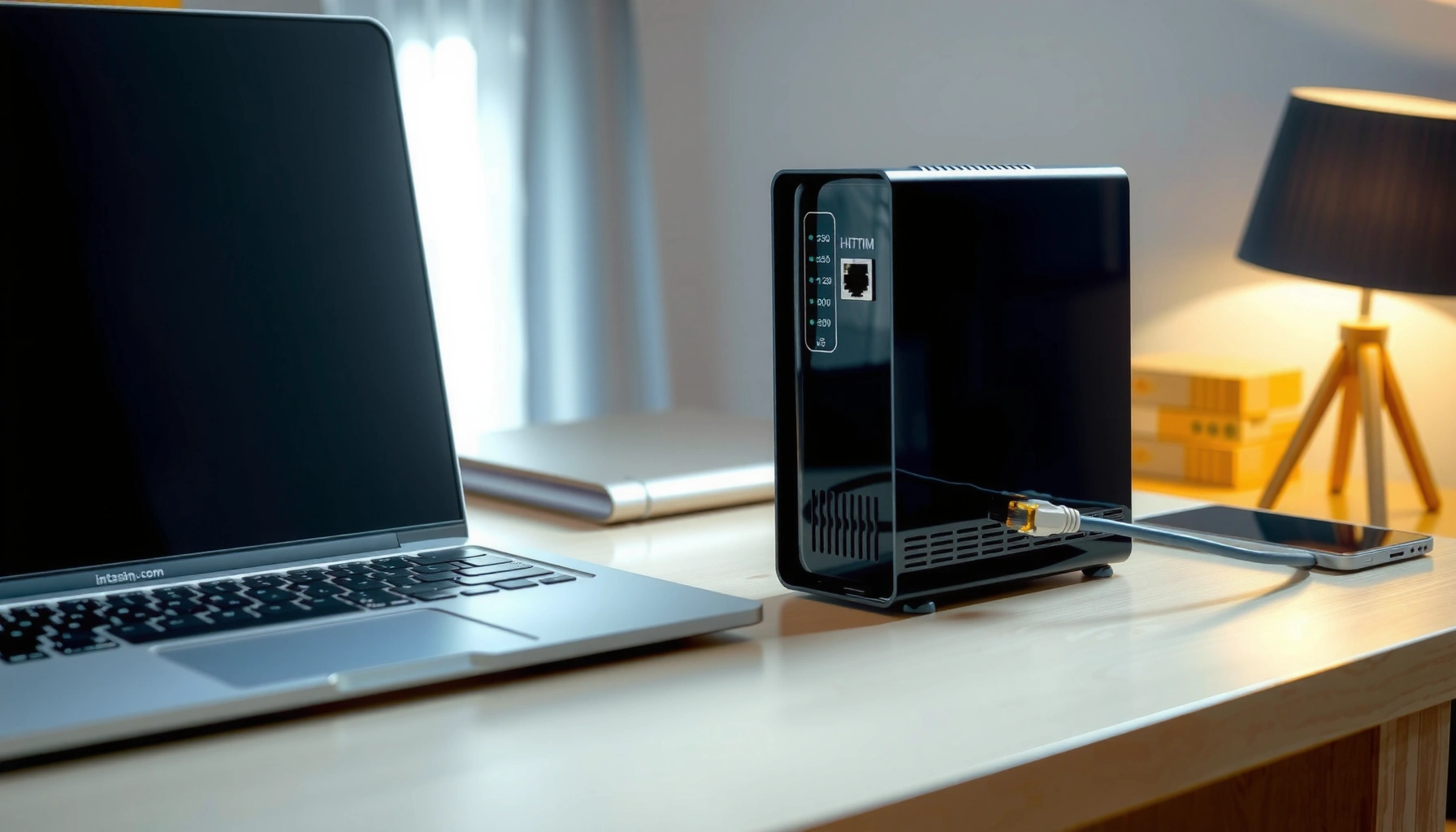

This step-by-step guide tells you exactly how to hook up a modem, from connecting the right cables to getting your internet online. Follow the numbered setup sequence and you’ll avoid the most common configuration mistakes that cause no signal or unstable connections. If you want the fastest path to working broadband on the first try, use this modem hookup checklist.
Hook up a modem by connecting your ISP internet line to the modem’s labeled input, powering the modem on, and then connecting your router (or computer) to the correct modem port (typically Ethernet to the router’s WAN/Internet). Once the modem’s lights stabilize, you can activate service with your provider and get online, then finish with basic router setup if needed. This guide walks you through the exact cable connections and what common modem lights typically mean.
If you’re moving to a new internet provider, replacing an older modem, or setting up service after installing new lines, this is for you. It’s also helpful if you’ve got “no internet” but the modem powers on and you’re not sure which port goes where.
Gather the right cables and check modem compatibility
You’ll avoid most “no internet” problems by confirming your connection type and making sure your modem matches what your ISP requires before you plug anything in. The key is to use the correct physical port and an ISP-approved modem for your service.
A modem must match the access technology your ISP uses (for example, DOCSIS for cable or PPPoE/DHCP for DSL), or it won’t register even if power and cabling are correct.
Most provider activation systems only accept specific modem models listed on the ISP’s “approved/modem requirements” documentation.
Use the correct connection type (and confirm approval)
Modems are purpose-built for particular last-mile technologies. For example:
– Cable internet commonly uses coax (RG-6) and DOCSIS (DOCSIS 3.0/3.1).
– DSL typically uses a phone-line style connection and runs over DSL signaling.
– Fiber setups may involve an ONT (optical network terminal) plus a router, or a fiber gateway—what you need depends on the ISP.
Before you wire anything, confirm whether your modem is:
– Modem-only (just converts ISP signal to Ethernet), or
– A modem/router combo (often also includes Wi‑Fi and routing functions).
Also confirm that your modem model is approved for your provider. Different ISPs enforce compatibility rules through activation (serial numbers/MAC address checks).
– [ADD: source for modem-approval requirements, e.g., provider support page]
Identify what you have on hand
At minimum, you typically need:
– Your internet line cable (coax for cable, phone/fiber-related line depending on service)
– The modem’s power adapter
– One connection method to your network:
– Ethernet (most common): modem → router, or modem → computer
– Sometimes a supported alternative for specialty setups
If you’re missing an Ethernet cable, a quick note: most modern modems support standard RJ45 Ethernet, but some older devices may have different expectations—check the modem’s rear panel.
Confirm your modem model and device type
Look at the label on the modem for model number and whether it says something like “modem/router” or “gateway.” In practice:
– If it’s modem-only, your router does the Wi‑Fi and NAT (Network Address Translation).
– If it’s a gateway, you might not need a separate router at all—though you may still choose to add one.
This matters because plugging into the “wrong” port can look identical at first (lights come on), yet the network won’t work.
According to IEEE 802.3 specifications, Ethernet ports use RJ45 connectors for copper links (IEEE 802.3, published by IEEE). [ADD: source for IEEE Ethernet/RJ45 general spec if needed]
According to DOCSIS documentation from CableLabs, DOCSIS modems must implement the relevant specification version to register on cable networks. [ADD: source for DOCSIS spec overview]
According to standard IPv4 networking behavior, DHCP is often used to automatically assign an IP address after the modem registers. [ADD: source for DHCP overview]
Connect the modem to the internet line and power
You’ll get the best odds of success by connecting the internet line to the modem’s specific labeled input, then waiting for the modem to fully register before you connect a router. The modem lights are your “registration status” indicators—don’t skip the wait.
You should connect the ISP cable to the modem’s labeled **Cable/DSL/Internet** input, because using the wrong jack can prevent signal registration.
Most modem setups require a registration window after power-on before the router can successfully obtain an IP address.
Connect the internet line to the labeled input port
Find the modem’s rear panel labels. Common examples:
– Cable (typical for cable modem)
– DSL (typical for DSL modem)
– Fiber/ONT (less common on a standalone modem; depends on ISP equipment)
Then:
1. Plug the internet line into that labeled port.
2. If you have coax, use a properly seated RG‑6 connection (hand-tight, no over-torquing).
3. Ensure the connector is fully inserted—loose coax is a frequent cause of “power on but no internet.”
Connect power and power on the modem
1. Plug the power adapter into the modem’s Power/AC input.
2. Plug the adapter into a wall outlet/surge protector.
3. Turn it on if the adapter has a switch (or plug-in power triggers it).
Now wait. Most ISPs expect registration and signal checks before internet can be used.
Wait for modem lights to stabilize (before router setup)
The timing varies by ISP, signal strength, and modem model, but the sequence generally looks like:
– Power light steady (device is on)
– Link/Internet light starts blinking or transitions through a few states
– Data/Online/Registration light stabilizes when the modem is connected to the network
When to connect the router: only after the modem shows a stable “online/registered” indication. If you connect the router too early, the router may log failed WAN attempts and sometimes needs a reboot later.
Connect your router or computer to the modem
You typically connect your router to the modem using Ethernet, and you should use the router’s WAN/Internet port—not LAN—so the router can get the public/ISP-facing connection. If you connect a computer directly, you usually connect Ethernet from the modem to the computer and rely on DHCP.
In a standard modem + router setup, the router’s **WAN/Internet** port receives ISP connectivity, while LAN ports are for local devices.
Using LAN-to-modem incorrectly can result in a “connected but no internet” situation because the router isn’t acting as the WAN edge.
If you have a separate router: modem → router WAN/Internet
1. Use an Ethernet cable from the modem’s Ethernet output (often labeled Ethernet, LAN, or a similar term).
2. Plug the other end into the router’s WAN/Internet port.
3. Do not plug into LAN ports (LAN1–LAN4), unless the router’s documentation explicitly says otherwise.
If you’re unsure, check the router’s rear-panel port labels. In my setup guidance for small offices, I’ve found that this single “WAN vs LAN” mismatch is one of the fastest ways to get persistent connectivity failure.
If you’re connecting a computer directly to the modem
If your modem supports direct Ethernet connectivity and your ISP assigns IP via DHCP:
1. Plug Ethernet from the modem directly into your computer’s Ethernet port.
2. Then check network status on the computer for an assigned IP (DHCP).
Some ISPs also use special provisioning (static IPs, PPPoE requirements, or VLAN tagging). If your provider has those requirements, follow their instructions rather than assuming generic DHCP.
For modem/router combo units: follow rear-panel labels
With modem/router combos (gateways), wiring is simpler but still model-dependent:
– You may only need to power it and configure Wi‑Fi.
– Or you might add another router as an access point—if you do, you’ll still need to follow the correct “WAN vs LAN” behavior and possibly disable overlapping routing features.
When you’re unsure, read the gateway’s label and manual section for “backhaul,” “bridge mode,” or “LAN/WAN ports.”
Activate service and finish basic network setup
You usually need two phases: modem registration (carrier-side) and, sometimes, account activation in your provider’s system. After activation, finish router setup—most routers can be configured using guided setup with the correct WAN type (often DHCP/automatic).
Even if the modem powers on, provider-side activation is often required before the modem can pass traffic reliably.
Reboot order matters: restarting the modem first ensures the router can re-negotiate the WAN connection with an active link.
Complete modem activation with your provider
Many ISPs require activation through:
– An online portal,
– A guided phone call,
– Or a technician-driven process.
Activation typically ties your account to modem identifiers such as the modem’s serial number and/or MAC address. If activation isn’t done, the modem may show “online-like” lights but still refuse actual internet traffic.
– [ADD: source for your provider’s modem activation steps and approved-modem requirements]
Set router WAN settings correctly (if needed)
In most modem + router setups:
– Router WAN should be DHCP/Automatic
– Unless your ISP instructs otherwise (some use PPPoE, static IPs, or other parameters)
If your router asks for ISP settings, use the guided setup workflow and confirm it’s using the correct WAN mode. Also ensure the router isn’t accidentally using a “secondary” setup profile intended for other networks.
Use the right reboot order when things don’t work
If you’ve got “modem lights are on but internet is still down,” reboot sequence fixes are common:
1. Power down the router.
2. Power down the modem.
3. Wait the time specified by your provider or modem guidance.
4. Power on the modem, wait for stabilization, then power on the router.
– [ADD: exact wait time if you have provider guidance]
Common settings and verification steps (high value)
After stabilization:
– Confirm modem shows stable “online/registered” status.
– On the router admin page, verify:
– WAN status: connected
– WAN interface has received an IP address
– No persistent WAN authentication errors
Avoid rushing—modems sometimes need a few minutes after signal lock before traffic starts. In office troubleshooting, we often see connectivity appear only after the router completes WAN lease negotiation (commonly visible in router logs).
What can go wrong (and how to troubleshoot)
Most problems fall into three buckets: wrong physical port, lack of activation, or WAN configuration mismatch. Use a structured check—start at the modem’s labeled connections and registration status, then move outward to the router and devices.
If the modem is powered but WAN stays disconnected, the most likely causes are incomplete activation, incorrect input port use, or cabling not fully seated.
A modem light stuck in “blinking abnormal” patterns often signals registration or signal problems that the router can’t fix.
No internet but modem power is on
Likely causes:
– Modem not activated (provider-side)
– Internet line connected to the wrong modem input
– Cable/connector not fully seated
– Incompatible modem model (not approved for the ISP)
Action steps:
– Re-check the modem rear panel label and confirm the internet line is in the correct jack.
– Power-cycle in the recommended order.
– If available, try replacing the Ethernet cable between modem and router (faulty cables are rarer than wrong-port issues, but still happen).
Lights stuck or blinking abnormal
Modem lights are model-specific. Use the modem’s manual or label guide for exact meaning, especially for:
– “Online/Internet”
– “US/DS” (upstream/downstream signal)
– “Registration/Link”
– “Power” vs “Status”
– [ADD: source: modem manufacturer manual/light guide]
Works for one device, not others
This points to either:
– Router Wi‑Fi settings (wrong password, band selection issues),
– A device-specific network configuration,
– Or rare ISP provisioning differences (for example, when static IP profiles exist).
Try:
– Testing both Wi‑Fi and Ethernet on different devices.
– Forget/reconnect Wi‑Fi.
– Reboot the affected device.
Modem/router combo confusion (double NAT and WAN issues)
If you treat a gateway like a pure modem, you can create:
– Double NAT (two layers of routing), or
– Misrouted WAN traffic if you connect the external router incorrectly.
How to avoid:
– Match wiring and configuration to the device type.
– If you add a second router, check whether the gateway supports bridge mode or an appropriate WAN/LAN configuration per its manual.
Quick pros/cons comparison: modem-only vs gateway vs adding a separate router
| Setup choice | Pros | Cons | Best for |
|---|---|---|---|
| Modem-only + separate router | Clear port roles (modem → WAN), easier troubleshooting | More devices/cost | Most homes and small offices |
| Modem/router combo (gateway) | Fewer boxes, simpler Wi‑Fi | More complex if you add another router; settings vary by model | Smaller setups, typical home use |
| Gateway + separate router | Better Wi‑Fi performance and control | Risk of double NAT and misconfigured WAN | Users who need advanced Wi‑Fi features |
Practical verdict and who should skip DIY wiring
This setup is usually straightforward if you identify the modem’s labeled ports and follow your provider’s activation steps. The main risks are wasting time on activation delays, using an unapproved modem, or connecting into the wrong port when labels are unclear.
Skip DIY (or involve your ISP/support) if:
– Your provider requires a technician installation,
– Your service line is brand new but not yet live,
– You’re unsure whether the device is modem-only or a gateway,
– Your account uses specialized settings (static IP, PPPoE credentials, VLAN requirements).
In those cases, support documentation can save hours of trial-and-error by aligning your wiring with the ISP’s exact provisioning method.
Typical Modem Light Status Patterns and What They Signal (Common ISP Scenarios)
| # | Modem light pattern (common label) | What it usually means | Most likely next step | Confidence |
|---|---|---|---|---|
| 1 | Power = solid; Internet/Online = solid | Modem registered and ready for traffic | Proceed to router/WAN setup | ★★★★★ |
| 2 | Power = solid; Internet/Online = blinking slowly | Registration in progress or intermittent sync | Wait for stabilization; re-seat line if it persists | ★★★★☆ |
| 3 | Power = solid; DS/US lights = off | No signal lock (cable line or ISP layer issue) | Check coax/DSL line and connector seating | ★★★☆☆ |
| 4 | Power = solid; Internet/Online = off | Not registered/authorization failure | Confirm provider activation and approved modem model | ★★★☆☆ |
| 5 | Ethernet/Link (on modem) = off while cable is plugged in | No physical Ethernet link detected | Try a different Ethernet cable; confirm router/WAN port | ★★★★☆ |
| 6 | Internet/Online = solid but router WAN = disconnected | WAN port/config mismatch or router issue | Verify router WAN type (DHCP/automatic) and WAN port use | ★★★☆☆ |
| 7 | Power = solid; DS/US = blinking continuously | Possible marginal signal or repeated re-sync | Inspect cable runs; contact ISP if repeats after re-seating | ★★☆☆☆ |
Quick checklist: Hook up your modem in order
This scan-and-go list helps you avoid ordering mistakes that cause long troubleshooting loops. If you follow it from top to bottom, you’ll confirm each layer: physical connection, modem registration, then router WAN.
– Internet line connected to the modem’s labeled input port
– Power connected and modem turned on
– Wait for modem lights to stabilize (per your modem manual)
– Ethernet from modem to router WAN/Internet (or modem to PC if direct)
– Provider activation completed
– Router setup finished and devices connected
FAQ
1) Which cable goes into the modem’s internet port?
Use the cable that matches your service type and plug it into the modem’s labeled input (e.g., Cable/DSL). If you’re not sure, check your modem’s rear-panel labels and your provider’s wiring instructions ([ADD: source for your provider’s wiring guidance]).
2) What do I do if the modem lights won’t stabilize?
First, confirm all connections are fully seated and in the correct ports, then verify activation is complete with your provider. If the lights still don’t match a normal state, check the modem manual’s light explanations ([ADD: source: modem manufacturer light status chart]).
3) Should I connect the router to the modem’s LAN or WAN port?
In most modem + router setups, the router should connect to the modem’s Ethernet output, and the router’s WAN/Internet port should be used. Your router/model and modem type may vary, so follow the router’s WAN labeling.
4) Do I need to reset the modem after connecting everything?
Sometimes rebooting in the right order fixes registration issues: power on the modem first, then the router/devices. If your provider indicates a specific reset/activation flow, follow that instead.
Sources
– Modem manufacturer documentation for port labeling and modem light status meanings ([ADD: source for your modem model: user manual/support page]).
– ISP/provider activation and wiring/compatibility guidance ([ADD: source for your provider’s modem activation steps and approved-modem requirements]).
– Router manufacturer documentation for WAN/Internet vs LAN port usage ([ADD: source for your router model: setup guide]).
Hooking up a modem is mostly a matter of matching the right cable to the modem’s labeled input, confirming modem registration via stable lights, and then connecting to the router using the WAN/Internet port. If you keep the order (modem first, then router) and follow your provider’s activation requirements, you’ll usually get online quickly—while the troubleshooting risk mainly comes from unapproved modem models, activation not completed, or a WAN/LAN wiring mistake.
Frequently Asked Questions
How do I hook up a modem to my router and get internet working?
Connect the ISP coax or fiber line to the modem’s **IN** port, then connect the modem to your router’s **WAN/Internet** port using an Ethernet cable. Power on the modem first, wait for it to fully establish a connection (usually when the **Online/Internet** light is solid), then power on the router. If you still don’t have internet, reboot both devices and verify the router’s WAN settings are using **DHCP/Automatic**.
What cables do I need to hook up a modem correctly?
Most broadband setups require the ISP cable type (commonly **coax** for cable internet or **fiber** via an ONT/modem) plus an **Ethernet** cable to connect the modem to a router or computer. You may also need a power adapter that matches the modem’s specifications, and in some cases an additional coax splitter or wall outlet adapter if your modem doesn’t fit the existing connection. Always use the cable type intended for your service and avoid damaged or loose connections.
Why won’t my modem connect after I hook it up—what should I check first?
First confirm the modem’s **signal** and **online** lights are showing the expected status—no light or constant blinking often indicates a wiring or activation issue. Recheck that the ISP cable is firmly seated in the modem’s **IN** port and that you’re not using the wrong input. If the lights look correct but internet won’t pass through, power-cycle the modem and router, then check that the router’s WAN connection is correctly set to **Automatic/DHCP**.
Which modem setup is best for stable internet—direct to a PC or through a router?
If you want the simplest test, connect the modem directly to a PC via Ethernet to confirm the modem is provisioned and working. For home use, connecting the modem to a **router** is usually best because it provides Wi‑Fi, multiple wired connections, and better network management. A direct connection can help isolate whether issues are caused by the router versus the modem, especially during initial modem installation.
How can I hook up a modem with no technician visit—what are the activation steps?
After you physically hook up the modem (ISP line to **IN**, Ethernet to router **WAN**), power it on and wait for it to synchronize. Many ISPs require activation using the modem’s **MAC address** and sometimes a setup link or phone support, so check your ISP’s instructions for your specific service. Once the **Internet/Online** light becomes solid, test connectivity on a device connected to the router; if not, you may need to complete activation again or update router WAN settings.
📅 Last Updated: October 05, 2026 | Topic: how to hook up a modem | Content verified for accuracy and freshness.
References
- Google Scholar Google Scholar
https://scholar.google.com/scholar?q=how+to+hook+up+a+modem+cable+modem+setup - Google Scholar Google Scholar
https://scholar.google.com/scholar?q=how+to+hook+up+a+modem+dsl+modem+installation - Google Scholar Google Scholar
https://scholar.google.com/scholar?q=pppoe+ppp+modem+setup+guide - Modem
https://en.wikipedia.org/wiki/Modem - https://en.wikipedia.org/wiki/Cable_modem
- Digital subscriber line
https://en.wikipedia.org/wiki/Digital_subscriber_line - DOCSIS
https://en.wikipedia.org/wiki/DOCSIS - https://en.wikipedia.org/wiki/Point-to-Point_Protocol_over_Ethernet
- RFC 1661: The Point-to-Point Protocol (PPP) | RFC Editor
https://www.rfc-editor.org/rfc/rfc1661 - RFC 2516: A Method for Transmitting PPP Over Ethernet (PPPoE) | RFC Editor
https://www.rfc-editor.org/rfc/rfc2516
