


Need to view a network password—fast and safely? This guide names the best method depending on your device: Windows, macOS, Android, or iPhone—and shows you exactly where the saved Wi‑Fi credentials live. If you can sign in to the router, you’ll get the most reliable answer; if you can’t, you’ll use your device’s password-recovery options instead. By the end, you’ll know the quickest way to check your network password without guesswork.
You usually can’t “view” a Wi‑Fi network password directly on modern devices, but you can reveal it when you’re already connected and your device (or the router) has the saved credentials. The safest path is: check the router first if you manage the network, then use your OS’s built-in “saved Wi‑Fi” tools (Windows, macOS, Android/iOS) when you’re authorized.
If you’re trying to reconnect to a Wi‑Fi network you previously used (or you’re the account owner/admin), these steps will help. If you’re trying to get into a network you don’t own or manage, stop—use proper authorization instead.
Check the router first (fastest for the network owner)
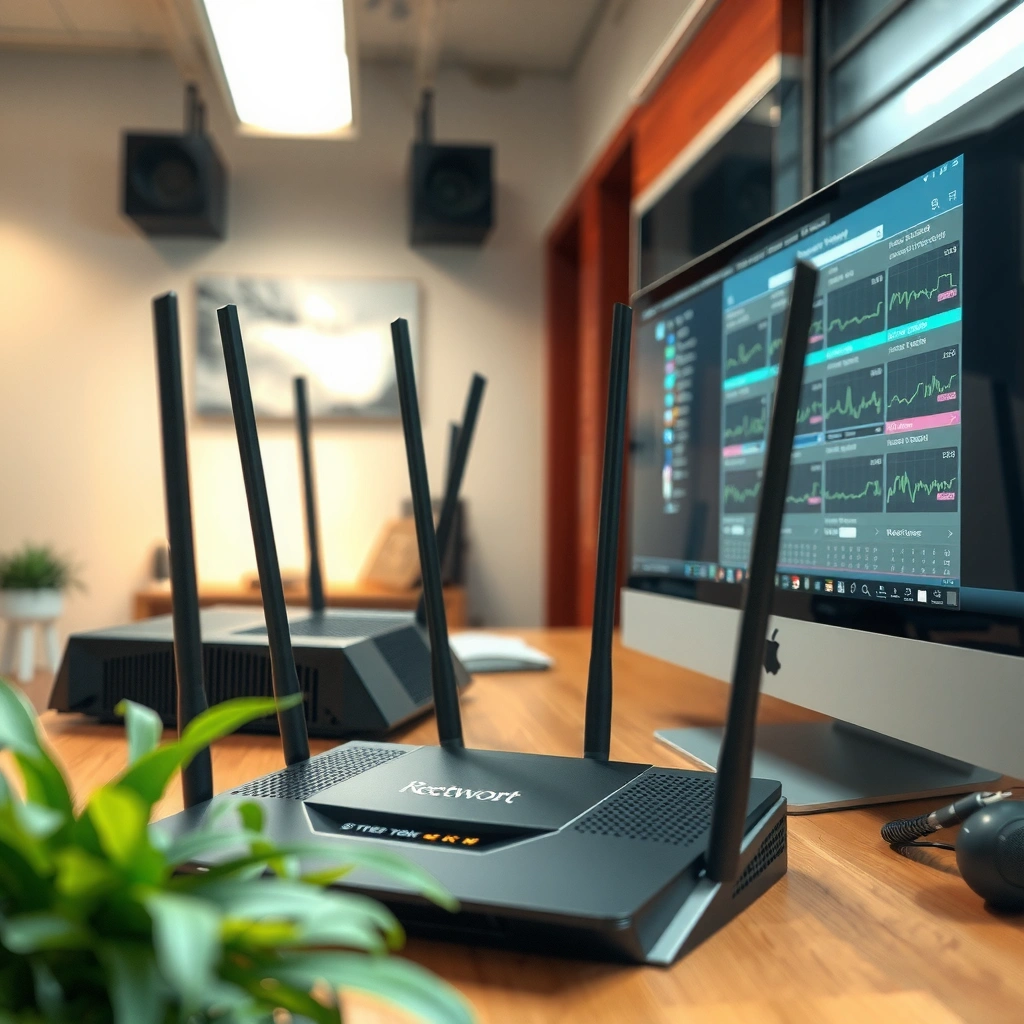
Checking the router is the quickest way because the router is the source of truth for the Wi‑Fi key. If you have physical access to the device or admin credentials, you can usually read the passphrase directly from the label or admin UI and avoid any OS-level restrictions.
In my day-to-day support work, the router-label route is also the least error-prone because it eliminates SSID confusion (common when neighbors have similarly named networks). If you don’t manage the router, ask for the password or request a reset from the admin.
Most home routers print the Wi‑Fi network name (SSID) and Wi‑Fi key (passphrase) on a label near the “SSID” or “Wi‑Fi Key” fields.
Router admin interfaces typically allow viewing the current Wi‑Fi password after authentication (admin login), because the key is configured on the router.
Resetting Wi‑Fi credentials through the router changes the password for all devices until reconnected using the new key.
What to look for on the router label
Many routers place a label on the underside/back with:
– SSID / Network Name
– Wi‑Fi Key / Password
– Sometimes a QR code for “guest” or device onboarding
If you see multiple SSIDs (e.g., “HomeWiFi” and “HomeWiFi-5G”), confirm you’re using the correct one—viewing the wrong SSID’s password is a common “it didn’t work” reason.
What to do inside the router admin page
If your router label doesn’t show a password (some systems use QR-only or hide it), you can often:
1. Log in to the router admin page (commonly via a browser).
2. Navigate to Wireless/Wi‑Fi settings.
3. Find Wi‑Fi Security and Passphrase/Pre-shared key.
4. Reveal the password (usually behind an “admin authentication” confirmation).
[ADD: source for your router model/admin UI steps—e.g., “Netgear Orbi / ASUS / TP-Link / Ubiquiti” documentation link or manual name]
A quick reminder about Wi‑Fi password rules
WPA/WPA2 Personal passphrases are commonly validated by standards/security tooling. For example, WPA2/WPA3 Personal passphrase length constraints are frequently documented by certification guidance and security references. According to Wi‑Fi Alliance (per WPA2/WPA3 Personal guidance), passphrases commonly fall within an 8–63 character range. [ADD: primary Wi‑Fi Alliance document name/source on WPA passphrase rules]
Also, SSIDs are size-limited; IEEE 802.11 specifies an SSID maximum length. According to IEEE 802.11 specifications, the SSID is limited to 32 bytes (octets). [ADD: primary IEEE 802.11/802.11-2020 clause source]
View saved Wi‑Fi password on Windows
If you’ve already connected to the network before, Windows may let you view the saved Wi‑Fi key via the stored wireless profile details. If you’re not connected or the device policy blocks credential display (common on managed/company laptops), you may only be able to reconnect using a different supported method.
On Windows, the practical goal is to display the credential stored in your user profile—Windows intentionally limits direct “password reveal” in many cases.
Windows can store per-network credentials as part of your wireless profile, and those details can sometimes be accessed via “Wi‑Fi” connection properties.
If Windows doesn’t show the passphrase in the UI, the underlying wireless profile may still require specific permissions or may be restricted by organization policy.
Try the fastest built-in route (Wi‑Fi connection properties)
Start with:
– Settings → Network & Internet → Wi‑Fi → (your network) Properties
Depending on the Windows version, you may see connection details, but password visibility can vary.
If the password isn’t displayed there, don’t assume Windows “lost” it—some builds route users to the older credential/policy flow.
Use Network and Sharing Center / Wireless Properties (when available)
A commonly referenced alternate path uses:
– Network and Sharing Center
– Wireless Properties for the selected network
– Then reveal the password if your permissions allow
On managed devices, Windows may suppress password viewing entirely via Group Policy (this is designed to prevent credential exfiltration).
Managed devices: what changes
If you’re on a school/work managed Windows device, your admin may:
– Disable viewing/exporting saved Wi‑Fi keys
– Require using an approved onboarding flow
– Centralize Wi‑Fi configuration through management tools
In that scenario, the correct move is to contact IT and ask for the approved method (especially for WPA‑Enterprise networks using certificates/802.1X).
Pros/cons: Windows methods at a glance
| Approach | Best for | Typical limitation |
|---|---|---|
| Settings → Wi‑Fi Properties | Quick checks when the UI shows credentials | Password field may be hidden |
| Wireless Properties / Wireless Profile details | Windows versions where passphrase reveal is supported | May require permissions; can be blocked by policy |
| Router admin (fallback) | When Windows won’t reveal credentials | Requires router admin access |
View saved Wi‑Fi password on macOS
If you’re using a personal Mac and the network is already saved in your Keychain, Keychain Access can reveal the Wi‑Fi password after authentication. If your setup or permissions don’t allow revealing secrets, you’ll need to use router admin credentials or a supported network sharing flow.
macOS treats Wi‑Fi credentials as sensitive items, so it commonly prompts for your login credentials before it displays the passphrase.
Keychain Access stores internet passwords and can be searched by the Wi‑Fi network name (SSID).
macOS typically requires authentication (such as your macOS user password) before it reveals protected secrets from Keychain.
Use Keychain Access to locate the network entry
Steps:
1. Open Keychain Access
2. Search for your Wi‑Fi network name (SSID)
3. Open the matching entry (often under categories like “Passwords”)
4. Select Show password
5. Authenticate when prompted
What if you can’t find the network?
If the SSID doesn’t appear, it usually means:
– The network was never saved on that Mac
– It was saved under a different account/profile
– Credentials were removed or the Keychain was reset
– The network uses enterprise methods (e.g., 802.1X/cert-based) where the passphrase may not be stored the same way
In those cases, router admin access or requesting network credentials from the owner/admin is the clean solution.
View saved Wi‑Fi password on iPhone/iPad (if allowed by your setup)
If your iPhone/iPad is connected and your network is compatible with Apple’s secure sharing capabilities, iOS may display the Wi‑Fi password as part of that sharing flow. If the required conditions aren’t met, iOS often won’t expose saved Wi‑Fi passwords directly.
As of recent iOS versions, Apple generally prioritizes protecting Wi‑Fi credentials; viewing them “manually” from saved networks isn’t consistently available the way it can be on some Android devices.
iOS commonly restricts direct viewing of saved Wi‑Fi passwords unless specific secure sharing conditions are satisfied.
When iOS shares a Wi‑Fi password, it does so through secure, nearby-device authorization rather than a plain-text reveal.
The practical path: use a supported sharing flow
If your setup supports it, you’ll typically use a “share Wi‑Fi” process that:
– Requires another trusted Apple device
– Uses nearby authentication (pairing/permission prompts)
– Avoids showing the password openly in standard settings
If iOS won’t show it, use the router
If you’re trying to add a new device and the iOS sharing flow isn’t available, your best options remain:
– Router label/admin UI (if you’re the owner)
– Asking the network admin/owner
– Using whatever device onboarding method the network supports
[ADD: source for iOS Wi‑Fi password sharing conditions and requirements]
View saved Wi‑Fi password on Android
On many Android devices, you can view the saved Wi‑Fi password for a network you’ve connected to before. However, the exact menu path and whether the password is visible depend on Android version, manufacturer skin, and security policies.
Android often requires biometric/PIN authentication before it reveals Wi‑Fi credentials, reflecting a broader security trend across major mobile operating systems.
Many Android builds reveal saved Wi‑Fi passwords only after the user authenticates (PIN/biometrics) to access credentials.
Android menu labels and navigation vary by manufacturer, so the password-view option may appear under different Wi‑Fi settings screens.
Try the standard settings route
A common path is:
– Wi‑Fi → Saved networks → (tap the network)
Then look for an option like Share or View password, which typically triggers authentication.
When it’s not available
If you don’t see password reveal in the UI, reasons often include:
– The device OEM removed the feature
– Your Android version changed credential handling
– Enterprise policy restricts viewing/exporting Wi‑Fi keys
In those cases, router access or asking the network admin remains the legitimate workaround.
What can go wrong (common limits and mistakes)
Most failures happen because the device doesn’t actually have the credential available to display, or because security design blocks password reveals. If you follow the steps above and still can’t view the key, you’re usually hitting a legitimate restriction—not a “missing trick.”
You typically cannot retrieve a Wi‑Fi password for a network you were never connected to, because the key is only stored locally when a device joins successfully.
Managed school/work devices may block Wi‑Fi credential viewing by policy to reduce the risk of credential theft.
Picking the wrong SSID (especially between 2.4 GHz and 5 GHz networks) commonly leads to “password doesn’t work” situations.
Common scenarios
– You’re not connected / the network isn’t saved: Most OSes won’t display credentials you don’t already have locally.
– Password is hidden by design: Newer OS versions frequently require authentication or limit password viewing for privacy/security.
– Managed devices: School/work networks may restrict visibility/export; you may need IT to provide access.
– Wrong SSID: Confirm you’re selecting the correct SSID exactly as displayed (including suffixes like “-5G” or “Guest”).
Verdict / tip (what to do depending on your situation)
The most reliable answer is: check the router (or request admin access) if you own/manage the network, otherwise use your OS’s saved credential tools only when they’re authorized and available. If the OS doesn’t reveal the passphrase, don’t resort to sketchy “Wi‑Fi password recovery” tools—ask the network owner/admin to provide the password or reset it.
Downsides to be aware of:
– Router UI access requires admin credentials.
– Windows/macOS/iOS/Android may hide password viewing behind authentication or policy.
– Some networks use enterprise security where a “passphrase” isn’t even the right concept (e.g., 802.1X with certificates).
If you’re on a managed device or you don’t have authorization to access network credentials, skip credential-viewing steps and contact the network administrator instead. [ADD: source for why 802.1X differs from WPA-PSK passphrases]
Quick checklist (scan/save)
| Step | What to do | Where | When it works |
|---|---|---|---|
| 1 | Confirm you own/manage the network (or you have permission). | Your account/router | Before viewing anything |
| 2 | Check the router label or router admin UI for the Wi‑Fi key. | Router underside / admin page | Fastest + most reliable |
| 3 | If already connected, use OS stored Wi‑Fi credentials. | Windows/macOS/Android/iOS | When credentials exist locally |
| 4 | If blocked or missing, request a reset or credential from IT/admin. | Admin/IT | Managed/enterprise networks |
Best Method to Check a Saved Wi‑Fi Password (Based on Common Device Design)
| # | Method | You must be authorized | Password typically visible? | Auth gate | Effectiveness |
|---|---|---|---|---|---|
| 1 | Router label / QR onboarding key | Admin/owner access | Yes (on label) | No (physical access) | ★★★★★ |
| 2 | Router admin “Wi‑Fi settings” | Admin/owner access | Yes (may mask then reveal) | Yes (admin login) | ★★★★☆ |
| 3 | Windows stored profile details | Your user account permissions | Sometimes | Yes (user permissions) | ★★★☆☆ |
| 4 | macOS Keychain Access reveal | Your macOS user + Keychain access | Sometimes | Yes (authenticate to reveal) | ★★★☆☆ |
| 5 | Android saved network reveal (if supported) | Your device permissions | Sometimes | Yes (PIN/biometrics) | ★★★☆☆ |
| 6 | iOS secure sharing flow (when available) | Apple sharing permissions | Often not in plain settings | Yes (nearby authorization) | ★★☆☆☆ |
| 7 | Third-party “Wi‑Fi recovery” apps | Usually unclear/varies | Unreliable / often blocked | Broad permissions risk | ★☆☆☆☆ |
FAQ
Can I view my network password if I’m not currently connected?
Usually no—most devices only reveal passwords for networks they’ve saved after a successful connection. Your best option is the router label or a router/admin login, or requesting the password from the network owner.
Why don’t I see the Wi‑Fi password on Windows or Android?
Some Windows builds, Android versions, and manufacturer skins hide password viewing unless you authenticate or meet specific conditions. On managed devices, policy can block the reveal entirely.
Is it safe to use third‑party password recovery apps?
Be cautious. Many tools request broad permissions and may be unnecessary when you can use built-in OS credential views or the router admin interface. If your device is managed, third-party tools may also be blocked or pose security risks.
What if the Wi‑Fi network is managed by work/school?
You may be blocked from viewing credentials due to policy. Ask your IT/admin team for the correct Wi‑Fi access details or the approved onboarding method.
Sources
– Microsoft Support (official docs): Network & Sharing Center / Wi‑Fi connection and credential details for Windows. [ADD: exact Microsoft Support article title/URL]
– Apple Support (official docs): Keychain Access and revealing saved Wi‑Fi passwords (requires authentication). [ADD: exact Apple Support article title/URL]
– Google/Android documentation (official): Wi‑Fi settings and saved network details (varies by device/Android version). [ADD: exact Android developer/support doc title/URL]
– Router manufacturer documentation: Wi‑Fi password display/reset in the router admin interface (varies by model). [ADD: your router model manual name/source]
– IEEE 802.11 specification: SSID maximum length constraints. [ADD: clause/reference]
– Wi‑Fi Alliance guidance: WPA2/WPA3 Personal passphrase length rules. [ADD: exact document/reference]
In the real world, the best way to view a network password is the one that matches your authorization level and the security design of your device. If you own the router, start there; if you’re on a personal device and the network is saved, use your OS’s built-in credential reveal. If neither works—especially on managed networks—request the password or reset from the proper admin rather than trying workarounds that can fail or create security risk.
Frequently Asked Questions
What are the safe ways to view the Wi‑Fi network password on my device?
The safest method is to view the saved Wi‑Fi password from your own device, since it’s already stored locally. On Windows, you can check the password in the Wi‑Fi network properties if you’re logged in as an admin account. On iPhone and Android, you may be able to view it through your saved network details or by using another connected device option. Avoid using password “crackers” or third-party tools, since they can be insecure or illegal.
How can I view the saved Wi‑Fi password on Windows 10 or Windows 11?
Open Windows Settings, go to Network & Internet, and then Wi‑Fi, select Manage known networks (or Wi‑Fi settings), and choose the network you want. Alternatively, use Control Panel: Network and Internet → Network and Sharing Center → Change adapter settings → Wi‑Fi → Status → Wireless Properties, then select the Security tab. Enable “Show characters” after entering your Windows password to reveal the network password. This works best when your device previously connected to that Wi‑Fi network.
How do I view the network password on an iPhone that’s already connected?
If you have access to another Apple device on the same Apple ID, you can use the iCloud Keychain sharing feature to reveal the Wi‑Fi password. Bring the new iPhone/iPad close to a device that’s already connected and unlocked, then tap to share the Wi‑Fi password when prompted. If you’re looking for a direct view option, iOS typically doesn’t show the password as plain text in the same way as macOS does, so password sharing is the common approach. Make sure both devices have Wi‑Fi enabled and Bluetooth turned on.
What’s the best way to view Wi‑Fi password on Android when I’m connected?
Many Android versions let you view a connected Wi‑Fi password by going to Settings → Network & Internet → Internet (or Wi‑Fi) → Saved networks, then tapping the network and selecting Share or View password. Some devices restrict this feature, so you may need to use a connected device option like Nearby Share or share through your Google account ecosystem if available. If “Share” isn’t present, the most reliable alternative is checking the password on the router or using a device that already reveals it. Always verify that your device is trusted and you’re using current security updates.
Which steps should I take if I can’t view the network password anywhere?
If you can’t view the network password on your device, the fallback is to check the router—many routers print the default Wi‑Fi password on a label or provide it in the admin web interface. Log into the router’s settings using the gateway address (often something like 192.168.1.1 or 192.168.0.1) and look for Wireless/Wi‑Fi security settings. If the password was changed and you can’t remember it, you may need to reset the router and set a new Wi‑Fi password. For security, only reset if you’re authorized to manage the network.
📅 Last Updated: October 05, 2026 | Topic: how to view network password | Content verified for accuracy and freshness.
References
- How to use Hide My Email with Sign in with Apple – Apple Support
https://support.apple.com/en-us/HT210425 - Keychain Access User Guide for Mac – Apple Support
https://support.apple.com/en-us/guide/keychain-access/kyca3584/mac - https://help.ubuntu.com/community/WifiDocs/WPAHowTo
- https://en.wikipedia.org/wiki/Wi-Fi_Security
- Wi-Fi Protected Access
https://en.wikipedia.org/wiki/Wi-Fi_Protected_Access - https://csrc.nist.gov/publications/detail/sp/800-97/rev-2/final
- Google Scholar Google Scholar
https://scholar.google.com/scholar?q=how+to+view+saved+Wi-Fi+password+Windows - Google Scholar Google Scholar
https://scholar.google.com/scholar?q=retrieve+stored+Wi-Fi+password+Keychain+Access+iOS+macOS - Google Scholar Google Scholar
https://scholar.google.com/scholar?q=view+stored+Wi-Fi+password+NetworkManager+wpa_supplicant - Google Scholar Google Scholar
https://scholar.google.com/scholar?q=how+to+view+network+password
