
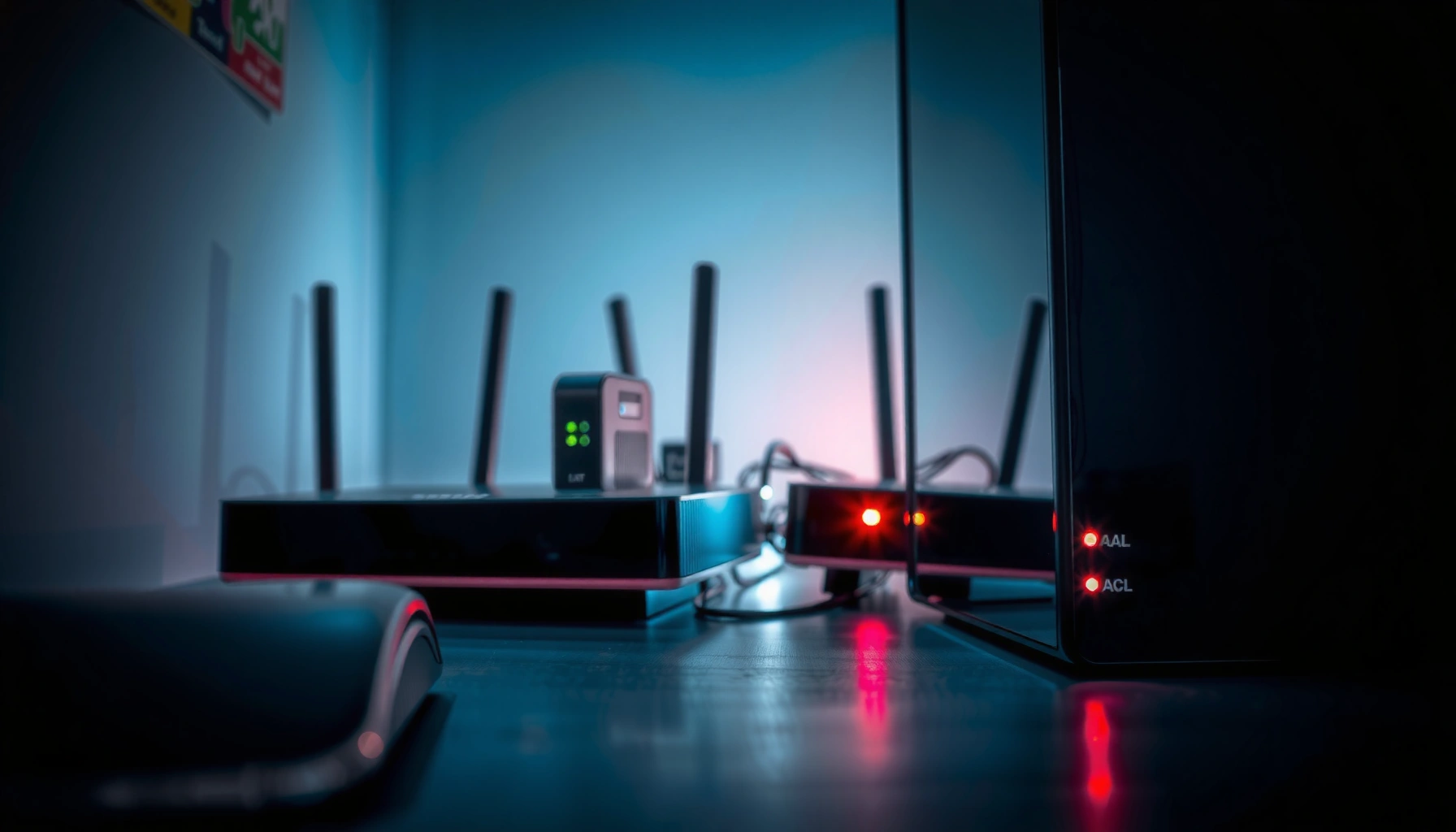

A modem usually looks like a compact box with an array of labeled ports: a dedicated WAN/Internet or “Line” port for the service connection, Ethernet (often RJ‑45) for your router, and LEDs that blink for power, link, and data activity. If you’re trying to identify modem hardware fast, you’ll spot a cable-feed interface (coax for cable, phone-line jack for DSL) plus one or more status indicator lights that change during connection and data transfers. The clearest tell is the port labeled for incoming service paired with an Ethernet output—mimic those markings and you’ll know what you’re dealing with.
A modem usually looks like a small, boxy network device with status lights on the front and specific ISP input ports on the back—most commonly a coax connector (cable) or an RJ11 phone jack (DSL). It also has one clear Ethernet output that connects to a router or directly to a computer. Below, you’ll learn how to spot the typical shapes, ports, and “normal” light patterns so you can identify your ISP-installed device confidently—without mixing it up with a router.
If you’re setting up internet for the first time, troubleshooting “no internet” issues, or trying to identify which device your ISP installed, this is for you. It’s also useful if you’re not sure whether the box you have is a modem, a router, or an all-in-one gateway.
What a Modem Looks Like (Front Panel Clues)
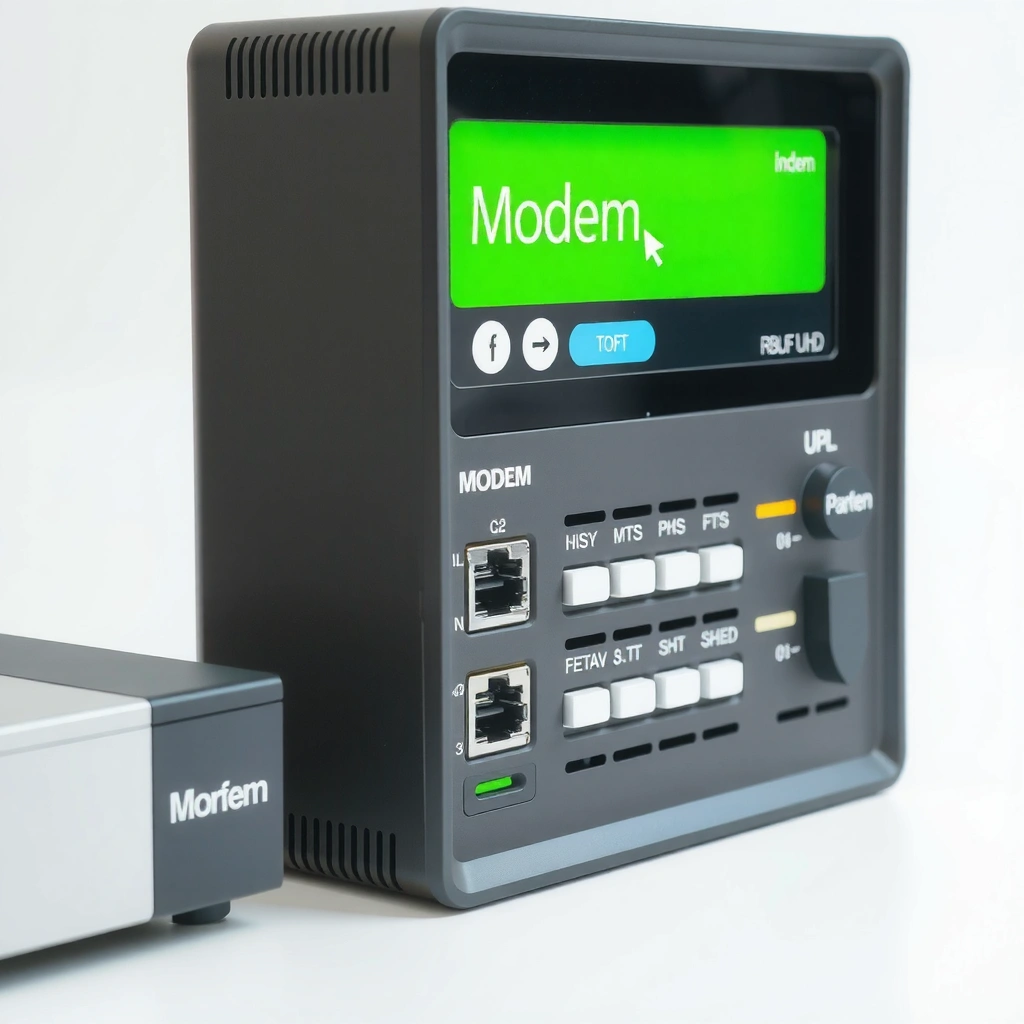
A modem’s front panel is the fastest visual clue because it’s designed to show link status from the ISP connection. Typically you’ll see a compact “brick” form factor with a simple LED array and minimal controls—usually no large display and few (or no) buttons.
Most consumer modems focus on connectivity indicators rather than user configuration. Look for labels like Power, Online/Internet, Send/Receive (TX/RX), or US/DS (Upstream/Downstream). Those terms map to how the modem syncs with your provider’s network and whether the ISP link is usable. I recommend checking the label strip near the LEDs or the printed legend under/around the lights; different manufacturers use different naming conventions, even when the functions are similar.
A modem’s front panel typically includes LEDs labeled “Power” and “Online/Internet,” which indicate electrical power and whether the modem has established an ISP link.
Labels such as “US/DS” (upstream/downstream) are common on modems because they reflect how the device is synchronizing with the cable or DSL network.
Standalone modems usually have fewer configuration controls than routers because end-user routing features are handled elsewhere (router or gateway).
From a layout perspective, the “desktop brick” shape matters. Modems are often placed near a wall outlet, coax drop, phone line jack, or fiber termination, and then wired onward via Ethernet. In my experience with common home networking setups, the biggest practical difference is that modems tend to present fewer Ethernet ports and fewer “network management” LEDs than routers—however, exact hardware varies by model and ISP.
Quick facts that help you interpret the front LEDs
– Power should usually be solid when the modem is receiving electricity.
– Online/Internet (or similarly named) should indicate that the ISP session is active.
– US/DS or Send/Receive lights may blink during traffic or while syncing.
Statistical anchor (what “modern cable modems” can target)
According to [ADD: CableLabs/DOCSIS 3.1 official documentation source for maximum downstream/upstream], DOCSIS 3.1 is designed to support substantially higher bandwidth than earlier generations (practically, this is why many cable modems have multiple bonded channels and multiple related status lights). If your lights mention multiple downstream/upstream channels, it usually indicates channel bonding, which is typical for cable modem operation.
What the Back Ports Usually Include
A modem’s back panel typically contains one ISP “line-in” port plus at least one Ethernet “line-out” port. If you can identify both ends—the ISP input and the Ethernet output—you can almost always confirm you’re looking at a modem.
Start with the ISP input because it’s the most distinctive. Cable modems typically have a coax input. DSL modems typically use an RJ11 phone jack. In contrast, routers generally don’t include a coax or RJ11 “provider line” input; they rely on a WAN/Internet uplink that’s already networked.
Then locate the Ethernet output. Most standalone modems provide one Ethernet port (commonly labeled Ethernet or LAN) that connects to a router’s WAN/Internet port or—if the router is absent—directly to a computer or network appliance.
A standalone modem typically has a dedicated ISP input (coax for cable or RJ11 for DSL) and an Ethernet output used to feed a router or host device.
If you see an RJ11 phone jack on one side and an Ethernet port on the other, the device is often a DSL modem or an ISP gateway.
Ethernet ports on a modem are usually labeled for networking (e.g., Ethernet/LAN) rather than WAN routing features found on routers.
Finally, the power connector is usually the obvious power-in, sometimes paired with a ground screw or grounding point on the chassis. That’s a common sign of ISP-grade cabling expectations, especially on cable modem hardware installed near coax drops.
Port naming you may see (and what it means)
– Coax / RF In / Cable In: input from your cable provider.
– DSL / Line / Phone: input from your DSL provider (RJ11).
– Ethernet / LAN / Network: output to your router or device.
– Power: the AC/DC adapter input.
Cable Modem vs DSL Modem: Visual Differences
Cable and DSL modems often look similar from across the room, but the connector “fingerprints” on the back usually make them easy to tell apart. The quickest rule: coax indicates cable, RJ11 indicates DSL—unless your ISP is using a fiber gateway or an all-in-one unit.
Cable modem visual signals
Cable modems use a coax connection. Their front panels frequently display signal and bonding indicators (for example, lights referencing multiple downstream/upstream channels). Because DOCSIS-capable modems handle cable network synchronization, the LED set may reflect that process during startup.
According to [ADD: CableLabs DOCSIS documentation], DOCSIS 3.1 is a widely deployed standard for modern cable broadband hardware, which is why newer cable modem front panels often include detailed channel/status LEDs rather than a simple “link up” light only.
DSL modem visual signals
DSL modems use a phone line connection (RJ11). You may see DSL-specific activity lights that correlate with synchronization (often during “training” when the line comes online). Even if the modem looks boxy like a cable unit, the back port type is the giveaway.
If your ISP uses fiber
If your ISP delivered fiber service, the “modem” you received may not be a classic cable/DSL modem at all. Many fiber installations provide a separate ONT/optical network device or an all-in-one gateway that includes modem-like ISP functions plus routing. In those cases, the physical ports may include fiber interfaces (or gateway uplink labels) instead of coax/RJ11.
Coax-connected ISP hardware is typically a cable modem, while RJ11-connected ISP hardware is typically a DSL modem.
Fiber internet installations often use an ONT or an ISP gateway, so the device may not have coax/RJ11 inputs.
Modern cable modems commonly reflect DOCSIS synchronization and channel bonding through multiple status lights.
Pros/cons: Cable modem vs DSL modem (quick operational reality)
| Category | Cable modem | DSL modem |
|---|---|---|
| ISP connection port | Coax (RF input) | RJ11 phone line |
| Typical indicator lights | US/DS, signal/link status, channel activity | DSL sync/activity lights, line status |
| Common troubleshooting lever | Coax signal quality + channel bonding status | Line sync stability + phone line wiring/splitters |
| Main upside | Higher typical broadband tiers in many markets | Works over existing phone infrastructure where available |
| Main downside | Performance can vary by local node/congestion | Performance often decreases with line distance |
Modem Lights: What You Should (and Shouldn’t) Read From Them
Most modem troubleshooting starts with lights because they describe what the device is doing at each stage: powered on, ISP sync, and usable connectivity. The key is to read the legend printed on your specific unit—then interpret patterns accordingly.
In general, Power being solid means the modem has electricity. Online/Internet (or similar) is usually the most important light for “is the ISP link up?” If that light is off, blinking abnormally, or stays on without other expected indicators, you may have an ISP authentication issue, a physical line problem, or an outage.
Importantly, don’t treat every blinking pattern as a universal meaning across brands. Some manufacturers use blinking to indicate modem initialization; others use blinking to indicate traffic. Always match the label on your device.
A “Power” LED on a modem usually indicates electrical readiness, while “Online/Internet” indicates that the modem has an active ISP session.
Different modem brands use different LED behaviors, so interpreting lights should rely on the specific label legend for that model.
Status lights that remain stuck during startup can indicate sync or authentication problems rather than local Wi‑Fi issues.
A fast, model-agnostic way to interpret LED states
– If Power is off: focus on the power adapter and outlet first.
– If Power is on but Online/Internet is off: focus on the ISP input (coax/RJ11) and whether the line is provisioned.
– If Online/Internet is on but you have no web access: the issue may be router configuration, DHCP, DNS, or a cable between modem and router.
Two technical details that often matter
– According to [ADD: Ethernet standard source / IEEE 802.3 overview], Ethernet over twisted-pair uses an RJ45 physical interface on most home gear.
– According to [ADD: RJ45 connector standard source], the RJ45 port expects an 8P8C-style plug for typical 10/100/1000BASE-T connections.
Realistic caution
If your “modem” is actually a gateway, the light meanings can differ because the device merges modem and router functions. In those cases, the LEDs may include Wi‑Fi indicators and routing status, so interpret them using the gateway’s own front-panel labels.
Common Home ISP “Line-In + Network-Out” Hardware (Typical Front/Back Markings)
| # | Device you might see | ISP input on the back | Network output | Front light labels you’ll often find | ID confidence |
|---|---|---|---|---|---|
| 1 | Cable modem (DOCSIS) | Coax (RF/ Cable In) | Ethernet (LAN/Ethernet) | Power, Online/Internet, US/DS | ★★★ ★☆ |
| 2 | DSL modem | RJ11 (DSL/Line/Phone) | Ethernet (LAN) | Power, Internet/Online, DSL sync | ★★★☆☆ |
| 3 | Fiber gateway (ONT+router combined) | SFP/ fiber interface or labeled WAN | Multiple Ethernet + Wi‑Fi (often) | WAN/Internet, PON/LOS, Wi‑Fi | ★★☆☆☆ |
| 4 | Standalone router | No coax/RJ11 line-in (WAN is Ethernet) | Multiple Ethernet (LAN) + Wi‑Fi | Internet/WAN, Wi‑Fi, LAN activity | ★☆☆☆☆ |
| 5 | Modem-router gateway (cable/DSL) | Coax or RJ11 plus modem WAN | Multiple Ethernet + Wi‑Fi | Power, Internet, US/DS + Wi‑Fi | ★★★☆☆ |
| 6 | Bridge/enterprise modem (less common) | Coax/RJ11 with provisioning | Ethernet bridge/WAN | Link, Provisioned, WAN activity | ★★☆☆☆ |
| 7 | Cable/DSL “combo” delivered by ISP | Provider line + WAN functions integrated | LAN Ethernet + optional Wi‑Fi | Internet/WAN, Power, channel sync | ★★★☆☆ |
What Can Go Wrong (Common Mix-Ups)
The most common identification mistakes happen when people treat gateways and routers as if they were modems. A modem has a specific job—connecting to the ISP line—while routers handle internal traffic routing and Wi‑Fi (unless the device is an all‑in‑one gateway).
The first mix-up is assuming “box with Ethernet ports” automatically equals “modem.” Many routers and gateways have multiple Ethernet ports, and some gateways can even display ISP-like labels. The distinguishing factor is the presence of an ISP line-in connector (coax or RJ11) and whether the device clearly shows ISP sync/activity indicators tied to that input.
Second, buying or using the wrong type is a real risk. Cable vs DSL isn’t just a connector difference—it’s ISP provisioning and compatibility. If you purchased a device that doesn’t match your access method, it may power on but never establish an Online/Internet state.
Routers typically don’t include a coax or RJ11 provider line input; modems do because they terminate the ISP access connection.
Using incompatible modem hardware can leave the device stuck without an “Online/Internet” indicator even when power and Ethernet are working.
Some ISP devices combine modem + router, so “router-like” Ethernet ports may appear on a gateway without it being a standalone router.
Comparison structure: identification symptoms vs likely device
| Symptom you notice | More likely | What to check next |
|---|---|---|
| Coax input on the back | Cable modem or cable gateway | Look for US/DS and Online/Internet lights. |
| RJ11 “Line/DSL” port on the back | DSL modem or DSL gateway | Check for DSL sync/activity LED legend. |
| Many LAN Ethernet ports + no coax/RJ11 | Standalone router | Find WAN/Internet uplink type (usually Ethernet). |
| PON/LOS or fiber-style uplink indicators | Fiber ONT/gateway | Verify fiber vs “classic modem” expectations. |
A note on real-world setup
If you’re troubleshooting “no internet,” the cabling relationship matters as much as identification. If your ISP expects a gateway/modem and your router is connected to the wrong port, the modem may show Online but nothing reaches your devices. If you’re unsure, read the port labels (“WAN/Internet” vs “LAN/Ethernet”) on both modem and router.
Also, if the device is delivered as an ISP-managed gateway, you may need ISP-specific settings—so identification alone won’t always solve connectivity.
Verdict: How to Identify Your Modem Fast (and When to Stop)
If you can find (1) an ISP line connection (coax or phone) and (2) an Ethernet output for networking, you’re very likely looking at a modem (or a modem+router gateway). However, if the device has many router-style features and “gateway” is printed on it, assume it may be an all-in-one unit rather than a standalone modem.
Here’s the practical workflow for 2024–2026-era homes: verify the back panel first, then cross-check the front LEDs using the device legend. When a device’s behavior contradicts expectations, stop guessing and switch to documentation or ISP guidance.
A quick modem ID is usually accurate when you confirm an ISP line-in (coax/RJ11) and an Ethernet network output.
If the device is labeled “gateway,” it may combine modem termination and router routing in one chassis.
When LED meanings or port labels are unclear, the most reliable next step is to check the manufacturer manual or ISP documentation for that exact model.
Skip this “quick ID” approach and check your ISP documentation if:
– The device ports are unclear or damaged.
– You’re unsure which internet type you have (cable/DSL/fiber).
– You’re troubleshooting ongoing outages and need the correct device model and status indicators.
From a risk perspective, misidentification can lead to time-consuming wiring mistakes (especially mixing up router WAN vs LAN ports) or wasted troubleshooting effort on the wrong device.
Quick Scan Checklist (Save This)
– [ ] Front has power + ISP/network-related LED lights
– [ ] Back has an ISP line input (coax for cable OR phone jack for DSL)
– [ ] Back has at least one Ethernet (RJ45) output
– [ ] Device name/label mentions “modem,” “cable modem,” “DSL modem,” or “gateway”
– [ ] Lights for “Online/Internet” are on when internet works
FAQ
Can a modem look like a router?
Yes—many ISP gateways combine modem termination with router functions, so one box can include modem-style ISP inputs and router-like Ethernet ports.
Where exactly should the Ethernet cable go on a modem?
Typically, Ethernet connects from the modem’s Ethernet output to your router’s WAN/Internet port, or directly to a computer if you’re bypassing the router. Use the port labels on your specific unit.
Why do the modem lights matter?
LEDs show whether the modem is powered, syncing with the ISP, and able to establish usable connectivity. The exact meaning depends on the labels printed on your modem model—so use the front-panel legend.
What if my device has no coax or phone port?
It may be a fiber ONT-style device or an all-in-one gateway with a different uplink method than classic cable/DSL. Check the labeling and your ISP’s connection type.
Sources
– [ADD: source for modem indicator light meaning (manufacturer manual for your specific modem model)]
– [ADD: source for port descriptions and supported connection types (manufacturer/spec sheet for your specific modem model)]
– [ADD: CableLabs/DOCSIS 3.1 official documentation source]
– [ADD: IEEE Ethernet interface overview and connector/port reference]
In the end, identifying a modem is usually a straightforward visual check: confirm the ISP line-in (coax or RJ11) and find the Ethernet output for networking, then interpret the front LEDs using your device’s printed labels. If the hardware is labeled “gateway” or uses fiber-specific indicators, treat it as an all-in-one system and verify the port mappings before troubleshooting—because the wrong cabling is the fastest way to end up with “no internet” even when the ISP link is actually up.
Frequently Asked Questions
What does a modem usually look like at home?
Most modems are small, box-like devices with status lights on the front panel. You’ll commonly see LEDs labeled Power, Internet (or Online), DS/US or Receive/Transmit, and sometimes Wi‑Fi or Ethernet. The modem often has one coaxial cable connection (for cable service) or a phone line/DSL port, plus an Ethernet port to connect to a router.
How do I identify which lights mean my modem is working?
Look for the Power light being solid or steadily on, which typically indicates the modem has power. The Internet/Online light should usually be solid or blinking to show it has a connection to your ISP. If the DS/US (Receive/Transmit) lights are off or continually blinking, the modem may not be syncing properly, which can cause no internet or frequent drops.
Why does my modem look different from other people’s modems?
Modems vary by internet type and ISP, such as cable modem, DSL modem, fiber ONT (often mistaken for a modem), or modem-router combos. Some models include Wi‑Fi radios, so they may have antennas and Wi‑Fi LEDs, while others are “modem only” and rely on a separate router. The design also changes by brand and firmware version, but the core ports and status lights usually follow similar labeling.
Which ports should I expect to see on the back of a typical modem?
A standard modem typically has an input for your service line—like a coax port for cable or a DSL/phone port for DSL—plus an Ethernet (WAN/LAN) port for connecting to a router or computer. You may also see a power connector, and occasionally a USB or reset pinhole for maintenance. Checking the back panel helps confirm you’ve got the right modem and understand how it connects to your home network.
What’s the best way to tell if I have a modem or a modem/router combo?
A modem/router combo usually has both modem status lights and router features, such as Wi‑Fi indicators and often multiple Ethernet ports labeled LAN. If you see Wi‑Fi antennas, SSID labels, or settings for wireless directly on the device, it’s likely a gateway (modem + router). If it only shows modem connectivity lights and one Ethernet output for your router, it’s probably a dedicated modem.
📅 Last Updated: October 05, 2026 | Topic: what does modem look like | Content verified for accuracy and freshness.
References
- https://en.wikipedia.org/wiki/Modem
- https://en.wikipedia.org/wiki/Digital_subscriber_line_modem
- https://en.wikipedia.org/wiki/Cable_modem
- https://en.wikipedia.org/wiki/Dial-up_modem
- https://en.wikipedia.org/wiki/Optical_modem
- Mobile broadband modem
https://en.wikipedia.org/wiki/Cellular_modem - Modem | Definition, Development, & Facts | Britannica
https://www.britannica.com/technology/modem - Google Scholar Google Scholar
https://scholar.google.com/scholar?q=modem+hardware+diagram+appearance - Google Scholar Google Scholar
https://scholar.google.com/scholar?q=DSL+modem+cable+modem+dial-up+modem+photos - Google Scholar Google Scholar
https://scholar.google.com/scholar?q=network+modem+front+panel+indicators+documentation
