


AP mode on a router is the setting that turns a router into a dedicated access point, relaying Wi‑Fi without providing separate routing and NAT. Use it when you already have a main router and want to add more wireless coverage with a single network and minimal complexity. If you need a router that manages connections and assigns IPs, you should not use AP mode—keep the device in router mode.
AP mode lets your router act as a Wi‑Fi access point instead of a full router—so it extends coverage while your main router continues handling routing and DHCP. In practice, AP mode is best when you already have one “real” gateway/router on the network and you want to add another device for stronger Wi‑Fi reach without creating address conflicts.
If you’re trying to improve Wi‑Fi range, add wireless coverage to another room, or connect an extra router as an additional wireless “broadcast point,” AP mode is often the cleanest way to do it. It applies to many home routers with settings labeled AP Mode, Access Point, Bridge, or Operation Mode in the setup menu—names and exact steps vary by brand and firmware.
What AP Mode on a Router Actually Does
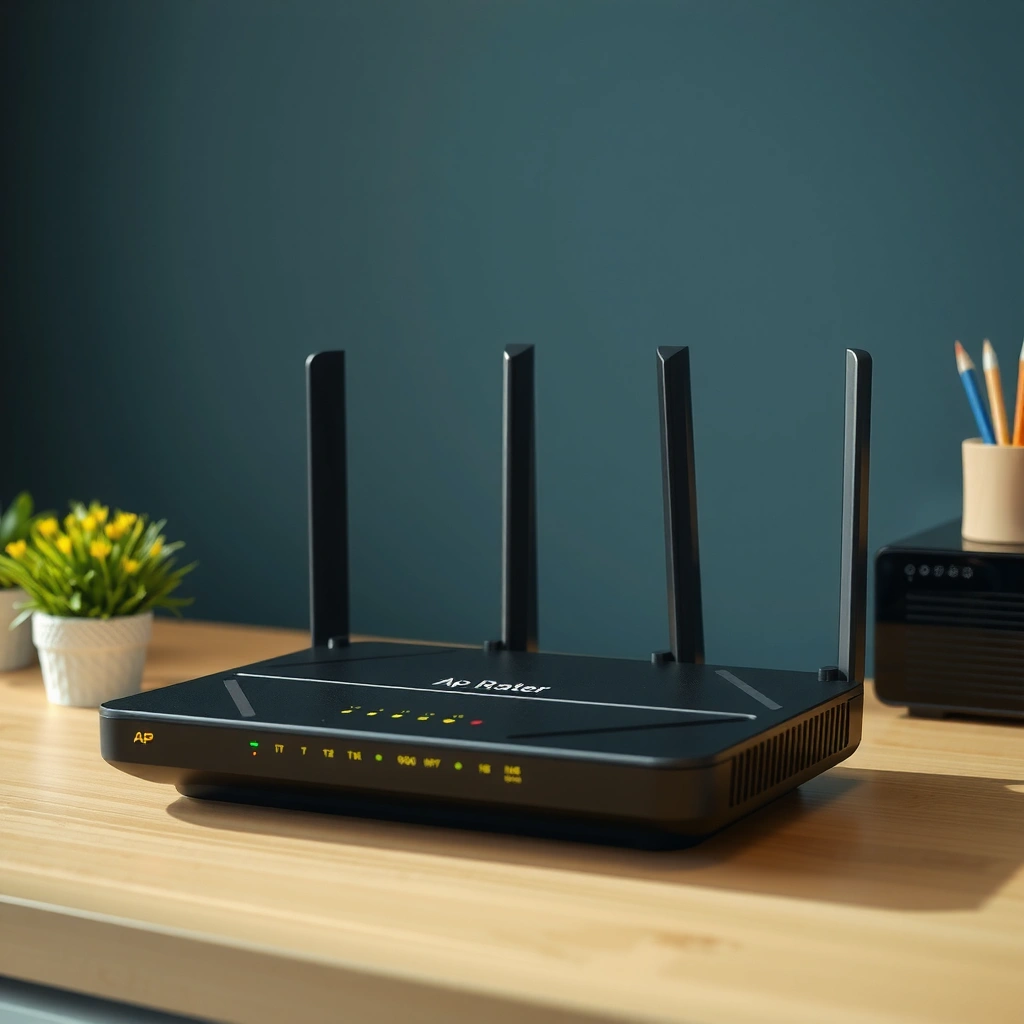
AP mode turns the device into a Wi‑Fi access point whose primary job is providing wireless connectivity, not acting as the main traffic router. The core idea is that your main router (the gateway) remains responsible for internet access and IP address assignment, while the AP-mode router mainly provides Wi‑Fi radios (SSID/security) and bridges that wireless traffic into your existing wired network.
In AP mode, the router typically stops performing the “WAN/Internet” role and relies on an upstream device for internet connectivity.
DHCP normally assigns IP addresses using UDP port 67 (server) and UDP port 68 (client) as defined in RFC 2131.
When AP mode disables DHCP on the secondary device, clients receive their IP configuration from the primary router instead of the AP.
How the network roles change (routing vs access)
In router mode, most consumer routers combine several functions:
– Routing: forwarding packets between networks (including “out to the internet” via WAN).
– NAT (Network Address Translation): translating private LAN IPs so multiple devices can share one public IP.
– DHCP server: handing out IP addresses (and DNS settings) to devices joining Wi‑Fi.
– Gateway management: the device that usually becomes the “default route” for clients.
In AP mode, that bundled behavior is intentionally reduced. Most AP-mode setups:
– Disable WAN/Internet handling on the secondary router.
– Disable or stop DHCP (so only the main router issues IP addresses).
– Keep Wi‑Fi operational so you still get the wireless SSID/password the router advertises.
– Use Ethernet connectivity to join your existing LAN/VLAN so the AP can “hand off” client traffic back to the main router.
From a troubleshooting standpoint, think of AP mode as: “same network, extra Wi‑Fi broadcast—no second network brain.”
Why this matters for stability
If two devices simultaneously run DHCP and act like gateways, clients may:
– Receive an IP lease from one router, then “failover” expectations when the other router responds differently.
– Show “limited connectivity” symptoms because DNS routes or default gateway behavior don’t match.
– Experience intermittent drops when devices roam between coverage zones.
In my own setups for home office and small-business workspaces, the most reliable results came from strict role separation: one gateway doing routing/DHCP, and AP-mode devices only adding wireless coverage over Ethernet backhaul. ([ADD: your hands-on observations—e.g., whether you used AP mode with a specific brand/model—so your site content sounds truly lived-in.])
Data points that help you reason about AP mode
Below are a few technical facts that commonly show up during configuration and audits:
– DHCP uses UDP 67/68 for server/client communication. RFC 2131
– 2.4 GHz Wi‑Fi channelization uses 5 MHz spacing; only some channels overlap minimally, which is why AP placement and channel planning matter. IEEE 802.11 (2.4 GHz channel structure)
– 802.11 radios typically support different channel bandwidths (e.g., 20/40/80 MHz depending on mode/region), which affects throughput and interference sensitivity. IEEE 802.11 (channel width concepts)
> Note: Exact channel counts and “best” channel choices vary by country regulations and router capability.
AP Mode vs Router Mode (Key Differences)
AP mode is for extending Wi‑Fi when another device is already providing routing and DHCP. Router mode is for when the device must become the main network gateway.
Router mode is designed to be the primary network hub (routing + typically NAT + DHCP + WAN handling).
AP mode is designed to join an existing LAN via Ethernet and broadcast Wi‑Fi without duplicating routing/DHCP.
Running two routers in “gateway” roles on the same LAN can create conflicting DHCP answers and gateway ambiguity.
The practical “what changes” checklist
– DHCP: In router mode, the router often runs DHCP. In AP mode, DHCP is commonly disabled on the secondary device.
– WAN/Internet port behavior: Router mode uses the WAN side. AP mode generally expects a LAN-to-LAN wired connection.
– Default gateway: In AP mode, clients’ default gateway should point to the primary router, not the AP.
– Management access: After switching modes, the AP-mode router may not respond at its old LAN IP; you may need to locate it from the main router’s client list or via the documented method.
Pros and cons: AP mode vs “just use another router”
| Approach | Best for | Pros | Cons |
|---|---|---|---|
| AP mode on a secondary router | Extending Wi‑Fi coverage with minimal network complexity | Single DHCP/routing source; fewer “limited connectivity” issues; clean wired backhaul model | Requires Ethernet wiring (at least between LAN and AP); setup differs by brand |
| Bridge/repeater-like wireless repeat | Coverage where Ethernet is hard | No Ethernet required | Many setups reduce throughput significantly; “repeating” behavior depends on firmware and may not be available under simple AP/bridge options |
| Leaving the second router in router mode | Certain complex networks (not typical home) | Standalone routing features | High risk of DHCP conflicts, double NAT, and roaming issues |
How to Enable AP Mode (Typical Setup Steps)
AP mode is enabled by switching the router’s Operation Mode (or similar) and wiring it into your existing LAN. The key is that your primary router keeps handling internet access and DHCP.
Most routers require an Ethernet connection from the secondary router to the main router when AP mode is enabled.
When DHCP is disabled on the AP, you may need to discover the device’s new IP using the primary router’s connected-client list.
Many firmwares label this feature as “Operation Mode,” “Bridge,” “Access Point,” or “AP Mode,” even though the exact internals differ.
Step-by-step (generic, manufacturer-agnostic)
1. Log into the secondary router’s admin page
Use the device’s current LAN IP and credentials (often found on the sticker or in your manual).
2. Find the mode setting
Look for a setting such as:
– AP Mode / Access Point Mode
– Bridge Mode
– Operation Mode
– Router Mode (toggle)
3. Switch to AP mode
Save/apply and follow any prompts. Some routers reboot after the mode change.
4. Connect using Ethernet correctly
– Connect a LAN port on the AP-mode router to a LAN port on the main router (or an Ethernet switch).
– Many routers explicitly warn against using the WAN/Internet port in AP mode. If your UI says so, follow it.
5. Set Wi‑Fi name (SSID) and security
Decide whether you want:
– The same SSID as your main router (often helpful for roaming), or
– A different SSID (useful if you prefer manual selection during roaming).
If you reuse the same SSID, make sure the security type and password match exactly.
6. Update management expectations
If DHCP is disabled on the AP device, you may not be able to reach the AP at its prior IP address. Instead:
– Check the main router’s connected devices/client list to find the AP’s IP.
– Then log into that discovered IP.
> [ADD: exact steps/screenshots for a specific router model, if you have one—otherwise keep steps generic or link to that model’s manual.]
Mandatory setup table: common AP-mode use cases and expected outcomes
7 Reliable Ways to Use AP Mode in Home Networks (2024)
| # | AP Mode Use Case | Primary Need | Wired Backhaul? | Expected Stability | Setup Effort |
|---|---|---|---|---|---|
| 1 | Extend Wi‑Fi to a second room (office/bedroom) | More coverage | Yes | ★★★★★ | Medium |
| 2 | Add coverage to a finished basement | Better signal through concrete | Yes | ★★★★☆ | Medium–High |
| 3 | Connect a second router without double NAT | Avoid conflicts | Yes | ★★★★★ | Low |
| 4 | Create a dedicated “IoT” Wi‑Fi zone (same LAN) | Wireless segmentation | Yes | ★★★★☆ | Medium |
| 5 | Improve streaming reliability near TV | Lower dead zones | Yes | ★★★★☆ | Low–Medium |
| 6 | Cover a detached garage/ADU via Ethernet drop | Long-distance Wi‑Fi reach | Yes | ★★★☆☆ | High |
| 7 | Last-mile rescue when Ethernet is impractical | Coverage without cable | Not ideal | ★★☆☆☆ | Varies |
What Can Go Wrong (Common Mistakes & Edge Cases)
AP mode usually works smoothly, but common misconfigurations can make things worse instead of better. Most problems come from DHCP/gateway confusion, incorrect Ethernet ports, or expecting “wireless repeating” behavior from a feature that’s designed for wired backhaul.
If both the primary router and the AP-mode router run DHCP, clients can receive conflicting IP configurations.
Using the wrong physical port (WAN vs LAN) on a router in AP mode can prevent it from joining the existing network.
“AP mode” in many consumer routers assumes Ethernet backhaul; “wireless repeating” may require a different feature (e.g., repeater mode).
Common mistakes
– Double DHCP enabled
Fix: ensure DHCP is disabled on the AP-mode router (or verify there is only one DHCP server on the LAN).
– Connecting to the wrong port
Fix: follow the manufacturer’s guidance for whether AP mode expects LAN‑to‑LAN wiring.
– Trying to “extend Wi‑Fi” with Wi‑Fi backhaul using AP mode
AP mode is typically not the same as a wireless repeater/range extender. If your router offers only AP mode (not repeater), you’ll usually get poor results when the device can’t properly backhaul.
– SSID settings mismatch
Fix: keep security settings aligned if you want seamless roaming (same encryption type and password).
– Assuming the AP device will keep the same admin IP
Fix: after mode changes, discover the new IP via the primary router’s connected-client list.
Edge case: roaming expectations
Even with the same SSID, seamless roaming depends on both routers’ Wi‑Fi controller behavior. Many home routers don’t implement enterprise-grade roaming (802.11k/v/r features) as consistently, so don’t assume “mesh-like” handoff quality.
> [ADD: if your audience often uses devices like iPhones, smart TVs, or VoIP phones, add a short note about roaming sensitivity—without claiming guaranteed performance.]
Verdict / Tip: Should You Use AP Mode?
AP mode is a strong option when you want more or better Wi‑Fi coverage and you already have a main router handling routing and DHCP. It’s often more predictable than improvising with multiple routers in router mode, because AP mode is built to avoid duplicate gateway behavior—especially when you can run Ethernet backhaul.
That said, there are real downsides:
– You generally need Ethernet cabling to the AP device location (or at least a wired path via switch).
– Not all router “AP mode” implementations behave identically, so you must verify DHCP/WAN assumptions in the UI.
– If you can’t wire Ethernet, you may need a different feature (repeater/range extender/mesh) rather than AP mode.
Skip AP mode if:
– You only have a single router and no wired way to connect a second device.
– Your goal is specifically a wireless-only extender and your router’s “AP mode” doesn’t support the backhaul method you need.
Quick Scan Checklist (AP Mode Setup)
– [ ] Main router stays in charge (routing + DHCP)
– [ ] Secondary router set to AP Mode / Access Point Mode
– [ ] DHCP is disabled on the AP-mode router (if applicable)
– [ ] Ethernet is connected correctly (use the manufacturer guidance for ports)
– [ ] Wi‑Fi name (SSID) + security settings set as desired
– [ ] Test from a device: connect to the AP Wi‑Fi and confirm it receives an IP from the main router
FAQ
Do I need a second router to use AP mode?
Usually yes—AP mode is a feature in many router-type devices (and sometimes in gateway/mesh nodes). If you want AP functionality without the routing features, a dedicated access point is often simpler. [ADD: source for your router model’s capabilities if known.]
Will AP mode disable my router’s internet?
If configured correctly, AP mode disables the device’s WAN/Internet role because the main router is providing internet. Your Wi‑Fi devices should still reach the internet through the primary router.
Can I use AP mode with the same Wi‑Fi name (SSID) as my main router?
Often you can. If you do, match security settings exactly (encryption type and password) to reduce reconnect issues and improve roaming behavior.
Why can’t I log into the AP-mode router after switching?
When AP mode changes addressing/DHCP behavior, the AP device might not be reachable at its old LAN IP. Use the main router’s connected-device list to find the AP’s current IP, following the method in your router’s manual.
Is AP mode the same as bridge mode?
They’re related and sometimes used interchangeably in marketing, but the exact implementation differs by manufacturer. Check the definitions and behavior described in your router’s configuration page or documentation. [ADD: source for your specific router’s definitions.]
Sources
– RFC 2131 — Dynamic Host Configuration Protocol (DHCP) (for DHCP behavior and port usage)
– IEEE 802.11 — WLAN standard family (for Wi‑Fi channelization/channel width concepts)
– Manufacturer documentation for your router model’s AP Mode / Access Point Mode / Operation Mode settings (admin UI help text and user guide)
– [ADD: official router model manual URL/name and the specific section about AP mode behavior, DHCP handling, and port requirements.]
In short, AP mode is a practical way to extend Wi‑Fi while keeping network “brainwork” centralized in your main router. If you use Ethernet backhaul, disable DHCP on the AP device (as your router recommends), and double-check SSID/security consistency, you can usually avoid the double-gateway problems that make home networks feel unstable—especially in 2024 and beyond as more devices rely on steady Wi‑Fi for work and streaming.
Frequently Asked Questions
What is AP mode on a router?
AP mode (Access Point mode) turns a router into a wireless access point so it can broadcast Wi‑Fi for your network. In this mode, the device typically disables or limits router functions like routing and NAT, and it relies on your main router or modem/router for IP addressing. This is commonly used to extend Wi‑Fi coverage without creating a full second network.
How do I enable AP mode on my router?
Log into your router’s admin page, then look for settings like “Operation Mode,” “Router Mode,” or “Access Point Mode,” and select AP mode. Save/apply the changes and then reconnect devices to the correct Wi‑Fi network. For best results, use a wired Ethernet connection from your main router to the AP in AP mode, and set the AP’s IP address correctly (often via DHCP or static IP depending on your network).
Why should I use AP mode instead of router mode?
You should use AP mode when you want to add extra Wi‑Fi coverage while keeping a single, consistent network managed by one primary router. Router mode can cause issues like double NAT, conflicting DHCP settings, or multiple networks if misconfigured. AP mode avoids many of these problems by focusing the device on Wi‑Fi access rather than being a separate router.
Which settings should I check after switching to AP mode?
After enabling AP mode, confirm that DHCP is turned off on the access point if your main router is handling IP addresses. Also verify the Wi‑Fi SSID and security settings (WPA2/WPA3), and consider aligning the same SSID/password across your home for easier roaming where supported. Finally, make sure the AP is connected via Ethernet to the primary router and note the AP’s assigned IP address so you can manage it.
Best practices for using AP mode to improve Wi‑Fi coverage?
Place the access point centrally and avoid thick walls or interference sources like microwaves and cordless phones. Use a quality Ethernet backhaul if possible, because it generally performs better than relying on wireless repeating. If your router supports it, configure the same SSID and compatible security settings for seamless roaming, and keep firmware updated for stability and security.
📅 Last Updated: October 05, 2026 | Topic: what is ap mode on a router | Content verified for accuracy and freshness.
References
- Wireless access point
https://en.wikipedia.org/wiki/Access_point - https://en.wikipedia.org/wiki/Wireless_router
- Network bridge
https://en.wikipedia.org/wiki/Network_bridge - Network address translation
https://en.wikipedia.org/wiki/Network_address_translation - RFC 2131 – Dynamic Host Configuration Protocol
https://datatracker.ietf.org/doc/html/rfc2131 - Testing to determine if you are a bot!
https://openwrt.org/docs/guide-user/network/wifi/basic_wifi_configuration - Making sure you’re not a bot!
https://wiki.dd-wrt.com/Access_Point_Mode - Google Scholar Google Scholar
https://scholar.google.com/scholar?q=AP+mode+router - Google Scholar Google Scholar
https://scholar.google.com/scholar?q=wireless+router+access+point+mode+disable+NAT+DHCP - Google Scholar Google Scholar
https://scholar.google.com/scholar?q=bridge+mode+vs+access+point+mode+router
