
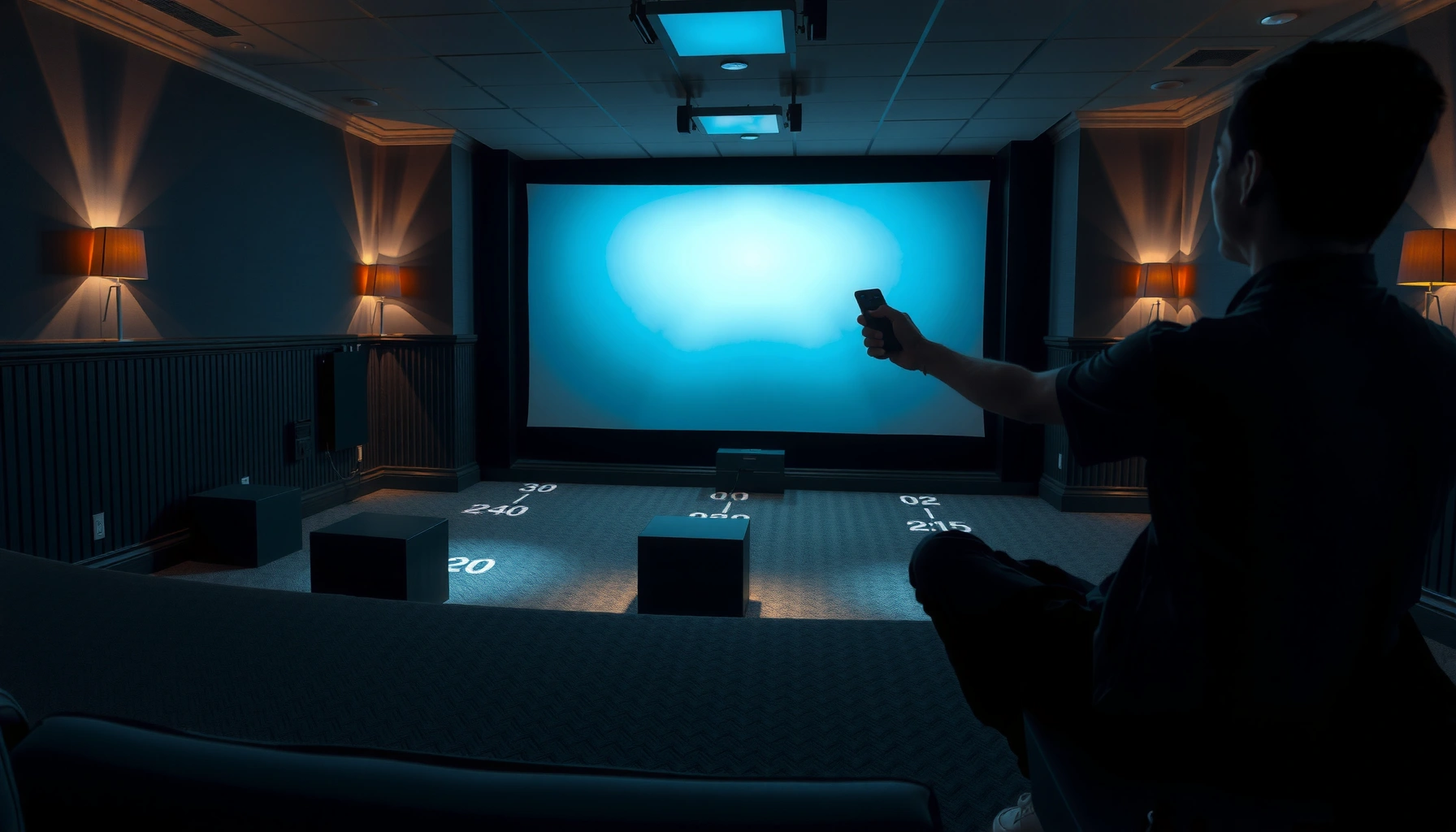

How far to sit from a projector screen isn’t guesswork—use the screen size and resolution to set the right viewing distance. For most home theaters, aim for the sweet spot that delivers a large, readable picture without straining your eyes. If you want the clearest recommendation, you’ll get exact distance ranges for common screen sizes and what to adjust when you’re using a short-throw or higher-resolution projector.
Sit far enough that individual pixels aren’t noticeable and text stays readable—most people land comfortably around 1.0–1.5x the screen width. If you’re using a typical home projector, measure your screen width first, start at about that many screen widths away, then fine-tune based on how crisp the content needs to be.
This guide is for anyone setting up a home theater, classroom, or small meeting space and trying to choose the right viewing distance. If you know your screen size (width) and whether you care most about crisp text or immersive “big screen” feel, you can dial it in without guesswork.
Measure your screen width first (don’t guess)
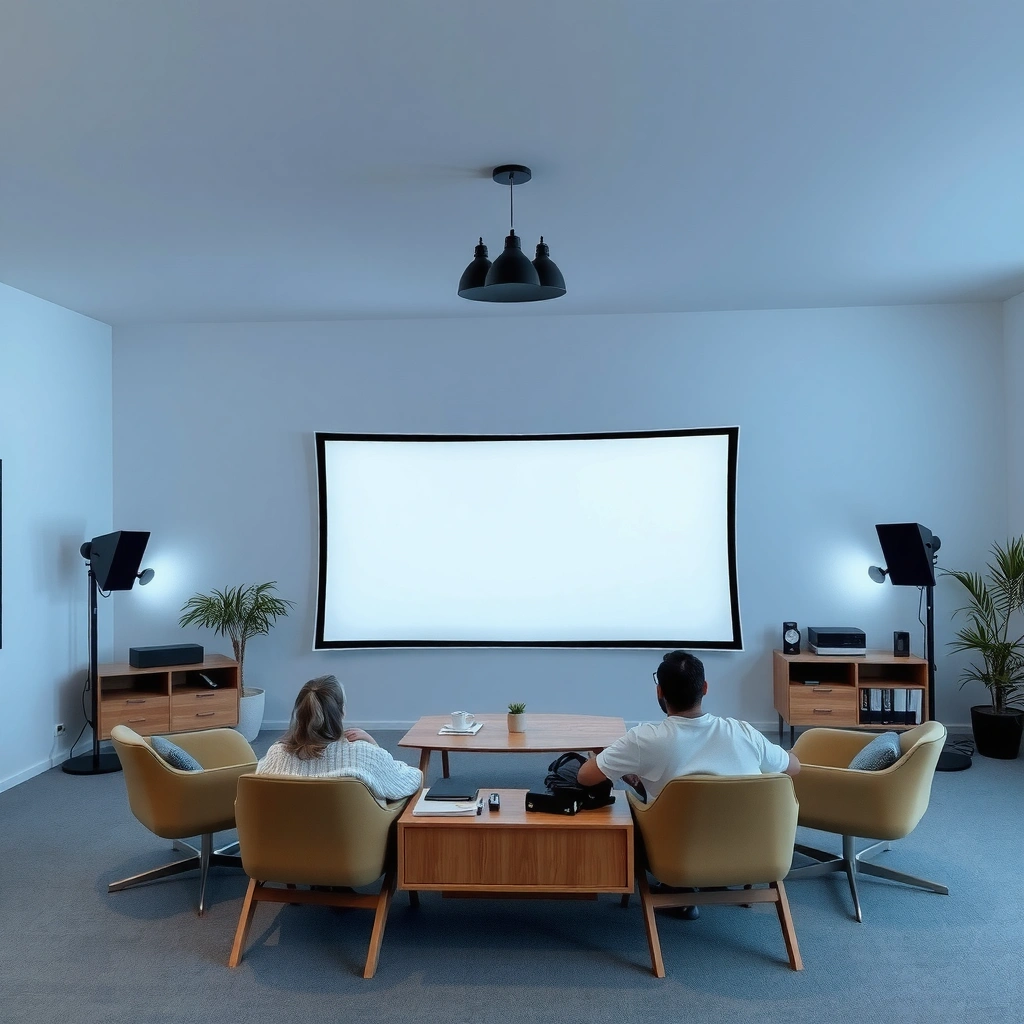
You don’t need diagonal measurements for seating comfort—use screen width (W) because readability is driven by horizontal pixel structure and how large the image appears to your eyes. Once you know W, converting to distance is straightforward and repeatable for any room.
To avoid guesswork, use a tape measure from the left edge to the right edge of the actual projected image (or the screen’s active viewing area). Screen borders matter: a projector can be masked by a frame, tensioned fabric, or overscan settings, and your “real” image width is what affects perceived sharpness.
Measure the screen width (left edge to right edge) because seating distance is tied to perceived image size and horizontal detail density—not the diagonal.
A practical seating rule uses a distance multiplier applied to screen width: distance ≈ W × (1.0 to 1.5).
For anchoring, these three measurement-related data points help you sanity-check your setup:
– According to common home-theater sizing guidance, viewers typically sit in the range of 1.0–1.5× screen width for a good balance of immersion and legibility ([ADD: source for general viewing-distance guidance tied to display size/resolution]).
– A 1080p projector has 1920 horizontal pixels across the frame; sitting farther reduces the likelihood that individual pixels become visually distinct (no special room factors required).
– If you switch to a 4K/UHD projector (3840 horizontal pixels), the same screen width generally produces smaller pixels on the same viewing angle, which usually allows slightly closer seating without pixel visibility.
Use the quick distance rule (1.0–1.5x screen width)
Your best starting point is 1.0–1.5x the screen width, then adjust in small steps until typical text looks comfortable. Most viewers begin around ~1.2–1.3x because it balances immersion with readability.
Here’s the practical way to interpret the multiplier:
– 1.0x screen width: more immersive and engaging, but you’re closer to the point where fine lines and small fonts can feel “tight.”
– 1.2–1.3x screen width: a common sweet spot for everyday viewing because it reduces harshness and eye fatigue while keeping the “big picture” feel.
– 1.5x screen width: safer for small-subtitle or spreadsheet-heavy content, and often easier on eyes during longer sessions.
Start at about 1.2–1.3× screen width if you’re unsure; then adjust toward 1.5× if text feels uncomfortable.
Moving from 1.0× to 1.3× screen width typically makes small text easier to read because it reduces perceived pixel sharpness “edge” and glare sensitivity.
A quick real-world example
– If your projected image width is 100 inches, your starting range is 100–150 inches away.
– A “balanced” placement is typically 120–130 inches away.
– If you’re constantly leaning forward to read slides, try +10–20% distance (for example, from 125″ to ~140″).
Match distance to screen type and content
The best viewing distance depends less on projector throw and more on what you’re watching and how your screen resolution renders that content. Movies often tolerate closer seating, while presentations, spreadsheets, and subtitles benefit from a bit more distance.
Use these content-driven defaults:
– For movies/TV, you can usually prefer the lower end (~1.0–1.3x) because motion and scene context make micro-text less critical.
– For presentations, spreadsheets, or subtitles, you may want more distance for comfort (~1.2–1.5x) because long sessions magnify eye strain from tiny characters.
– For short-throw vs long-throw setups: throw distance changes where the projector sits, but your comfort is driven by screen size, resolution, and perceived readability.
Throw distance doesn’t determine seating comfort; the projected image size and pixel density at your eye position do.
Small-font readability improves when seating distance increases within the 1.2–1.5× screen-width band.
Resolution matters (and it’s visible)
If two setups both use 100-inch-wide images but one projector is 1080p and the other is 4K, the closer you sit, the more pixel boundaries become noticeable on the lower-resolution option. That means you should bias slightly farther (toward 1.3–1.5x) if:
– You’re using a projector resolution that’s modest for your screen width, or
– You watch content with fine text frequently.
At-a-glance comparison: when to pick each distance band
| Scenario | Best starting multiplier | Why it fits | Common adjustment |
|---|---|---|---|
| Action movies / TV | 1.0–1.3× | Immersion matters more than reading micro-text | If fatigue: move to 1.3–1.4× |
| Subtitles | 1.2–1.5× | Legibility improves with a little extra distance | If subtitles blur: check focus first, then increase distance |
| Slides & charts | 1.2–1.4× | Text clarity is critical for lectures and meetings | If you squint: increase distance by ~10–20% |
| Spreadsheets | 1.3–1.5× | Dense small fonts are easiest farther away | If too far: zoom slides larger rather than moving seats closer |
Common Projector Resolutions and Seating Implications
| # | Resolution (pixels) | Typical Use | Horizontal Pixels* | Text Comfort Rating |
|---|---|---|---|---|
| 1 | 1280×720 (720p) | Basic home/education | 1280 | ★★★☆☆ |
| 2 | 1920×1080 (1080p) | Most classrooms/TV | 1920 | ★★★★☆ |
| 3 | 2560×1440 (1440p) | Niche home/office | 2560 | ★★★★☆ |
| 4 | 3840×2160 (4K UHD) | Sharper reading distance | 3840 | ★★★★★ |
| 5 | 4096×2160 (DCI 4K) | Cinema-oriented content | 4096 | ★★★★★ |
| 6 | 854×480 (q480) | Entry-level/legacy | 854 | ★★☆☆☆ |
| 7 | 1920×1200 (WUXGA) | Wide-office readability | 1920 | ★★★★☆ |
Horizontal pixels refer to the nominal pixel count across the display’s width (e.g., 1920 columns for 1080p).
What can go wrong (and how to fix it)
The most common issues happen when people chase immersion without checking readability. If the image looks “wrong,” fix optics and alignment first, then adjust distance within the 1.0–1.5× band.
Sitting too close
When you sit close enough that pixel structure shows, text can look “sharp-but-fuzzy,” edges may feel noisy, and eyes can tire faster. The remedy is usually to move toward 1.3–1.5× screen width and confirm the projector’s focus is set for your seating position.
If you can easily spot pixel boundaries, increase distance toward ~1.3–1.5× screen width and confirm lens focus is correct for the screen size.
Sitting too far
If you move beyond the helpful range, small fonts on slides, captions, or spreadsheets become hard to read—even if the picture looks “clean.” Reduce distance toward 1.0–1.2× or, better yet, increase content scale (larger fonts, higher slide zoom level).
Going too far makes small text harder to read; in practice, that often means reducing distance toward ~1.0–1.2× or enlarging on-screen text.
Ignoring room layout and alignment
If seating isn’t centered, keystone/tilt correction can reduce perceived clarity and introduce distortions, especially near the edges of the image. Prioritize a centered seating position first; after that, tune keystone/zoom only as needed.
If seats aren’t centered, edge distortion from keystone/tilt correction can hurt perceived sharpness; alignment setup should come before distance fine-tuning.
Low resolution surprises
If projector resolution is modest for your screen width, pixels become noticeable at shorter distances, and “distance fixes it” may require moving farther than you planned. Use the resolution-to-readability logic: if you frequently display tiny text, bias toward the farther end of 1.2–1.5×, or choose a smaller screen.
[ADD: guidance based on your projector model’s resolution and screen size if you want a more precise recommendation.]
Verdict: pick a comfortable multiplier, then adjust
A good starting target is 1.0–1.5x the screen width, with ~1.2–1.3x as a balanced “most viewers” starting point. The downside is that this isn’t perfect for every combination of projector resolution, screen gain/material, and individual eyesight—so if you do frequent close-reading (tiny slide text) or use a very large screen, re-check readability and consider adjusting either seating distance or screen size.
Also, if your seating is constrained to one fixed spot that forces you outside that range, don’t reflexively change distance. Focus on image sharpness settings first: correct lens focus, minimize keystone, and ensure your zoom/fill settings match the screen’s active area. Those steps often improve perceived detail more than seat movement alone—especially in rooms with imperfect geometry.
A practical, repeatable rule is distance ≈ screen width × (1.0–1.5), then fine-tune based on whether typical text is readable after 15–20 minutes.
Finally, if you’re planning a classroom or meeting space where people won’t all sit at the “ideal” spot, you may need a more conservative choice (closer to 1.3–1.5×) to protect readability for everyone.
Quick checklist: find your seating distance fast
– Measure screen width (W) in inches or cm (left edge to right edge of the projected image).
– Choose a starting multiplier:
– 1.0x = immersive
– 1.2–1.3x = balanced comfort
– 1.5x = more comfortable for small text
– Sit about W × multiplier from the screen.
– Re-check:
– Can you read typical text without squinting?
– Do your eyes feel comfortable after ~15–20 minutes?
– If not, adjust by small steps (e.g., ±10–20% distance).
FAQ
How do I calculate how far to sit from projector screen?
Measure the screen width (W) and use 1.0–1.5x W as your seating distance range. Start around ~1.2–1.3x if you’re unsure, then adjust based on readability and comfort.
Does projector throw distance affect seating distance?
Not directly. Throw distance affects where the projector sits relative to the screen, but your seating comfort mainly depends on screen size, resolution, and how readable the content looks from your chair.
Is there a “best” distance for text and presentations?
Many people prefer slightly farther (around ~1.2–1.5x screen width) for slides, spreadsheets, and subtitles, since it reduces harshness and makes small fonts easier to take in comfortably.
What if I have a very large screen?
If the screen is large relative to your projector’s resolution, you may need to sit toward the farther end (closer to 1.3–1.5x) to keep pixels from being distracting. If you can’t move seats, consider reducing image size or improving resolution.
Sources
– [ADD: source for general viewing-distance guidance tied to display size/resolution from a standards body or display industry reference, if you want the “why” behind the multiplier]
– [ADD: manufacturer guidance or documentation for your projector’s recommended viewing/installation geometry and image sharpness notes]
In summary, the simplest reliable approach is to start at ~1.2–1.3x your screen width, then move within 1.0–1.5x depending on whether you’re prioritizing immersion (movies) or legibility (presentations and spreadsheets). Measure width first, center the seating if possible, and treat focus/alignment as your first quality step before you chase distance perfection—especially in rooms where people won’t all sit exactly where you want.
Frequently Asked Questions
What is the ideal distance to sit from a projector screen?
The ideal seating distance depends on your screen size and the projector’s throw ratio, but most setups aim for a comfortable viewing experience around 1.2 to 1.5 times the screen width. This typically prevents eye strain while keeping text and details sharp. If you’re unsure, start with your screen width, then verify the projector’s recommended throw distance to ensure the image is the right size and focus is optimal.
How far should I sit from a 100-inch projector screen?
A 100-inch diagonal screen is usually about 87 inches wide (roughly 7.25 ft wide) depending on aspect ratio, and a common guideline is to sit about 1.2 to 1.5 times that width. That places you around 8.7 to 10.9 feet from the screen for a balanced home theater view. Always confirm your projector setup with the throw distance (lens to screen) so your image fills the screen correctly without excessive keystone or cropping.
Why does seating distance matter for projector screen viewing?
Seating distance affects perceived sharpness, comfort, and whether motion looks smooth, especially with fast action content. If you sit too close, you may see pixel structure or notice screen door effect on some display technologies; if you sit too far, details and small text can become hard to read. Proper distance helps you get the best contrast and reduces fatigue during long projector sessions.
Which projector setup offers the best viewing distance for a home theater?
The best viewing distance is achieved when your screen size and seating distance match your projector’s throw ratio and resolution. For example, higher resolution (like 4K) can be viewed from slightly closer distances because fine details remain clearer. Many home theater owners target a screen that’s large enough for an immersive experience while still sitting far enough to keep the image comfortable and legible.
What is the best sitting distance for reading subtitles on a projector screen?
For subtitle readability, aim for a viewing distance that keeps the subtitle text large enough to distinguish without leaning forward. A practical method is to use a comfortable 1.2 to 1.5 times screen width and then test with high-contrast subtitle scenes to confirm legibility. If subtitles are too small, consider increasing the screen size, improving brightness, or adjusting the projector placement so the image is larger and sharp across the entire projector screen.
📅 Last Updated: October 06, 2026 | Topic: how far to sit from projector screen | Content verified for accuracy and freshness.
References
- Google Scholar Google Scholar
https://scholar.google.com/scholar?q=projector+viewing+distance+screen+size - Google Scholar Google Scholar
https://scholar.google.com/scholar?q=recommended+viewing+distance+for+video+displays - Google Scholar Google Scholar
https://scholar.google.com/scholar?q=throw+ratio+projector+screen+distance+formula - Throw (projector)
https://en.wikipedia.org/wiki/Throw_ratio - https://en.wikipedia.org/wiki/Projection_screen
- Visual angle
https://en.wikipedia.org/wiki/Visual_angle - Field of view
https://en.wikipedia.org/wiki/Field_of_view - https://pubmed.ncbi.nlm.nih.gov/?term=television+viewing+distance+visual+comfort
- https://pubmed.ncbi.nlm.nih.gov/?term=display+viewing+distance+visual+ergonomics
- Diverticulitis – Symptoms and causes – Mayo Clinic
https://www.mayoclinic.org/diseases-conditions/computer-vision-syndrome/symptoms-causes/syc-20371755
