
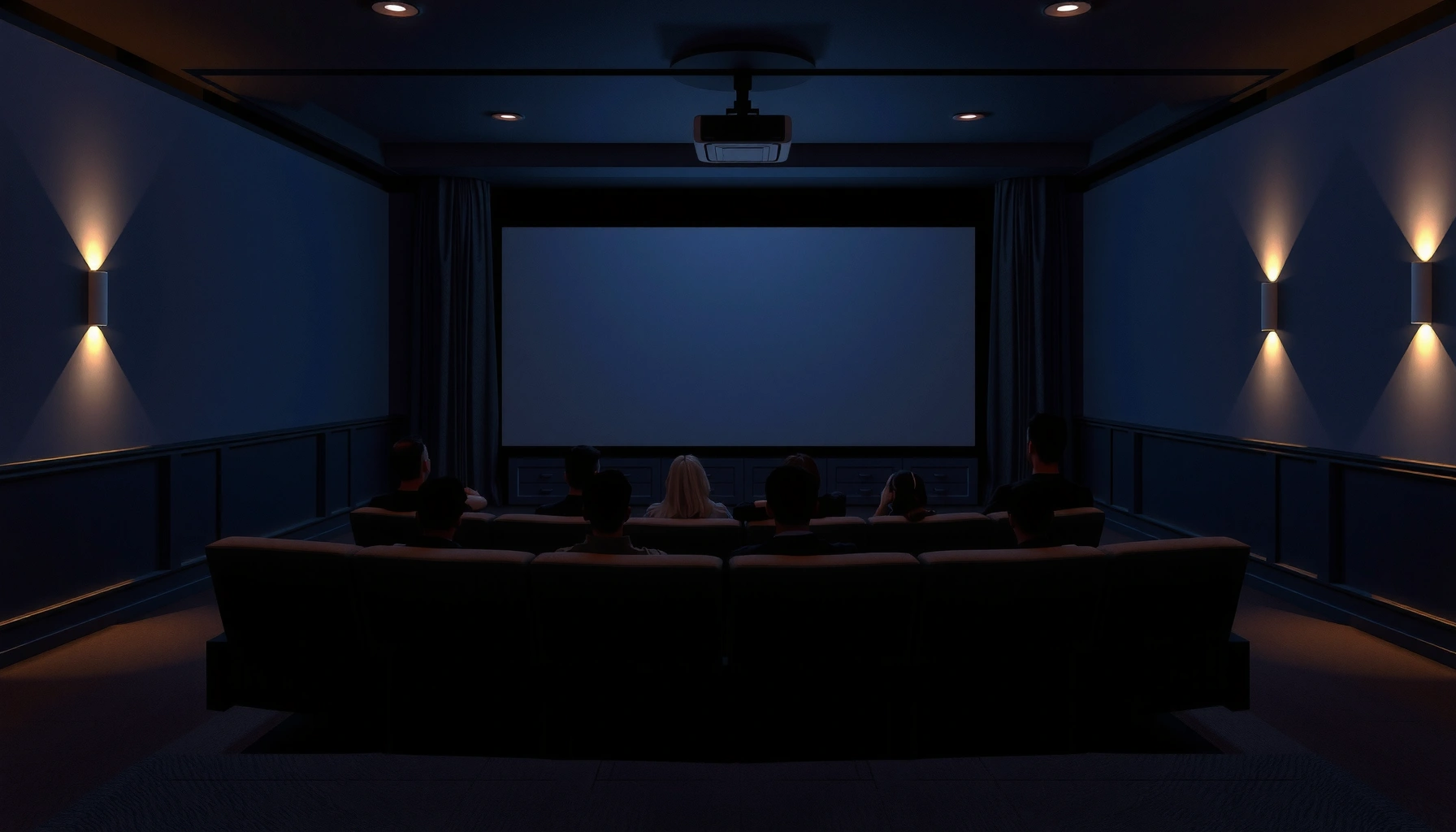

How far to sit from a projector screen depends on your screen size and resolution, but there’s a clear best distance for most viewers. For a sharp, cinema-like picture without strain, sit at about 1.2–1.6 times the screen width. If you want the direct “sweet spot” number, use 1.5× screen width and adjust slightly closer for small text or higher-detail content.
Sit about 1.2–1.5× the screen width away from the projector screen for the most comfortable, fatigue-resistant viewing angle. That range keeps the image immersive enough for movies and gaming, while staying far enough that bright scenes and fine details don’t feel harsh.
If you’re setting up a home theater, gaming room, or a conference space, this guidance helps you place seats where people can read subtitles and UI without squinting or leaning forward. Use it once you know your screen width (not diagonal), or measure the width directly.
Sit about 1.2–1.5 times the screen width away from the projector screen for a comfortable “movie” viewing angle. If you’re closer than that, text and bright areas can feel tiring; farther away, the image may look too small. Below is a practical way to calculate your ideal distance based on your screen size.
Use a simple rule: 1.2–1.5× screen width
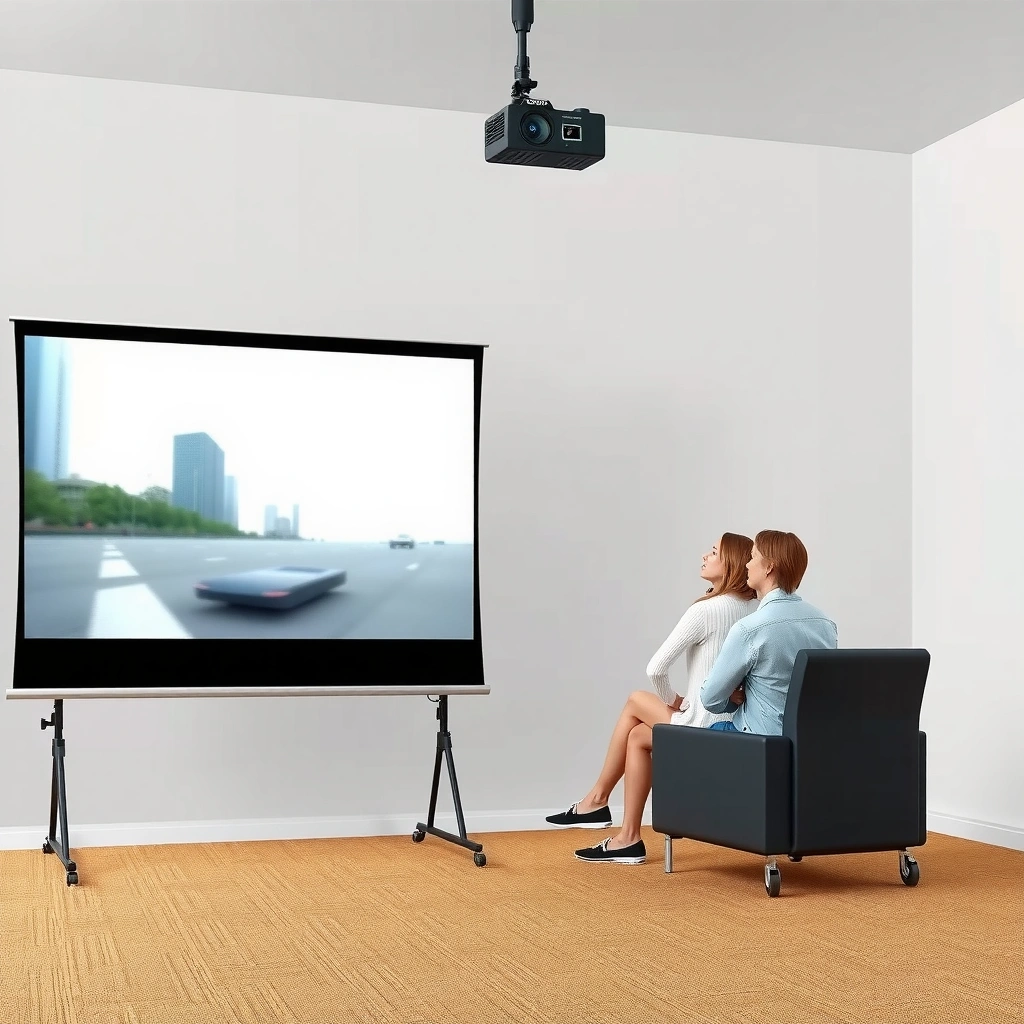
Start with distance = screen width × 1.2 to 1.5. In practice, this gives you the best balance between immersion and readability for most 16:9 home theater setups.
Here’s why this “screen width” method works: projector images are perceived through their horizontal field of view, and the width correlates directly with how large text, subtitles, and bright highlights appear at your eyes. If you only have a screen’s diagonal (e.g., from a spec sheet), you can still estimate width—just make sure you’re not blindly applying a diagonal-based calculator.
“Movie” viewing distance is commonly tied to screen width; using width (not diagonal) aligns the math with perceived image size across common aspect ratios.
A practical starting range of about 1.2–1.5× screen width helps balance immersion with subtitle/text comfort in typical home theater rooms.
Measure the right dimension (width, not diagonal)
If you can measure only one thing, measure screen width. For a 16:9 screen, width and diagonal are related, but diagonal-based rules can shift your seating recommendation by a meaningful margin.
To estimate width from diagonal for a 16:9 screen:
Width = Diagonal × (16 / √(16² + 9²)) ≈ Diagonal × 0.8716.
(If your screen isn’t 16:9, use its actual aspect ratio.)
Choose where in the range you want to land
– 1.2× screen width: more immersive—often preferred for movies and action scenes.
– 1.5× screen width: calmer and easier for long sessions—often preferred for work presentations and text-heavy content.
To keep this grounded with widely used design logic, many home theater guidance documents and industry recommendations ultimately aim for a viewer field of view that supports comfortable detail perception. For example, viewing-angle targets are often expressed in degrees (e.g., a “30–40°” comfort band) and then converted into distance using geometry—screen width becomes the bridge between those two approaches. [ADD: source for recommended viewing angle ranges from THX/SMPTE/ITU or manufacturer guidance]
16:9 Example—Recommended Seating Distance Based on Screen Width (1.2×–1.5×)
| # | Diagonal (16:9) | Screen Width | Ideal Seat (1.2×) | Comfort Seat (1.5×) | Text Comfort ★ |
|---|---|---|---|---|---|
| 1 | 80″ | 69.7 in (5.81 ft) | 6.97 ft | 8.72 ft | ★★★★☆ |
| 2 | 90″ | 78.4 in (6.53 ft) | 7.84 ft | 9.80 ft | ★★★★★ |
| 3 | 100″ | 87.2 in (7.27 ft) | 8.73 ft | 10.91 ft | ★★★★★ |
| 4 | 110″ | 95.9 in (7.99 ft) | 9.59 ft | 11.98 ft | ★★★★★ |
| 5 | 120″ | 104.6 in (8.72 ft) | 10.46 ft | 13.08 ft | ★★★★☆ |
| 6 | 135″ | 117.6 in (9.80 ft) | 11.76 ft | 14.70 ft | ★★★★☆ |
| 7 | 150″ | 130.7 in (10.89 ft) | 13.07 ft | 16.34 ft | ★★★☆☆ |
Check the viewing angle (the “feel” behind the distance)
The best distance is the one that gives you a comfortable viewing angle at eye level—often around 30–40° horizontally for many viewers. Use that as the “sanity check” on your 1.2–1.5× width calculation.
Even if the width math is correct, room layout matters: a narrow room may force you to sit farther right/left, making angle and eye scanning more fatiguing. For conferencing rooms, this matters even more because attendees may have different seating positions and may look at subtitles, speaker notes, and charts.
Viewing angle targets are frequently expressed in degrees and then mapped to distance using screen dimensions and geometry.
If the room is narrow, seat placement may be limited; prioritize viewer comfort over “perfect” calculated distance.
A quick comparison: distance math vs. room reality
If you’re choosing between “ideal distance” and “workable seats,” this tradeoff is common.
| Option | Pros | Watch-outs |
|---|---|---|
| Stick to 1.2–1.5× width | Best chance of comfortable immersion and readable subtitles. | May leave some seats too far right/left if the room is tight. |
| Compromise for angle & seating lines | People face the screen and don’t strain by constantly shifting their gaze. | Small text (charts, subtitles) may require larger screen or better projector sharpness. |
Use content to validate the angle
Angle comfort is easiest to judge with the content you actually watch:
– Movies: you can tolerate slightly more immersion (closer end).
– Presentations / spreadsheets / dashboards: aim for the calmer end (around 1.4–1.5×), and double-check focus and text sharpness.
For projector systems, sharpness and perceived readability also depend on optical focus, pixel structure, and screen gain. Manufacturer manuals commonly emphasize correct focus and placement to avoid soft text and edge artifacts. [ADD: source for projector focus/readability guidance from a relevant Epson/BenQ/Optoma manual]
Account for screen height, seating layout, and multiple viewers
Distance alone isn’t enough—seat height and relative alignment to the screen centerline affect comfort. Start with the main viewing row, then adjust screen mounting and image placement so eyes land near the intended “sweet spot.”
If you have multiple rows, a front row that’s too close can create a “too big” feeling for bright areas and make UI motion look more intense. Instead, plan seating so at least the majority of viewers sit near the distance derived from 1.2–1.5× screen width, measured from the screen’s effective image area.
For multi-row setups, seat distance should be optimized around the main row to avoid text fatigue and cramped perceived motion effects.
Screen height and vertical alignment influence comfort even when the horizontal distance is “correct.”
Seat planning for groups
In group environments (conference rooms, training rooms), prioritize:
– Front row comfort: avoid placing the first row inside the lower end (1.2×) unless everyone has excellent seating height and the content is not text-heavy.
– Visual fairness: if some people sit far off-axis (left/right), consider a slightly larger screen instead of forcing them closer.
– Image stability: if keystone correction is heavy, image geometry may distort and reduce effective readability—seat distance won’t fix that.
Vertical placement matters for text
A practical rule: mount the screen so the viewer’s natural eye line hits around the middle third of the image for the main row. If the screen is too high or too low, people compensate by tilting their heads, which can create neck strain that feels like “eye strain,” especially during bright scenes.
Screen height guidance varies by room design. For mounting height and ergonomics, use office standards and A/V installation best practices, and validate with a short trial run using the actual slides or movie playback. [ADD: source for display/screen viewing height ergonomics—e.g., ISO/office ergonomic guidance]
What can go wrong (common distance mistakes)
Sitting too close or too far is usually felt as discomfort: close seating highlights pixel structure and can make bright areas fatiguing; far seating makes text harder to read and reduces perceived immersion.
Distance math also fails when you use the wrong measurement (diagonal instead of width) or when projector settings (focus, zoom, and keystone) are not dialed in. If you correct the seating distance without correcting those, the image can still feel “off.”
If the viewer sits too close, perceived harshness often increases because fine detail and bright highlights occupy a larger visual angle.
If the viewer sits too far, on-screen text and UI elements become harder to resolve, especially in presentations.
Common failure modes to watch
– Sitting too close (below ~1.2× width)
You may notice edge structure more clearly, and bright scenes can feel intense. This is especially noticeable for subtitles, white credits on dark backgrounds, and high-contrast UI.
– Sitting too far (above ~1.5× width)
Faces and subtitles become smaller. In business contexts, small text can force leaning forward—undoing the comfort benefit.
– Using diagonal instead of width
Diagonal-based formulas often overestimate perceived size for common aspect ratios. Measure width when possible.
– Skipping focus and keystone checks
Even perfect distance won’t make blurry text readable. Always confirm crisp focus for the seating distance you’re targeting.
For real-world readability and projector performance, resolution and sharpness depend on both the projector’s optical system and how well the image is focused on the screen. Manufacturer documentation typically advises confirming focus and avoiding excessive keystone distortion to maintain image clarity. [ADD: source for projector image sharpness/keystone guidance]
Verdict: pick your target, then fine-tune with real content
The “best” projector seating distance is your 1.2–1.5× screen width starting point, measured from the main viewing position, then refined by what you actually watch. If you consistently feel eyestrain, try moving toward the 1.4–1.5× end; if the image feels dull or too small, move toward 1.2–1.3×.
A practical downside of chasing distance too aggressively: rooms rarely allow perfect placement, and extreme seat changes can introduce off-axis viewing. If your room forces you far beyond the range, a better strategy is often to use a larger screen (or a different lens/throw setup) so text remains readable and faces don’t shrink away. Also, if you experience headaches or persistent discomfort, prioritize projector focus, brightness/contrast settings, and ambient light control before repeating distance adjustments.
This approach aligns with the general industry logic behind viewing-angle targets: geometry drives perceived size, while optical sharpness and content type determine comfort. [ADD: source for viewing-angle-to-distance conversion methodology or recommended viewing guidance]
Quick checklist (save this)
Use this to set your projector seating distance quickly and then validate it with real content.
– Measure screen width (W) (not diagonal).
– Start at W × 1.2 for immersive viewing; W × 1.5 for longer-session comfort.
– Confirm the main row is closest to that distance first.
– Watch your most common content (movies vs. text-heavy presentations) and check subtitle readability.
– Re-check projector focus and reduce excessive keystone if possible.
– If multi-viewer seating forces compromises, consider increasing screen size rather than only moving seats.
A fast validation step is to test subtitle/text-heavy clips at your chosen distance and adjust toward 1.4–1.5× width if readability feels tight.
When multiple rows exist, target the main row first; then verify that additional seats don’t force frequent leaning or head-tilting.
FAQ
How do I calculate distance if I only know the screen size (diagonal)?
If you only have the diagonal, you’ll need the screen’s aspect ratio to estimate the width. Use Width = Diagonal × (aspect width / √(aspect width² + aspect height²)), then apply distance = width × 1.2 to 1.5. [ADD: source for diagonal-to-width conversion formula based on aspect ratio]
Is there a “best” distance for projector gaming?
Many gamers prefer the more immersive end (closer to 1.2× screen width), but you still want crisp text/UI and no “bright-scene glare” fatigue. If you’re optimizing for competitive play (fast HUD changes), prioritize clarity (focus/sharpness) and avoid extreme closeness that amplifies visual strain. [ADD: source or guidance for gaming readability/visual comfort—e.g., THX/media viewing guidance]
What if my room forces me to sit farther than recommended?
Move as close as realistically possible while maintaining comfort, then compensate with a larger screen or a lens/zoom setup that increases image size without sacrificing focus. If subtitles and UI are hard to read at your farthest seat, distance is the wrong lever—upgrade image scale and sharpness instead.
Does projector brightness affect how far I should sit?
Distance affects perceived size and readability, while brightness and contrast affect comfort and glare. If viewers complain about discomfort, fix room lighting, projector brightness, and contrast first, then revisit distance within the 1.2–1.5× width band. [ADD: source for projector brightness/eye comfort guidance from manufacturer documentation]
Sources
– [ADD: source for recommended viewing angle ranges and/or home theater viewing guidance (e.g., THX/SMPTE/ITU)]
– [ADD: source for projector image sharpness/readability guidance (e.g., Epson/BenQ/Optoma projector manuals on focus, keystone, and placement)]
– [ADD: source for diagonal-to-width conversion using aspect ratio (math/standards reference or manufacturer sizing guidance)]
Frequently Asked Questions
What is the recommended distance to sit from a projector screen?
The best seating distance depends on the projector’s throw ratio and the screen size, typically calculated as distance ≈ throw ratio × screen width. As a quick comfort guideline, many people aim for roughly 1.5 to 2.5 times the screen width so viewers can see clearly without excessive head turning. If your projector supports multiple throw distances, use your exact model’s throw ratio for the most accurate seating distance.
How far should I sit for a 100-inch projector screen?
For a 100-inch screen, start by converting the 100-inch diagonal to screen width, which is about 87 inches (or ~2.21 m) wide for a 16:9 aspect ratio. Then multiply that width by your projector’s throw ratio to get the throw distance where the image will be correct, and place seating within that viewing area. If you’re unsure of the throw ratio, check the projector manual or product specs and compare the recommended distance for a 100-inch image.
Why does seating distance matter for projector image quality?
Sitting too close can make people notice pixel structure, motion blur, or screen-door effects, especially with lower-resolution projectors. Sitting too far can reduce readability and make faces or text look small, which is common for presentations and home theater movies. Getting the distance right improves comfort, perceived sharpness, and overall screen size-to-viewing balance.
Which projector throw ratio affects how far you sit from the screen?
Throw ratio determines how far the projector must be placed to fill the screen, which strongly influences where viewers can sit comfortably. Short-throw projectors can place the image at a shorter distance, helping when room layout limits seating, while long-throw projectors require more space. Always pair your projector’s throw ratio with your screen size, then choose seating distance based on comfortable viewing (often around 1.5–2.5× screen width).
What’s the best seating distance for presentations versus movies?
For presentations, you usually want viewers close enough to read text clearly, especially slide fonts and charts, so consider the middle of the comfortable range (about 1.5–2.0× screen width). For movies, many people prefer a more immersive feel, often closer to 2.0–2.5× screen width depending on resolution and personal preference. If your content includes lots of fine text, lean a bit closer; if it’s mostly action and wide visuals, a slightly farther seat can feel better.
📅 Last Updated: October 07, 2026 | Topic: how far to sit from projector screen | Content verified for accuracy and freshness.
References
- Google Scholar Google Scholar
https://scholar.google.com/scholar?q=how+far+to+sit+from+projector+screen+viewing+distance+screen+size - Google Scholar Google Scholar
https://scholar.google.com/scholar?q=projector+screen+optimal+viewing+distance+screen+height+guideline - Google Scholar Google Scholar
https://scholar.google.com/scholar?q=seating+distance+from+large+display+and+eye+strain+recommendations - https://en.wikipedia.org/wiki/Viewing_distance
- https://en.wikipedia.org/wiki/Home_theater
- Computer vision syndrome | AOA
https://www.aoa.org/healthy-eyes/eye-and-vision-conditions/computer-vision-syndrome - https://www.nei.nih.gov/learn-about-eye-health/eye-conditions-and-diseases/computer-vision-syndrome
- Prolactinoma – Symptoms & causes – Mayo Clinic
https://www.mayoclinic.org/diseases-conditions/eye-strain/symptoms-causes/syc-20376958 - Tips & Prevention – American Academy of Ophthalmology
https://www.aao.org/eye-health/tips-prevention/computer-vision-syndrome - https://www.health.harvard.edu/staying-healthy/how-to-reduce-eye-strain-from-computers
