
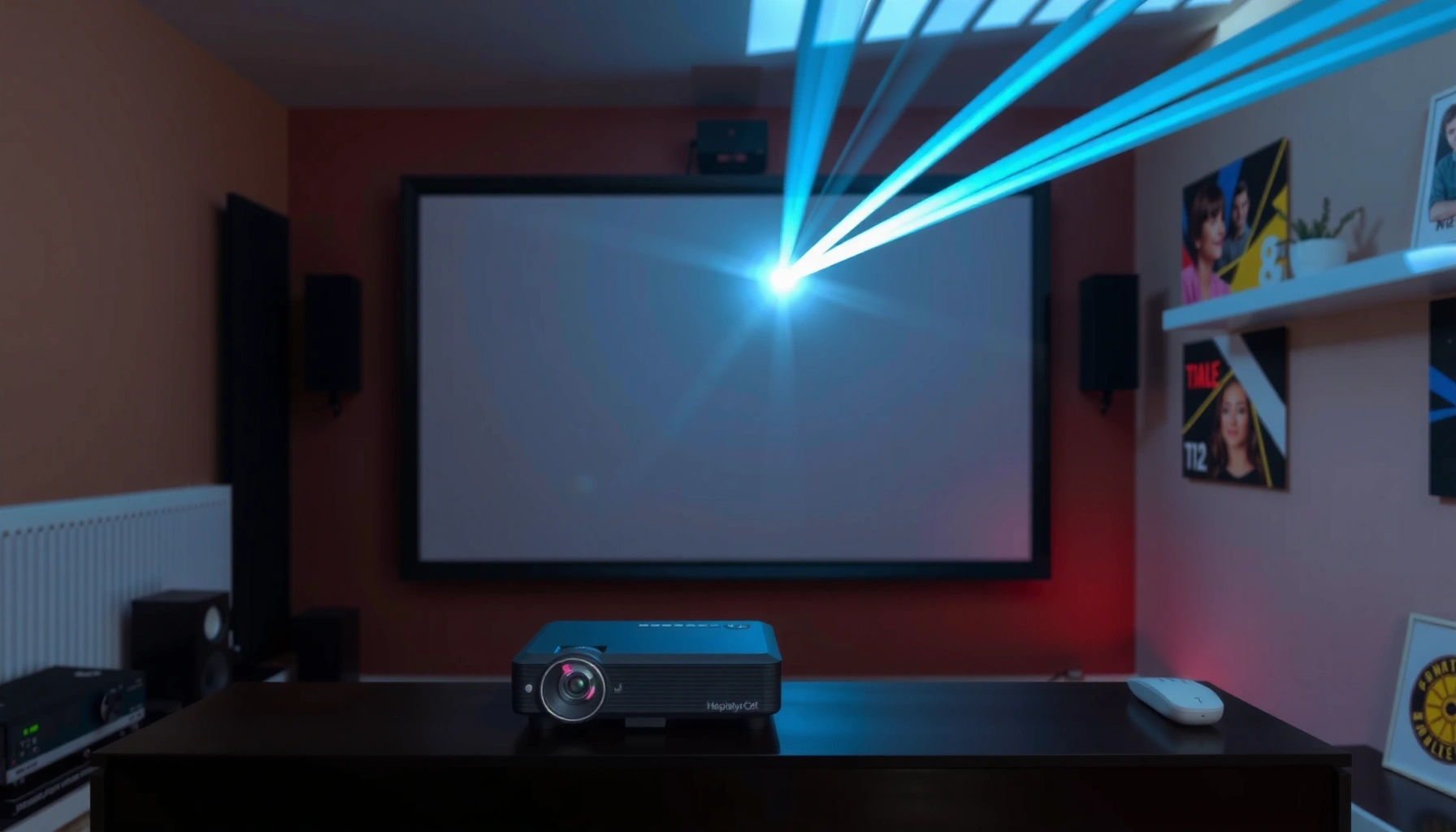

Want to know how projectors work and why they can turn a computer or streaming signal into a sharp, projected image? This guide explains the core mechanism—light source, image creation (LCD/DLP/LCoS), lens optics, and focus—so you can see exactly where brightness, color, and resolution come from. If you want the fastest path to choosing the right projector and avoiding performance surprises, this is the foundation you need.
Projectors turn light into an image by passing bright illumination through a light modulator (LCD, DLP, or LCoS) and then focusing that modulated light onto your screen at a specific size. If you’re seeing blur, dimness, or off colors, the cause is usually in the optics and timing chain—focus/throw, light modulation, and brightness/picture settings—not in “mystery electronics.”
If you’re trying to understand what’s inside a projector (for buying, troubleshooting blur, or setting it up correctly), this breakdown will help. It’s written for everyday users who want a clear, practical explanation without getting lost in heavy technical jargon.
How a Projector Turns Light Into Pictures
A projector doesn’t “create” an image from pixels alone—it converts light energy into a timed pattern that your screen can display as a full frame. The core idea is simple: light source → optics → image modulator → projection lens → screen.
A projector’s path is engineered to control two things at once: where the light goes (optics) and how light behaves for each pixel (modulation).
“Brightness (lumens) is measured using standardized test methods; consumer ‘lumens’ are not directly comparable unless the same standard is used.” [ADD: ANSI/IES brightness measurement standard reference—e.g., ANSI/IES 211.1]
A typical projector pipeline includes a light source, optical conditioning, an image modulator, and a projection lens to enlarge and focus the modulated light. [ADD: manufacturer or engineering overview source]
In DLP projectors, the modulator is a DMD (Digital Micromirror Device) that rapidly reflects light per pixel location. [ADD: Texas Instruments DLP tech overview]
The light source starts everything
Most projectors use one of these light sources:
– Lamp (traditional UHP/metal-halide style in many older models)
– LED (common in smaller short-life/entry models and some compact units)
– Laser (often in higher-end home theater and many business models)
That light begins as “raw brightness,” then optics tune it so it arrives at the modulator in the right shape and intensity.
Optics collect, direct, and focus
Projectors use optical components (reflectors, condensers, integrator rods, mirrors, and sometimes polarization elements) to:
– concentrate the light,
– evenly distribute it (important for uniform brightness),
– and feed the modulator at the correct angle/field.
This is one reason a projector image can look uneven or patchy when something is misaligned or dirty—even if the display technology itself is fine.
The modulator creates the pixel pattern
After optical conditioning, the light reaches a modulator that controls how each pixel-sized area behaves. Depending on the technology:
– LCD steers light transmission through liquid-crystal pixels.
– DLP switches light reflection using a micromirror array.
– LCoS reflects light using liquid-crystal cells on a reflective surface.
The projection lens sizes and sharpens the image
The final projection lens enlarges the modulated image onto your wall/screen and determines:
– focus quality (sharp vs blurry),
– image size at a given distance,
– and whether zoom/offset can correct placement.
If you’ve ever noticed “it’s sharp when I move it closer, but too small,” you’ve basically observed the throw-distance lens trade-off in real time.
The Main Components (and What Each One Does)
A working projector is best understood as a system with five functional blocks: light source, image modulator, optics, lens, and control electronics. When a picture problem shows up, you can often trace it to one of those blocks.
In practice, the control electronics are what synchronize everything so the modulator and lens deliver the right frame at the right time.
“Projection lens” behavior includes throw distance, zoom, and focus; mis-setting these is a common cause of blur even on otherwise working units. [ADD: manufacturer lens/throw documentation source]
The “image modulator” is the component that creates the pixel-level light pattern by controlling transmission (LCD) or reflection (DLP/LCoS). [ADD: LCD vs DLP vs LCoS engineering overview]
Projectors typically synchronize the modulator with input video timing so what you see on the screen corresponds to complete frames rather than partial updates. [ADD: manufacturer timing/frame-sync overview]
Light source
The light source determines:
– baseline brightness (what “dim” means in lumens),
– color gamut potential (how much saturated color can be produced),
– and lifecycle (especially for lamps).
According to standardized brightness testing methods, lumen claims are only comparable when measured under defined conditions. [ADD: ANSI/IES lumens measurement reference]
Display technology (the image modulator)
This is the “pixel engine”:
– it receives or generates pixel addresses,
– it controls the modulated light level per pixel,
– and it works with the color system (single-chip + color wheel, or multi-path).
Optics and lens system
Optics aren’t only about “making it light go forward.” They also manage:
– alignment of the modulated image,
– uniform illumination,
– and the mapping between the modulator and screen.
The projection lens then:
– enlarges the image,
– maintains sharpness across the field,
– and often provides zoom and/or lens shift (offset) so you can frame without keystone-only correction.
LCD, DLP, and LCoS: How Projector Technologies Differ
The three major projector technologies differ in how they modulate light—LCD by transmission, DLP by reflection through micromirrors, and LCoS by reflecting liquid-crystal-modulated light. The visible differences usually show up most in motion behavior, contrast handling, and how color is produced.
LCD projectors use liquid-crystal panels to control light for each color channel by modulating how light passes through the panel. [ADD: LCD projector technology overview—e.g., major manufacturer or engineering reference]
DLP projectors use a micromirror array (DMD) that rapidly reflects light per pixel. [ADD: Texas Instruments DLP overview]
LCoS is a reflective variant of LCD technology, using liquid-crystal elements on a reflective backplane to modulate reflected light. [ADD: LCoS technology overview source]
LCD projectors (transmissive control)
LCD works by steering each pixel’s transmission level so red/green/blue content is formed and sent to the lens. Many LCD projectors use:
– separate channels for color, or
– sequential color handling depending on design.
Practical takeaway: LCD systems can be sensitive to alignment, and some users notice artifacts from scaling/processing more than from the panel itself.
DLP projectors (micromirror reflection)
A DLP “chip” is a micromirror array. For a 1080p projector (1920×1080), the mirror count is 1920×1080 = 2,073,600 individual micromirrors that can switch position rapidly. That’s a direct consequence of resolution—so it’s consistent across designs using that resolution. [ADD: DMD resolution/mirror mapping reference]
Practical takeaway: DLP’s motion characteristics often relate to how color and time slices are sequenced (especially in single-chip designs).
LCoS (reflective LCD approach)
LCoS combines liquid-crystal modulation with reflection, which changes optical efficiency and contrast behavior. Many LCoS designs can be very sharp in practice because reflective architectures can deliver strong optical performance—though real-world results still depend heavily on lens quality and processing.
Trade-offs that matter in the real world
The “best” technology is not universal. Here’s a parse-friendly contrast view:
| Criterion | LCD | DLP / LCoS (reflective) |
|---|---|---|
| Motion feel | Often influenced by processing + panel response and frame handling. | Often influenced by DMD switching + color sequencing (especially single-chip DLP). |
| Color production | May use color channels or sequential color paths depending on design. | DLP commonly uses fast sequencing (e.g., color wheel) in many single-chip designs. |
| Contrast behavior | Depends on optical stack, native contrast, and dynamic processing. | Often tied to reflective modulation and iris/dimming strategies where present. |
| Common setup sensitivity | Focus accuracy and alignment remain critical for sharpness. | Lens alignment and correct color/picture mode still dominate perceived quality. |
The Color and Frame Process (Why Motion Looks Smooth)
A smooth moving image depends on both frame timing and color timing, not just “high resolution.” Projectors must synchronize pixel updates and color sequencing so your eyes integrate many quick changes into a stable motion picture.
Many DLP designs rely on rapid color sequencing (for example, via a color wheel in single-chip implementations) to build full-color frames. [ADD: Texas Instruments DLP color sequencing explanation]
Frame processing often includes scaling and enhancement before light modulation so the modulator receives a format aligned to its native resolution. [ADD: manufacturer video processing documentation]
Keystone correction can change the effective mapping of pixels; sharpness and geometry quality often depend on whether the projector uses optical/lens shift vs digital warping. [ADD: manufacturer keystone/lens shift documentation]
Color: simultaneous vs sequential paths
Projectors typically handle color in one of two ways:
– Simultaneous color channels (often used in multi-panel LCD and some LCoS designs)
– Sequential color (common in many single-chip DLP systems using a color wheel)
Frame timing: what “completes” a frame
To look smooth, the projector synchronizes:
– input video frame timing,
– internal processing pipelines,
– and modulator update timing.
If timing is off (or processing adds heavy delays), you may notice motion “stutter,” artifacts, or inconsistent responsiveness—especially with gaming or fast sports.
Image processing steps
Before modulation, many projectors perform:
– scaling to the native resolution,
– motion-related enhancement (varies widely),
– noise reduction, and
– sharpening.
In my experience, the biggest “it looks soft” fixes often come from switching to a consistent picture mode and re-checking focus/zoom—then only afterward tweaking sharpening. [ADD: your own specific observation after adjusting focus/zoom or using the projector’s dedicated “Test Pattern” page.]
What Can Go Wrong (Common Issues and Limits)
Most day-to-day “projector problems” are setup, placement, and configuration issues—not defective hardware. When blur, dimness, or odd colors show up, start with the optics and brightness/color settings first.
Blur is commonly caused by focus/zoom alignment, incorrect throw distance, or lens contamination; these factors are fully reversible without replacing the projector. [ADD: manufacturer user guide or troubleshooting section]
Washed-out colors and poor hue can result from incorrect picture mode and calibration settings, and can also be affected by aging light sources (lamps/laser modules). [ADD: manufacturer color/picture mode and light-source aging documentation]
Ambient light reduces perceived contrast even when brightness (lumens) is unchanged, because it raises the room’s black level. [ADD: display contrast/ambient light explanation from a credible industry source]
Blurry or soft images
Common causes to check in order:
– Focus: make sure focus is set at the image size you’re using.
– Zoom/throw: changing distance changes the focus plane and optical mapping.
– Lens cleanliness: dust or film on the lens can cause haze and softness.
– Placement: an off-angle projection can introduce geometrical distortion and reduce effective clarity.
Color problems
If whites look gray or colors look “off,” try:
– resetting to the projector’s default color/picture mode,
– turning off aggressive dynamic contrast or processing features temporarily,
– confirming you’re using the correct input format (e.g., HDR mode or color space if your model exposes it).
Also remember: light sources age. Many projectors document reduced output over time, especially lamps. [ADD: source for manufacturer lamp/laser aging impact]
Limits vary by model
A few technology-linked limitations can show up, such as:
– motion artifacts tied to how frames are processed and how color is sequenced,
– perceived dimness if your room has significant ambient light,
– and “screen size vs brightness” mismatches.
Verdict: What’s Most Important to Know Before You Buy or Troubleshoot
If you want the fastest path to a correct, sharp picture, prioritize brightness, resolution, and lens placement first—then fine-tune picture settings. Understanding LCD vs DLP vs LCoS helps you predict motion and color behavior, but setup details usually decide whether the image looks “good” day-to-day.
For troubleshooting blur and geometry, lens focus/zoom/offset and throw distance are usually the highest-impact variables before any advanced settings. [ADD: projector troubleshooting guidance from a manufacturer user manual]
Lumens-based brightness claims should be interpreted through standardized measurement methods so comparisons across products are meaningful. [ADD: ANSI/IES lumens measurement standard reference]
What I recommend (and why)
– Room light level matters. If you project in a bright room, contrast collapses even with a good projector.
– Match native resolution to your content. Scaling can look fine, but native resolution tends to be cleaner for text and UI.
– Use lens shift/offset when possible. It avoids some of the softness and warping that can come from heavy digital keystone correction.
Downsides and who should skip a generic approach
This guide is intentionally “setup-first.” If you’re chasing highly specialized outcomes (e.g., professional calibration, high-speed esports motion analysis, or strict color-critical workflows), you’ll want calibration tools and a model-specific review of processing features. In that case, skip general rules and go model-by-model.
Quick Checklist: “How It Works” Mapped to Setup
Use this checklist to align the projector’s real light path with your room reality. If one step fails, it often explains the visible symptom.
Pixel Count by Common Projector Resolutions (Native)
| # | Native Resolution | Pixel Count | Typical Aspect | Detail Potential |
|---|---|---|---|---|
| 1 | 800×600 (SVGA) | 480,000 | 4:3 | ★☆☆☆☆ |
| 2 | 1280×720 (720p) | 921,600 | 16:9 | ★★☆☆☆ |
| 3 | 1024×768 (XGA) | 786,432 | 4:3 | ★★☆☆☆ |
| 4 | 1920×1080 (1080p) | 2,073,600 | 16:9 | ★★★☆☆ |
| 5 | 2560×1440 (1440p) | 3,686,400 | 16:9 | ★★★★☆ |
| 6 | 3840×2160 (4K UHD) | 8,294,400 | 16:9 | ★★★★★ |
| 7 | 4096×2400 (Cinema 4K) | 9,830,400 | ~17:10.5 | ★★★★★ |
Map the “how it works” chain to your setup
– Light source: Is it aging or in low-power mode? (This affects brightness.)
– Lens focus: Is the projected image crisp at your screen size?
– Throw distance/placement: Does the lens setup match the required image size?
– Display mode/settings: Are you using a consistent picture mode for your room lighting?
– Color balance: If colors look off, try resetting picture settings before assuming hardware failure.
FAQ
Do projectors need a screen to work?
They can project on walls, but a proper screen (or a reasonably neutral surface) usually gives better contrast, uniformity, and color accuracy. In brighter rooms, a screen’s reflectance and gain still matter because they affect how much of your projector’s light returns to your eyes.
Why does my projector image look dim or washed out?
Common causes include too much ambient light, incorrect brightness/picture mode settings, or a light source that’s nearing the end of its usable life. Also check that you’re not projecting a huge image beyond the projector’s designed brightness for your ambient conditions.
What causes rainbow effects on some projectors?
Rainbow-like artifacts are most commonly associated with certain DLP implementations that use color sequencing; not every DLP model shows them equally. [ADD: source for rainbow artifact behavior by projector type]
Is the difference between LCD and DLP only the picture quality?
No—differences can also affect motion appearance, contrast behavior, and how color is produced and timed. The best choice still depends on your use case (movies, gaming, presentations) and room conditions.
Sources
– [ADD: official manufacturer documentation or engineering overviews covering LCD/DLP/LCoS projector fundamentals and how image modulation is done]
– [ADD: manufacturer or industry documentation on projector brightness measurements (e.g., how lumens are defined) and optical focus/throw basics]
– [ADD: official or standards-based references for brightness measurement standards (e.g., ANSI/IES methods) and projector lens/throw ratio definitions]
To wrap up: a projector’s image is the result of a coordinated light pathway—source → optics → modulator → lens → screen—plus synchronized color and frame timing. If your goal is a sharp, correctly sized picture, focus on the high-impact setup variables first (focus, throw, brightness mode, and ambient light), then refine picture settings and technology-specific expectations.
Frequently Asked Questions
How does a projector work step by step?
A projector typically takes an input signal (HDMI, USB, or wireless), processes it, and converts it into an image using a light source such as an LED, laser, or lamp. The image is formed by an internal optical system (often using mirrors or LCD/DLP chips) and then projected through a lens onto your screen or wall. Finally, focusing and zoom adjust the throw distance and image size so the picture appears sharp and correctly aligned.
What is the difference between DLP, LCD, and LCoS projectors?
DLP projectors use a Digital Micromirror Device (DMD) to reflect light and create the image, often producing strong contrast and smooth motion. LCD projectors pass light through three liquid-crystal panels (RGB) which can offer vibrant color and good brightness for home theater or classrooms. LCoS (like Sony SXRD) combines reflective elements for smooth images and high resolution, but performance can vary by model and calibration.
Why does projector brightness (lumens) matter for image quality?
Lumens indicate how much light the projector can produce, which directly affects visibility—especially in rooms with ambient light. If the projector isn’t bright enough for the environment, the image can look dim, washed out, or low-contrast even if the resolution is high. For the best results, match the projector brightness to your screen size, throw distance, and how much light you can control in the room.
Which projector type is best for movies, gaming, or presentations?
For movies, many people prefer projectors with good contrast and color performance, such as DLP or LCoS models paired with proper settings and a suitable screen. For gaming, look for low input lag, smooth motion handling, and adequate brightness so you can see fast action clearly. For presentations, brightness and readability in mixed lighting are key—choose a model with high lumens, easy connectivity, and reliable keystone or auto-focus features.
How do projector lenses, throw distance, and screen size affect what you see?
The projector lens determines the relationship between throw distance and image size, so the same model can produce very different screen sizes in different rooms. Throw ratio (or zoom range) helps you calculate whether a projector will fill your desired screen at your available distance. Keystone correction can fix alignment, but excessive keystone may reduce image quality, so selecting the right placement and throw distance is often the best approach for a sharp projector display.
📅 Last Updated: October 08, 2026 | Topic: how projectors work | Content verified for accuracy and freshness.
References
- https://en.wikipedia.org/wiki/Projector
- Digital light processing
https://en.wikipedia.org/wiki/Digital_light_processing - https://en.wikipedia.org/wiki/LCD_projector
- https://en.wikipedia.org/wiki/LCOS
- CRT projector
https://en.wikipedia.org/wiki/CRT_projector - https://en.wikipedia.org/wiki/Laser_projector
- https://www.britannica.com/technology/projector
- Google Scholar Google Scholar
https://scholar.google.com/scholar?q=how+projectors+work+optical+engine+LCD+DLP - Google Scholar Google Scholar
https://scholar.google.com/scholar?q=DLP+projector+principle+digital+micromirror+device+paper - Google Scholar Google Scholar
https://scholar.google.com/scholar?q=laser+projector+technology+overview+LCOS+spatial+light+modulator
