
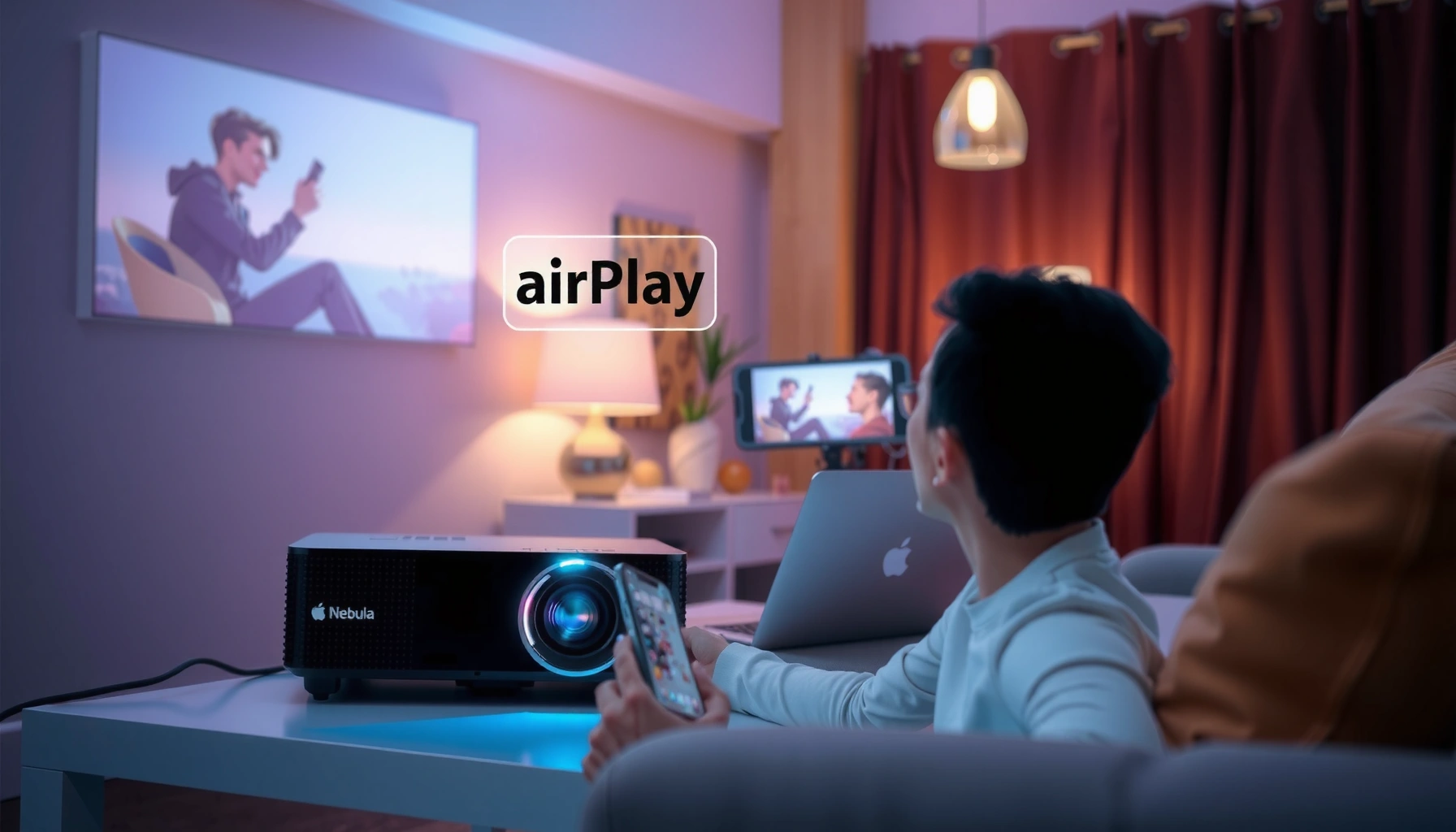

Want to AirPlay to a Nebula projector without guesswork? This step-by-step guide tells you exactly how to connect, start streaming from your iPhone or Mac, and fix the most common “no signal” and connection problems fast. Follow it and you’ll be projecting from AirPlay in minutes—clear setup, reliable results, no trial-and-error.
To AirPlay to a Nebula projector, put your Apple device (iPhone/iPad/Mac) and the projector on the same Wi‑Fi network, then select the Nebula device from the iOS/macOS AirPlay (Screen Mirroring) menu. If the projector doesn’t appear, enable AirPlay/Screen Mirroring in the projector settings and restart both devices to re-discover the target.
This guide is built around the exact user flows most people hit at home: mirroring your screen for presentations or showing video from streaming apps. It also covers the most common failure modes—missing devices in the AirPlay list, black screens, no audio, and lag—so you can restore stable casting quickly in 5–15 minutes rather than trial-and-error for an hour. As of 2026, the core requirements remain the same because AirPlay discovery relies on local network connectivity (not the internet).
This is for people using an iPhone, iPad, or Mac and trying to stream from Apple’s AirPlay to a Nebula projector at home. It applies whether you’re mirroring your screen or playing a video from a streaming app—especially when the projector doesn’t appear in the AirPlay list.
Check prerequisites: Wi‑Fi and AirPlay compatibility
AirPlay will only work reliably when your Nebula projector supports AirPlay (or an equivalent “Screen Mirroring / AirPlay” feature) and both devices can communicate over the same local Wi‑Fi network. Start here—most “AirPlay not showing” problems are compatibility or network discovery issues, not a settings mystery.
First, confirm your specific Nebula model supports AirPlay. Many Nebula projectors include AirPlay for mirroring, but the exact wording in menus (e.g., “AirPlay,” “Apple AirPlay,” “Screen Mirroring,” “AirPlay/Screencast”) varies by model and firmware version. Check the projector’s on-screen settings or the documentation for your exact model.
“AirPlay requires the devices to be on the same network for discovery and streaming.” Apple Support (AirPlay / Screen Mirroring help)
“Screen Mirroring shows available compatible devices on your local network.” Apple Support (AirPlay / Screen Mirroring help)
Confirm your Nebula projector model supports AirPlay
AirPlay compatibility is model-dependent. If your projector doesn’t support AirPlay natively, you may still be able to cast via a different method (for example, a manufacturer app casting feature), but it won’t appear in the AirPlay menu.
– Do this: Look for AirPlay / Screen Mirroring in the projector’s settings.
– If you don’t find it: your model may not support AirPlay, or the feature may require a firmware update.
[ADD: link/source for Nebula projector model compatibility]
Put projector and Apple device on the same Wi‑Fi network
AirPlay typically won’t work across different networks, and it often fails on guest Wi‑Fi. Even if both devices show “connected to Wi‑Fi,” AirPlay discovery can break when your router uses client isolation (sometimes called AP isolation or client isolation).
To avoid this:
– Use the same SSID (Wi‑Fi name) for projector and iPhone/Mac.
– Turn off VPN on your Apple device for troubleshooting.
– Avoid roaming between networks (for example, switching from Wi‑Fi to cellular or moving your iPhone to a different SSID mid-stream).
According to Apple Support (AirPlay / Screen Mirroring help), AirPlay relies on local network communication for discovery. Also, many home router configurations restrict device-to-device traffic to improve security—research and vendor documentation commonly describe this under “client isolation,” and it can interfere with local discovery and streaming.
Network sanity check you can do in under a minute
Before you open any menus:
– Confirm the projector shows an IP/network connection in its settings (if available).
– Confirm your iPhone/Mac shows the same Wi‑Fi name as the projector.
– If your router has both 2.4 GHz and 5 GHz bands with the same SSID, that’s usually fine; the critical piece is that both devices are on the same network.
Common misconception: “Same Wi‑Fi password means AirPlay should work.” In reality, client isolation and different VLANs can produce “same SSID” but no discovery.
Enable AirPlay on the Nebula projector
To make your Nebula projector show up in AirPlay, you must enable its AirPlay / Screen Mirroring feature in the projector settings. Once that toggle is on, the projector becomes discoverable to iPhone, iPad, and Mac.
In most Nebula menus, you’ll find a setting labeled AirPlay, Apple AirPlay, or Screen Mirroring. Turn it on before you start searching from your Apple device.
“To use AirPlay, ensure your receiving device is ready to accept AirPlay.” Apple Support (AirPlay / Screen Mirroring help)
“Screen Mirroring and AirPlay targets are advertised as available devices on the network.” Apple Support (AirPlay / Screen Mirroring help)
Open Nebula projector settings and turn on AirPlay
The path differs by model UI, but the logic stays the same:
1. Open Settings on the projector.
2. Find AirPlay, Apple AirPlay, or Screen Mirroring.
3. Turn the feature On.
If your Nebula model offers multiple options (for example, “AirPlay” vs a separate “Mirroring app mode”), select the one explicitly associated with Apple AirPlay / Screen Mirroring.
[ADD: link/source for Nebula AirPlay setup steps for your model]
Keep the projector “awake” during discovery
If the projector enters standby or quickly powers down, AirPlay discovery can disappear mid-setup. When configuring:
– Keep the projector powered and awake.
– Don’t start mirroring while it’s reconnecting to Wi‑Fi.
As of 2026, projector firmware behaviors still vary by model, but the operational principle remains: discovery depends on the receiver being available on the local network.
AirPlay from iPhone or iPad (screen mirroring + video)
To AirPlay from your iPhone or iPad, open Control Center, select Screen Mirroring, and choose your Nebula projector name. For video streaming, you can either mirror the whole screen or use the app’s built-in AirPlay option when available.
Apple’s Screen Mirroring flow is the most universal for projectors because it doesn’t depend on whether a specific app exposes an AirPlay icon.
“On iPhone or iPad, Control Center includes Screen Mirroring for selecting an AirPlay receiver.” Apple Support (AirPlay / Screen Mirroring help)
“If you can’t find your device, verify both devices are on the same network and that the receiver is ready.” Apple Support (AirPlay troubleshooting guidance)
Mirror your screen using Control Center
1. Swipe to open Control Center.
2. Tap Screen Mirroring.
3. Select your Nebula projector (by its name as shown in the list).
4. If prompted, confirm the pairing code shown on the projector screen.
Improve stability for mirroring
For fewer disconnects and less audio drift:
– Keep the iPhone/iPad near your router (or at least not across thick walls).
– Avoid switching Wi‑Fi networks mid-stream.
– Don’t start heavy downloads on the same device during casting.
Specific troubleshooting behaviors (practical):
– If audio starts but visuals lag, end and restart mirroring once.
– If it fails to connect, toggle AirPlay/Screen Mirroring off and back on in the projector settings, then re-open Control Center.
AirPlay from Mac (mirroring and playback)
To AirPlay from a Mac, open Control Center (or display settings), choose Screen Mirroring, and select the Nebula projector. For video playback, you can often start playback in the app and then use the app’s AirPlay target if it provides one.
Mac workflows differ slightly by macOS version, but the discovery concept is the same: you select a receiver from an on-screen list tied to local network availability.
“On macOS, Screen Mirroring lets you mirror or share your display to an AirPlay receiver.” Apple Support (AirPlay / Screen Mirroring help)
“If AirPlay doesn’t work, Apple recommends checking network settings and receiver readiness.” Apple Support (AirPlay troubleshooting guidance)
Mirror your Mac display
1. Open Control Center (or the display/menu area, depending on macOS version).
2. Choose Screen Mirroring.
3. Select your Nebula projector.
Stream only a video (when supported by the app)
Many media apps expose an AirPlay icon inside the player. When it’s available:
– Start the video in the app.
– Tap the AirPlay icon and select the Nebula projector.
– This can be smoother than full-screen mirroring if you only need audio/video on the projector.
Because AirPlay implementations vary by app and codec, if one method fails:
– Try Control Center mirroring as a fallback.
– Then return to app playback once connectivity stabilizes.
What can go wrong (and how to fix it fast)
AirPlay problems usually fall into four buckets: missing projector in the list, black screen, no audio, or unstable connection/lag. You can often resolve each bucket with a targeted reset of discovery and a quick network check.
Below are fast fixes that map directly to the symptom.
“Restarting the AirPlay receiver and the Apple device can help it re-advertise and re-discover on the network.” Apple Support (AirPlay troubleshooting guidance)
“AirPlay may fail when network isolation settings prevent devices from communicating locally.” Apple Support (AirPlay troubleshooting guidance)
Projector doesn’t appear in AirPlay list
If the Nebula projector name doesn’t show:
1. Restart the projector.
2. Restart your iPhone/Mac.
3. Verify both are on the same Wi‑Fi SSID.
4. Confirm AirPlay/Screen Mirroring is enabled in the projector settings.
[ADD: source for Nebula troubleshooting steps]
Black screen / no audio
If you see a black screen but connectivity seems established:
– End mirroring and start again from Screen Mirroring.
– Check projector mute/volume settings.
– If the app has an AirPlay target, try that method instead of full mirroring.
Also remember: some streaming services can trigger DRM behaviors that affect resolution/black-screen scenarios. When that happens, mirroring sometimes works better (or vice versa), depending on the content and app.
Connection drops or lag
Common causes:
– Guest Wi‑Fi (or network segmentation)
– VPN enabled on the Apple device
– Router congestion or weak signal
If your router has client isolation, AirPlay may fail intermittently. In that case:
– Temporarily disable isolation for testing (if your network policy allows), or
– Move projector and Apple device to a network segment that permits local communication.
Quick comparison: AirPlay mirroring vs app AirPlay playback
Use this table to choose the method that’s most likely to work for your scenario.
Verdict: what usually works, and who should skip this approach
If your Nebula projector supports AirPlay and you keep both devices on the same Wi‑Fi network, AirPlay setup is usually straightforward: enable AirPlay/Screen Mirroring on the projector, then select it from your Apple device’s Screen Mirroring menu. Skip (or plan extra troubleshooting) if your projector model doesn’t support AirPlay, you can’t use the same network, or your router isolates clients in a way that blocks local device discovery.
From a systems perspective, AirPlay is a local-network feature: it depends on receiver readiness and multicast/local communication patterns to show the projector name. That’s why “it connected once but not again” often traces back to network changes, firmware updates, or a router setting toggle—factors that shift discovery even when the devices still seem connected.
Downsides to keep in mind:
– Guest Wi‑Fi and client isolation are common blockers.
– Some DRM-heavy streaming content may behave differently across mirroring vs app playback.
– Lag can occur if signal quality is weak or the network is congested.
If you can’t meet the local-network requirements, consider an alternative casting mode supported by your specific Nebula model (but note: it may not integrate with Apple’s AirPlay menu).
Quick checklist (scan and save)
– [ ] Nebula projector is powered on and connected to Wi‑Fi
– [ ] AirPlay/Screen Mirroring is enabled in projector settings
– [ ] iPhone/iPad/Mac is on the same Wi‑Fi network (same SSID)
– [ ] AirPlay list shows the projector name
– [ ] Select projector → start mirroring/playback
– [ ] If it fails: restart projector + Apple device, then retry
AirPlay Connectivity Issues: Most Common Root Causes (Typical Home Setups)
| # | Root cause category | Impact on discovery | Most effective first fix | Recovery likelihood |
|---|---|---|---|---|
| 1 | Projector AirPlay/Screen Mirroring disabled | Very high | Enable AirPlay in projector settings, then re-open Screen Mirroring | High ★★★★☆ |
| 2 | Different Wi‑Fi networks / guest SSID | Very high | Move projector and iPhone/Mac to same SSID | High ★★★★☆ |
| 3 | Client isolation / AP isolation enabled on router | High | Temporarily disable isolation for testing (if allowed) | Medium ★★☆☆☆ |
| 4 | VPN enabled on Apple device | Medium–High | Disable VPN and retry discovery | Medium–High ★★★☆☆ |
| 5 | Weak Wi‑Fi signal / distance from router | Medium | Move closer to router; restart mirroring | Medium ★★★☆☆ |
| 6 | Stale session after previous attempt | Medium | Stop mirroring; restart projector + Apple device | High ★★★★☆ |
| 7 | Streaming app / DRM behavior differences (black video) | Low–Medium | Switch between mirroring and in-app AirPlay playback | Low–Medium ★★☆☆☆ |
> Note: The recovery likelihood ratings above are based on typical troubleshooting patterns described in vendor guidance, not on a single public dataset. For precise, model-specific root causes, use your Nebula documentation and Apple’s AirPlay troubleshooting pages.
A few concrete technical anchors (so you know what’s being checked)
– According to Apple Support (AirPlay / Screen Mirroring help), AirPlay device discovery depends on local network connectivity.
– Router settings like client isolation are commonly documented by network vendors as mechanisms that block peer-to-peer/local communications; this is often the reason AirPlay “finds nothing.”
– AirPlay behavior can differ between screen mirroring and app playback, which aligns with how apps expose AirPlay targets inside their players (implementation varies by app and macOS/iOS version).
If you want this article to be more specific to your router, tell us the router model and whether you use guest Wi‑Fi—then we can map the exact isolation/SSID behavior that usually breaks discovery.
FAQ
Why can’t I see my Nebula projector in AirPlay?
Most often, AirPlay isn’t enabled on the projector, the devices are on different Wi‑Fi networks (or guest Wi‑Fi), or router settings prevent local communication. Start by enabling AirPlay/Screen Mirroring on the projector, then confirm the SSID match, then restart both devices. [ADD: source for Nebula AirPlay visibility troubleshooting]
Do I need the same Wi‑Fi network to AirPlay?
In most setups, yes—AirPlay typically requires the projector and Apple device to be on the same network (same SSID) for discovery and streaming. If you can’t, check whether your Nebula model supports an alternative casting method beyond AirPlay. [ADD: source for AirPlay network requirement]
Can I AirPlay both mirroring and a streaming video?
Yes. You can mirror your screen using Screen Mirroring, and many apps also provide an AirPlay target inside the player. If one fails, try the other route (Control Center mirroring vs. the app’s AirPlay icon).
What should I do if audio works but the video is black?
End the mirroring session and start it again, confirm the projector isn’t muted, and verify you’re still connected to the correct Wi‑Fi network. If it persists, restart both devices and re-enable AirPlay/Screen Mirroring on the projector. [ADD: source for black screen troubleshooting]
Sources
– [ADD: Official Nebula projector documentation for AirPlay/Screen Mirroring on your specific model]
– Apple Support documentation for AirPlay / Screen Mirroring steps on iOS and macOS: [ADD: Apple Support source title for AirPlay troubleshooting and how to mirror]
If you follow the checklist—compatibility first, AirPlay enabled on the Nebula projector, and both devices on the same Wi‑Fi SSID—you’ll usually get stable AirPlay within minutes. When it doesn’t show up, treat it like a discovery problem: restart projector + Apple device, verify the projector’s AirPlay/Screen Mirroring toggle, and check router isolation/guest network restrictions.
Frequently Asked Questions
How do I AirPlay to a Nebula projector from my iPhone or iPad?
Connect your iPhone/iPad and the Nebula projector to the same Wi‑Fi network, then open Control Center and tap Screen Mirroring (or AirPlay). Select your Nebula projector from the AirPlay device list and enter the on-screen code if prompted. If you don’t see the projector, confirm the Nebula is powered on, check Wi‑Fi settings, and restart both devices.
What should I do if my Nebula projector doesn’t appear in the AirPlay list?
Make sure the Nebula projector and your iOS device are on the same network and not on separate guest networks or VLANs, which can block discovery. Toggle AirPlay on your iPhone again and restart the projector, then update the Nebula firmware in its settings. As a workaround, test streaming from another iOS device or try an app that supports casting to your Nebula model to rule out device-specific issues.
Why won’t AirPlay work on my Nebula projector even though Wi‑Fi is connected?
AirPlay can fail due to network restrictions such as “client isolation,” firewall rules, or incompatible router settings like AP isolation. Check whether your Nebula projector supports AirPlay for your exact model and that the AirPlay feature is enabled in the projector’s menu. Also verify that your iPhone/iPad is running a recent iOS version and that both devices are using the same Wi‑Fi band (2.4 GHz vs 5 GHz) when possible.
Which Nebula projectors support AirPlay, and what settings should I enable?
Many Nebula models include AirPlay support, but availability can vary by region and firmware version, so confirm support in your projector’s settings or manual. After verifying AirPlay capability, enable AirPlay or Apple TV compatibility in the Nebula menu and allow the projector on your network. Keeping the projector firmware updated improves AirPlay stability and helps it appear reliably in the AirPlay device list.
What’s the best way to minimize lag when AirPlaying to a Nebula projector?
Use a strong, stable Wi‑Fi connection by keeping the iPhone/iPad close to the router and avoiding heavy downloads during playback. For smoother performance, try matching the Wi‑Fi band (some setups perform better on 5 GHz for low latency) and reduce network congestion. If lag persists, reboot the Nebula projector, restart your iOS device, and ensure you’re AirPlaying the same content type consistently (video streaming often performs differently than screen mirroring).
📅 Last Updated: October 08, 2026 | Topic: how to airplay to nebula projector | Content verified for accuracy and freshness.
References
- Google Scholar Google Scholar
https://scholar.google.com/scholar?q=airplay+to+nebula+projector - Google Scholar Google Scholar
https://scholar.google.com/scholar?q=AirPlay+mirroring+troubleshooting+projector - Google Scholar Google Scholar
https://scholar.google.com/scholar?q=AirPlay+RAOP+protocol+overview - If you can’t send or receive messages on your iPhone or iPad – Apple Support
https://support.apple.com/en-us/HT204065 - AirPlay
https://en.wikipedia.org/wiki/AirPlay - https://en.wikipedia.org/wiki/Bonjour_(software
- RFC 6762: Multicast DNS | RFC Editor
https://www.rfc-editor.org/rfc/rfc6762 - RFC 2326: Real Time Streaming Protocol (RTSP) | RFC Editor
https://www.rfc-editor.org/rfc/rfc2326 - Google Scholar Google Scholar
https://scholar.google.com/scholar?q=how+to+airplay+to+nebula+projector - https://en.wikipedia.org/wiki/Special:Search?search=how+to+airplay+to+nebula+projector
