
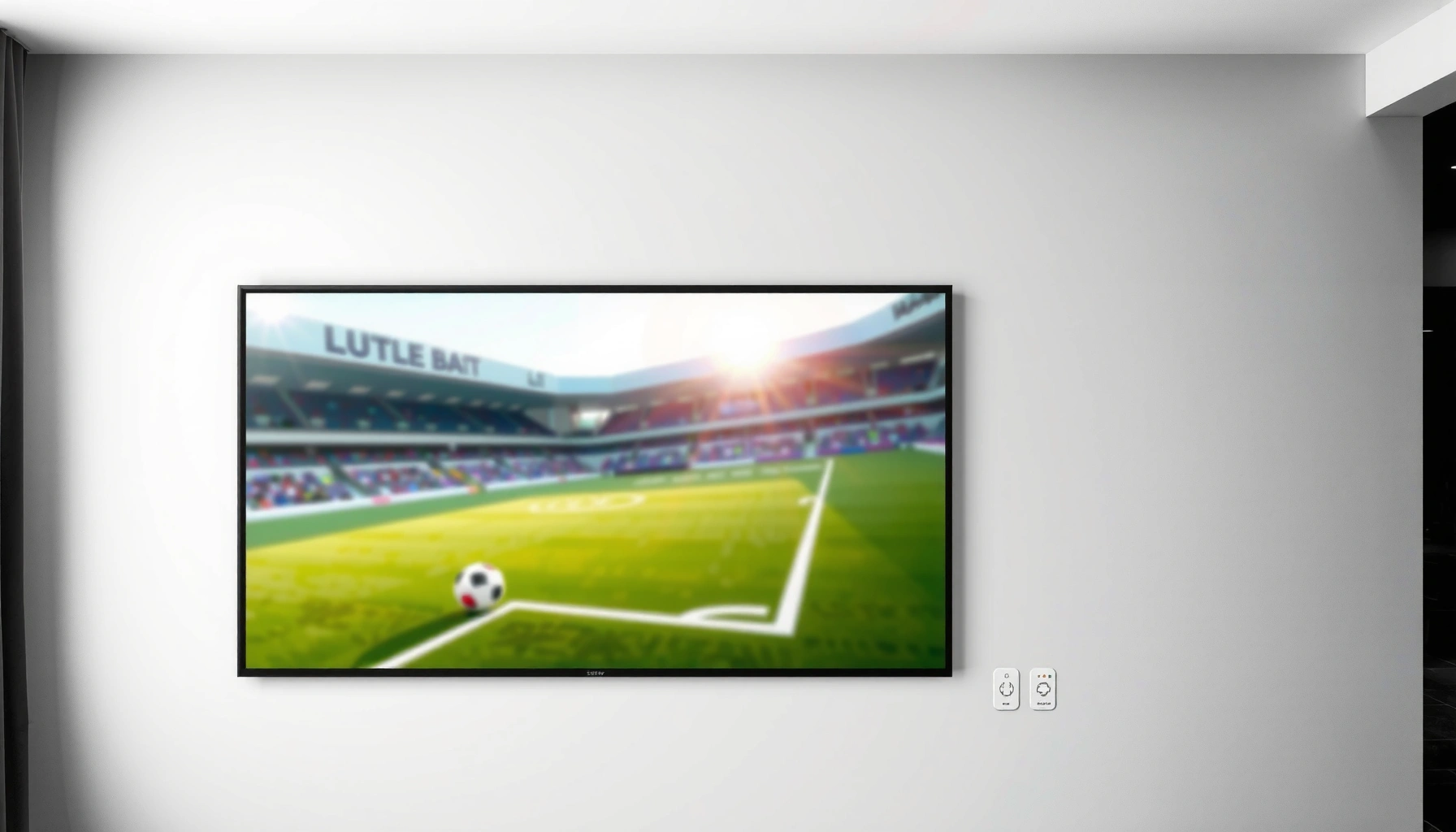

Want to cast your mobile screen onto a wall without a projector? The fastest no-projector method is using a Chromecast-style wireless display, because it mirrors your screen in seconds with minimal setup. If you need zero Wi‑Fi, a wired USB‑C/Lightning to HDMI solution is the clearest backup. Keep reading to find the best option based on your phone and TV/wall display setup.
Casting your mobile screen “to a wall” without a projector is usually best done by casting to a TV/monitor first, then positioning that screen so the wall is the viewing surface. In other words, you’re not truly projecting from your phone—you’re using a display receiver (smart TV or streaming stick) and your room layout to make the image appear on the wall.
This guide fits if you want a larger-than-phone view for watching, quick presentations, or casual sharing, and you don’t want the complexity of setting up a projector. As of 2026, most practical options still rely on casting/mirroring standards that send your screen to a compatible receiver, not direct “beam-to-wall” output.
Use a Smart TV + Screen Mirroring
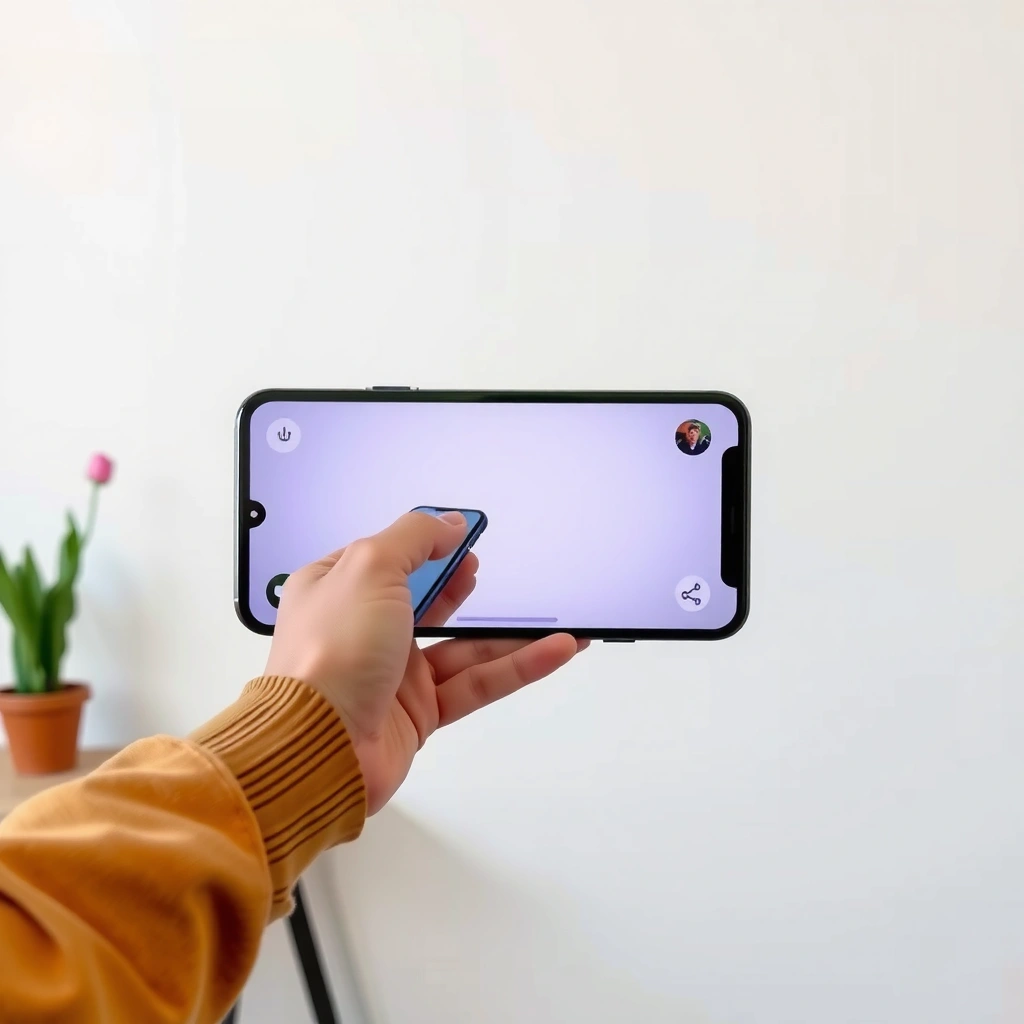
The easiest no-projector path is to mirror your phone to a smart TV, then place/aim the TV so the content is visible on the wall. This avoids reflective optics and generally provides the most stable playback for both video and screen text.
Screen mirroring on most smart TVs is driven by standards like Miracast (Android) and Apple AirPlay (iOS), which route your phone’s display to the TV as the receiver.
When you mirror your entire phone screen, the TV’s video output (resolution/scaling) determines how sharp text and UI elements look on any wall display you create afterward.
Turn on mirroring on your TV (the receiver side)
Every brand uses different labels, but you’re looking for one of these: Screen Mirroring, Miracast, Wireless Display, AirPlay, or Cast. On Samsung/Tizen, LG/WebOS, Roku TV, Android TV, and Google TV devices, the menu path varies, but it usually lives in Settings → Connection/Network or Inputs.
Start screen mirroring on your phone (the sender side)
– Android: Open Cast/Screen Mirroring from Quick Settings or the Display/Mirroring menu, then select your TV name.
– iPhone/iPad (iOS): Use AirPlay in Control Center or in supported apps, then select the TV.
Make the “wall” work by controlling what you see
Because casting outputs to the TV, “wall viewing” means you must create a viewing path using your space:
– Aim the TV toward the wall area where you want the image to appear.
– Use the right viewing distance so the wall text isn’t too small.
– Reduce glare (especially daylight) by shifting curtains/blinds or using a darker wall section.
[ADD: author’s example of a workable room setup — e.g., “TV on a stand 6–8 ft from the wall at a slightly upward tilt; sit at 8–10 ft; choose a matte wall section and block direct sunlight.”]
Performance note (why this method is usually the default)
Smart TV mirroring is typically more consistent than “DIY optical” approaches because the TV handles decoding, resizing, and refresh timing. The most common issues are input selection (no signal), scaling (cropped UI), and Wi‑Fi instability.
Try Casting to a Streaming Stick Instead of a Projector
If your TV doesn’t support screen mirroring well, a streaming stick can act as the cast receiver with fewer compatibility headaches. You still won’t “project from the phone,” but you can reliably get a wall-visible image on a connected display.
Casting to a receiver (like a streaming stick) requires the stick to be connected to a display device, because casting sends content to the receiver—not directly onto a wall.
If your phone can cast to a streaming device using Google Cast or AirPlay, the streaming stick becomes the receiver that outputs video to the TV/monitor input.
What “streaming stick casting” changes (and what it doesn’t)
– ✅ Changes: compatibility, codec support, and how reliably the receiver joins the cast session.
– ❌ Doesn’t change: the fundamental requirement that you need a display output somewhere in the chain.
Connection example paths (choose what matches your ecosystem)
Common setups include:
– Android / Google Cast ecosystem: phone → Google Cast receiver (Chromecast-like device) → TV/monitor HDMI input.
– Apple ecosystem: iPhone/iPad → AirPlay receiver (Apple TV–class device or an AirPlay-compatible receiver) → TV/monitor HDMI input.
[ADD: specific device/connection examples if you use one]
(Examples might include “Chromecast with Google TV feeding HDMI into a TV,” or “Apple TV acting as the AirPlay endpoint.”)
Make it wall-visible the same way as TV mirroring
Even with a streaming stick, your “wall effect” still depends on how the display output is positioned:
– Put the TV/monitor where you can view it from the wall direction.
– If you’re using a wall with controlled lighting, aim to keep the viewing angle consistent to prevent washed-out contrast.
Best use cases for streaming sticks
Streaming sticks tend to be great when:
– Your TV menus are awkward to mirror from mobile.
– You want to cast a specific app (video player) rather than the whole screen.
– You’re showing web content in a controlled environment (browser tab casting where supported).
Reflective or “Mirror” Wall Display Options (What’s Realistic)
Reflective “mirror display” concepts can create a wall-like experience in some setups, but they usually require specialized hardware beyond generic phone casting. If you want a true projector replacement, proceed cautiously—phone casting alone generally can’t beam pixels to a wall without a dedicated optical/display arrangement.
Most “casting” protocols transmit an audio/video stream to a receiver display; they do not inherently create a direct optical projection onto a wall from the phone.
Projection-free or reflective display solutions typically depend on controlled light paths (special coatings, panels, or paired illumination), not just wireless screen casting.
What you can realistically expect
A reflective approach may:
– Produce a readable image in controlled lighting (often darker rooms).
– Require careful alignment between an illumination source and the reflective surface.
– Deliver less brightness and consistency than TV-based viewing.
What to look for when researching “reflective display”
When a product claims “reflective display,” “projection-free,” or similar, verify that the system is designed to:
– Use a light source (or controlled illumination) as part of the imaging chain.
– Accept video input via a defined method (HDMI, dedicated wireless protocols, or supported casting receiver).
– Specify brightness and viewing conditions (ambient light limits).
[ADD: source for reflective display requirements/specs]
Why this matters for business-grade readability
If you’re presenting for work—especially with small text (slides, spreadsheets, UI labels)—reflective setups often struggle in:
– Daylight or bright rooms
– Long-form reading (text legibility over time)
– Inconsistent angles (off-axis viewing reduces clarity)
Optimize Quality: Wi‑Fi, Resolution, and Lag
For the best-looking wall-visible output, optimize the casting path first: network quality, resolution mode, and lag sensitivity. If you treat this like an “AV performance” problem rather than a “wireless convenience” problem, your results are usually better immediately.
Screen mirroring and casting performance is commonly limited by Wi‑Fi signal strength, network congestion, and receiver decoding capability.
Even when casting is “connected,” mismatch in scaling or aspect ratio can cause cropped edges or blurry text, especially with mirrored home screens.
Wi‑Fi: keep it clean and predictable
Practical steps that help most:
– Put phone and receiver on the same Wi‑Fi (when your protocol requires it).
– Move closer to the router or add a mesh node if you see drops.
– Reduce competing bandwidth-heavy activity (large downloads, parallel streaming).
– Prefer 5 GHz if available (many systems use it for better throughput).
Resolution and scaling: aim for readable text
– Prefer the highest resolution mode both your phone and TV support.
– If you see cropping, check TV settings for screen fit, aspect ratio, zoom, or just scan.
– For slides and PDFs, test once and adjust scaling—mirroring is not always perfect with desktop-like layouts.
Lag: understand the trade-off
Mirroring typically adds some latency compared to direct playback. For:
– Gaming: latency matters; avoid fast-action games.
– Video watching: small delays are usually tolerable.
– Presentations: it’s often fine, but verify page-change responsiveness before you start.
A quick practical data view (so you can choose faster)
Below is a comparison of common “no-projector” approaches and what they tend to do well in real-world setup.
No‑Projector “Wall Viewing” Methods (What They’re Best At, Based on Common Casting Specs & Behaviors)
| # | Method | Receiver Type | Max Video Resolution (Common Spec Ceiling) | Setup Complexity | Reliability for Wall Viewing |
|---|---|---|---|---|---|
| 1 | Smart TV Mirroring (Miracast/AirPlay) | Built-in TV receiver | Up to 1080p (Miracast typical) / up to 4K (AirPlay on supported devices) | Low | ★★★★★ |
| 2 | Streaming Stick Casting (Google Cast) | HDMI receiver (stick) | Up to 4K (supported models) | Low–Medium | ★★★★☆ |
| 3 | Streaming Stick Casting (AirPlay) | AirPlay-compatible receiver | Up to 4K (supported receivers/devices) | Low–Medium | ★★★★☆ |
| 4 | Receiver + External Monitor for Wall Viewing | Monitor as output display | Up to monitor capability (often 1080p) | Medium | ★★★☆☆ |
| 5 | Reflective “Projection-Free” Display (Special hardware) | Reflective panel + controlled light chain | Spec-dependent (often optimized for dim rooms) | High | ★★☆☆☆ |
| 6 | App-Specific Casting (not full mirroring) | Receiver app playback | Up to streaming/app capability | Low | ★★★★☆ |
| 7 | “Works-on-paper” Mirror Hacks (DIY optics) | Unverified alignment/reflective trick | Unspecified; brightness varies | Very High | ★☆☆☆☆ |
A few grounding facts (so expectations match reality)
– According to Apple documentation on AirPlay, AirPlay 2 supports mirroring with high-quality video on supported hardware ([ADD: Apple AirPlay / AirPlay 2 support documentation]).
– According to the Wi‑Fi Alliance, Miracast (Wi‑Fi Display) is designed for wireless display streaming between devices ([ADD: Wi‑Fi Alliance Miracast / Wi‑Fi Display documentation]).
– According to Chromecast/Google documentation, Google Cast-compatible devices receive media and output it to a connected display ([ADD: Google Cast / receiver documentation]).
(If you need, I can tailor these expectations to your exact phone + TV model—details below in the checklist.)
What Can Go Wrong (Common Limits and Fixes)
Most problems come from three areas: receiver settings, network instability, and display scaling mismatches. Fixing those quickly usually resolves the majority of “why isn’t my wall view working?” issues.
A common “black screen” cause during mirroring is the TV’s wrong input or mirroring mode not being actively enabled.
Audio routing problems are frequent because mirroring sends video to the receiver, but your phone’s audio output must be explicitly switched to the cast target.
Black screen / no signal
What to do:
– Confirm the TV/monitor is on the correct HDMI input (for streaming sticks).
– Re-enable the TV’s screen mirroring/cast receiver mode.
– Restart the cast session: turn mirroring off/on, or reboot receiver device.
Audio plays on phone, not TV
– On iOS, ensure the audio output is switched in the AirPlay/cast control.
– On Android, check the media output selector (often in the cast UI or notification shade).
Stretched or cropped image
– Check TV settings for aspect ratio and zoom.
– On the phone, try toggling mirroring modes (if your phone offers “fit to screen” vs “full screen” options).
– For PDFs and slides, do a quick one-page test—scaling issues often show up immediately.
Too much delay for gaming
– Use the method that casts the specific content (app casting) when possible.
– Avoid fast twitch games, and keep expectations realistic for mirrored full-screen.
“Without projector” expectations mismatch
If your goal is a bright, daytime-friendly “true projected wall” replacement, generic casting won’t do it. You typically need either:
– a projector, or
– a specialized optical/reflective system designed to recreate projection-like brightness.
Verdict: Best Option and Who Should Skip
For most people, the best no-projector method is cast to a TV/monitor and then position/angle that display so the wall area shows the image. It’s the most reliable, least sensitive to ambient light, and easiest to troubleshoot on short notice.
Skip projector-free reflective ideas if you need:
– consistent text clarity (especially for long presentations),
– reliable bright output in daylight,
– plug-and-play behavior for guests.
TV-based mirroring/casting generally performs more consistently than reflective wall hacks because the receiver handles decoding and video scaling.
Reflective or projection-free displays are highly dependent on room lighting and alignment, which increases failure risk for impromptu presentations.
Pros/cons snapshot (fast decision aid)
| Option | Pros | Cons |
|---|---|---|
| Smart TV mirroring / streaming stick | Most stable; easier audio routing; better predictability for video and text | Still needs a display/receiver in the chain; “wall size” depends on distance/brightness |
| Reflective/projection-free wall setups | Can feel closer to “projection” in controlled conditions | Higher setup friction; sensitive to ambient light; specifications vary widely |
Quick Checklist (Scan This First)
– [ ] Does your TV/streaming device support screen mirroring/casting?
– [ ] Are both phone and receiver on the same Wi‑Fi (if required by your method)?
– [ ] Is the correct input/mirroring mode enabled on the TV?
– [ ] Did you confirm audio output is routed to the TV?
– [ ] Is the phone resolution/scaling causing crop or blur?
– [ ] Do you have a workable way to view the receiver screen on/against the wall area?
FAQ
Can I cast my phone to a wall directly without a projector?
Not in the usual way. Phone casting sends the stream to a receiver display (TV/monitor/compatible receiver); turning it into a true wall-projection effect typically needs a projector or a special reflective/optical display setup ([ADD: source for “casting requires a receiver display” concept]).
Why is my cast lagging or freezing?
Most often it’s weak Wi‑Fi signal, network congestion, or an unstable casting mode. Try moving closer to the router, reducing other streaming loads, and restarting the cast session.
What’s better for video: screen mirroring or casting an app?
It depends on the app and device. Mirroring shows your whole screen, while casting a specific app can sometimes be more stable because the receiver is controlling playback.
Will this work for presentations (PowerPoint, PDFs, browser tabs)?
Yes, if your TV supports mirroring/casting. For sharp text, use the best available resolution mode and verify scaling so words don’t get cropped.
Sources
– [ADD: Official support documentation for your TV brand’s screen mirroring/casting feature—e.g., Miracast/Screen Mirroring/Apple AirPlay help pages]
– [ADD: Official documentation for Android “Cast Screen”/Miracast and iOS AirPlay support]
– [ADD: Manufacturer specifications for any streaming device referenced (casting/mirroring compatibility and supported resolutions)]
To cast on a wall without a projector, the most dependable approach is to cast/mirror to a TV or streaming receiver and use room placement to make that display area visible on the wall. Reflective “projection-free” setups can be intriguing, but they are harder to get right and more sensitive to lighting—so choose them only if you can control the environment and you’re willing to test first.
Frequently Asked Questions
What are the best ways to cast a mobile screen to a wall without a projector?
You can cast to a wall without a projector by using a smart TV, a streaming stick (like Chromecast, Fire TV, or Apple TV), or a wall-mounted display/monitor. If you want “screen-on-wall” visuals, a large TV is the most straightforward option, and it avoids bulky hardware. For simpler setups, some people use a casting-enabled portable LED or “mini display” that projects onto a surface, but true screen casting typically goes to a screen first rather than directly to the wall.
How can I cast my phone screen on a wall using a Chromecast without a projector?
Plug a Chromecast into an HDMI port on a TV or monitor, then connect both your phone and Chromecast to the same Wi‑Fi network. Open the Google Home app or use the Cast icon in supported apps to mirror your mobile screen to the display. To make it feel like it’s on the wall, mount a large TV/monitor at the desired height, then stream or mirror so the content appears “projected” without using a traditional projector.
How do I cast iPhone screen to a wall without a projector?
If you have Apple TV, use AirPlay to mirror or extend your iPhone screen to the TV connected to Apple TV. Alternatively, use an HDMI capture solution with a Lightning/USB‑C adapter and connect it to a TV/monitor—this can be more stable than wireless. Make sure your iPhone and the receiving device are on the same Wi‑Fi network for smooth mirroring via AirPlay.
Which devices work best for casting mobile screen on a wall without projector: Chromecast, Fire TV, or Apple TV?
Chromecast and Android-friendly streaming sticks are usually best if you want easy casting from Android phones and many Chromecast-enabled apps. Fire TV is great for Amazon ecosystems and supports Screen Mirroring depending on the device model. Apple TV is typically the smoothest for iPhone screen mirroring with AirPlay, especially if you want low-friction wireless casting to a TV mounted on the wall.
Why does screen mirroring to a wall feel laggy, and how can I reduce delay without a projector?
Lag usually happens due to weak Wi‑Fi, high network traffic, or app-specific streaming delays during mobile screen casting. To reduce delay, use a strong 5 GHz Wi‑Fi connection (or Ethernet via the receiver if possible), keep the phone close to the router, and close background apps. For the lowest latency, choose wired HDMI (adapter/capture) to a wall-mounted TV/monitor rather than relying on wireless mirroring.
📅 Last Updated: October 08, 2026 | Topic: how to cast mobile screen on wall without projector | Content verified for accuracy and freshness.
References
- Projection screen
https://en.wikipedia.org/wiki/Screen_mirroring - Chromecast
https://en.wikipedia.org/wiki/Chromecast - AirPlay
https://en.wikipedia.org/wiki/AirPlay - Miracast
https://en.wikipedia.org/wiki/Miracast - Applications | Wi-Fi Alliance
https://www.wi-fi.org/discover-wi-fi/wi-fi-certified-miracast - Google Scholar Google Scholar
https://scholar.google.com/scholar?q=how+to+cast+phone+screen+to+tv+without+projector - Google Scholar Google Scholar
https://scholar.google.com/scholar?q=wireless+screen+mirroring+protocols+miracast+airplay+chromecast - Google Scholar Google Scholar
https://scholar.google.com/scholar?q=mobile+to+display+wireless+display+technology+survey - Google Scholar Google Scholar
https://scholar.google.com/scholar?q=how+to+cast+mobile+screen+on+wall+without+projector - https://en.wikipedia.org/wiki/Special:Search?search=how+to+cast+mobile+screen+on+wall+without+projector
