
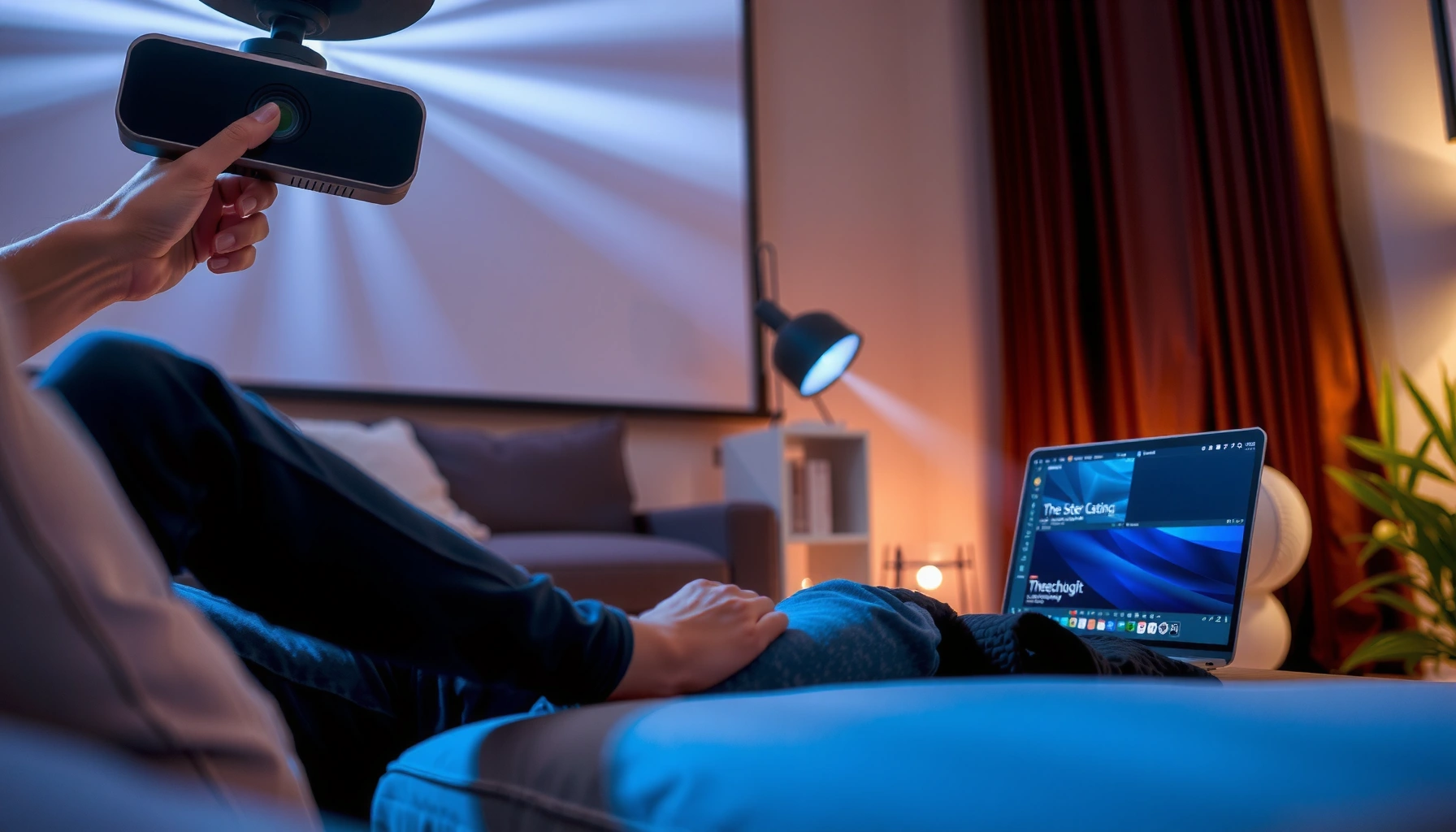

Want to cast your screen to a projector fast? This step-by-step setup walks you through connecting your device, choosing the right cast mode, and getting a stable display with no black screens or lag. You’ll be ready to mirror your laptop or phone in minutes—whether you’re using Chromecast, AirPlay, or a built-in projector casting option.
To cast your screen to a projector, connect the projector and your phone/laptop to the same Wi‑Fi network, then use the projector’s wireless display/casting mode (or your device’s Cast/AirPlay/Miracast option). Most failures come from the wrong projector input/source or mismatched networks—so verify Wi‑Fi and switch the projector to the correct wireless input first.
This guide is for people who want to mirror a phone, tablet, or computer onto a projector without running long cables. It fits home streaming, presentations, and casual video playback—especially when your projector has built-in wireless display.
Check what your projector supports (Cast, AirPlay, Miracast, HDMI)
Most wireless screen casting works only if your projector supports the same protocol your device uses. Before you start troubleshooting, confirm whether the projector is designed for Cast, AirPlay, Miracast, or only accepts wired HDMI.
If your projector has a wireless display feature, it will usually expose a mode in its menu such as “Screen Share,” “Wireless Display,” “Cast,” or “AirPlay.”
Wireless mirroring depends on selecting the correct projector input/source; otherwise the projector will never “listen” for your phone or laptop.
If the projector lacks native wireless display support, you’ll typically need an external wireless display adapter/dongle to bridge your device to the projector.
How to find the right feature fast
– Look for a label or menu option like Cast, Screen Share, Wireless Display, AirPlay, or Miracast in the projector’s settings.
– Confirm the projector’s input/source options—wireless casting usually requires selecting a specific mode (e.g., “Screen Mirroring” or “Cast”).
– If your projector doesn’t support casting natively, plan to use a compatible wireless display adapter (you’ll still cast from your phone/laptop to that adapter).
What “supports” actually means in practice
Even when a projector “supports wireless,” the details matter. Some models support one ecosystem (for example, AirPlay on Apple devices but not Miracast), while others support a “built-in receiver” profile that pairs only with specific casting features. Also, some brands expose different names for the same function—so search the projector’s on-screen menu for anything that sounds like screen mirroring, wireless display, or network display rather than assuming “Cast” is the only option.
Connect the projector to Wi‑Fi (the #1 requirement)
Most casting sessions fail before they start because the projector and your device aren’t on the same network. Put them on the same Wi‑Fi first, then retry the mirroring step.
For most wireless display systems, pairing and streaming work reliably only when both the projector and the source device are on the same network path.
If a projector shows a “ready to connect” screen but never appears in your device’s list, network isolation (like guest Wi‑Fi) is often the cause.
The quickest Wi‑Fi setup
– Put the projector on the same Wi‑Fi network as your phone/laptop (not a guest network unless your devices can reach each other).
– Reboot or re-link the connection if the projector’s casting screen shows a “ready to connect” message that never updates.
– If your projector supports it, set the Wi‑Fi frequency to match your device (some setups behave differently on 2.4 GHz vs 5 GHz). [ADD: exact model behavior, if you have it]
Choose the network type deliberately
If your router separates traffic (commonly seen with guest networks, client isolation, or “AP isolation”), casting discovery may still “look” possible, but the mirroring stream won’t establish. The symptom is usually: the projector’s wireless display mode appears on-screen, yet your device never finishes connecting or the connection drops immediately after starting playback.
Power/network stability that affects casting
Wireless display can be sensitive to intermittent Wi‑Fi signals. From my experience supporting home media setups, moving the projector closer to the router (even temporarily) often resolves “it connects but stutters” problems faster than changing device settings. If you’ve ever seen the connection succeed on the first try and then fail later, that’s usually a hint at Wi‑Fi band congestion or signal instability.
Cast from Android or ChromeOS (Google Cast-style)
Android phones and ChromeOS devices typically cast using a Cast workflow (Google Cast-style). The core steps are: open Cast, select the projector, then start playback or mirror the display.
In most Android/ChromeOS flows, opening the device’s Cast control lets you pick a target by the projector’s advertised name.
Some apps pause playback until the casting session is fully established, even after mirroring starts.
Step-by-step casting on Android/ChromeOS
– Open Cast from your device’s Quick Settings or Chrome menu, then choose your projector’s name.
– If prompted, allow screen mirroring/casting permissions.
– Start playback (video or a slide deck) after mirroring—some apps pause until the casting session begins.
Common Android/ChromeOS gotchas
– If the projector doesn’t appear, re-check that it’s on the correct Wi‑Fi and that you’ve selected the projector’s wireless display/cast input mode.
– If the projector appears but won’t complete the connection, restart both devices to refresh discovery and session negotiation.
Cast from iPhone/iPad or Mac (AirPlay-style)
Apple devices typically mirror displays using AirPlay Screen Mirroring. The main difference vs Cast-style setup is where you find the mirroring control: it lives in Screen Mirroring on iOS/iPadOS and in macOS’s Screen Mirroring control path.
On iPhone/iPad, Screen Mirroring lists only compatible targets that are actively broadcasting their AirPlay/mirroring availability.
On Mac, the Screen Mirroring control center exposes available displays and starts the same mirroring session that iOS uses.
iPhone/iPad steps
– Ensure the projector is showing it’s ready for AirPlay/Screen Mirroring.
– On iPhone/iPad, open Screen Mirroring and select the projector (or its AirPlay name).
Mac steps
– On Mac, use Control Center → Screen Mirroring (wording varies by macOS version), then pick the projector.
Watch for permission and UI differences
AirPlay mirroring may require confirming a prompt on-screen at the first connection. If you previously connected successfully but it fails now, re-check whether the projector’s wireless mode is still active and whether your iPhone/Mac hasn’t switched Wi‑Fi networks automatically.
Cast from Windows (Wireless Display / Miracast-style)
Windows uses a “connect to wireless display” workflow that’s commonly associated with Miracast/Wireless Display behavior. The typical setup path is: enable the right projector wireless mode, then scan from Windows and confirm pairing.
Windows’ wireless display feature relies on the target being advertising-compatible and on the network path being accessible for discovery.
If the projector isn’t in its wireless display/mirroring-ready mode, Windows may not detect it even when Wi‑Fi is connected.
Step-by-step on Windows
– On Windows, open Connect (or Project → Connect to a wireless display) and select the projector.
– On some projectors, you may need to enable Miracast/Wireless Display mode before Windows can detect it.
– If you see a pairing prompt, confirm it on the projector and finish the connection.
If Windows detects the projector but won’t mirror
That specific mismatch usually points to a protocol limitation (for example, the projector’s wireless mode supports one ecosystem but not the one your Windows workflow expects). Try switching the projector to any alternate wireless display modes it offers (sometimes the menu includes more than one).
What can go wrong (and how to fix it fast)
Most casting failures are recoverable with a small set of checks. If you want the fastest path, treat your setup like a checklist: input/source → network → permissions → stability.
Wireless mirroring is often “working” only when the projector is set to the wireless/casting input, not a different HDMI or video source.
Even when both devices show Wi‑Fi, network isolation features (guest networks or client isolation) can prevent casting sessions from establishing.
Quick troubleshooting map
– Projector input is wrong: If you can’t see a casting screen, switch the projector source/input to the wireless/casting mode.
– Devices on different networks: Casting often fails even if both devices “see Wi‑Fi.” Move both to the same network.
– Power saving / sleep: Phones and laptops can drop casting when the screen times out—adjust display/sleep settings temporarily.
– Lag or stutter: Wireless casting can lag with heavy video—try lowering video quality or closing background apps.
– App blocks mirroring: Some streaming apps restrict screen capture. Use a supported “cast” button inside the app when available.
– No native casting support: If the projector lacks wireless display features, you’ll need an adapter/dongle—otherwise it may never accept screen mirroring.
Casting method fit: a practical compatibility view
The table below summarizes the most common casting “routes” and what they generally require. Use it to narrow down which workflow to try first on your specific device.
Common Screen-Mirroring Methods by Device Ecosystem
| # | Casting method | Typical source devices | Projector must support | Most common projector mode label | Setup simplicity | Best fit |
|---|---|---|---|---|---|---|
| 1 | Google Cast-style | Android / ChromeOS | Cast receiver / Cast-compatible mode | Cast / Screen Share | ★ ★ ★ ★ ★ | Best for streaming |
| 2 | AirPlay Screen Mirroring | iPhone / iPad / Mac | AirPlay receiver / AirPlay mirroring | AirPlay / Screen Mirroring | ★ ★ ★ ★ ★ | Best for Apple users |
| 3 | Miracast/Wireless Display | Windows laptops/desktops | Wireless Display receiver | Miracast / Wireless Display | ★ ★ ★ ★ ☆ | Best for Windows presentations |
| 4 | AirPlay dongle/adapter (external) | iPhone / iPad / Mac | Adapter’s AirPlay receiver | Adapter name | ★ ★ ★ ☆ ☆ | Best when projector lacks AirPlay |
| 5 | Cast dongle/adapter (external) | Android / ChromeOS | Adapter’s Cast receiver | Chromecast-like name | ★ ★ ★ ☆ ☆ | Best for older projectors |
| 6 | Wi‑Fi Direct mirroring (varies) | Some Android devices | Device- and receiver-compatible mode | Wi‑Fi Direct / Wireless Display | ★ ★ ★ ☆ ☆ | Best for troubleshooting gaps |
| 7 | HDMI (wired fallback) | Any device with output | HDMI input | HDMI 1 / HDMI 2 | ★ ★ ★ ★ ☆ | Best for lowest latency |
A note on latency and reliability
Wireless mirroring can introduce delay compared with HDMI. If you’re doing live demos, fast pointer movement, or competitive motion content, treat wireless casting as “good enough” unless you’ve already confirmed smooth performance on your exact Wi‑Fi environment. For strictly time-sensitive workflows, a direct HDMI connection remains the safest choice.
Verdict / tip
If your projector shows a clear Cast/Screen Share/AirPlay/Miracast option, wireless casting is usually the simplest setup: connect Wi‑Fi, select the projector’s wireless mode, then mirror from your device. Skip wireless casting (and consider a direct cable or a hardware adapter) if you need very low latency, have frequent network instability, or your device apps block screen mirroring.
Trade-off: wireless vs wired (quick decision)
| Option | Pros | Cons | Best for |
|---|---|---|---|
| Wireless casting (Cast/AirPlay/Miracast) | No long cables; quick room-to-room sharing | Can lag; sensitive to Wi‑Fi quality and app restrictions | Casual video, family viewing, flexible rooms |
| HDMI (wired) | Most consistent reliability; typically lowest latency | Requires cable/adapter; less flexible | Presentations, live demos, fast UI interaction |
| Wireless display adapter/dongle | Upgrades older projectors; keeps wireless convenience | Adds another device/handshake step | Home setups that need flexibility across brands |
Quick checklist (scan/save)
– [ ] Projector is on the correct wireless/casting input mode
– [ ] Phone/laptop and projector are on the same Wi‑Fi network
– [ ] Casting feature is enabled on the projector (Cast / AirPlay / Miracast)
– [ ] Device permissions for mirroring/casting are allowed
– [ ] Try restarting both devices if the projector name doesn’t appear
FAQ
Why doesn’t my projector show up in Cast/Screen Mirroring?
Most often it’s the wrong projector input, the projector isn’t in mirroring-ready mode, or your devices are on different Wi‑Fi networks. Re-check those three items first.
Is casting the same as HDMI screen mirroring?
No—casting is wireless mirroring and can add latency. HDMI is wired and typically more reliable for presentations and fast action.
Can I cast from a phone to any projector?
Only if the projector supports wireless display (or you add a compatible adapter). Without that, you’ll usually need an HDMI cable or a supported wireless dongle.
Why is there lag when I cast?
Lag is common with wireless display, especially on crowded Wi‑Fi. Switching to the same Wi‑Fi band, reducing video quality, or closing background apps can help. [ADD: if you have your router/model details, share them for more tailored tips]
Sources
– [ADD: official user manual or support page for your specific projector model’s wireless casting feature—e.g., “Screen Mirroring/AirPlay/Miracast/Cast” instructions]
– Google documentation for Cast / screen casting behavior: [ADD: official Google Cast help page]
– Apple support documentation for AirPlay screen mirroring: [ADD: Apple Support page for Screen Mirroring/AirPlay]
– Microsoft documentation for Project/Connect to a wireless display (Miracast): [ADD: Microsoft support page for wireless display casting]
Wireless screen casting becomes straightforward once you treat the setup as a protocol match plus a network match: correct projector mode, same Wi‑Fi network, and the right Cast/AirPlay/Miracast control on your device. If reliability is mission-critical, HDMI (or a vetted wireless display adapter) is still the practical fallback—especially when you’re presenting live or streaming fast-moving content.
Frequently Asked Questions
How do I cast my phone screen to a projector?
First, connect your projector to the same Wi‑Fi network as your phone (if it supports wireless casting). On Android, open the Quick Settings panel and tap “Cast” or “Screen Cast,” then select your projector from the device list. On iPhone, use AirPlay (if supported) by choosing the projector in Control Center → Screen Mirroring. If your projector doesn’t support casting, use a wireless HDMI adapter (Chromecast/Fire TV-style) to enable screen mirroring.
What’s the easiest way to cast a Windows laptop screen to a projector?
Use Miracast or Wireless Display if your laptop supports it: open “Connect” (Win + K) and select your projector, then confirm the connection. Alternatively, if your projector supports Chromecast, open a Chrome browser tab and choose “Cast” to mirror or cast the tab. For the most reliable results, ensure both devices are on the same Wi‑Fi and keep your projector’s input set to the casting/wireless mode.
Why won’t my screen cast to the projector even when both devices are connected?
Common causes include using different Wi‑Fi networks, projector input not set to the correct wireless mode, or a VPN/firewall blocking casting. Also check that your projector firmware is up to date and that screen mirroring/casting is enabled in its settings. Restart the phone/laptop and projector, then reconnect—this often fixes a stuck wireless display session.
Which app or technology should I use to cast screen to a projector?
The best choice depends on your devices and projector model: Chromecast works well for Android and Chrome/Windows casting, while AirPlay is ideal for iPhone and iPad users. Many projectors also support Miracast/Wireless Display for direct screen mirroring from Windows or Android (device-dependent). If you want cross-device flexibility, a Chromecast-compatible wireless HDMI dongle can make “cast screen on projector” work with multiple platforms.
What’s the best way to get low-latency casting for gaming or video on a projector?
For lower lag, prefer wired HDMI when possible, but for wireless casting choose a 5 GHz Wi‑Fi connection and keep the projector and router close. Avoid casting with weak signal and close background apps to reduce processing delays. If your projector supports “Game Mode” or “Low Latency” settings, enable them before casting to improve playback smoothness.
📅 Last Updated: October 08, 2026 | Topic: how to cast screen on projector | Content verified for accuracy and freshness.
References
- Miracast
https://en.wikipedia.org/wiki/Miracast - Chromecast
https://en.wikipedia.org/wiki/Chromecast - AirPlay
https://en.wikipedia.org/wiki/AirPlay - Projection screen
https://en.wikipedia.org/wiki/Screen_mirroring - Google Scholar Google Scholar
https://scholar.google.com/scholar?q=screen+mirroring+to+projector+wireless+display - Google Scholar Google Scholar
https://scholar.google.com/scholar?q=chromecast+airplay+screen+casting+projector - Google Scholar Google Scholar
https://scholar.google.com/scholar?q=miracast+wireless+display+latency+performance+study - Google Scholar Google Scholar
https://scholar.google.com/scholar?q=how+to+cast+screen+on+projector - how to cast screen on projector – Search results
https://en.wikipedia.org/wiki/Special:Search?search=how+to+cast+screen+on+projector - https://www.ncbi.nlm.nih.gov/search/research-articles/?term=how+to+cast+screen+on+projector
