

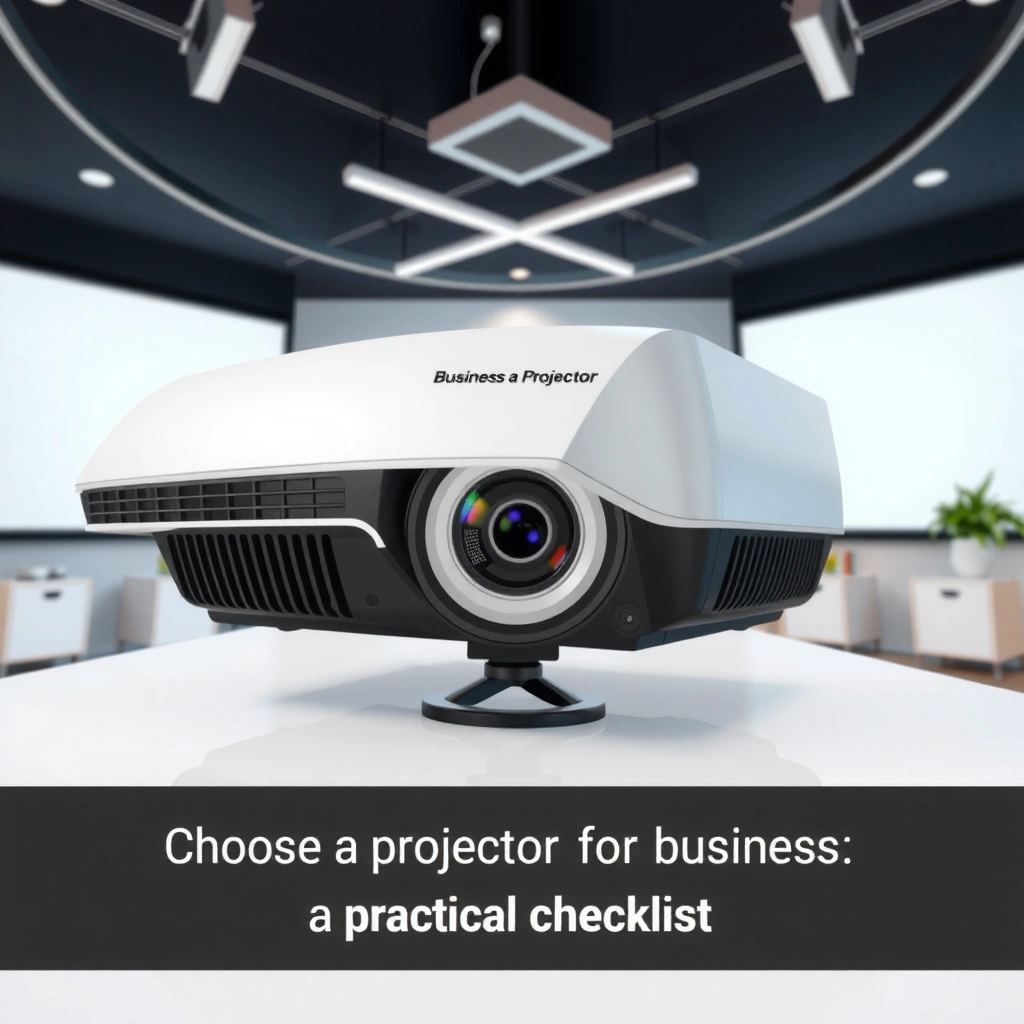
Choosing a projector for business should be straightforward: pick the one that fits your room, audience, and usage, not just the specs. This practical checklist tells you exactly what to verify—brightness for your lighting, resolution and input needs, throw distance and screen size, and whether the model’s lamp or LED lifecycle matches your hours of use. By the end, you’ll know which projector class to buy for meeting rooms, training spaces, or client presentations.
Choosing the right projector for business comes down to two measurable fit checks—brightness (lumens) and resolution—then verifying connectivity and setup friction. In practice, that means matching the projector to your room lighting and screen size first, and only then worrying about features like wireless or fancy controls.
This guide is for office managers, IT leads, teachers training teams, and anyone equipping a conference room, training room, or huddle space where you need legible slides, consistent daily operation, and minimal “why won’t it connect?” downtime.
Match brightness and resolution to the room
You’ll get the most reliable image quality by selecting lumens and resolution based on your actual room conditions, not marketing specs. For business projection, brightness prevents washed-out text in lit spaces, while resolution protects readability for charts, spreadsheets, and small fonts.
ANSI lumens are based on a standardized measurement method that evaluates brightness under controlled test conditions.
For projector image clarity in business use, resolution affects text sharpness—especially for tables, thin lines, and small UI elements.
In office environments, recommended lighting levels can reach a few hundred lux, which directly competes with projector output.
If you undershoot lumens, color saturation and contrast drop first, making projected text look gray even at the right font size.
Lumens: estimate your ambient light (and plan for real-world lighting)
Brightness needs change dramatically depending on whether you control window light, whether lights stay on during presentations, and how reflective your wall/screen is. A practical way to start is to classify the room lighting into dim, moderate, or bright, then pick lumens that comfortably exceed what you expect on presentation days (not just when the blinds are closed).
Use these starting ranges as a business baseline (fine-tune with your own room measurements):
– Dim / controlled lighting: ~1,500–2,500 ANSI lumens
– Moderate lighting: ~2,500–3,500 ANSI lumens
– Bright rooms (lights on, windows present): ~3,500–6,000+ ANSI lumens
To anchor this to actual office lighting levels: according to IES RP-1, Lighting for Schools and Other Facilities and related IES guidance for educational/office-type spaces, maintained illuminance in typical work areas is often on the order of ~300 lux for general office tasks (values vary by task and space). That’s why “conference-room bright” projection typically needs more lumens than people expect.
Resolution: match clarity to your content (slides vs. detailed visuals)
Resolution is not just about “HD vs 4K.” It’s about whether your team can read:
– Slide text (headings and bullet points)
– Spreadsheet columns and filters
– Engineering diagrams, UI mockups, or small graphs
For most business meeting rooms, a solid minimum is:
– Minimum recommendation: 1920×1080 (Full HD)
If your content regularly includes fine text, dense charts, or you’re projecting from high-resolution sources (like 4K video content or detailed design work), consider stepping up to:
– 2560×1440 (WQXGA) or 3840×2160 (4K/UHD) depending on budget and room size.
A data-driven way to align projector brightness with room lighting
If you want a repeatable planning method, align projector output to the room’s lighting targets and the distance/screen size you can support. The table below summarizes common maintained illuminance targets by typical workplace task zones (used to reason about “dim vs moderate vs bright”), so you can sanity-check lumen choices.
Typical Maintained Illuminance Targets for Work/Meeting Spaces (IES-based)
| # | Space/Activity | Maintained illuminance (lux) | Typical projector fit | Risk if under-bright |
|---|---|---|---|---|
| 1 | General office / admin work | 300–500 | Moderate lumens | High |
| 2 | Computer-based desk tasks | 300–750 | Higher lumens | High |
| 3 | Small-detail review (reports, QA) | 500–1,000 | Very bright-capable | Very high |
| 4 | Conference room / meeting | 200–500 | Moderate to bright | Medium–High |
| 5 | Training classroom (typical) | 300–700 | Moderate to high | High |
| 6 | Corridors / circulation | 100–200 | Lower lumens OK | Low |
| 7 | Shared collaboration (huddle) | 200–400 | Moderate lumens | Medium |
> Note: The illuminance ranges above are based on commonly cited IES-maintained illuminance targets by task/space type. For your exact room, the best input is an on-site lux meter reading at presentation height. IES RP-1 Lighting for Schools and Other Facilities
Pick the right throw distance, screen size, and mounting
Your projector should fit your room geometry before you compare feature lists. If throw distance and mounting location don’t line up, you’ll end up fighting keystone correction, losing brightness at the edges, or cropping content.
Throw ratio determines how far a projector must be placed to achieve a given image width.
Lens shift can reduce the need for keystone correction when the projector can’t be centered on the screen.
Keystone correction often changes the projected geometry and can reduce perceived sharpness at the edges.
A ceiling mount improves repeatability for recurring meetings because alignment stays consistent between sessions.
Confirm throw distance with a real measurement
Throw distance is the distance from the projector lens to the screen (or wall). To avoid buying a unit that “almost fits,” measure:
1. Where the projector can physically sit (desk, ceiling bracket, shelf).
2. The target screen width (or the wall area you’ll use).
3. The height and angle constraints (cable routing and mounting clearance).
Then compare your measurements to the projector’s throw ratio (often expressed as a range) listed in the manufacturer specs.
If your placement flexibility is limited—common in offices with shared ceiling infrastructure—prioritize:
– Projectors with lens shift, and
– Placement that stays near the lens center to minimize keystone.
Plan for placement: ceiling/wall vs tabletop
For business reliability, mounting usually wins because image alignment is consistent day to day. However, ceiling mounts require:
– Space for service access (filters, laser modules, etc.)
– Cable pathways that won’t tug on ports
– Lens shift/keystone range that covers your room layout
Tabletop placement can work for training teams who rotate rooms, but you should expect more frequent alignment and more cable swapping.
Quick pros/cons comparison: placement strategy
| Option | Pros | Cons |
|---|---|---|
| Ceiling mount | Consistent alignment for recurring meetings; cleaner look; fewer per-session adjustments. | Higher install effort; less flexible if room layouts change. |
| Tabletop / cart | Faster redeployment across rooms; lower mounting constraints. | More frequent alignment; more connector/cable handling issues. |
Check connectivity for the devices you actually use
Reliable projection depends on fewer surprises at connection time. Before you buy, verify inputs, supported video standards, and the workflow your team uses day-to-day.
Most business projectors accept HDMI as the primary laptop video input, but some require adapters for USB‑C docks.
Supported resolution/refresh-rate ranges are listed in projector specifications and can affect whether “it works” becomes “it looks right.”
For conferencing rooms, audio routing often depends on how your laptop or conferencing codec handles HDMI audio.
If wireless is used, stability depends on Wi‑Fi quality and the device’s screen-mirroring or streaming protocol.
Start with inputs your team relies on (not the ones you hope to use)
Common inputs to check in the projector’s spec sheet:
– HDMI (usually required)
– USB / “display” style connectivity (vendor-specific)
– VGA (less common now, but still seen in legacy office setups)
– Wireless projection options (if needed)
Then check whether your laptops connect cleanly:
– Many modern laptops rely on USB‑C docks; some include HDMI natively, others output DisplayPort over USB‑C. If your projector requires HDMI, you may need a dock or adapter that matches your environment.
If you do conferencing, confirm the end-to-end workflow
In real offices, the projector is only one piece. A conference room “works” when:
– The laptop-to-projector video path is consistent (power on order and input switching are predictable).
– Audio goes where it should (projector speakers vs external conference speaker system).
– Cables and control systems support room automation (Crestron/AMX-style workflows are common, but integration depends on your hardware choices).
If you can, test with your actual meeting laptop model(s) before committing—especially if you use USB‑C docks, KVMs, or HDMI extenders.
Consider everyday usability: setup, controls, and maintenance
A business projector should be easy enough that non-technical staff can run it without a support ticket. That means alignment tools that are actually usable, plus maintenance expectations your team can handle.
Lens shift reduces the need for keystone correction when the projector can’t be placed perfectly centered.
Laser or LED light sources typically emphasize operational longevity compared with traditional lamp-based models, but filters or airflow still matter for many systems.
Projector “auto” setup features can shorten first-time setup but may not be reliable when the room’s lighting changes.
Simple, repeatable input switching (physical buttons or a standardized remote/controls interface) lowers meeting failure rates.
Look for alignment controls that match your staff reality
When multiple people use the room, you want controls that reduce time spent “fixing the image.” Prioritize:
– Keystone controls (especially if minor angle adjustments are unavoidable)
– Lens shift (best for preserving geometry)
– Auto features that reliably find the active input (but don’t assume perfection)
From an operations perspective, the most common frustration is not image quality—it’s that the projector’s “auto” behavior doesn’t match how your room is configured. Avoid models where correcting the image takes a multi-step process.
Maintenance: plan for what actually needs cleaning
Maintenance isn’t just bulbs vs lasers. Consider:
– Filter availability and replacement interval (especially in dustier areas)
– Airflow requirements (is the intake blocked by ceiling construction?)
– Whether the maintenance task is realistically possible for your team
If you’re buying for a school or high-traffic training facility, maintenance access and filter plan are often as important as initial price.
What can go wrong (and how to avoid it)
Most projector failures in business settings are predictable—and fixable—if you build your selection around room fit. Below are the most common causes of “it looked fine on the showroom screen but not in our meeting room.”
Undershooting lumens is the most common reason business projection looks washed out in lit rooms.
Throw-distance mismatches force excessive keystone correction, which can reduce edge clarity and make text harder to read.
Input and signal compatibility issues can prevent the laptop from negotiating a supported resolution and refresh rate.
Poor cable management (loose HDMI, bad adapters, long unverified runs) causes intermittent dropouts that are hard to diagnose mid-meeting.
Underpowered brightness
Symptoms:
– Text appears gray even at full brightness
– Dark slide backgrounds lose contrast
– Faces look fine but charts and small labels wash out
Fix:
– Choose higher lumens for bright rooms, or reduce ambient light (blinds, dimming zones)
Incorrect placement math
Symptoms:
– You need heavy keystone correction every time
– Outer edges are blurry or distorted
– You crop the first/last column of a spreadsheet
Fix:
– Verify throw distance and placement against the manufacturer’s throw ratio and lens shift ranges before purchase
Compatibility surprises
Symptoms:
– “No signal” despite a physical connection
– HDMI works but audio routing fails in conferencing
– Wireless mirroring is inconsistent under office network constraints
Fix:
– Confirm supported resolutions/refresh rates and input ports
– Test with your actual laptop dock setup and conferencing device workflow
Verdict: buy based on room fit first (not features)
A dependable business projector is usually the one that matches your room’s lighting, your throw distance, and your device connectivity with minimal setup friction. If your space is bright, you should plan for adequate lumens and placement that doesn’t rely on aggressive keystone correction; if you can’t measure throw distance or can’t confirm input compatibility with your laptops and conferencing setup, pause and validate requirements before ordering.
If you offer advice on specific brands/models, disclose your affiliate policy here; otherwise keep recommendations generic. [ADD: affiliate disclosure if applicable]
Quick checklist (scan before you shop)
– Room lighting: [ADD: dim / moderate / bright] → brightness target (start with ~1,500–2,500 / 2,500–3,500 / 3,500–6,000+ ANSI lumens)
– Resolution for your content: slides/text vs detailed visuals (minimum 1920×1080, consider higher if text is very small)
– Throw distance + screen size: measured on-site
– Mounting plan: ceiling mount? tabletop? lens shift/keystone needed?
– Inputs: HDMI + any other required ports (USB/display, wireless as backup)
– Audio needs: built-in vs external system routing via HDMI/codec
– Setup time: does alignment stay consistent day-to-day with your team’s routine?
FAQ
What lumens do I need for a business meeting room?
It depends on your ambient light and screen size. For dim/controlled rooms you can start around 1,500–2,500 ANSI lumens, while bright rooms with lights/windows typically need 3,500–6,000+ ANSI lumens; use your manufacturer’s lumens specs and align to your room’s maintained illuminance guidance from IES references. IES RP-1 Lighting for Schools and Other Facilities
Is higher resolution always better for presentations?
Not always. Higher resolution improves sharpness for dense text and spreadsheets, but brightness and correct placement usually determine whether the image is readable in real lighting conditions. In bright rooms, lumens shortfalls can make resolution upgrades feel wasted.
Should I choose a projector with wireless connectivity?
Wireless is convenient, but reliability depends on your network and the device’s supported projection/mirroring method. If reliability is critical, treat wired HDMI as the primary workflow and wireless as a fallback.
What’s the biggest mistake people make when choosing a business projector?
Most commonly, teams match features and ignore room fit—especially brightness and throw distance. The result is often washed-out text or a setup that requires heavy keystone correction, making edges harder to read.
How do I decide between a ceiling-mounted and tabletop setup?
Choose ceiling mount if you want consistent alignment and a cleaner experience for recurring meetings. Choose tabletop if you need portability across rooms; in either case, verify lens shift/keystone range and ensure cable routing won’t cause daily friction.
Sources
– Manufacturer documentation/spec sheets for projector brightness (lumens), resolution, throw ratio, lens shift/keystone specifications, supported inputs, and lifecycle details (bulb/laser or filter requirements). [ADD: source for projector lumens/throw-ratio definitions from a specific manufacturer or industry standard—e.g., ANSI test method documentation—if you have one.]
– Maintained illuminance targets used for task/space planning are based on IES lighting guidance such as IES RP-1 Lighting for Schools and Other Facilities.
– ANSI lumen measurement method referenced in projector testing is standardized via ANSI/IT7.215 (Projector and projector display measurement standard) (use the exact document name your region recognizes).
A reliable business projector is the one that disappears into the workflow—your team plugs in, the image is bright and sharp, and the meeting can start on time. Use room fit (lighting + geometry) and connectivity validation as your primary filters, and treat “nice-to-have” features as secondary.
Frequently Asked Questions
What specs should I look for when choosing a projector for business presentations?
Start with brightness (measured in lumens) and match it to your room’s lighting—typically 3,000–5,000 lumens for standard conference rooms, more for brightly lit spaces. Consider resolution (1080p is common for business), native contrast, and lens options (zoom and throw distance) so the projector can fill your screen from your available mounting position. Also check audio support, supported inputs (HDMI/USB-C), and any built-in edge blending if you’ll need multi-screen setups.
How do I choose the right projector brightness and screen size for a conference room?
Measure your room lighting conditions and pick projector lumens accordingly, because a business projector that’s too dim will look washed out on a large screen. Use throw distance to determine whether you can achieve the desired screen size—short-throw models can reduce glare and installation complexity in tight rooms. As a rule of thumb, larger screens require higher lumens for legible text and charts, especially when you’ll be presenting spreadsheets or small fonts.
Why is input connectivity (HDMI, USB-C, wireless) important for business projector setup?
Business users often present from laptops with different ports, so choosing a projector with reliable HDMI and USB-C (with video/charging support when possible) minimizes adapter issues and delays. Wireless options can improve flexibility in meeting rooms, but you should confirm compatibility with your devices and check for latency if you show videos or live demos. Also look for remote management features (like network control) if you need IT to monitor and troubleshoot projector performance across multiple rooms.
Which projector features improve reliability for frequent office use?
For daily business meetings, prioritize features like long lamp or laser life, quick start, and a user-friendly interface that staff can operate without training. Choose a model with advanced dust-protection and consistent cooling to reduce downtime, especially in environments with HVAC fluctuations. If you’ll use the projector across departments, built-in networking, scheduling, and support for centralized monitoring can be a major advantage.
Best practices for choosing a projector for a boardroom vs. a classroom-style training room?
For boardrooms, focus on clean text clarity, correct aspect ratio, and flexible placement so charts are sharp and meetings stay professional—often 1080p/4K models with good contrast and zoom are ideal. For training rooms, you’ll want easy connectivity for multiple presenters, reliable brightness for daylight conditions, and comfortable installation for moving from lecture mode to video or demos. If multiple presenters rotate frequently, consider models with seamless switching, remote control app support, and strong wireless casting options to keep sessions running smoothly.
📅 Last Updated: October 08, 2026 | Topic: how to choose a projector for business | Content verified for accuracy and freshness.
References
- Video projector
https://en.wikipedia.org/wiki/Video_projector - https://en.wikipedia.org/wiki/Throw_ratio
- Lumen (unit)
https://en.wikipedia.org/wiki/ANSI_lumen - https://en.wikipedia.org/wiki/Projection_screen
- https://en.wikipedia.org/wiki/Keystone_correction
- https://en.wikipedia.org/wiki/Digital_light_processing
- https://www.britannica.com/technology/video-projector
- Google Scholar Google Scholar
https://scholar.google.com/scholar?q=how+to+choose+a+business+projector+lumens+throw+ratio+aspect+ratio - Google Scholar Google Scholar
https://scholar.google.com/scholar?q=projector+selection+criteria+business+meeting+room+brightness+screen+size - Google Scholar Google Scholar
https://scholar.google.com/scholar?q=video+projector+specifications+guidelines+business+installation
