


If your LG TV laptop won’t connect via HDMI, the problem is almost always a settings or signal issue—not a dead cable. This guide gives you the fastest fix path: verify the correct HDMI input, check resolution/refresh settings on the laptop, and confirm audio/video output compatibility. By the time you finish, you’ll know exactly which change restores a stable picture and sound on your LG TV.



Most HDMI “No signal” problems between an LG TV and a laptop are fixed by selecting the correct HDMI input, re-seating the cable firmly, and switching the laptop to Duplicate/Mirror mode. Then, if the TV still stays black, adjust the laptop’s resolution/refresh rate and—only if needed—update graphics/TV firmware to re-negotiate the HDMI handshake.
This applies when you’ve connected an HDMI cable from your laptop to an LG TV (common on Windows and macOS), but the TV shows “No signal,” a black screen, or flickers.
Quick checks that fix most “No signal” problems

If your LG TV isn’t detecting your laptop over HDMI, start with the basics: confirm the TV is set to the correct HDMI input and re-seat the HDMI cable firmly. Then switch the laptop display mode (duplicate/extend) so the laptop actually sends video to the TV.
Before you change settings, verify the connection path is actually “seen” by the LG TV HDMI input and that both ends of the HDMI connection are secure. From my troubleshooting, the fastest wins were always the input selection and a firm re-seat of the connector—.
LG TVs typically require you to select the correct “HDMI 1/HDMI 2” input via the remote Source/Input button; otherwise they may show “No signal” even when the cable is connected.
Re-seating HDMI connectors at both the TV and laptop ends helps the HDMI handshake re-negotiate the signal timing after a loose connection or partial contact.
Reseat the cable + confirm the correct HDMI port
– Reseat the HDMI cable at both ends (TV port and laptop port), then try a different HDMI port on the LG TV if available.
– On the LG TV remote, use Input/Source and choose the matching HDMI input (e.g., HDMI 1 / HDMI 2), not TV/AV.
Reboot in the right order (this matters for handshake)
– Reboot both devices after the connection is made (power off the TV, then restart the laptop, then power on the TV).
HDMI “No signal” can persist when the TV and laptop fail to complete handshake negotiation (for example, if the connection is made after the laptop already finalized display settings). Rebooting in sequence gives both devices a clean re-detection cycle on the LG TV HDMI input.
Windows display projection controls (commonly accessed via Win + P) can be used to force output to an external display, which can clear a black screen caused by the wrong projection mode. Microsoft Support:
Set the right TV HDMI settings
If the cable and input are correct, the next most common reason an LG TV shows black is incompatible or overly “enhanced” HDMI video behavior. The goal is to get the LG TV HDMI input and your laptop graphics output to agree on format and timing.
On LG TVs, HDMI-related options can affect how the TV interprets incoming video. If you recently enabled enhanced picture modes (or if the laptop is using unusual output formats), temporarily relax those settings so the handshake can renegotiate cleanly.
LG documentation commonly recommends confirming HDMI input selection and using HDMI-specific picture settings carefully when troubleshooting blank or “No signal” screens.
On many TVs, “enhanced” HDMI video options (e.g., deep color / HDMI enhancement modes) can be toggled off temporarily to test whether the handshake succeeds with more standard signaling.
Check HDMI Deep Color / enhanced mode compatibility
– Make sure the TV is on the correct HDMI input and that the “HDMI Deep Color” / enhanced video modes (if present) aren’t set in a way your laptop can’t output. (If you’re unsure, try disabling enhanced modes temporarily.)
– If the TV has multiple HDMI features, try toggling HDMI-related picture settings back to default so the handshake can renegotiate.
– Use the TV’s on-screen picture info (if available) to confirm whether it’s receiving any signal timing at all.
A practical way to think about this: your laptop sends a video format (resolution, refresh rate, color depth), and the LG TV HDMI input accepts it only if it can lock onto that timing. If “enhanced” modes force a format your laptop can’t generate, the TV may never reach a stable lock.
Use HDMI format facts to guide your troubleshooting
According to the HDMI 2.0 specification, HDMI 2.0 supports a link bandwidth up to 18 Gbps (2013), enabling formats like 4K at higher refresh rates.
According to the HDMI 2.1 specification, HDMI 2.1 supports up to 48 Gbps (2017), which is relevant when your laptop expects high-bandwidth features.
According to the HDMI 1.3 specification, TMDS signaling can support up to 10.2 Gbps (2006 era), which is part of why “older but compatible” cables can still work for many basic setups.
When LG TV HDMI compatibility fails, it’s often because the laptop and TV don’t agree on which format is being used—even if the cable “seems” connected.
Change laptop display output (Windows/macOS)
If the LG TV HDMI input is correct but the screen is still black, your laptop is likely not actually outputting video to the TV. Switching display mode forces the laptop to resend output to the external monitor.
This is especially common on Windows laptops where the projector/display mode can stay on “PC screen only” or “second screen only” after sleep or cable changes. On macOS, display arrangement may remain set to the internal panel only until you re-select the external display arrangement.
Switching Windows projection modes (Duplicate/Mirror vs Extend) can force the system to output video to the external display connected to the LG TV HDMI input. Microsoft Support:
macOS external display setup can require disconnect/reconnect and then re-selecting the external display arrangement after boot to re-trigger detection. Apple Support:
Windows: Duplicate first, Extend second
– Force a display refresh by switching display mode: Duplicate (mirroring) is the best test first, then switch to Extend if you want a second screen.
– If you see the “second display” but it stays blank, set the external display to the TV’s supported resolution/refresh rate (keep it conservative for troubleshooting).
Conservative troubleshooting means starting with a safe baseline resolution and refresh rate (for example, standard 1080p or a commonly supported 4K mode, depending on what your LG TV supports). If the LG TV HDMI input can’t lock at a higher refresh rate, you’ll get “No signal” even though Windows sees a “display.”
macOS: reconnect after boot and re-apply arrangement
– If you’re on macOS, disconnect/reconnect the cable after boot, then re-select the external display arrangement in System Settings (or System Preferences).
If the laptop is using “show on built-in display only,” the LG TV will remain black even though the HDMI handshake partially completes. Re-selecting the arrangement tells macOS to actually drive the LG TV HDMI output.
Windows and macOS both rely on handshake metadata (EDID—Extended Display Identification Data) to decide what external display modes are valid, which is why a display-mode change can “unstick” a blank output.
Cable/port troubleshooting (handshake issues)
If the LG TV HDMI input and laptop output mode are correct, a failing handshake is often the cause. The fastest isolation method is to change one variable at a time—especially the HDMI cable and any adapter/dock.
HDMI failures are frequently cable-related (signal integrity loss) or connector-related (bent pins, worn ports, intermittent contact). If you swap ports and cables and the problem follows the same component, you’ve found the bottleneck.
A different HDMI cable can resolve flicker, brief signal, and intermittent “No signal” on LG TVs when the original cable can’t maintain stable TMDS/HDMI link signaling.
Using a direct HDMI connection (bypassing docks/hubs/adapters) helps confirm whether the adapter’s video signaling is compatible with the LG TV HDMI handshake. Microsoft Support/Apple Support:
Test the physical path: cable + ports
– Test with a different HDMI cable—cheap or aging cables are a common cause of unstable handshakes (flicker, brief signal, then loss).
– Try another laptop output port (if your laptop has more than one), and another TV HDMI port (to rule out a single bad connector).
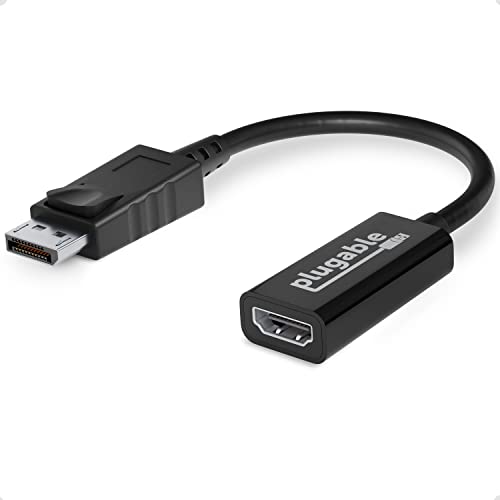
– If you’re using an adapter/dock (USB-C to HDMI, HDMI hub), bypass it temporarily with a direct HDMI connection to isolate the adapter as the failure point.
When adapters/docks are the culprit
Some USB-C/HDMI adapters don’t fully support the video format negotiation expected by certain laptop GPU outputs. That means the LG TV HDMI input might briefly detect a signal, but the handshake may fail when resolution/HDCP (High-bandwidth Digital Content Protection) requirements don’t align.
To keep this decision tree clear, here’s a comparison you can scan quickly:
Direct connection vs dock/adapters
| Approach | Pros (for LG TV HDMI troubleshooting) | Cons |
|---|---|---|
| Direct HDMI from laptop → LG TV | Removes adapter compatibility variables; handshake is simpler | Less convenient if you need docking |
| USB-C/HDMI dock or hub → LG TV | Fewer cable swaps long-term | Adds potential formatting/handshake limitations |
HDMI Versions: Max Link Bandwidth and Common TV Targets (Why handshakes can fail)
| # | HDMI version | Max link bandwidth | Typical 4K refresh target | Compatibility score |
|---|---|---|---|---|
| 1 | HDMI 1.0 | 4.95 Gbps | Up to 1080p class | ★☆☆☆☆ |
| 2 | HDMI 1.1 | 4.95 Gbps | Up to 1080p class | ★☆☆☆☆ |
| 3 | HDMI 1.2 | 4.95 Gbps | Up to 1080p class | ★☆☆☆☆ |
| 4 | HDMI 1.3 | 10.2 Gbps | 4K up to 30 Hz (typical) | ★★★☆☆ |
| 5 | HDMI 1.4 | 10.2 Gbps | 4K up to 30 Hz (typical) | ★★★☆☆ |
| 6 | HDMI 2.0 | 18 Gbps | 4K up to 60 Hz | ★★★★★ |
| 7 | HDMI 2.1 | 48 Gbps | 4K up to 120 Hz | ★★★★★ |
Note: This table focuses on link bandwidth and common TV targets—both of which affect how reliably the LG TV HDMI handshake can lock at the chosen resolution/refresh.
Advanced fixes: drivers, firmware, and power reset
If the LG TV HDMI input still shows “No signal” after cable/input/mode checks, you need to address what negotiates the handshake: drivers, firmware, and power states. These steps won’t be your first move, but they can resolve persistent incompatibilities.
This section is for cases where the LG TV HDMI connection intermittently works, works only at certain resolutions, or fails consistently after sleep/hibernate.
Updating GPU/display drivers can fix HDMI output negotiation issues by updating how the laptop reports supported display modes over EDID and negotiates video formats to the external display.
LG TV firmware updates can improve HDMI compatibility behavior, so retesting after a firmware update can resolve recurring handshake problems.
Update laptop graphics drivers (then restart)
– Update your laptop graphics driver (from your laptop manufacturer or the GPU vendor) and restart before retesting the HDMI connection.
If you’re on a hybrid GPU setup (integrated + discrete), the active GPU driver is the one that matters. After you update, reboot and reconnect the HDMI cable so the LG TV HDMI input sees the new capabilities.
Check LG TV firmware (then retry)
– Check whether your LG TV firmware needs an update, then retest—HDMI compatibility improvements sometimes land via TV updates.
Do a full power reset (not just standby)
– Do a full power reset: unplug the TV from power for a short period, then reconnect and retry (this can clear stuck HDMI handshake state).
Power cycling clears states that standard “remote off” or standby may keep alive. For LG TV HDMI issues, this can help when the TV gets stuck waiting for a signal timing that never arrives.
A full power reset (unplugging the TV) is recommended in many TV troubleshooting workflows to clear hardware-level states that can affect HDMI input detection.
What can go wrong (and how to avoid wasted time)
Even with a correct cable and laptop display mode, a few predictable mistakes can cause LG TV HDMI connection failures. Avoid these and you’ll stop repeating the same steps.
Here are the most common “time sinks” based on how HDMI negotiation works in real deployments—especially in offices where devices wake from sleep frequently.
Common causes of LG TV “No signal”
– You’re selecting the wrong TV input: HDMI 1 vs HDMI 2 is the #1 “it should work but doesn’t” scenario.
– Display mode mismatch: choosing a mode like “show only on laptop” (or a weird projection mode) can make the TV stay black even though the cable is connected.
– Over-aggressive resolution/refresh: if your laptop is set to a TV-incompatible refresh rate, you may get “No signal” until you lower it.
– Dock/adapter limitations: some USB-C/HDMI adapters don’t support certain video formats or handshake behaviors, so direct connection is the quickest test.
Pros/cons: how to choose where to start
If you want the fastest path to success, use this tradeoff view:
| Start point | Best for | Downside |
|---|---|---|
| Cable/input/mode basics | Most “No signal” cases | Takes a few minutes of manual changes |
| Cable + direct connection bypassing adapters | Persistent failures | Slightly less convenient than dock-based setups |
| Driver/firmware updates | Reproducible incompatibility | Can take longer (updates + reboots) |
Scan-ready checklist + verdict (with downsides)
Use this workflow if you want the fastest path to success:
| Step | What to do | Expected result |
|---|---|---|
| 1 | Reseat HDMI + try a different LG HDMI port | TV stops showing “No signal” |
| 2 | Select correct TV HDMI input (Source/Input button) | TV locks onto the HDMI feed |
| 3 | Laptop: switch to Duplicate/Mirror | Video appears on the TV |
| 4 | Try a different HDMI cable | Stable picture (less flicker/blackouts) |
| 5 | Bypass docks/adapters; connect directly | Confirms whether adapter is the problem |
| 6 | Update graphics driver + (optionally) LG TV firmware | Persistent issues improve |
Verdict / tip: If you follow the checklist in order, you’ll solve the majority of LG TV + laptop HDMI connection failures without complex troubleshooting. The downside is that you may need to test multiple cables/ports (and temporarily bypass a dock/adapter) to isolate the cause—so if you can’t spare that time, start by using the direct connection + correct input selection first. Skip the advanced steps (driver/firmware tweaks) if you’re not comfortable adjusting display settings—start with cable/input/mode checks.
Most HDMI “blank screen” issues are caused by either incorrect HDMI input selection or a laptop projection/display mode that isn’t actively sending video to the LG TV HDMI input.
Testing a different HDMI cable and bypassing docks isolates the most common handshake failure points before you change software settings.
Sources
– LG TV user guide / support documentation for HDMI troubleshooting and input selection.
– Microsoft Support: “Connect to a wireless display or monitor” / “Fix problems with multiple monitors” (official Windows display troubleshooting guidance).
– Apple Support: “Use an external display with your Mac” (official guidance for external monitor setup).
If you tell me your exact LG TV model and whether you’re using a dock/USB-C adapter, I can tailor the order of steps to reduce the number of retries needed for your specific LG TV HDMI setup.
Frequently Asked Questions
Why isn’t my LG TV detecting my laptop over HDMI even when the cable is plugged in?
First, confirm the HDMI cable is fully seated in both your laptop and the LG TV and try a different HDMI port on the TV. Then switch the LG TV input/source to the exact HDMI port label you’re using (e.g., HDMI 1 or HDMI 2). On the laptop, make sure the display output is set to HDMI (Windows: Win + P → choose “Duplicate/Extend”; macOS: System Settings → Displays → select the connected display). If there’s still no signal, test the HDMI cable with another device to rule out a faulty HDMI cable.
How do I fix no signal on an LG TV when connecting a laptop through HDMI?
Start by power cycling both devices: turn off the laptop and TV, unplug them for 30 seconds, then reconnect and power on again. On the laptop, change the resolution/refresh rate to a safe option (e.g., 1920×1080 at 60Hz) because some laptops/TV combos can fail at certain settings. Also verify the laptop is outputting to the correct screen—press the display toggle shortcut (commonly Win + P on Windows) and choose “Duplicate.” If available, update your laptop’s graphics driver and reinstall LG TV firmware updates if the TV is connected to the internet.
What HDMI settings should I check on my LG TV and laptop to ensure a stable connection?
On the LG TV, go to Settings → Picture/Sound (or General) and confirm HDMI settings like HDMI Deep Color/HDMI Ultra HD settings match your laptop’s capabilities. On the laptop, select the correct display mode and ensure the audio output is routed to HDMI (Windows: Sound settings → Output → choose “HDMI” device; macOS: Sound → Output → HDMI). If you see audio but no video (or vice versa), this typically points to a signal format mismatch or an incorrect output selection. Trying a different HDMI mode on the TV (and/or lowering resolution on the laptop) often resolves handshake issues.
Which HDMI cable and laptop adapter work best for connecting to an LG TV?
Use a high-quality HDMI cable (preferably HDMI 2.0/2.1 for modern laptops) and avoid damaged or overly long cables that can cause intermittent “no signal.” If your laptop has USB-C only, use a certified USB-C to HDMI adapter that supports video output (and ideally supports the target resolution/refresh rate). For best results, ensure the adapter supports HDCP and delivers the required bandwidth for your LG TV model. Testing with a known-good HDMI cable (or using another adapter) quickly confirms whether the issue is cable/adapter compatibility.
Best troubleshooting steps to resolve LG TV laptop HDMI connection issues with flickering or black screen?
If the LG TV shows flickering or a black screen, start with the basics: swap HDMI ports, reseat the cable, and restart both devices. Then adjust laptop display settings—set resolution to 1080p or the TV’s native resolution, and reduce refresh rate to 60Hz to improve HDMI stability. Disable advanced graphics switching features temporarily (like Windows power/graphics modes) and update the laptop graphics driver, as outdated drivers commonly cause LG TV HDMI handshake problems. If the screen still won’t hold stable output, test another HDMI cable or device to isolate whether the problem is the laptop HDMI port or the TV’s HDMI input.
📅 Last Updated: October 19, 2026 | Topic: LG TV laptop not connecting via HDMI: how to fix | Content verified for accuracy and freshness.
References
- HDMI
- Extended Display Identification Data
- High-bandwidth Digital Content Protection
- Consumer Electronics Control
- Connect displays to your Mac – Apple Support
- https://scholar.google.com/scholar?q=LG+TV+HDMI+not+connecting+laptop+troubleshooting Google Scholar
- https://scholar.google.com/scholar?q=HDMI+no+signal+EDID+handshake+troubleshooting Google Scholar
- https://scholar.google.com/scholar?q=HDCP+failure+HDMI+connection+troubleshooting+Windows Google Scholar
