
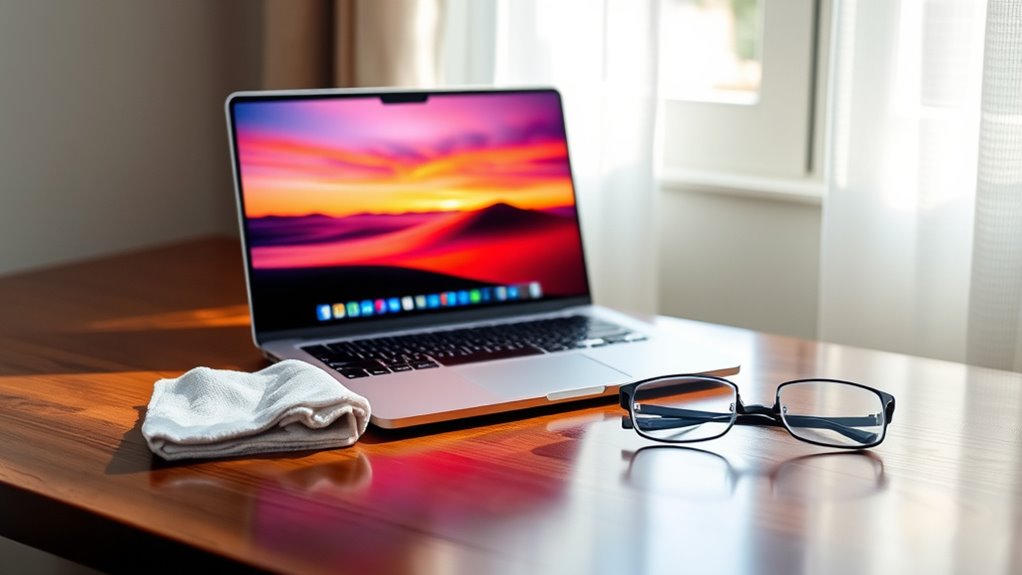

To extend your laptop display’s lifespan, start by keeping your screen clean with a soft microfiber cloth. Adjust brightness settings for comfort and to reduce strain. Protect it from direct sunlight and consider using a screen protector. Be gentle when closing the lid and avoid putting heavy objects on your laptop. Regularly update software and drivers to guarantee peak performance. For more tips on enhancing your laptop’s longevity, keep exploring further!
Keep Your Screen Clean
While it might seem trivial, keeping your laptop screen clean is essential for extending its lifespan. Regular screen cleaning not only enhances your viewing experience but also contributes to better display maintenance. Dust, fingerprints, and grime can accumulate over time, impacting your screen’s performance and clarity. When your display is dirty, it can lead to strain on your eyes as you try to see through the smudges. Plus, a clean screen helps prevent potential damage to your device. By making screen cleaning a routine part of your maintenance, you’re ensuring that your laptop stays in prime condition. Embrace the freedom of clear visuals and a well-maintained display, and you’ll enjoy your device to the fullest.
Use a Soft Microfiber Cloth
To keep your laptop display in top shape, using a soft microfiber cloth is crucial. These cloths are designed to gently lift dust and smudges without scratching your screen, offering numerous microfiber benefits. Regularly cleaning your display with a microfiber cloth guarantees a clear view and extends its lifespan. Plus, proper cloth care is important; wash your microfiber cloth in mild detergent and avoid fabric softeners to maintain its effectiveness.
| Microfiber Benefits | Cloth Care Tips |
|---|---|
| Non-abrasive material | Wash with mild detergent |
| Excellent dust pickup | Air dry completely |
| Reduces static cling | Avoid fabric softeners |
| Reusable and durable | Store in a clean place |
Make this simple habit a part of your routine!
Adjust Brightness Settings
Keeping your laptop display clean with a microfiber cloth is just one part of maintaining its longevity. Another key aspect is adjusting your brightness settings. You might not realize it, but proper brightness control can greatly impact both your viewing experience and your device’s lifespan. Too much brightness can strain your eyes and your display, leading to quicker wear and tear. On the other hand, lowering your screen brightness not only enhances energy efficiency, but it also reduces the heat generated, which is beneficial for long-term use. Aim for a comfortable brightness level that suits your environment. Don’t hesitate to tweak these settings regularly to find the perfect balance between visibility and energy savings. Your laptop will thank you!
Protect Against Direct Sunlight
If you expose your laptop display to direct sunlight for extended periods, you risk damaging its screen and reducing its lifespan. UV exposure can lead to discoloration and long-term degradation, so it’s vital to take steps to protect your device. Here are some effective strategies:
- Use sunshade options: Invest in a portable sunshade to create a barrier against harsh sunlight.
- Adjust screen orientation: Position your laptop to minimize glare; tilting the screen can greatly enhance visibility.
- Implement glare reduction techniques: Consider anti-glare screen protectors or specialized films to further shield your display.
Use a Screen Protector
Since protecting your laptop display from scratches and smudges is essential for its longevity, using a screen protector is a smart choice. There are various screen protector types available, including tempered glass and adhesive films, each offering unique benefits. Tempered glass provides robust protection against impacts, while adhesive films are thinner and can reduce glare.
When applying your screen protector, consider different installation techniques to guarantee a smooth finish. Clean your screen thoroughly before application to prevent dust and bubbles. Use a credit card to smooth out any air pockets as you apply it. By taking these simple steps, you can keep your laptop display looking pristine and functioning well, allowing you the freedom to enjoy your device without worry.
Avoid Excessive Pressure
Even with a screen protector in place, it’s important to be mindful of how you handle your laptop. Excessive screen pressure can lead to cracks or damage that could greatly impact your display’s performance. Here are some tips to prevent unnecessary stress on your laptop screen:
Even with a screen protector, excessive pressure can damage your laptop screen; handle it with care to maintain performance.
- Avoid leaning on the laptop while typing or using it.
- Don’t place heavy objects on top of the closed laptop, as this can create pressure points.
- Be cautious when transporting your laptop; use a padded case to minimize impact.
Close the Lid Gently
When you close your laptop lid, it’s crucial to do it gently to prevent any damage to the display. Avoid forceful closures, as they can misalign components and lead to costly repairs. You’ll also want to make certain you’re closing it on a soft surface and keeping up with regular maintenance to guarantee longevity.
Avoid Forceful Closure
While it might be tempting to slam your laptop lid shut in a hurry, doing so can lead to significant damage over time. Forceful closure puts unnecessary hinge stress on your device and can misalign the lid, compromising the display. To keep your laptop in top shape, remember to close it gently.
- Always guarantee the lid is properly aligned before closing.
- Regularly check the hinges for wear and tear.
- Make it a habit to pause and close your laptop slowly.
Use Soft Surfaces
Placing your laptop on soft surfaces can considerably reduce the risk of damage, especially when closing the lid. Opt for soft materials like cushions, blankets, or even a soft bag to provide a gentle landing for your device. These surface choices can absorb impact and prevent unnecessary pressure on your screen. When you shut the lid, be mindful to do it gently; this minimizes the strain on hinges and the display itself. Hard surfaces may lead to jarring impacts, increasing the chances of cracks or other issues. By being conscious of your laptop’s environment and treating it with care, you can enjoy the freedom of using your device without worry about damaging its display.
Regular Maintenance Tips
Taking care of your laptop’s display goes beyond just using soft surfaces; regular maintenance plays a significant role, too. One simple yet effective tip is to always close the lid gently. This prevents unnecessary pressure on the screen and avoids damaging the hinges. Additionally, consider the following maintenance tips:
- Regularly calibrate your screen to guarantee peak color accuracy and brightness.
- Adjust your display settings to reduce eye strain and extend screen life, such as lowering brightness in dim environments.
- Keep the screen clean using a microfiber cloth, avoiding harsh chemicals that can damage the display.
Regularly Update Software and Drivers
Keeping your software and drivers up to date is essential for maintaining your laptop display’s performance and longevity. Regular updates not only fix bugs but also guarantee compatibility with the latest applications and hardware. To make things easier, consider automating the update process, so you never miss an important upgrade.
Importance of Updates
While you might think that a laptop’s display will remain functional for years, neglecting regular updates to software and drivers can lead to premature wear and tear. Keeping your software and drivers current is essential for maintaining software stability and ensuring driver compatibility. Here’s why you shouldn’t skip those updates:
- Enhanced Performance: Updates can optimize how your display interacts with the system, improving overall performance.
- Bug Fixes: Regular updates often address bugs that can negatively impact display quality and longevity.
- Security: Keeping your software updated helps protect against vulnerabilities that could harm your laptop’s performance.
Check for Compatibility
Regularly updating your software and drivers is essential for guaranteeing your laptop’s display functions at its best. By performing compatibility checks, you can avoid potential issues that may arise from outdated software. Keeping your operating system and drivers current guarantees they meet the latest software requirements, which can enhance performance and protect against glitches. You’ll also benefit from improved features and security updates that can directly impact your display’s functionality. Don’t underestimate the importance of these updates; they can prevent display malfunctions and extend your laptop’s lifespan. Make it a habit to check for updates regularly, and take full advantage of the freedom that a well-functioning laptop display can offer. Your device will thank you for it!
Automate Update Process
Automating the update process for your laptop’s software and drivers can save you time and guarantee that your display remains at peak performance. By setting up automated notifications and scheduled checks, you make certain that your system always runs on the latest updates, protecting your display from potential issues.
- Enable automatic updates: This lets your system handle updates without manual intervention, making sure you’re always up to date.
- Schedule regular checks: Set a time, like weekly or monthly, for your laptop to search for updates, keeping everything running smoothly.
- Use reliable software: Choose trusted applications that support automated notifications, making the process seamless and efficient.
Taking these steps will help you enjoy a longer-lasting, more vibrant display.
Frequently Asked Questions
How Often Should I Clean My Laptop Display?
You should clean your laptop display regularly, ideally every few weeks. Creating a maintenance schedule helps keep your screen clear and vibrant. Just use a soft cloth and gentle cleaner for best results—it’s that simple!
Can I Use Paper Towels to Clean the Screen?
You shouldn’t use paper towels for screen cleaning; they can scratch your display. Instead, opt for microfiber cloths, designed for display maintenance, ensuring your laptop’s screen stays pristine and prolongs its life.
What Is the Ideal Brightness Setting for My Display?
Imagine you’re working outdoors on a sunny day. Adjusting your laptop’s brightness levels to match the environment enhances screen visibility. Typically, a setting around 50-70% is ideal for balanced visibility and comfort.
Does Using a Laptop in Bed Damage the Screen?
Using a laptop in bed can indeed damage your screen. Poor bed ergonomics lead to screen pressure from awkward angles, risking cracks or distortions. Keep your laptop stable to protect that display while enjoying your cozy space.
Are There Specific Screen Protectors Recommended for My Laptop Model?
For your laptop, consider screen protector types like tempered glass or matte finish. Verify they match your laptop model compatibility for the best fit. A good protector can enhance durability and reduce glare while you work freely.
