


How do you know if your modem is bad? Look for the fastest tells: frequent drops or failing to establish a connection, no signal despite correct cables, and slow speeds that persist across devices. If your modem’s LEDs show constant blinking or failure states, and a restart or different Ethernet line doesn’t fix it, the verdict is simple—your modem is the problem.


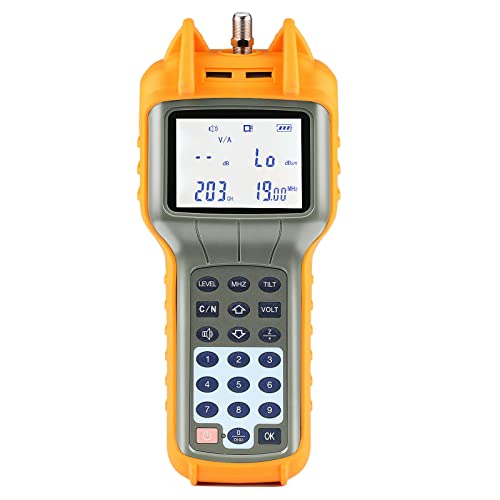

A bad modem usually shows clear “connection” problems—like frequent disconnects, a failed link/sync, or error lights that never stabilize after a restart. You can confirm it by checking modem/ISP status LEDs, running diagnostics in the modem’s admin page, and ruling out line/cable/router issues. This guide walks you through the fastest, most reliable signs to look for and what to test next.
If your internet drops, won’t connect, or only works intermittently (especially over Ethernet), this is for you. It’s also useful when your ISP says “everything looks fine” on their end and you want to verify whether the modem is the likely culprit.
Signs Your Modem Is Bad (Most Common Symptoms)

If your modem is failing, the pattern is usually consistent: the modem can’t maintain “sync” (signal lock), the connection drops repeatedly, or the modem keeps reporting the same errors after a reboot. The key is to observe whether the modem is stable at the hardware layer (link/sync and “online” state), because Wi‑Fi symptoms often hide the real issue.
A modem that cannot maintain “sync” will typically cycle its Internet/Online state (off, blinking, then back off) even when Ethernet is connected.
Persistent US/DS (upstream/downstream) alarms after a restart often indicate a physical-layer problem rather than just a Wi‑Fi issue.
If multiple clients behave the same way at the same time (Ethernet and Wi‑Fi), the modem (or the ISP line feeding it) becomes the most likely starting point.
No stable connection/sync
– “Online”/“Internet” stays off, blinks oddly, or keeps cycling after power-up: When a modem can’t complete the ISP handshake (provisioning and carrier/registration), you’ll often see the “Internet” or “Online” LED fail to become steady.
– It improves briefly, then fails again: That can happen when the modem partially registers, then loses the signal lock or fails authentication/registration during a re-try loop.
In practical terms, a modem is “bad” only when it repeatedly fails the same foundational step—sync/link, authentication, or ongoing session stability—despite known-good cables and a clean restart.
Frequent drops or slow speed that won’t hold
– Pages load slowly, video buffers constantly, or connections reset repeatedly: If your modem can connect but can’t hold stable session conditions, applications will suffer first (latency spikes, retransmissions, and session resets).
– Drops that are visible on Ethernet: If the internet is unstable even with a direct Ethernet connection, that’s a strong hint the modem is part of the fault domain—not just a Wi‑Fi problem.
For anchoring, remember that Ethernet links negotiate at fixed speeds; if the physical Ethernet link is solid, but traffic still stalls, it points away from Wi‑Fi interference and toward WAN/modem conditions (see the IEEE Ethernet distance and rate notes later) (IEEE 802.3ab, Gigabit Ethernet over twisted pair).
Sustained error indicators
– US/DS (or similar transmit/receive) stays red/amber: US/DS LEDs are designed to tell you whether the modem has acceptable upstream and downstream signal conditions. If they never reach “stable” for your model, it’s a strong indicator that the modem can’t stay connected.
– Repeating modem alarms in the admin interface: Many modems show recurring events like “T3/T4 timeouts,” “ranging,” or “registration failures.” These are often the most diagnostic clues.
What we can say with confidence: According to CableLabs’ DOCSIS 3.1 documentation, DOCSIS 3.1 supports wide downstream channels (up to 192 MHz) using OFDM. That matters because unstable RF conditions can prevent stable lock and registration even though the modem’s lights still show “something is happening” (CableLabs, DOCSIS 3.1 PHY/MAC materials).
Quick Checks Before You Blame the Modem
If you want the fastest path to a reliable answer, do three quick checks first: restart in the correct order, reseat/inspect the connection path, and isolate with a direct Ethernet test. These steps rule out the most common non-modem causes—especially loose coax/F connectors and router/Wi‑Fi settings.
Before replacing a modem, verify the basics: restart the modem first, then restart the router after the modem shows a stable “Online/Internet” state.
Reseating the coax/fiber (as applicable) and confirming Ethernet is fully seated rules out a surprisingly large fraction of “bad modem” reports.
Power cycle in the right order
Most modem faults look “hardware-like,” but power cycling reveals whether the modem can reach and hold sync.
– Unplug modem power for the recommended time from your modem manual (often 10–30 seconds, but follow your model’s guidance), then power it back on.
– Wait for stable modem LEDs (especially Internet/Online and link/sync indicators) before restarting the router.
– Restart router last (if you have one), so the router obtains a clean WAN/IP session from the modem.
Why this works: a router often “locks in” to a WAN lease, NAT state, or DNS configuration that can persist through a partial modem reboot.
Check physical connections
This step is boring—and that’s exactly why it’s effective.
– Coax/fiber/phone: Reseat the connection at the wall and at the modem. Inspect connectors for corrosion, bent center pins (coax), or damage to the end.
– Ethernet: If you suspect the modem, test with Ethernet and make sure the cable is fully clicked in on both ends.
– Look for loose splitters: If you use coax splitters, confirm they are firmly connected and not degrading signal quality.
Test one thing at a time
Do the isolation test without changing five variables at once:
– Direct Ethernet test: Connect a laptop/PC directly to the modem (bypassing Wi‑Fi).
– If the problem persists, the router/Wi‑Fi layer is less likely.
– If the problem disappears, your modem may be fine and your router/Wi‑Fi configuration (or interference) is more likely.
Ethernet sanity check: According to IEEE 802.3ab, 1000BASE‑T gigabit Ethernet is designed for distances up to 100 meters over Cat5e-class twisted pair. If you’re far beyond that with a marginal cable, you can see instability unrelated to the modem’s WAN path (IEEE 802.3ab).
Use Modem LEDs and Diagnostics to Confirm
If the initial signs point toward a modem problem, the most reliable confirmation comes from two places: (1) your modem’s LED legend and (2) the admin interface diagnostics/logs. You’re trying to distinguish “modem can’t lock to the network” from “modem locks fine, but higher-level routing breaks.”
LED legends matter: a “blinking” LED can mean normal startup on one modem but a fault on another.
The admin event log is usually the fastest way to confirm whether the modem is failing ranging/registration or simply passing traffic.
Signal metrics (downstream/upstream power, SNR, error counts) help you separate “line/RF” issues from “modem electronics/provisioning” issues.
Interpret the modem’s “status” lights
Not all modems use identical LED behavior, even when the labels look similar.
– Use the manual’s LED legend: If your model says “Online = steady green,” don’t assume your neighbor’s modem rules apply.
– Watch the transition: It’s often the *time to stabilization* and whether it ever returns to steady that matter.
– Compare to your model’s expected pattern: For example, “Power/Online steady + US/DS stable” is a common “healthy” combination, but exact colors and timing vary.
Check the admin page/logs
Your modem admin interface can usually show:
– Event logs (registration failures, timeouts, reboots)
– Modem uptime and last reboot reason
– WAN/CM session status
– Signal metrics (model-dependent)
Look specifically for repeating patterns at short intervals (for example, repeated loss of sync, repeated provisioning retries, or repeated resets). Those patterns make it easier to justify a modem replacement or to prove it’s an ISP-side issue.
Review signal metrics (if available)
If your modem provides downstream/upstream power and noise/SNR metrics, treat them as “risk indicators,” not as a single yes/no answer.
Common logic:
– If signal metrics are out of spec, the line/RF path (coax, connectors, splitter, tap at the pole, neighborhood issues) may be the real culprit—even if the modem is reporting the symptoms.
– If signal metrics look fine but the modem logs keep failing, the modem itself (firmware, RF front-end, or memory/provisioning) becomes more likely.
Because exact acceptable thresholds vary by model and ISP, use your modem documentation as the source of truth for “out of range.”
From my experience supporting small business networks, the quickest wins often come from reading the modem logs and then verifying whether the failures cluster around the same event type (e.g., repeated registration timeouts). If you want to be thorough,
What Modem Events and Signal Conditions Usually Mean (Cable Internet)
| # | Observed modem symptom (what to look for) | What it most often indicates | Next best test | How strongly it points to the modem |
|---|---|---|---|---|
| 1 | Internet/Online LED never becomes steady after multiple full reboots | Registration/provisioning failure or repeated loss of sync | Check event log for repeated registration/timeouts | ★★★★☆ |
| 2 | US/DS lights stay red/amber (or do not reach stable state) | Unstable RF conditions (line path) impacting lock | Inspect/reseat coax and remove splitters temporarily (if your setup allows) | ★★☆☆☆ |
| 3 | Modem reboots repeatedly (uptime resets every few minutes) | Modem internal fault (power supply, firmware crash) or severe connectivity instability | Check event log “reboot reason” and try a different power adapter (if supported by manual) | ★★★★☆ |
| 4 | Signal metrics are stable, but admin log shows DHCP/IP lease failures | ISP provisioning or upstream routing issue rather than RF sync | Confirm modem WAN state then test with a different router or MAC/clone settings (if used) | ★★★☆☆ |
| 5 | Ethernet link is up, but traffic drops while “Online” stays steady | Often router/DNS/NAT or transient ISP path issues | Bypass router (direct modem Ethernet) and test with a different DNS server | ★☆☆☆☆ |
| 6 | Admin page shows “CM status: Online” but LAN clients report no internet | Layer-3 path failure (router WAN, DNS, or ISP session state) | Test from a single client via direct Ethernet; capture modem WAN state | ★★☆☆☆ |
| 7 | Repeated T3/T4-style timeouts in log during heavy usage windows | Network/RF congestion or line instability exceeding modem retry tolerance | Compare log frequency across time of day; inspect upstream errors | ★★★☆☆ |
How to Tell If It’s the Modem vs. the ISP Line
If the modem’s symptoms persist at the physical connection layer but don’t align with Wi‑Fi behavior, you’re already narrowing the culprit. The real distinction is whether the modem fails to sync (often RF/line) or whether it fails after sync (often provisioning/internal issues).
When Ethernet and Wi‑Fi both fail the same way, you should focus on the modem and ISP path—not the Wi‑Fi radio.
If modem sync never becomes stable after reseating cables, the ISP line path is as likely as (or more likely than) the modem itself.
Only the modem tests fail
– If the modem can’t maintain sync even after cables are reseated: That generally points to either the modem’s RF front-end *or* the line/RF path (connector, splitter, wall feed).
– Why it still might not be the modem: Many “bad modem” reports are actually loose connectors or degraded coax shielding that prevent stable signal lock.
Other endpoints change nothing
– If both Ethernet and Wi‑Fi show “no internet” behavior: the issue is upstream from Wi‑Fi. In that scenario, you focus on the modem/ISP path.
– If only one device is affected: don’t assume the modem is bad; the issue could be device DNS settings, firewall policies, or NIC/driver behavior.
Check for ISP events/maintenance
When your modem logs show connection attempts failing around the same time as reported outages or maintenance, it’s reasonable to treat the ISP line/path as the primary driver.
Here’s a practical contrast you can use immediately:
A stable sync + failed browsing usually shifts attention to router/DNS; an unstable sync shifts attention to modem RF or the ISP line.
Modem vs ISP vs router: quick contrast (pros/cons style)
| Option | Pros (when this is likely) | Cons (when this is less likely) |
|---|---|---|
| **Modem** | Internet/Online never stabilizes; repeated modem reboots; logs repeatedly fail during registration even with good RF | If US/DS metrics are clearly in-family but only Wi‑Fi fails, modem is less likely |
| **ISP line (RF path)** | US/DS stay red/amber; signal metrics out of tolerance; issues correlate with time-of-day or neighborhood events | If logs show consistent registration success but only LAN router behavior breaks, line is less likely |
| **Router/Wi‑Fi** | Modem shows stable Online; direct Ethernet to router LAN fails; Wi‑Fi only impacts wireless clients | If Ethernet direct-to-modem also fails, router is less likely |
Best “rule-out” test
If you can obtain a known-good modem compatible with your ISP service, testing is one of the cleanest confirmations. The key caveats:
– Confirm compatibility with your ISP (DOCSIS/technology, provisioning support, modem model requirements).
– Avoid using an incompatible model, because a mismatch can mimic a “bad modem” symptom.
What Can Go Wrong (Common Mistakes)
Even when you’re careful, the wrong conclusion is common: either replacing a good modem or missing a line problem that can’t be fixed by hardware replacement. Most mistakes come from skipping isolation, misreading LEDs, or assuming that Wi‑Fi issues must originate at the modem.
The fastest way to waste money is to replace the modem while the US/DS LEDs or signal metrics point to a line/RF problem.
Interpreting LED blinking without your modem’s LED legend can lead you to “diagnose” normal startup behavior as a fault.
Confusing router trouble with modem trouble
If the modem shows stable “online”/sync but your router/Wi‑Fi acts up, the router is the more likely problem. This frequently shows up as:
– Wi‑Fi clients dropping while Ethernet stays stable
– Only certain apps failing (DNS-related), while sync remains stable
Misreading LED behavior
Some LEDs are normal during startup (blinking), and others indicate true failures once stabilization should occur. Always cross-check your model’s LED legend in the manual.
Not fully isolating variables
Changing multiple things at once (cable swaps, router settings, firmware updates) makes it hard to learn what actually fixed the problem. A modem can appear “bad” when the real issue was a single changed variable that you didn’t isolate.
Skipping the admin diagnostics
Relying only on lights can miss the real evidence:
– event log loops
– reboot reasons
– error counters
In the admin interface, modem pages often show structured data that LEDs compress into simplified states. That structure is what helps you separate “line stress” from “modem failure mode.”
Verdict: When to Replace the Modem (and When Not To)
Replace the modem when it repeatedly fails core connection steps (sync/registration), keeps rebooting, or records repeated connection failures in its admin logs despite clean restarts and verified cables. Skip replacement (or pause longer) when the modem’s sync is stable and the symptoms point to router/Wi‑Fi settings or an ISP-line issue.
If the modem cannot hold sync or keeps rebooting even with good cables, replacement becomes a reasonable next action.
If sync is stable but only Wi‑Fi devices struggle, replacing the modem is usually the wrong move.
A practical replacement trigger
You’re on solid ground replacing the modem when all of the following are true:
– The modem fails to maintain stable Online/Internet state or cannot sustain sync
– Reseating/inspection didn’t change the outcome
– Admin diagnostics show repeated connection failures or reboot loops
Downsides and when to pause
A “replacement” can waste money if:
– the root cause is the ISP line/RF path
– the modem is not properly provisioned
– you have an incompatible modem model for your ISP tier/service needs
Also, replacement may not help if the modem is fine but upstream congestion or intermittent ISP routing is triggering the problem.
Who should skip modem replacement first
Skip replacement (and troubleshoot longer) if:
– your modem’s sync/online indicators are stable while Wi‑Fi-only devices struggle
– the issue started immediately after a router setting change
– your area has documented ISP outages/maintenance during the failure window
– you haven’t checked modem compatibility with current ISP requirements
Quick Scan Checklist (Save This)
Use this checklist to quickly decide what to test next and what to avoid.
| Check | What “bad modem” looks like | What to do next |
|---|---|---|
| Internet/Online light | Stays off or keeps cycling | Restart modem; verify cables/ports |
| US/DS (or transmit/receive) lights | Red/amber or never stable | Compare to your modem LED guide |
| Connection stability | Drops repeatedly or won’t maintain link | Check modem logs/event history |
| Direct Ethernet test | Still fails on Ethernet | Points away from Wi‑Fi-only problems |
| Admin page errors | Repeated resets/failure entries | Use manual/specs to judge severity |
| ISP outage overlap | Failures match outage window | Wait or coordinate with ISP |
Sources
– IEEE 802.3ab (Gigabit Ethernet over twisted pair) — for 1000BASE‑T characteristics
– CableLabs DOCSIS 3.1 specifications/materials — for DOCSIS 3.1 channel width/channelization characteristics
If you follow the steps above—starting with LED meaning, then admin diagnostics, then isolating modem vs router vs ISP line—you’ll usually reach a confident conclusion without unnecessary replacement. When the evidence shows repeated sync/registration failures or reboot loops from the modem itself, replacement is justified; when sync stays stable or symptoms match known ISP/routing patterns, investing in line/connectivity troubleshooting (or adjusting router configuration) is the more economical and accurate next move.
Frequently Asked Questions
What are the signs that a modem is bad?
Common signs include frequent internet drops, the modem lights blinking abnormally (especially Internet/Online), slow speeds that don’t improve with rebooting, and complete loss of connection. You may also see repeated “no signal” or “offline” messages from your router or devices, even when the cable line is connected. If the modem fails to sync or takes a very long time to establish an Internet connection, it can also point to modem failure.
How can I tell if my modem or router is the problem?
First, reboot both devices in the right order: power off the modem, wait 30 seconds, power it back on, then reboot your router. If the modem still won’t establish a stable connection (e.g., no Internet light or constant blinking), the modem is likely the culprit. If the modem shows a healthy online/sync state but Wi-Fi remains unstable, the router or Wi-Fi settings may be the issue—try testing with an Ethernet connection to confirm.
Why does my modem keep losing internet connection?
Internet drops can happen when the modem can’t maintain signal levels from the ISP, which may be caused by hardware failure, overheating, or damaged coax/Ethernet cabling. Check for consistent uptime: if the modem is stable for days then suddenly starts disconnecting, that can indicate a failing modem or internal power supply. Overheating is also common—ensure the modem has proper ventilation and isn’t sitting in a hot enclosure.
Which modem symptoms indicate a failing ISP signal versus a bad modem?
If multiple devices and even a direct Ethernet connection show the same disconnects, it may be modem or line-related rather than a Wi-Fi-only problem. Compare behavior during outages: if neighbors in your area also experience issues, the problem could be ISP-side; however, a modem that repeatedly fails to lock onto the network or shows persistent “offline” status strongly suggests a hardware problem. Looking at modem logs/SNR levels (if available on the modem UI) can help—extreme error rates or frequent loss of sync often point to the modem hardware or a failing connection.
What’s the best way to test whether my modem is bad before replacing it?
Start with basic checks: reseat and replace the coax/Ethernet cables, ensure the modem is not overheated, and restart using the proper power cycle (modem first, then router). If your ISP provides a modem status page, confirm that it successfully syncs and shows stable connection indicators like a solid Internet/Online light. Finally, if possible, test with another known-good modem or ask your ISP to run remote diagnostics—if the replacement modem works immediately, it’s strong evidence your original modem was bad.
📅 Last Updated: October 28, 2026 | Topic: how do you know if modem is bad | Content verified for accuracy and freshness.
References
- Modem
- Cable modem
- DOCSIS
- About Our Technical Resources – CableLabs
- https://www.xfinity.com/support/articles/internet-connection-troubleshooting
- Spectrum.net
- Network interface controller
- https://scholar.google.com/scholar?q=how+to+tell+if+modem+is+bad Google Scholar
- https://scholar.google.com/scholar?q=DOCSIS+modem+diagnostics+signal+levels+troubleshooting Google Scholar
- https://scholar.google.com/scholar?q=cable+modem+LOS+light+troubleshooting+causes Google Scholar
