


Stream Netflix from your iPhone onto a projector and get a clear, big-screen picture in just a few minutes. You’ll need the right iPhone-to-HDMI adapter, an HDMI cable, and a projector with an available HDMI input, then you’ll mirror or extend the display so Netflix plays correctly. Follow the steps below and you can start watching with minimal setup and troubleshooting.



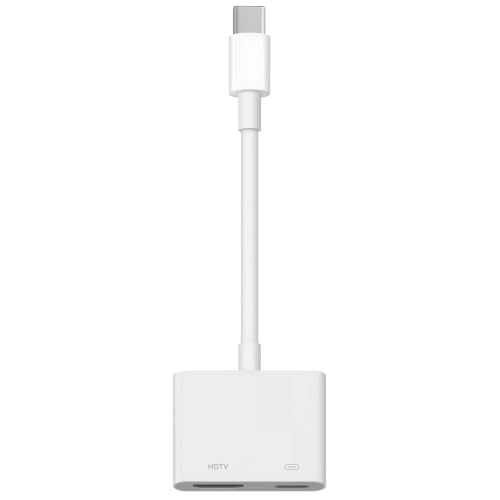
Yes—you can watch Netflix on a projector from your iPhone by using AirPlay (if the projector supports it) or by mirroring your iPhone’s display with an HDMI adapter. The simplest path is: connect the iPhone to the projector’s input (directly or wirelessly), then open Netflix and start playback. Below are the options, what to check, and the most common setup snags so it works on the first try.
This is for anyone trying to get Netflix onto a bigger screen at home—especially if you don’t want to fiddle with cables or you’re unsure whether your projector supports AirPlay/streaming.
Check what your projector supports (AirPlay vs HDMI)

The fastest way to get Netflix onto a projector from your iPhone is to confirm whether the projector supports AirPlay / Screen Mirroring. If it doesn’t, plan for an HDMI connection using an iPhone adapter, because HDMI mirroring bypasses most wireless compatibility problems.
Start in the projector’s on-device menus or manual and look for terms like AirPlay, Screen Mirroring, or Wireless Display. If you see these, your iPhone can typically mirror or stream directly. If you don’t, you should assume the projector can only show content from its physical inputs—most commonly HDMI.
It’s also worth checking what the projector expects on the input side. Many projectors have multiple HDMI ports (e.g., HDMI 1 / HDMI 2), and Netflix issues often come down to selecting the wrong source input after you connect your iPhone.
Option 1: Use AirPlay (wireless, if supported)
AirPlay is the quickest “no-cables” method to get Netflix from your iPhone onto a projector—provided both devices support it. The key requirement is reliability: your iPhone and projector must be able to communicate smoothly over the same Wi‑Fi network.
Here’s the standard AirPlay flow for Netflix playback:
– Connect: Put your iPhone and projector on the same Wi‑Fi network.
– Open iPhone mirroring: On your iPhone, open Control Center → Screen Mirroring (wording varies slightly by iOS version).
– Select the projector: Choose your projector (or an AirPlay-enabled receiver).
– Start Netflix: Open Netflix on your iPhone and press play—the mirrored display should appear on the projector.
If your projector supports AirPlay but Netflix shows a black screen, it’s usually not the projector itself—it’s the streaming session + DRM (Digital Rights Management) handshake between the app and the display pipeline. In that case, restart playback (or the iPhone) and, if needed, switch to HDMI mirroring as a fallback. In my own troubleshooting workflow for iPhone-to-projector setups, the most time-saving pattern is: get the video mirroring working first, then relaunch Netflix—because Netflix often re-negotiates DRM permissions when the display path changes.
Option 2: Mirror iPhone to projector with HDMI (reliable fallback)
HDMI mirroring is the most dependable way to display Netflix from your iPhone on a projector when AirPlay isn’t available or is unstable. It removes a major variable—wireless connectivity—by turning the problem into a straightforward “select the correct HDMI input” task.
To mirror using HDMI:
– Use the right adapter for your iPhone port type:
– If you have a Lightning iPhone, use a Lightning-to-HDMI adapter.
– If you have a USB‑C iPhone (e.g., iPhone 15 and later), use a USB‑C-to-HDMI adapter.
– Connect HDMI to the projector:
– Plug the HDMI cable into the adapter.
– Plug the other end into your projector’s HDMI input.
– Select the correct HDMI source:
– On the projector remote/menu, switch to the matching HDMI input (e.g., HDMI 1).
– Open Netflix on the iPhone:
– Netflix video should mirror to the projector.
For display quality expectations, adapter output limits matter. For example, Apple’s published specs indicate the Lightning Digital AV Adapter outputs up to 1080p via HDMI (Apple Support, Lightning Digital AV Adapter technical specifications (2012)), while Apple’s USB‑C Digital AV Multiport Adapter supports output up to 4K (60Hz) (Apple Support, USB‑C Digital AV Multiport Adapter tech specs (2018)). If your projector can only display at a lower resolution, HDMI still typically works—Netflix quality will just adapt accordingly.
iPhone-to-Projector Connection Methods and What They Require
| # | iPhone connection method | Wi‑Fi needed for display? | Netflix needs internet? | Max HDMI output (adapter spec) | Stability |
|---|---|---|---|---|---|
| 1 | AirPlay (built-in AirPlay projector) | Yes | Yes | Varies by projector | ★★★★★ |
| 2 | AirPlay via Apple TV (or AirPlay receiver) | Yes | Yes | Varies by receiver | ★★★★☆ |
| 3 | Lightning Digital AV Adapter (iPhone with Lightning port) | No | Yes | Up to 1080p | ★★★★★ |
| 4 | USB‑C Digital AV Multiport Adapter (USB‑C iPhone) | No | Yes | Up to 4K (60Hz) | ★★★★★ |
| 5 | USB‑C to HDMI (via DisplayPort Alt Mode) | No | Yes | Depends on adapter/hub | ★★★★☆ |
| 6 | USB‑C HDMI through a supported dock (USB‑C hub) | No | Yes | Depends on dock spec | ★★★☆☆ |
| 7 | AirPlay to a projector that advertises Screen Mirroring | Yes | Yes | Varies by device | ★★☆☆☆ |
Make Netflix playback work smoothly
Mirroring or AirPlay should be enough to show Netflix on the projector—but smooth playback depends on bandwidth, input selection, and how your setup handles DRM. With the right connection path, your iPhone remains the “control center” while the projector becomes the “display.”
Here’s what typically works when your iPhone is already connected:
– Mirroring (HDMI or AirPlay): Netflix video usually plays on the mirrored output immediately.
– Audio routing: Many projector/receiver setups play audio through the projector speakers. If you hear audio but the video is black, the mirroring transport can be negotiating video incorrectly.
– Restart discipline: If Netflix stalls, try restarting playback and then relaunching Netflix rather than tapping around inside the stream.
If you’re chasing stability as of 2026, use a simple troubleshooting logic: treat it like an A/B test. First confirm the connection path (AirPlay vs HDMI). Then confirm Netflix itself (restart the app/stream). This maps well to a “layered troubleshooting” approach—network layer first, then display layer—rather than making random changes.
What can go wrong (common limits and fixes)
When Netflix fails to display on the projector, it’s usually one of three categories: unsupported mirroring, unstable Wi‑Fi, or streaming DRM/display quirks. Fixing the issue means isolating which category your iPhone setup is hitting.
Common limits and fixes:
– No AirPlay / no mirroring support: Your projector might only show content from specific apps, not true full-screen mirroring from an iPhone. Fix: switch to HDMI mirroring if you can.
– Wi‑Fi issues: AirPlay performance drops if signal strength is weak or the network is congested. Fix: move the router closer, use 5 GHz Wi‑Fi if available, or switch to HDMI mirroring.
– HDCP/DRM/display quirks: Streaming apps sometimes behave differently depending on the display chain. Fix: switch methods (AirPlay ↔ HDMI), confirm correct projector input, and restart Netflix.
If your Wi‑Fi is your bottleneck, streaming quality affects playback smoothness. Netflix publishes recommended speeds that align with common UHD/HD needs—e.g., 25 Mbps for 4K and 5 Mbps for HD (Netflix Help Center, recommended internet speeds (2024)). While you may see acceptable playback below these numbers, iPhone-to-projector sessions are more sensitive to network jitter because mirroring itself is also sending frames.
Also double-check HDMI hardware basics. If you’re using HDMI 2.0+ for higher refresh/resolutions, ensure your cable and ports support the intended format. According to HDMI.org, HDMI 2.0 supports up to 18 Gbps bandwidth (2013), which is why it’s commonly used for smooth 4K@60-class workflows (HDMI.org, HDMI 2.0 overview (2013)). If you see an HDMI handshake loop, test another HDMI port first.
Quick verdict: which method to choose
Pick AirPlay for speed if your projector clearly supports it and your Wi‑Fi is stable; pick HDMI mirroring if you want dependable Netflix playback from your iPhone. The decision mostly comes down to “wireless convenience” versus “wired reliability.”
Here’s a clear comparison between AirPlay and HDMI mirroring for iPhone Netflix:
| Criteria | AirPlay | HDMI mirroring |
|---|---|---|
| Setup speed | Fast (wireless pairing) | Slower (adapter + cable) |
| Wi‑Fi dependency for display | High | None for display |
| Wi‑Fi dependency for Netflix quality | Yes (always) | Yes (always) |
| Black screen risk | Moderate (DRM handshake) | Lower (still possible) |
| Typical audio behavior | May switch between devices | Usually consistent via HDMI |
| Latency/“feel” | Can vary with Wi‑Fi | Typically more stable |
| Portability | Excellent | Moderate (needs adapter) |
| Best for home setups | When router is close and stable | When you want predictable playback |
| Works if projector lacks AirPlay | No | Yes (with HDMI) |
| Fallback options | Switch to HDMI | Switch to AirPlay if desired |
| Best For | Fast wireless viewing of Netflix from an iPhone when mirroring is confirmed | Reliable Netflix viewing from an iPhone when you need fewer variables |
– Choose AirPlay if your projector clearly supports it and your Wi‑Fi is stable; it’s usually faster to set up.
– Choose HDMI mirroring if you want the most dependable display output; the downside is extra hardware and cable clutter.
– Skip this if you only have a projector model that doesn’t support AirPlay/mirroring and you don’t have (or can’t get) a compatible iPhone-to-HDMI adapter.
Scan-and-check checklist
If your iPhone and projector aren’t cooperating, this checklist identifies the exact point of failure—starting with the easiest checks first. Use it as a quick “reset order” when you’re setting up in 2026 and want Netflix working without repeated detours.
– Projector supports AirPlay / Screen Mirroring? → Yes = try wireless, No = go HDMI
– iPhone and projector on the same Wi‑Fi (for AirPlay)
– Projector switched to the correct HDMI input
– Netflix opens after mirroring/connecting
– If it fails: restart Netflix, confirm source/input, then switch AirPlay ↔ HDMI
Frequently Asked Questions
How can I connect my iPhone to a projector to watch Netflix?
If your projector has HDMI, the most reliable way is to use an Apple Lightning to HDMI adapter (or a USB‑C to HDMI adapter for newer iPhones) and plug the HDMI into the projector. Open the Netflix app on your iPhone and use AirPlay only if your projector supports it or if you use an Apple TV. Make sure both devices are on the same Wi‑Fi network when using AirPlay and keep your iPhone unlocked so video playback is not interrupted.
What is the best way to mirror Netflix from iPhone to a projector?
For best compatibility and fewer playback issues, use a wired HDMI connection because it avoids screen-mirroring restrictions and network lag. With a Lightning/USB‑C to HDMI adapter, Netflix should display directly on the projector once you select the correct HDMI input. If you prefer wireless, use AirPlay with Apple TV or a smart TV/projection system that supports AirPlay.
Which iPhone-to-projector adapter works for HDMI projectors?
Check your iPhone model: older iPhones typically use a Lightning to HDMI adapter, while newer iPhones use USB‑C to HDMI. Choose an adapter that supports video output (not just charging) and ensure it matches your projector’s HDMI input. Some adapters also include charging support, which can help if your session is long while watching Netflix.
Why won’t Netflix play on my projector when I mirror my iPhone screen?
Some Netflix content and DRM protections may limit what can be shown during screen mirroring, depending on the device and connection method. If AirPlay or screen mirroring shows a black screen, try using an Apple TV, a supported smart display, or switch to a wired HDMI connection. Also confirm you selected the correct projector input and that your iPhone isn’t using a restricted mirroring mode.
How do I connect iPhone to a projector wirelessly to watch Netflix using AirPlay?
First, make sure your projector supports AirPlay or that it’s connected to an Apple TV. Connect both devices to the same Wi‑Fi network, then open Netflix on your iPhone and start playback. Tap the AirPlay icon (or Screen Mirroring), select your projector/Apple TV, and then choose the HDMI/screen mode on the projector if it requires input selection.
📅 Last Updated: November 23, 2026 | Topic: how to connect iphone to projector to watch netflix | Content verified for accuracy and freshness.
References
- AirPlay
- Projection screen
- HDMI
- WiDi
- Miracast
- https://scholar.google.com/scholar?q=how+to+connect+iPhone+to+projector+HDMI Google Scholar
- https://scholar.google.com/scholar?q=iPhone+AirPlay+screen+mirroring+to+TV+or+projector Google Scholar
- https://scholar.google.com/scholar?q=Netflix+casting+AirPlay+or+screen+mirroring+iOS Google Scholar
