

Connecting your Beats to your TV is definitely possible, and doing so can enhance your viewing experience with high-quality sound. Whether you’re watching your favorite series or enjoying a movie night, using Beats headphones or earbuds can immerse you in rich audio. This article will guide you through various methods to connect your Beats to your television, including Bluetooth pairing and wired connections.
Understanding Bluetooth Connectivity
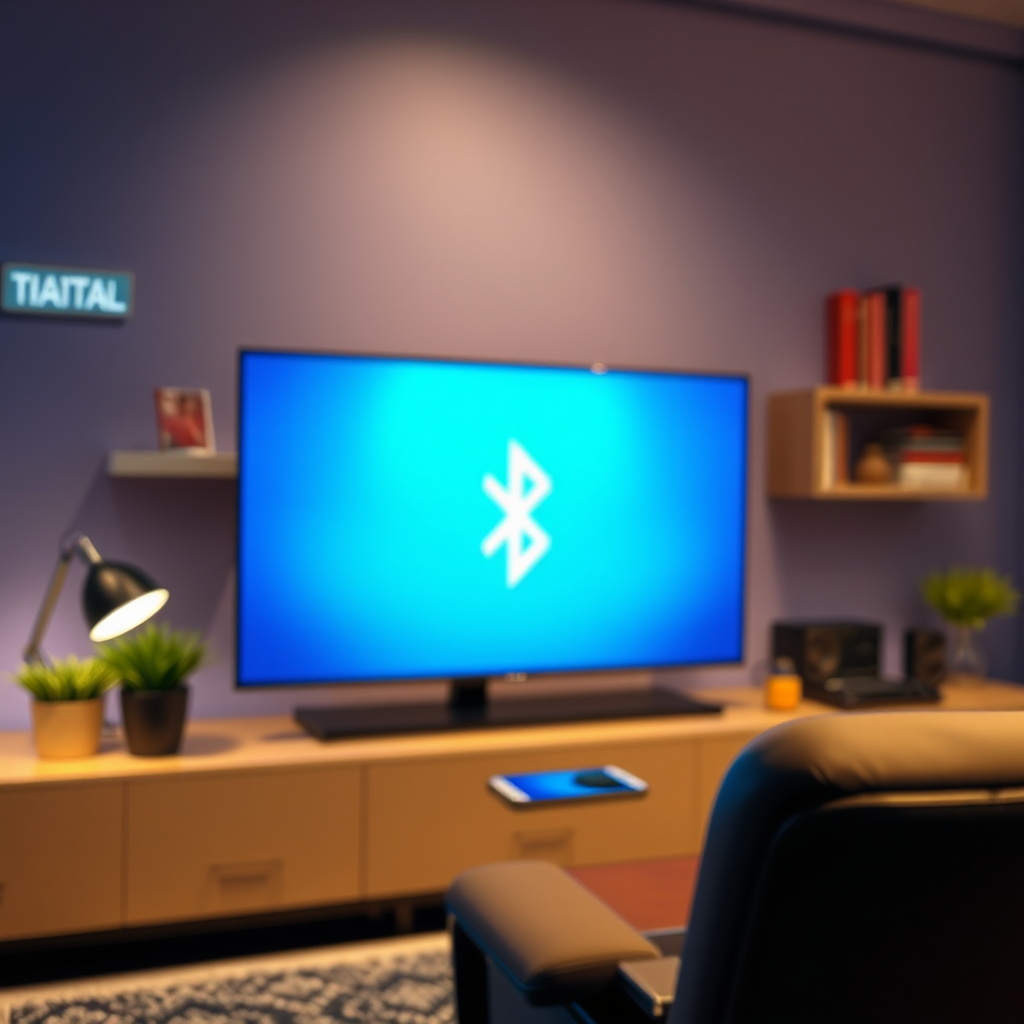
Most modern TVs are equipped with Bluetooth technology, enabling effortless pairing with wireless devices, including Beats headphones. Bluetooth connectivity allows you to enjoy the freedom of movement without being tethered to your TV. To successfully connect your Beats, ensure that they are in pairing mode; this typically involves holding down the power button or a dedicated pairing button, depending on your specific Beats model. Once in pairing mode, your Beats will be discoverable by your TV, facilitating a smooth connection process.
Checking Your TV’s Compatibility
Before attempting to connect your Beats, it’s crucial to verify if your TV supports Bluetooth functionality. Most contemporary TV models come with built-in Bluetooth, but older models may lack this feature. To confirm, check your TV’s user manual or navigate to the settings menu, where you can typically find information regarding Bluetooth capabilities. If your TV does not support Bluetooth, don’t fret—there are alternative solutions, such as using a Bluetooth transmitter, which can be connected to your TV’s audio output, allowing you to pair your Beats wirelessly.
Pairing Your Beats with Bluetooth
To begin the pairing process, access the Bluetooth settings on your TV. This can usually be found in the settings menu under “Sound” or “Connections.” Once in the Bluetooth menu, select the option to add a new device. Your TV will scan for nearby Bluetooth devices, and you should see your Beats listed. Click on your Beats to initiate the pairing process. A confirmation prompt may appear, which you need to accept in order to establish the connection. Once paired, your TV will route audio to your Beats, enhancing your experience with superior sound quality.
Top 7 Beats Models and Their Features (2024)
| # | Model | Bluetooth | Battery Life | Noise Cancelling |
|---|---|---|---|---|
| 1 | Beats Studio3 | Yes | 22 hours | Yes |
| 2 | Beats Flex | Yes | 12 hours | No |
| 3 | Beats Solo3 | Yes | 40 hours | No |
| 4 | Beats Powerbeats Pro | Yes | 9 hours | Yes |
| 5 | Beats Fit Pro | Yes | 7 hours | Yes |
| 6 | Beats Studio Buds | Yes | 8 hours | Yes |
| 7 | Beats Pill+ Speaker | Yes | 12 hours | No |
Troubleshooting Common Connection Issues
While connecting your Beats to your TV is usually straightforward, you may encounter some common issues. If your Beats don’t connect, first ensure that they aren’t currently paired with another device. Bluetooth devices can typically only connect to one source at a time. In this case, disconnect them from other devices or turn off Bluetooth on those devices. If issues persist, restarting both your TV and Beats can often resolve connectivity problems. After restarting, repeat the pairing process and monitor for any error messages that could indicate a deeper issue.
Using Wired Connections as an Alternative
If your TV lacks Bluetooth capability or you prefer a wired connection, many Beats models come equipped with a 3.5mm audio jack. This allows for a direct connection to your TV’s headphone output. If your Beats model does not have a 3.5mm input, you can use an adapter to connect to the audio output of your TV. Simply plug one end into your Beats and the other into the TV’s audio output. Wired connections can provide a stable audio experience without the potential for latency issues that sometimes occur with Bluetooth.
Enhancing Audio Experience
Once connected, you can further enhance your audio experience by adjusting the audio settings on your TV. Many modern TVs come with various sound modes, such as ‘Movie’, ‘Music’, or ‘Custom’, allowing you to tailor the sound output to better suit your content. Additionally, consider exploring equalizer settings if your TV supports them. This will enable you to customize bass, treble, and mid-range frequencies, ensuring that your Beats deliver the best sound quality possible while watching your favorite shows or movies.
Additional Tips for Using Beats with Your TV
To maximize your experience, keep your Beats charged to avoid unexpected interruptions during use. Battery life can vary significantly between models; for example, the Beats Solo3 offers an impressive 40 hours of playback time, while the Beats Fit Pro provides around 7 hours plus additional charge via the case. Familiarize yourself with the controls on your Beats, which may include volume adjustments, track skipping, and call management. Understanding these features will enhance your convenience and overall enjoyment while watching television.
Connecting your Beats to your TV can significantly improve your audio experience while watching shows or movies. With the right steps, whether through Bluetooth or wired connections, you can enjoy high-quality sound effortlessly. Don’t hesitate to try out the methods discussed, and enhance your entertainment setup today!
Frequently Asked Questions
Can I connect my Beats headphones to my TV for a wireless audio experience?
Yes, you can connect your Beats headphones to your TV wirelessly if your TV supports Bluetooth connectivity. To do this, put your Beats headphones in pairing mode, access the Bluetooth settings on your TV, and select your headphones from the list of available devices. This allows you to enjoy high-quality audio without the hassle of wires.
How do I pair my Beats headphones with my smart TV?
To pair your Beats headphones with a smart TV, first ensure that your headphones are charged and in pairing mode. Navigate to the Bluetooth settings on your smart TV, usually found in the settings menu. Select your Beats from the list of available devices, and once connected, you should be able to hear the TV audio through your headphones.
Why isn’t my TV recognizing my Beats headphones?
If your TV isn’t recognizing your Beats headphones, it could be due to compatibility issues or improper pairing. Ensure that your headphones are in pairing mode and that Bluetooth is enabled on your TV. Additionally, check if your TV’s software is up to date, as updates can improve device compatibility.
What are the best Beats headphones for connecting to a TV?
The best Beats headphones for connecting to a TV are the Beats Solo Pro and Beats Studio3 Wireless. Both models offer excellent sound quality, active noise cancellation, and reliable Bluetooth connectivity, making them ideal for an immersive audio experience while watching movies or playing games on your TV.
Which TVs are compatible with Beats Bluetooth headphones?
Most modern smart TVs from brands like Samsung, LG, Sony, and Vizio are compatible with Beats Bluetooth headphones, provided they have built-in Bluetooth functionality. Always refer to your TV’s user manual to confirm Bluetooth capabilities and ensure a seamless connection with your Beats headphones.
References
- https://www.lifewire.com/connect-beats-headphones-to-tv-4775582
https://www.lifewire.com/connect-beats-headphones-to-tv-4775582 - https://www.pcmag.com/how-to/how-to-connect-bluetooth-headphones-to-your-tv
https://www.pcmag.com/how-to/how-to-connect-bluetooth-headphones-to-your-tv - https://www.sony.com/electronics/support/articles/00003545
https://www.sony.com/electronics/support/articles/00003545 - https://www.bbc.com/news/technology-54684708
https://www.bbc.com/news/technology-54684708 - https://www.nytimes.com/2020/09/29/technology/personaltech/connect-headphones-tv.html
https://www.nytimes.com/2020/09/29/technology/personaltech/connect-headphones-tv.html - Google Scholar Google Scholar
https://scholar.google.com/scholar?q=connect+beats+to+tv - Google Scholar Google Scholar
https://scholar.google.com/scholar?q=wireless+headphones+tv+connection - Google Scholar Google Scholar
https://scholar.google.com/scholar?q=can+i+connect+my+beats+to+my+tv - can i connect my beats to my tv – Search results
https://en.wikipedia.org/wiki/Special:Search?search=can+i+connect+my+beats+to+my+tv - https://www.ncbi.nlm.nih.gov/search/research-articles/?term=can+i+connect+my+beats+to+my+tv
https://www.ncbi.nlm.nih.gov/search/research-articles/?term=can+i+connect+my+beats+to+my+tv
