
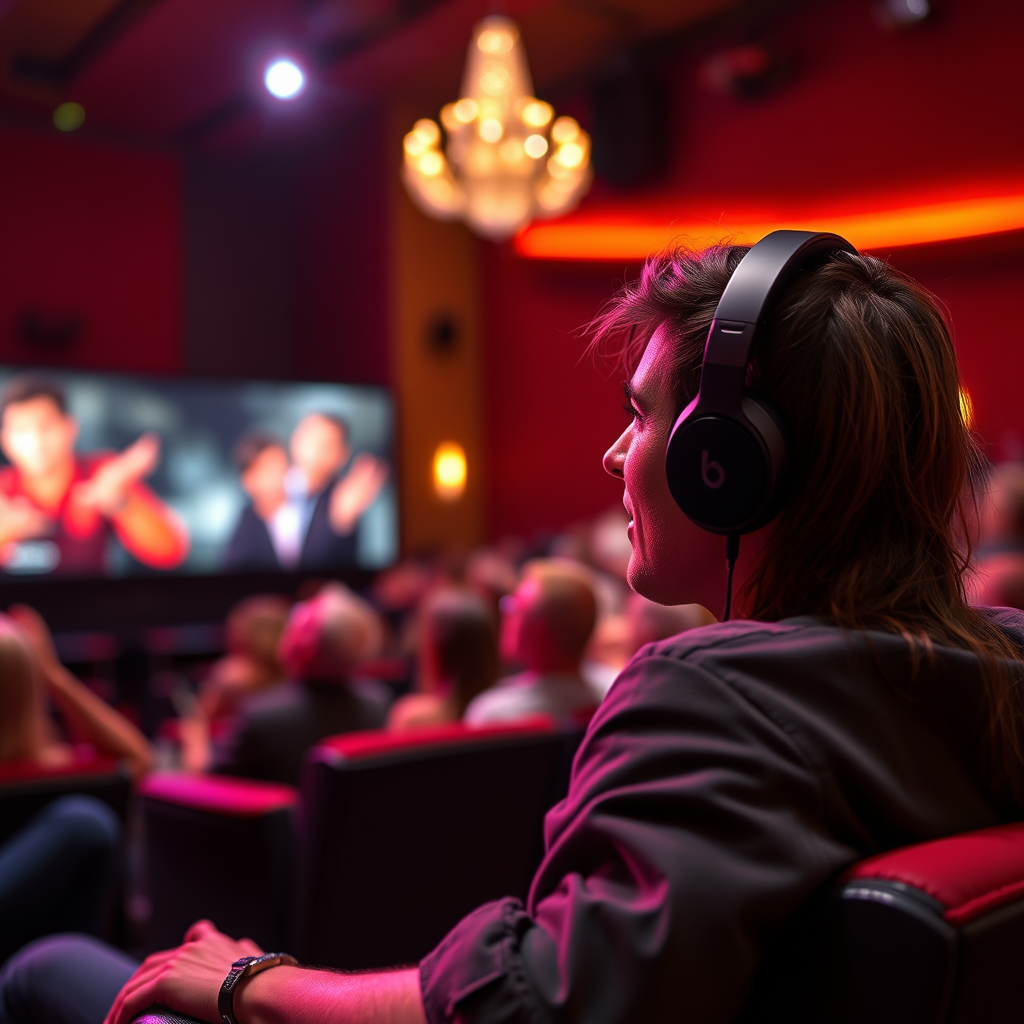

Connecting your Beats headphones to your TV is indeed possible, allowing you to enjoy audio wirelessly without disturbing others. This connection is particularly beneficial for late-night movie marathons or gaming sessions where you want to keep the sound to yourself. In this article, we’ll explore the various methods to connect your Beats headphones, whether through Bluetooth or auxiliary cables, and provide tips for a seamless experience.
Understanding Bluetooth Compatibility
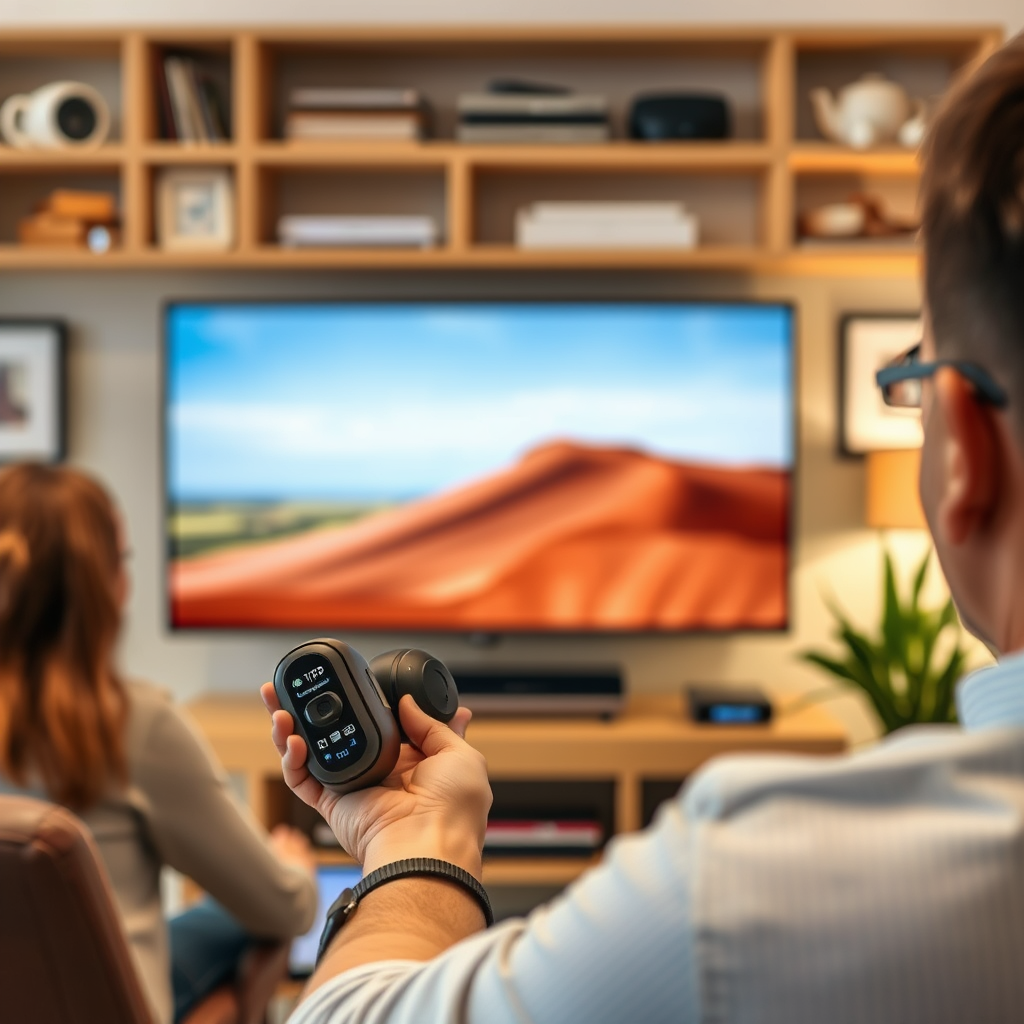
Most modern TVs come equipped with built-in Bluetooth, making it easy to connect Bluetooth headphones like Beats. Bluetooth technology allows for wireless audio streaming, providing convenience and freedom of movement. To ensure compatibility, it is crucial to check your TV’s user manual or settings menu for Bluetooth capabilities. Some older TV models may lack this feature, which may necessitate alternative methods of connection.
Additionally, knowing the version of Bluetooth supported by your TV can enhance connectivity. Most Beats headphones utilize Bluetooth 4.0 or higher, which offers improved range and audio quality. If your TV supports a more recent version, like Bluetooth 5.0, you can expect an even better audio experience with less latency and higher stability.
How to Connect Beats Headphones via Bluetooth
Connecting your Beats headphones to your TV via Bluetooth is a straightforward process. Here’s how to do it:
1. Put your Beats headphones in pairing mode: To initiate pairing, hold down the power button on your Beats headphones until the indicator light starts to flash. This indicates that your headphones are discoverable.
2. Access your TV’s Bluetooth settings: Turn on your TV and navigate to the settings menu. Look for the Bluetooth settings, which may be located under the audio or connection settings.
3. Select your Beats headphones: Once in the Bluetooth settings, your TV will scan for available devices. When you see your Beats headphones listed, select them to initiate the pairing process.
4. Confirmation of connection: After a few moments, you should receive a notification on your TV confirming that your Beats headphones are connected. Test the audio by playing content to ensure everything is functioning properly.
By following these steps, you can enjoy a seamless audio experience without any wires getting in the way.
Connecting via an Auxiliary Cable
If your TV does not support Bluetooth, you can still connect your Beats headphones using a wired connection. Most TVs come with a standard 3.5mm headphone jack, which allows you to connect your headphones directly. Here’s how to do it:
1. Check for a headphone jack: Locate the headphone jack on your TV, usually found on the side or back panel.
2. Use a 3.5mm audio cable: Acquire a 3.5mm audio cable, which is commonly available at electronics stores. Connect one end of the cable to your TV’s headphone jack and the other end to your Beats headphones.
3. Adjust TV settings as necessary: Once connected, you may need to adjust your TV’s audio settings to ensure sound is directed through the headphone jack instead of the TV speakers.
Connecting via an auxiliary cable is a reliable method that guarantees consistent audio quality without the risk of signal interference that may occur with Bluetooth connections.
Top Beats Headphones Models and Features
| # | Model | Bluetooth Version | Battery Life | Noise Cancellation |
|---|---|---|---|---|
| 1 | Beats Studio3 | 4.0 | 22 Hours | Yes |
| 2 | Beats Solo Pro | 5.0 | 22 Hours | Yes |
| 3 | Beats Flex | 5.0 | 12 Hours | No |
| 4 | Beats Studio Buds | 5.0 | 8 Hours | Yes |
| 5 | Beats Fit Pro | 5.0 | 9 Hours | Yes |
| 6 | Beats Powerbeats Pro | 5.0 | 9 Hours | Yes |
| 7 | Beats X | 4.1 | 8 Hours | No |
Troubleshooting Connection Issues
Even with straightforward methods of connecting Beats headphones to your TV, you may encounter some challenges. Here are some troubleshooting tips to ensure a successful connection:
1. Check headphone charge: Ensure that your Beats headphones are fully charged. Low battery levels can affect connectivity and audio quality.
2. Proximity matters: Keep your headphones close to the TV during the pairing process. Bluetooth typically has a range of about 30 feet, but obstacles and interference can reduce this distance.
3. Restart devices: If your headphones fail to connect after multiple attempts, restart both your TV and headphones. This can clear temporary glitches that may be hindering the connection.
4. Remove other Bluetooth devices: If several Bluetooth devices are paired with your TV, it may confuse the connection process. Remove any unnecessary devices to simplify the pairing.
5. Reset headphones if necessary: If the issue persists, consider resetting your Beats headphones. This process can vary by model, so consult the user manual for specific instructions.
By following these troubleshooting steps, you can resolve most connectivity issues and enjoy your audio experience without interruptions.
Enhancing Audio Experience
Once connected, enhancing your audio experience is essential for optimal enjoyment. Here are some tips to consider:
1. Adjust audio settings: Delve into your TV’s audio settings. Adjust the sound output to focus on headphone use, which may include lowering surround sound features or enabling stereo settings for clearer audio.
2. Use audio delay settings: If you experience audio lag, check if your TV has an audio delay or lip-sync adjustment feature. This can help synchronize audio and video for a more immersive experience.
3. Explore audio enhancements: Many modern TVs offer built-in audio enhancement features. Experiment with different presets or equalizer settings to find a sound profile that suits your personal preferences.
4. Volume control: Use your headphones’ volume control to adjust sound levels comfortably. This can help prevent straining your ears during extended viewing sessions.
5. Consider sound isolation: If your Beats headphones support active noise cancellation, enable this feature while watching TV to block out any external distractions, allowing for a more focused listening experience.
By optimizing your audio settings, you can significantly enhance your overall experience while watching your favorite shows or movies.
Alternative Connection Options
If your TV lacks Bluetooth capabilities and you prefer not to use an auxiliary cable, there are alternative methods to connect your Beats headphones:
1. Bluetooth transmitter: A Bluetooth transmitter can be plugged into your TV’s audio output (either optical or AUX). This device will allow you to stream audio wirelessly to your Bluetooth headphones. Ensure the transmitter is compatible with your TV model.
2. Use a compatible adapter: If your Beats headphones have a wired option, you can use a compatible adapter that connects to your TV’s audio output. This is particularly useful if your headphones come with a different type of audio jack.
3. Streaming devices: Consider using a streaming device that supports Bluetooth, such as Roku or Amazon Fire TV. These devices can connect to your TV and allow you to stream audio to your Beats headphones.
4. Game consoles: If you own a gaming console, many modern consoles support Bluetooth audio devices. Connect your Beats headphones directly to the console for gaming and streaming purposes.
By utilizing these alternative connection options, you can still enjoy your Beats headphones even if your TV lacks Bluetooth support.
Connecting your Beats headphones to your TV is straightforward, whether you’re using Bluetooth or a wired connection. By following these steps and troubleshooting tips, you can enjoy an enhanced audio experience. If you face any issues, don’t hesitate to consult your TV’s manual or visit Beats’ support page for further assistance. With the right setup, you can fully immerse yourself in your favorite shows, movies, or games without disturbing those around you.
Frequently Asked Questions
Can you connect Beats headphones to a TV?
Yes, you can connect Beats headphones to a TV if the TV supports Bluetooth connectivity. To do this, put your Beats headphones in pairing mode and navigate to your TV’s Bluetooth settings to search for devices. Once found, select your Beats headphones to establish the connection and enjoy your audio wirelessly.
How do I connect my Beats to a smart TV?
To connect your Beats to a smart TV, first ensure that Bluetooth is enabled on your TV. Then, put your Beats headphones in pairing mode by holding the power button until the indicator light flashes. Go to your TV’s Bluetooth settings, find your Beats in the list of available devices, and select them to pair.
Why won’t my Beats connect to my TV?
If your Beats won’t connect to your TV, it may be due to compatibility issues or Bluetooth interference. Make sure your TV supports Bluetooth audio devices, and check that your Beats are charged and in pairing mode. Restarting both devices can also help resolve connection issues.
What is the best way to connect Beats headphones to a non-Bluetooth TV?
The best way to connect Beats headphones to a non-Bluetooth TV is to use a Bluetooth transmitter. Connect the transmitter to the TV’s audio output (like the headphone jack or optical audio) and pair it with your Beats headphones. This setup allows you to enjoy wireless audio from your TV.
Which Beats models are best for TV use?
The Beats Studio3 Wireless and Beats Solo Pro are among the best models for TV use due to their active noise cancellation and comfortable fit. Both models offer excellent sound quality and long battery life, making them ideal for immersive viewing experiences. Ensure your chosen model supports Bluetooth for seamless connectivity.
References
- https://www.wikiwand.com/en/Beats_Electronics
https://www.wikiwand.com/en/Beats_Electronics - Find movies with 4K, HDR, Dolby Vision, or Dolby Atmos in the Apple TV app – Apple Support
https://support.apple.com/en-us/HT207949 - https://www.lifewire.com/how-to-connect-beats-headphones-to-your-tv-4782945
https://www.lifewire.com/how-to-connect-beats-headphones-to-your-tv-4782945 - https://www.reddit.com/r/Beats/comments/9h1k3m/how_can_i_connect_my_beats_to_my_tv/
https://www.reddit.com/r/Beats/comments/9h1k3m/how_can_i_connect_my_beats_to_my_tv/ - https://www.bbc.com/news/technology-48776378
https://www.bbc.com/news/technology-48776378 - Google Scholar Google Scholar
https://scholar.google.com/scholar?q=connect+beats+to+tv - Google Scholar Google Scholar
https://scholar.google.com/scholar?q=wireless+headphones+tv+connection - Google Scholar Google Scholar
https://scholar.google.com/scholar?q=bluetooth+audio+technology+headphones - Google Scholar Google Scholar
https://scholar.google.com/scholar?q=can+you+connect+beats+to+tv - can you connect beats to tv – Search results
https://en.wikipedia.org/wiki/Special:Search?search=can+you+connect+beats+to+tv
