
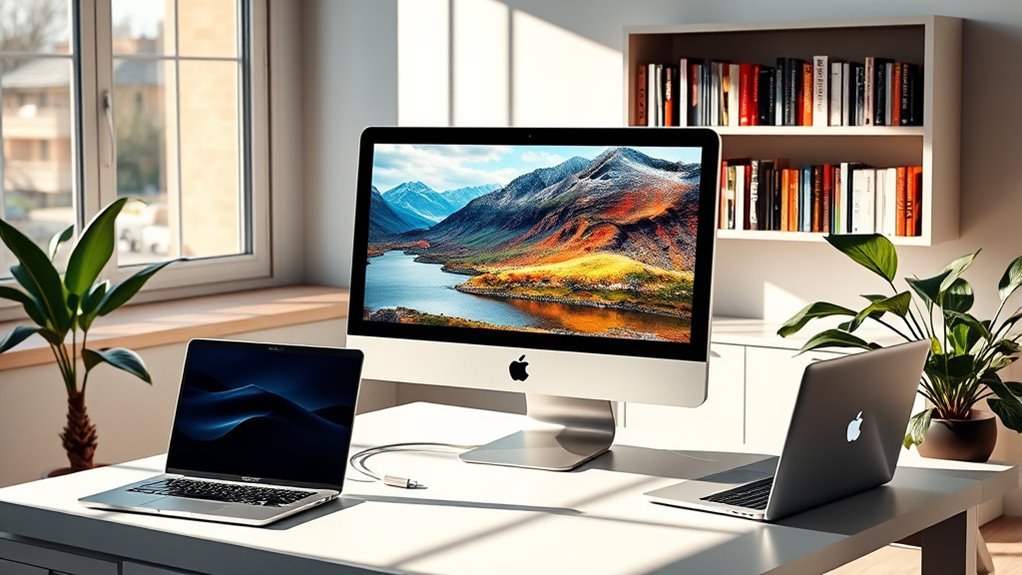

Yes, you can use certain iMac models as external monitors through a feature called Target Display Mode. This allows you to connect compatible devices using Thunderbolt or Mini DisplayPort cables. However, compatibility issues may arise, so it’s crucial to check if your iMac supports this feature. Keep in mind that using an iMac as a monitor comes with some limitations, including potential scaling issues and resolution mismatches. Explore more about optimizing your setup and the alternatives available.
Understanding Target Display Mode
Target Display Mode (TDM) is a unique feature that allows certain iMac models to be used as external monitors for other Apple devices. This functionality can be incredibly useful if you want to repurpose an older iMac, providing you with a larger screen without the need for additional monitors. However, it’s important to understand the compatibility issues that may arise. Not all iMac models support TDM, and you’ll need the right connections, typically a Thunderbolt or Mini DisplayPort cable. Additionally, you may encounter limitations based on the macOS version running on both devices. To maximize your experience, verify your iMac and the device you’re connecting meet the necessary requirements, allowing you the freedom to utilize your tech efficiently.
Connecting External Devices to Your Imac
Connecting external devices to your iMac can greatly enhance its functionality and expand your workflow. With various connection types available, such as USB-C, Thunderbolt, and HDMI, you can easily link peripherals like cameras, external drives, or even other computers. It’s vital to check for external device compatibility to guarantee seamless integration. For instance, while most modern devices utilize USB-C, older peripherals may require adapters or different ports. By understanding these connection types and their capabilities, you can maximize your iMac’s potential. Whether you’re looking to boost productivity or enhance your creative projects, knowing how to connect and configure your external devices can provide you with the freedom to work in a way that suits your style.
Limitations of Using Imac as a Monitor
While using an iMac as a monitor might seem like a convenient option, it’s important to recognize the inherent limitations of this setup. One significant drawback is screen resolution; the iMac’s display is optimized for its own operating system, which can lead to scaling issues when connecting external devices. You may find that text and images don’t appear as sharp as expected. Additionally, compatibility issues arise depending on the type of connection and the devices involved. Not all Macs support Target Display Mode, limiting your options. If you’re looking for flexibility and seamless integration, these limitations can hinder your experience. Ultimately, while using an iMac as a monitor can work, it comes with significant drawbacks that might impact your freedom of choice.
Alternative Solutions for Dual-Screen Setup
If you’re seeking a more reliable dual-screen setup, there are several alternative solutions worth considering. Utilizing additional monitors can greatly enhance your productivity, giving you the dual screen benefits you need for multitasking. Here’s a quick comparison:
| Solution | Cost | Setup Complexity |
|---|---|---|
| External Monitor | Moderate | Easy |
| Portable Monitor | High | Very Easy |
| Split-Screen Software | Low | Moderate |
Each option offers distinct advantages, so think about your specific needs. Whether it’s for graphic design, gaming, or general productivity enhancement, these alternatives can help you create a workspace that’s both efficient and enjoyable. So, embrace the freedom to work how you want!
Tips for Optimal Performance and Quality
To achieve ideal performance and quality when using an iMac as a monitor, it’s vital to take into account the resolution and refresh rate settings. To optimize your experience, consider these tips:
- Adjust Screen Resolution: Verify the resolution matches your iMac’s capabilities for crisp visuals.
- Perform Color Calibration: Regularly calibrate your display to achieve accurate color representation, which is essential for design work or media consumption.
- Use Proper Cables: High-quality cables can minimize signal loss, guaranteeing a stable connection and enhancing overall display quality.
Frequently Asked Questions
Can I Use an Imac With Windows as a Monitor?
You can’t use an iMac with Windows as a monitor directly. While you can explore third-party software solutions, they often require specific display settings and may not guarantee ideal performance or compatibility.
Does Using an Imac as a Monitor Void the Warranty?
Using an iMac as a monitor can lead to warranty implications, especially if you experience monitor limitations. For instance, a friend’s screen issues weren’t covered after he modified his iMac, highlighting potential risks.
What Models Support Target Display Mode?
The compatible models for target display mode include iMacs from 2009 to 2014. You’ll need a Thunderbolt or Mini DisplayPort connection to utilize this feature effectively, allowing you to maximize your display options effortlessly.
Can I Connect Multiple Devices Simultaneously?
You can’t connect multiple devices simultaneously. While some setups allow for device switching, connection compatibility often limits this. To guarantee an efficient workflow, consider alternative solutions that better accommodate multiple devices without sacrificing performance.
How Does Resolution Affect Performance When Using Imac as a Monitor?
Resolution impacts performance markedly. Higher resolutions can enhance visual clarity but may lead to performance trade-offs, slowing down your device. Balancing resolution and performance is essential for a superior viewing experience on your iMac.
