
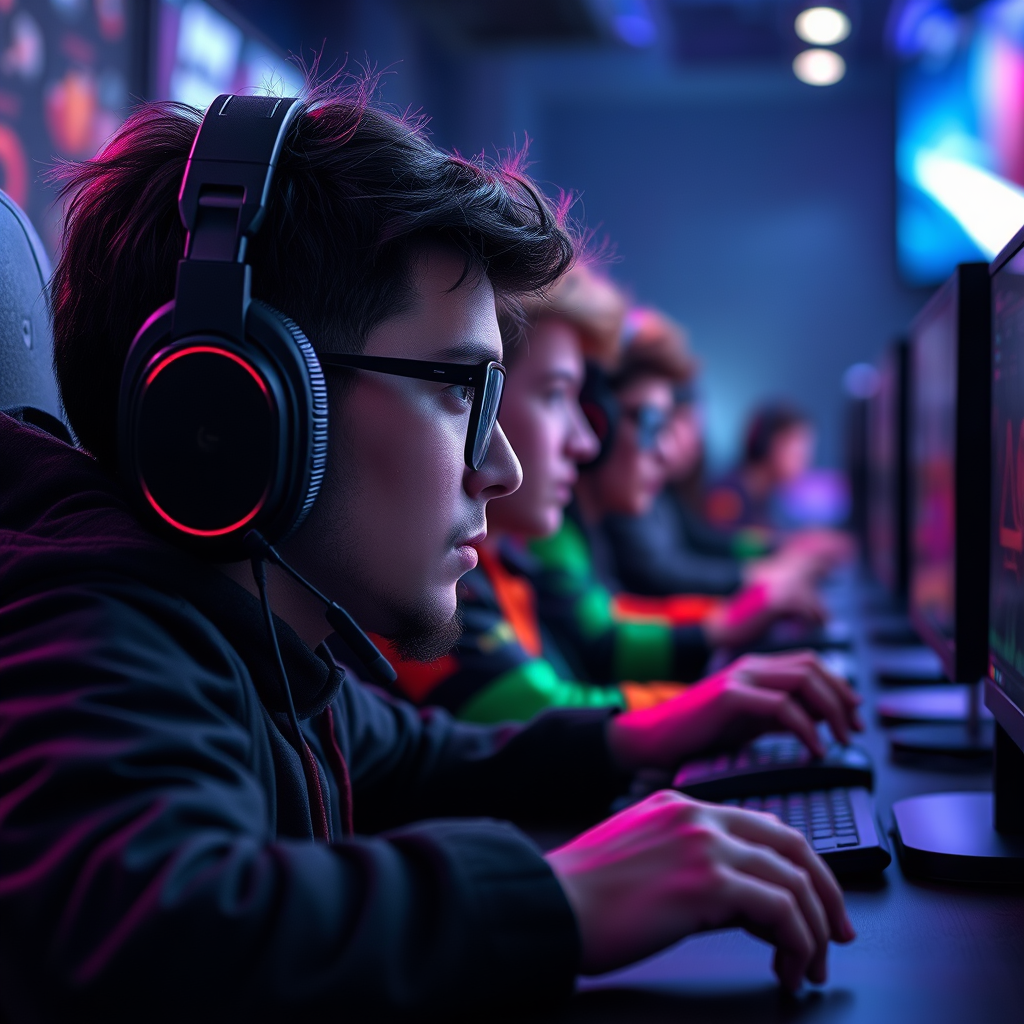

Using Raycon earbuds with Xbox One is not straightforward, as the console does not support Bluetooth audio devices directly. However, there are workarounds that can enable you to enjoy your gaming experience with Raycon earbuds. In this article, we’ll explore these options and help you determine the best way to connect your earbuds to your Xbox One, ensuring that you can immerse yourself in your gaming adventures without compromising on audio quality.
Understanding Xbox One Audio Connections
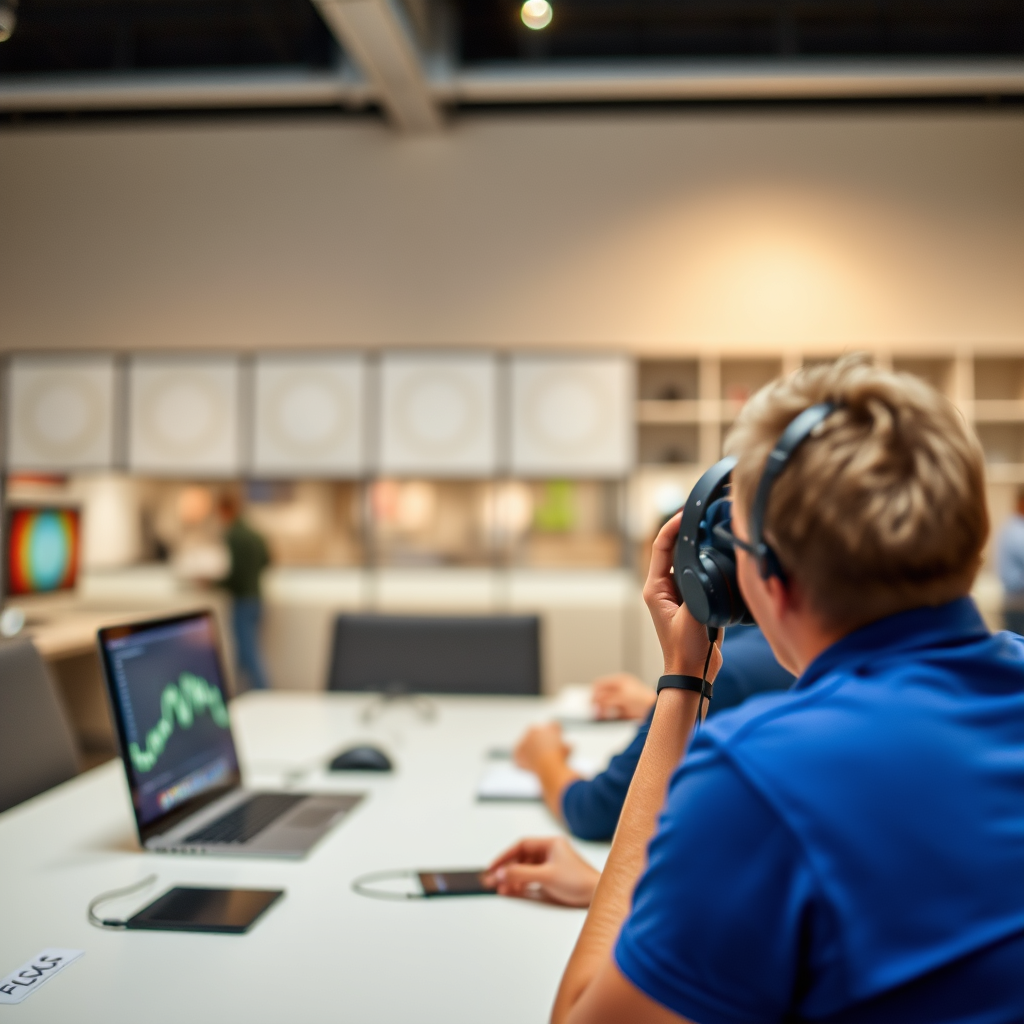
The Xbox One console has a variety of audio connection options, but it primarily supports wired headsets through the controller. This design choice means that Bluetooth audio devices, including popular wireless earbuds like Raycons, cannot be connected directly to the console for audio output. The lack of Bluetooth support is a significant limitation for gamers who prefer the convenience of wireless audio devices.
Fortunately, the Xbox One does offer alternative ways to connect audio devices. For instance, you can use a wired headset connected directly to the controller’s 3.5mm jack, which is the most straightforward method for high-quality sound during gameplay. Understanding these limitations and available options is crucial for optimizing your gaming audio experience.
Raycon Earbuds: Features and Compatibility
Raycon earbuds are designed primarily for mobile devices and Bluetooth connectivity, making them a popular choice among casual listeners and on-the-go users. They are known for their comfortable fit, decent sound quality, and stylish design. The Raycon brand emphasizes user experience, offering features such as:
– Comfortable Design: Lightweight with multiple ear tip sizes for a secure fit.
– Good Battery Life: Typically offers 6-8 hours of playback on a single charge.
– Decent Sound Quality: Balanced audio performance suitable for music and casual gaming.
However, the compatibility of Raycon earbuds with Xbox One is limited due to the console’s audio connection restrictions. While they excel in mobile environments, using them for console gaming requires additional steps to ensure a seamless connection.
Workarounds for Connecting Raycon Earbuds
While you cannot connect Raycon earbuds directly to the Xbox One, several workarounds can help you achieve a wireless audio experience. The two most effective methods include using a Bluetooth audio transmitter that connects to the Xbox One controller or utilizing the Xbox app on a mobile device.
Using a Bluetooth Audio Transmitter
A Bluetooth audio transmitter can be plugged into the Xbox One controller, allowing you to connect your Raycon earbuds wirelessly. This method provides a more straightforward audio solution without the need for extensive setups.
Xbox App for Mobile Devices
Another effective workaround is to use the Xbox app on your smartphone. By connecting your Raycon earbuds to your phone, you can enjoy in-game chat and audio through the app, albeit with some limitations in audio fidelity compared to a direct connection.
Raycon Earbuds Specifications vs. Xbox One Audio Solutions
| # | Feature | Raycon Earbuds | Xbox One Controller | Bluetooth Transmitter |
|---|---|---|---|---|
| 1 | Bluetooth Connectivity | Yes | No | Yes |
| 2 | Wired Connection | No | Yes | No |
| 3 | Audio Quality | Good | High | Moderate |
| 4 | Comfort | Excellent | N/A | Good |
| 5 | Battery Life | 6-8 hours | N/A | N/A |
| 6 | Price | $79.99 | N/A | $30-50 |
| 7 | Noise Cancellation | No | No | Varies |
Setting Up a Bluetooth Transmitter
To connect your Raycon earbuds via a Bluetooth audio transmitter, you will need to select a compatible device that easily interfaces with the Xbox One controller. Here’s how to set it up:
1. Choose the Right Transmitter: Look for a Bluetooth transmitter that supports audio output and has a 3.5mm audio jack. Popular options include the TaoTronics Bluetooth 5.0 Transmitter and the 1Mii B03 Pro.
2. Connect the Transmitter: Plug the transmitter into the 3.5mm headphone jack on your Xbox One controller.
3. Pair Your Earbuds: Activate pairing mode on your Raycon earbuds and follow the transmitter’s instructions to connect. Typically, this involves pressing a button on the transmitter until it enters pairing mode and then selecting the earbuds from the device list.
4. Adjust Settings: Once connected, you may need to adjust the audio settings on your Xbox One to ensure that sound is transmitted through the Bluetooth transmitter.
Using a Bluetooth transmitter provides a reliable solution for enjoying wireless audio from your Xbox One, allowing you to use your Raycon earbuds without being tethered to the console.
Using the Xbox App for Audio
If you prefer not to invest in additional hardware, the Xbox app provides another viable method for connecting your Raycon earbuds. Follow these steps:
1. Download the Xbox App: Ensure you have the Xbox app installed on your smartphone, available for both iOS and Android devices.
2. Create or Sign In to Your Xbox Account: Open the app and log in using your Xbox Live account credentials.
3. Connect Your Earbuds to Your Phone: Pair your Raycon earbuds with your smartphone through Bluetooth.
4. Launch the App: Once your earbuds are connected, open a game on your Xbox One while keeping the Xbox app active on your phone. You can use the app for chat and to hear game audio.
While this method may not deliver the same audio quality as a direct connection, it does allow for in-game communication and basic audio functions, making it a suitable alternative for casual gaming sessions.
Troubleshooting Common Connection Issues
When attempting to connect your Raycon earbuds to your Xbox One via a Bluetooth transmitter or the Xbox app, you may encounter some issues. Here are some common problems and their solutions:
– Earbuds Not Pairing: Ensure that your Raycon earbuds are in pairing mode. This usually requires holding down a button until you see a flashing light.
– No Audio Output: Check the volume settings on both your Xbox One and the Bluetooth transmitter. Ensure that the correct audio output is selected in the Xbox settings.
– Firmware Updates: Sometimes, connection issues can stem from outdated firmware. Check for any firmware updates for your Raycon earbuds and the Bluetooth transmitter.
– Interference: Other electronic devices can interfere with Bluetooth signals. Ensure that the transmitter is within a reasonable distance from your earbuds and that no other devices are causing disruption.
By following these troubleshooting steps, you can enhance your experience and ensure a successful connection between your Raycon earbuds and Xbox One.
Alternatives to Raycon Earbuds for Xbox One
If you find that using Raycon earbuds with your Xbox One is too cumbersome or leads to unsatisfactory audio quality, there are several alternatives worth considering:
– Gaming Headsets: Consider investing in gaming headsets specifically designed for Xbox compatibility. These headsets often come with features like surround sound and noise cancellation, providing an immersive audio experience. Brands like Turtle Beach and SteelSeries offer excellent options.
– Wired Headsets: If you prefer simplicity and reliability, wired headsets that connect directly to the Xbox One controller are a great choice. They provide high-quality audio without the hassle of pairing, and you can find models with various price points and features.
– Wireless Gaming Headsets: If you prefer wireless options, many brands offer dedicated wireless gaming headsets that connect seamlessly to Xbox consoles without the need for additional transmitters.
Exploring these alternatives can ensure that you have a superior audio experience tailored to your gaming needs.
By following these steps, you can successfully use Raycon earbuds with your Xbox One, albeit with some additional equipment or methods. If you encounter any issues or have further questions, feel free to explore additional resources or forums for assistance. Happy gaming!
Frequently Asked Questions
Can you connect Raycon earbuds to an Xbox One?
Yes, you can connect Raycon earbuds to an Xbox One, but the process requires a few steps. Since Xbox One does not support Bluetooth audio directly, you’ll need to use an Xbox Wireless Adapter or a Bluetooth transmitter that connects to the controller’s 3.5mm audio jack. Once set up, you can enjoy your games with your Raycon earbuds.
What is the best way to use Raycon earbuds with Xbox One?
The best way to use Raycon earbuds with Xbox One is by utilizing a Bluetooth adapter that plugs into the console’s USB port or a 3.5mm jack linked to the controller. This setup allows for a stable wireless connection, ensuring minimal lag and optimal audio quality during gameplay.
Why won’t my Raycon earbuds connect to my Xbox One?
Your Raycon earbuds may not connect to your Xbox One because the console lacks native Bluetooth support for audio devices. To resolve this, make sure you are using a compatible Bluetooth transmitter or adapter that can bridge the connection between your Xbox One and the earbuds.
How do I troubleshoot audio issues when using Raycon earbuds on Xbox One?
If you’re experiencing audio issues with your Raycon earbuds on Xbox One, first check the connection of your Bluetooth adapter or transmitter. Ensure it is securely plugged in and properly paired with your earbuds. Additionally, verify the audio settings on your Xbox to ensure the output is directed to the connected device.
Which Raycon earbuds are best for gaming on Xbox One?
The Raycon Everyday Earbuds are often recommended for gaming on Xbox One due to their comfortable fit, decent battery life, and good sound quality. They offer a balanced audio profile which enhances gaming sounds, and their compact design makes them easy to use for long gaming sessions without discomfort.
References
- https://www.reddit.com/r/XboxOne/comments/g1n5i2/how_to_connect_raycon_earbuds_to_xbox_one/
https://www.reddit.com/r/XboxOne/comments/g1n5i2/how_to_connect_raycon_earbuds_to_xbox_one/ - https://www.lifewire.com/how-to-connect-bluetooth-headphones-to-xbox-one-4778114
https://www.lifewire.com/how-to-connect-bluetooth-headphones-to-xbox-one-4778114 - Google Scholar Google Scholar
https://scholar.google.com/scholar?q=Raycon+earbuds+Xbox+One - Google Scholar Google Scholar
https://scholar.google.com/scholar?q=using+Bluetooth+earbuds+with+Xbox+One - Google Scholar Google Scholar
https://scholar.google.com/scholar?q=Raycon+earbuds+connectivity+issues - https://scholar.google.com/scholar?q=can+you+use+raycon+earbuds+on+xbox+one Google Scholar
https://scholar.google.com/scholar?q=can+you+use+raycon+earbuds+on+xbox+one - can you use raycon earbuds on xbox one – Search results
https://en.wikipedia.org/wiki/Special:Search?search=can+you+use+raycon+earbuds+on+xbox+one - https://www.ncbi.nlm.nih.gov/search/research-articles/?term=can+you+use+raycon+earbuds+on+xbox+one
https://www.ncbi.nlm.nih.gov/search/research-articles/?term=can+you+use+raycon+earbuds+on+xbox+one
