
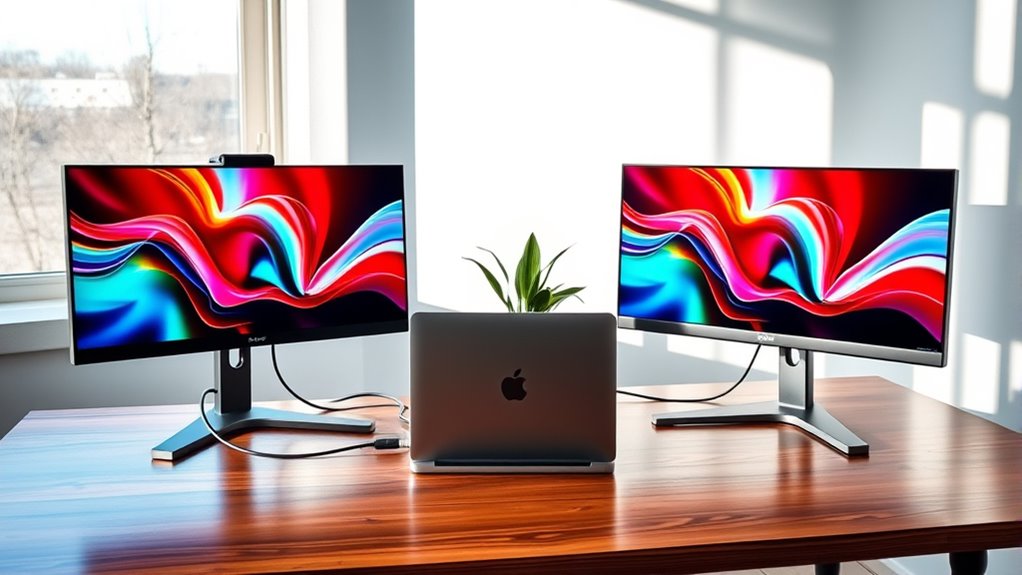

To add multiple monitors, start by evaluating your current setup, including desk space and monitor arrangement. Then, choose compatible monitors between 24 to 32 inches, ensuring they’re supported by your graphics card. Gather necessary cables like HDMI or DisplayPort for connection. Connect the monitors, arrange their placement for ideal workflow, and adjust display settings for comfort. If you encounter troubleshooting issues, there are resources available to help you enhance your experience further.
Assess Your Current Setup
Before diving into adding multiple monitors, it’s essential to assess your current setup. Start by evaluating your workspace layout. Consider the available desk space and how you’ll arrange the monitors for maximum comfort and accessibility. Next, you’ll need to assess hardware limitations. Check your computer’s graphics card capabilities to determine how many monitors it can support. Verify your ports are compatible with the monitors you plan to use. Additionally, review your power supply to confirm it can handle the extra load. By thoroughly evaluating these aspects, you’ll be better prepared to create a multi-monitor setup that enhances your productivity and provides the freedom to multitask efficiently.
Choose the Right Monitors
When choosing monitors, consider the size that best fits your workspace and how it impacts your productivity. Guarantee the resolution of your monitors is compatible with each other for a seamless experience, and pay attention to the differences in panel types, as they can affect color accuracy and viewing angles. Making informed choices here will enhance your multi-monitor setup considerably.
Monitor Size Considerations
Choosing the right monitor size is essential for an effective multi-monitor setup, as it impacts both your workspace and productivity. Here are some key considerations regarding monitor dimensions and ergonomic factors:
- Screen Size: Aim for monitors between 24 to 32 inches for a balanced experience. Larger screens can lead to neck strain if positioned incorrectly.
- Resolution: Verify that the monitor size complements the resolution. A higher resolution on a large screen enhances clarity but requires more powerful hardware.
- Desk Space: Measure your workspace to verify the monitors fit comfortably, allowing for adequate distance to avoid eye strain.
Resolution Compatibility
Monitor size considerations naturally lead to the topic of resolution compatibility, which is essential for maximizing your multi-monitor setup’s effectiveness. You’ll want to verify that the monitor types you select support compatible resolution standards. Common standards include Full HD (1920×1080), Quad HD (2560×1440), and 4K (3840×2160). When mixing monitors, aim for similar resolutions to avoid scaling issues that can disrupt your workflow. If you’re using a high-resolution monitor alongside a lower-resolution one, you may experience blurriness or stretched images. Additionally, check your graphics card capabilities; it should support the resolutions of all connected monitors. By aligning your monitors’ resolutions, you can create a seamless and productive multi-display experience.
Panel Type Differences
While you may have a clear idea of the resolutions you want, understanding panel type differences is essential for optimizing your multi-monitor setup. Different panel technologies can greatly affect your experience. Here’s what to evaluate:
- IPS (In-Plane Switching): Great color accuracy and viewing angles, ideal for design work or media consumption.
- TN (Twisted Nematic): Fast response times, making them suitable for gaming, but they often lack color richness and viewing angles.
- VA (Vertical Alignment): Offers a balance with good contrast and decent color, perfect for general use and multimedia.
Choosing the right panel types will enhance your productivity and enjoyment, making your multi-monitor experience more versatile and freeing.
Check Your Graphics Card Compatibility
Before setting up multiple monitors, it’s essential to confirm your graphics card can handle the additional displays. Start by checking your graphics card specifications to see if it supports multi monitor configurations. Many modern graphics cards offer multi monitor support, but specifics can vary widely. Look for the number of output ports available; common configurations include HDMI, DisplayPort, and VGA. Additionally, verify the maximum resolution and refresh rate your card can manage across multiple displays. If your current graphics card lacks sufficient capabilities, consider upgrading to a model that meets your needs. This assures you’ll have a seamless experience without compromising performance when you expand your workspace with multiple monitors.
Gather Necessary Cables and Adapters
Once you’ve confirmed your graphics card can support multiple displays, the next step is to gather the necessary cables and adapters. Depending on your monitors and graphics card, you’ll need to take into account various cable types and adapter options. Here’s a quick checklist to help you prepare:
- HDMI or DisplayPort Cables: Make sure you have the right cables for each monitor. HDMI is common, while DisplayPort offers higher resolutions and refresh rates.
- VGA or DVI Cables: If you’re using older monitors, you might need these cable types for compatibility.
- Adapters: Depending on your setup, you may need adapters (e.g., HDMI to DVI) to bridge connections between different formats.
Gathering these items will set you up for a seamless multi-monitor experience.
Connect the Monitors
To connect your monitors, start by plugging each cable into the corresponding port on your graphics card. Depending on your setup, you might use HDMI, DisplayPort, DVI, or VGA cables. Make certain each monitor connection is secure to avoid any display issues. Once connected, power on your monitors. You may need to check that each display is recognized by your system. For peak performance, consider the order and positioning of your monitors; this can affect your display configurations. If you’re using multiple graphics cards, connect the monitors to the primary card to streamline performance. With the right monitor connections established, you’re ready to move on to configuring your displays for enhanced productivity and freedom in your workspace.
Configure Display Settings
Configuring display settings is essential for optimizing your multi-monitor setup. You’ll want to adjust key options to guarantee a seamless experience across your screens. Here are three critical steps:
- Display Orientation Settings: Choose between landscape or portrait modes based on your tasks. Portrait mode’s great for reading documents, while landscape is ideal for spreadsheets and gaming.
- Dual Display Modes: Decide whether to extend your desktop or duplicate it. Extending allows for more workspace, while duplicating mirrors your primary screen.
- Resolution Adjustment: Confirm each monitor runs at its native resolution for crisp visuals. Mismatched resolutions can cause visual discomfort and hinder productivity.
Taking time to fine-tune these settings will release the full potential of your multi-monitor configuration.
Arrange Monitor Placement
Arranging monitor placement is essential to maximizing comfort and productivity in your workspace. Start by considering monitor ergonomics; the top of your screens should be at eye level to reduce neck strain. Position monitors about an arm’s length away, guaranteeing that you can easily view all screens without excessive head movement.
For better desktop aesthetics, align your monitors in a way that feels visually pleasing. A slight angle can enhance accessibility while maintaining a cohesive look. If you’re using multiple monitors, make certain they’re of similar sizes and heights to avoid distraction. Finally, keep cables organized to enhance the overall appearance and functionality of your workspace. Prioritizing these factors will lead to a more efficient and enjoyable working environment.
Optimize Your Workflow
With multiple monitors, you’ll gain increased screen real estate that allows for better visibility of your work. This setup enhances your multitasking capabilities, letting you manage different applications simultaneously without constant window switching. Additionally, streamlined project management tools can be more effectively utilized across screens, improving your overall productivity.
Increased Screen Real Estate
Expanding your screen real estate can markedly enhance your workflow and productivity. With multiple monitors, you can achieve a significant productivity boost and improve workspace organization. Here are three key benefits:
- Visual Clarity: More screens allow for clearer visibility of multiple applications, reducing the need to toggle between windows.
- Task Segmentation: You can dedicate each monitor to specific tasks, such as research on one screen and document editing on another, keeping your focus intact.
- Enhanced Collaboration: With extra screens, sharing information during video calls or presentations becomes seamless, improving communication.
Enhanced Multitasking Capabilities
If you’ve ever found yourself overwhelmed by juggling multiple tasks on a single screen, adding extra monitors can greatly enhance your multitasking capabilities. With additional screens, you can easily distribute your workflows, allowing for a significant productivity boost. Imagine having your email open on one monitor while working on a report on another; this setup promotes seamless task organization and reduces the time spent switching between applications. You can dedicate each screen to specific projects or tasks, which minimizes distractions and keeps you focused. This arrangement empowers you to manage complex projects more effectively and gives you the freedom to customize your workspace according to your needs. Embrace the efficiency of multiple monitors and watch your productivity soar.
Streamlined Project Management Tools
As you incorporate multiple monitors into your workspace, you’ll find that streamlined project management tools can greatly optimize your workflow. These tools enhance efficiency, especially in project tracking and task delegation. Here are three essentials to contemplate:
- Centralized Dashboard: Use tools that aggregate all project data, allowing you to monitor progress at a glance without switching screens.
- Collaborative Task Management: Implement platforms that enable seamless task delegation among team members, fostering accountability and transparency.
- Integrations: Opt for tools that integrate with other software you use, ensuring effortless data flow and minimizing disruptions.
Troubleshoot Common Issues
When setting up multiple monitors, you may encounter several common issues that can disrupt your experience. First, check for display issues, such as screens not being detected. Make sure all cables are securely connected and that your graphics card supports multiple displays. If you’re facing connection problems, try swapping cables or ports to identify any faulty components. You might also need to adjust display settings in your operating system to extend or duplicate your screens correctly. If one monitor is flickering or showing odd colors, updating your graphics drivers can often resolve the issue. Finally, keep an eye on power settings, as some systems may automatically disable a monitor after a period of inactivity.
Explore Software Options for Multi-Monitor Management
How can you enhance your multi-monitor setup with software? Utilizing the right tools can greatly improve your workflow and display management. Here are three options to reflect on:
Enhancing your multi-monitor setup with the right software tools can significantly boost your workflow and streamline display management.
- Virtual Desktop Tools: These allow you to create separate workspaces, making it easier to organize your tasks across multiple screens.
- Display Management Software: This type of software helps you control resolution, orientation, and arrangement of your monitors, ensuring a superior experience tailored to your needs.
- Window Management Applications: They enable quick snapping and resizing of windows, so you can efficiently manage your workspace without clutter.
Frequently Asked Questions
Can I Use Monitors of Different Resolutions Together?
Yes, you can use monitors of different resolutions together. Just verify monitor compatibility. Resolution scaling may affect display quality, so adjust settings for best performance, allowing you the freedom to customize your workspace effectively.
How Do I Extend My Desktop Across Multiple Monitors?
To extend your desktop across multiple monitors, right-click on the desktop, select “Display settings,” and adjust the display arrangement. Make sure each monitor’s resolution is compatible for ideal performance and a seamless experience.
Will Adding Monitors Slow Down My Computer?
Adding monitors doesn’t necessarily slow your computer down. Think of it like a busy highway; more lanes mean better traffic flow. Just make certain your system’s resource allocation can handle the extra demands for peak performance.
Can I Mix Different Brands of Monitors?
Yes, you can mix different brands of monitors, as long as they share compatible connections and resolutions. However, brand performance may vary, potentially affecting your overall experience. Guarantee consistency for ideal functionality across displays.
What Is the Maximum Number of Monitors I Can Connect?
You can typically connect up to six monitors, depending on your graphics card and available connection types. Make sure your monitors are compatible and check for sufficient ports to maximize your setup’s potential.
