
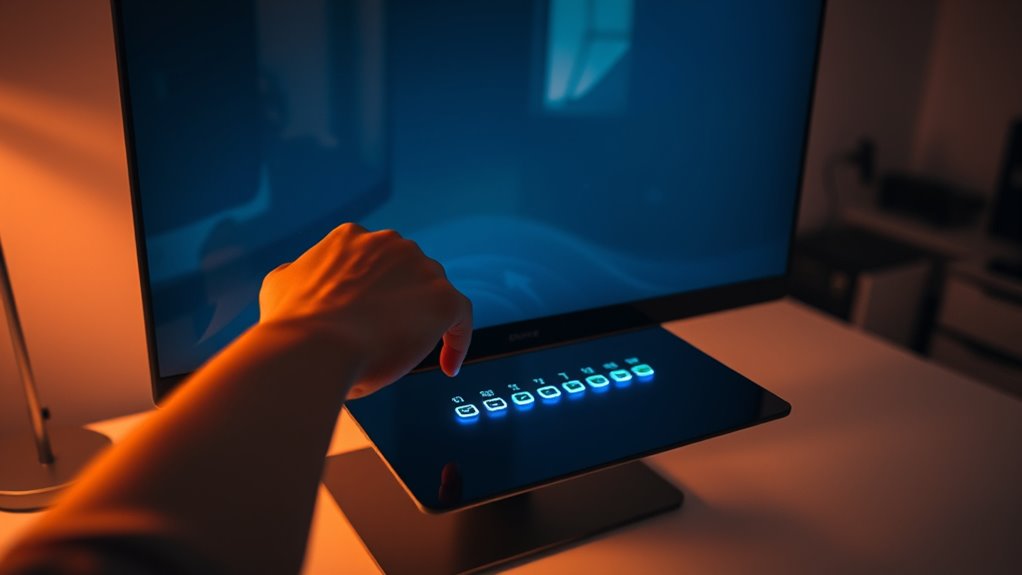

To adjust your monitor’s brightness, use the physical buttons on the monitor or access the on-screen menu. If you’re on Windows, press Windows key + A for quick adjustments, or go to Settings > System > Display. For macOS, use the F1 and F2 keys or adjust under System Preferences in Displays. Make sure to match the brightness to your environment for comfort. There’s more to optimizing your viewing experience, so keep exploring!
Understanding Monitor Brightness Settings
When you’re adjusting your monitor’s brightness, it’s important to understand the various settings available. You’ll often find options for brightness and contrast, which play a significant role in how images appear on your screen. Monitor calibration helps guarantee that colors are accurate and consistent, enhancing your viewing experience.
Start by adjusting the brightness to suit your environment; a brighter setting works well in well-lit rooms, while a lower setting may be ideal for dimmer spaces. Contrast, on the other hand, affects the difference between light and dark areas. Balancing these settings can reduce eye strain and improve clarity, allowing you the freedom to enjoy your content without discomfort. Remember, finding the right settings enhances your overall experience.
Adjusting Brightness on Windows
Adjusting brightness on Windows is a straightforward process, and it can make a significant difference in your viewing comfort. To begin, you can use brightness shortcuts, such as the Windows key + A to open the Action Center, where you’ll find a slider to adjust brightness easily. If you’re looking for more precise control, go to Settings > System > Display, and you’ll see additional options for screen calibration. This allows you to set the brightness level that suits your environment best. Remember, proper brightness not only enhances your experience but also reduces eye strain. So take a moment to fine-tune your settings and enjoy a more comfortable visual experience on your Windows monitor.
Adjusting Brightness on Macos
If you’re using macOS, adjusting your monitor’s brightness can be done quickly through a few simple steps. You can easily tweak the brightness using keyboard shortcuts; just press the F1 key to decrease brightness and the F2 key to increase it. This method is fast and convenient, giving you immediate control.
Alternatively, you can adjust brightness through the display settings. To do this, click the Apple menu, go to System Preferences, and select Displays. You’ll find a brightness slider that lets you fine-tune your screen to your liking. Whether you’re working in a dim room or bright sunlight, these options guarantee you’ve got the right brightness for any situation. Enjoy the freedom to customize your viewing experience!
Modifying Brightness on External Monitors
Modifying brightness on external monitors can enhance your viewing experience considerably. To get the best results, you might want to take into account external monitor calibration. This guarantees the colors and brightness reflect what you intend to see.
Here’s a quick guide:
| Method | Description |
|---|---|
| Manual Adjustment | Use the physical buttons on your monitor. |
| On-Screen Menu | Access the monitor’s settings menu to adjust brightness. |
| Brightness Control Software | Use software like f.lux or DisplayCAL for more control. |
| Operating System Settings | Check your OS settings for monitor brightness options. |
| Graphic Card Settings | Adjust brightness through your graphic card control panel. |
Experiment with these methods and don’t hesitate to utilize brightness control software for precise adjustments!
Tips for Optimal Brightness Levels
Finding the right brightness level can greatly impact your comfort and productivity while using a monitor. To avoid eye strain, aim for a brightness that complements your environment. If you’re in a well-lit room, brighter settings can help, but in darker spaces, lower brightness is key. Use calibration tools to enhance color accuracy, ensuring that images and text appear true to life. Adjust your brightness based on the task at hand; for detailed work, slightly lower brightness may reduce glare and enhance clarity. Consider taking breaks to give your eyes a rest, especially if you notice discomfort. Ultimately, striking the right balance between brightness and your surroundings will lead to a more enjoyable viewing experience.
Frequently Asked Questions
Can Bright Screens Cause Eye Strain or Discomfort?
Yes, bright screens can cause eye strain and discomfort, especially with screen glare. It’s important to adjust brightness levels and take breaks to reduce strain and enhance your comfort while using digital devices.
Does Ambient Lighting Affect Perceived Monitor Brightness?
Yes, ambient light dramatically influences how your monitor’s brightness appears. If you’re in a dimly lit room, your screen might look brighter than it is. Adjust your monitor settings to balance this effect for ideal viewing.
Are There Health Risks Associated With High Brightness Levels?
Yes, high brightness exposure can lead to visual fatigue, causing discomfort and strain. It’s important to find a balance that keeps your eyes comfortable, allowing you to enjoy your screen time without unnecessary stress.
Can I Use Software to Adjust Brightness Automatically?
“Where there’s a will, there’s a way.” Yes, you can use brightness adjustment tools and software calibration to automatically adjust your monitor’s brightness, enhancing your viewing experience while reducing eye strain and improving comfort.
What Is the Ideal Brightness for Gaming Versus Reading?
For gaming, you’ll want higher brightness to enhance detail and immersion, while reading requires lower brightness to reduce eye strain. Finding the right balance can improve your experience, so adjust accordingly for each activity.
