
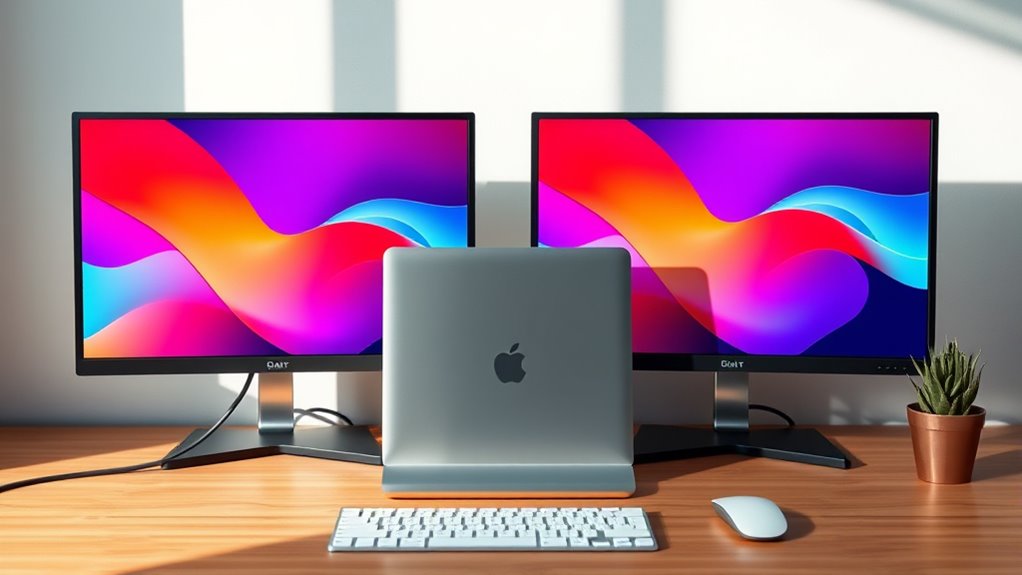

To connect dual monitors, first check your computer’s video ports and graphics card compatibility. Then, select appropriate cables like HDMI or DisplayPort depending on your monitors. Securely connect each monitor to the computer, ensuring everything is properly aligned and connected. Next, configure display settings in your operating system, adjusting resolutions and arranging screens as needed. If any issues arise, verify connections and update graphics drivers. There’s plenty more to explore regarding setup and optimization.
Understanding the Benefits of Dual Monitors
When you consider enhancing your workspace, dual monitors can greatly boost your productivity and efficiency. By providing more screen real estate, you’ll find that tasks are completed faster and more accurately. With dual monitors, you can have multiple applications open simultaneously, allowing for enhanced multitasking. For instance, you might view a video conference on one screen while taking notes on the other. This setup minimizes the time spent switching between windows, leading to increased productivity. Furthermore, dual monitors facilitate better organization of your work, making it easier to access information quickly. Ultimately, adopting this configuration not only improves workflow but also gives you the freedom to manage tasks with greater ease and effectiveness.
Checking Your Computer’s Compatibility
Before connecting dual monitors, you need to check your computer’s compatibility. Start by identifying the available video ports on your device, as these will determine the types of connections you can use. Next, verify your graphics card’s specifications to guarantee it supports multiple displays.
Identify Video Ports
To successfully connect dual monitors, you’ll first need to identify the video ports available on your computer. Start by inspecting the back or sides of your machine for various video port types, such as HDMI, DisplayPort, DVI, or VGA. Each port has a distinct shape and size, making port identification straightforward. If your monitors support multiple connections, check which ports they offer as well. Understanding these video port types is essential for ensuring compatibility. You may need adapters if your computer’s ports don’t match your monitors. Take note of the specifications for both your computer and monitors, so you can choose the right cables and adapters for a seamless dual-monitor setup.
Check Graphics Card
After identifying the video ports on your computer and monitors, the next step is to check your graphics card’s compatibility with dual monitors. Different graphics card types can greatly impact performance, so it’s crucial to verify your card supports multiple displays.
| Graphics Card Type | Max Monitors Supported | Performance Impact |
|---|---|---|
| Integrated | 2 | Low |
| Entry-Level | 2-3 | Moderate |
| Mid-Range | 3-4 | High |
| High-End | 4+ | Very High |
| Professional | 4+ | Extreme |
Selecting the Right Cables and Adapters
To connect dual monitors effectively, you need to understand the different cable types available, such as HDMI, DisplayPort, and VGA. Additionally, it’s essential to check the compatibility of any adapters you might require to bridge the gap between your monitors and computer. By ensuring you have the right cables and adapters, you’ll optimize your dual-monitor setup for performance and functionality.
Cable Types Overview
When setting up dual monitors, selecting the right cables and adapters is essential for ensuring ideal performance and compatibility. You’ll often come across HDMI cables, which support high-definition video and audio, making them a popular choice for modern displays. If you’re looking for higher refresh rates, DisplayPort cables are your best bet, offering superior bandwidth. For older monitors, VGA connections might still be in play, though they provide lower quality compared to digital options. DVI connections can also be viable, delivering better image quality than VGA but not as versatile as HDMI or DisplayPort. Understanding these cable types will help you make informed decisions, ensuring your dual monitor setup operates smoothly and efficiently.
Adapter Compatibility Check
Choosing the right cables often goes hand in hand with ensuring adapter compatibility. To connect dual monitors seamlessly, you need to identify the adapter types that match your devices. Check if your monitors have HDMI, DisplayPort, or VGA inputs, and confirm what output ports your computer offers. Compatibility issues can arise if the adapter doesn’t support the resolution or refresh rate of your monitors. For instance, using a passive adapter may limit performance compared to an active one. Always verify that your adapters are rated for the resolutions you plan to use, especially for 4K displays. By ensuring proper compatibility, you can enjoy a smooth dual-monitor setup without frustrating interruptions.
Connecting Your Monitors
Connecting dual monitors can greatly enhance your productivity by providing additional screen space for multitasking. Begin by positioning your monitors according to your preferred monitor arrangement. This could mean placing them side by side or one above the other, depending on your workspace. Once you’ve decided on the arrangement, connect each monitor to your computer using the appropriate cables—HDMI, DisplayPort, or VGA. Verify that all connections are secure. After connecting, power on your monitors and check for proper display alignment. It’s vital that the screens are level and aligned for a seamless experience. With everything connected, you’re now set to enjoy a more efficient workflow, allowing you to utilize both screens to their fullest potential.
Configuring Display Settings
Configuring display settings for your dual monitors is essential to optimize your viewing experience. First, access your display settings through your operating system—either Windows or macOS. Here, you’ll want to adjust the display resolution for each monitor. Aim for the native resolution for the best clarity and performance. Next, focus on monitor alignment. You can arrange the displays in your settings to reflect their physical positions—side by side or stacked vertically. This guarantees that your mouse moves seamlessly between screens. Don’t forget to choose your primary display, typically the one where your taskbar or dock resides. With these adjustments, you’ll enhance productivity and enjoy a more efficient workspace tailored to your needs.
Troubleshooting Common Issues
Even after setting up your dual monitors and adjusting the display settings, you might encounter some common issues. One frequent problem is a lack of connection between the monitors. Check all cables to verify they’re securely connected; loose or damaged cables can lead to display failures. If one monitor isn’t detected, try switching the ports or using a different cable.
You may also face display resolution issues, where one monitor doesn’t match the desired resolution. Right-click on the desktop, select “Display settings,” and adjust the resolution for each screen individually. If problems persist, updating your graphics drivers could resolve compatibility issues. By troubleshooting these common problems, you can achieve a seamless dual monitor experience.
Frequently Asked Questions
Can I Use Different Monitor Brands Together?
Yes, you can use different monitor brands together. Just verify monitor compatibility regarding resolution and refresh rates. Brand differences may affect color accuracy and display quality, so consider those factors for the best experience.
Will Dual Monitors Affect My Computer’s Performance?
Yes, dual monitors can affect your computer’s performance, particularly if your graphics card isn’t powerful enough. You’ll likely notice a performance impact during intensive tasks, so make certain your hardware meets the demands of multiple displays.
How Do I Set Different Resolutions for Each Monitor?
You’ll want to immerse yourself in your resolution settings, adjusting each monitor individually. Tweak display scaling to guarantee clarity and comfort, like tailoring a suit. This gives you freedom to create a workspace that truly suits you.
Can I Connect More Than Two Monitors?
Yes, you can connect more than two monitors if your hardware supports it. Just make sure your graphics card can handle multiple monitor setups, and check for any potential monitor compatibility issues to avoid performance problems.
Is There a Maximum Distance Between the Monitors?
There isn’t a strict maximum distance between monitors, but monitor placement should consider cable length. Longer cables can cause signal degradation, so aim for distances that maintain display quality while allowing flexibility in your setup.
