
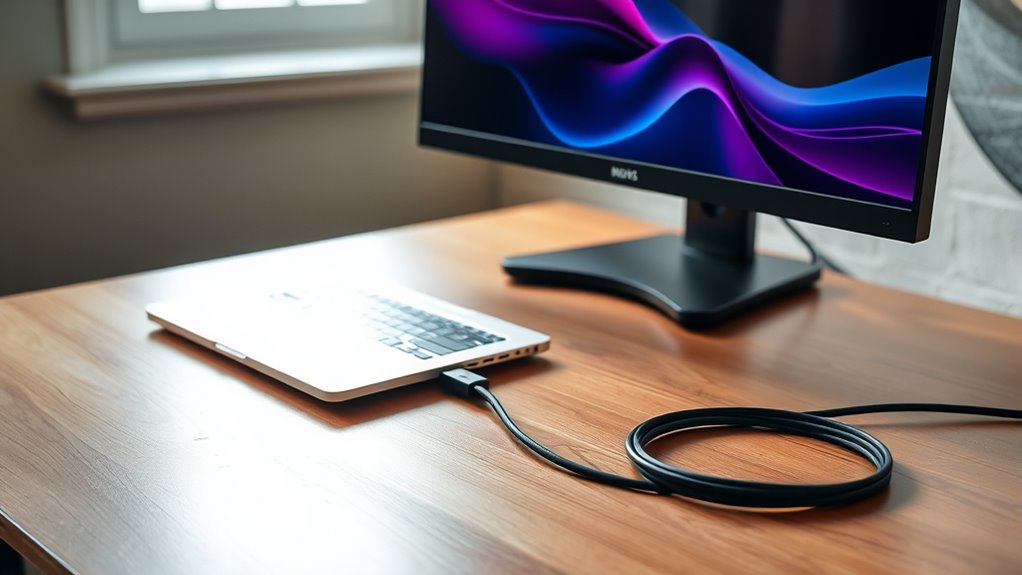

To connect your laptop to a monitor, identify compatible ports on both devices, like HDMI or USB-C. Gather the necessary cables and adapters, ensuring they’re the right type. Connect the laptop to the monitor securely, then power on the monitor—your laptop should detect it automatically. If it doesn’t, restart your laptop. Next, configure your display settings to optimize resolution and scaling. There are tips available for better setup and usage to enhance your experience.
Understanding the Different Types of Monitor Connections
When you’re looking to connect your laptop to a monitor, it’s essential to understand the different types of monitor connections available. There are several monitor types and connection standards you should be aware of. HDMI is a popular choice, offering high-quality audio and video in one cable. DisplayPort is another versatile option, often found in gaming monitors for its higher refresh rates. VGA and DVI are older standards, primarily for legacy devices, but may still serve your needs. USB-C is gaining traction, especially with newer laptops, as it supports video output and data transfer in one connection. Knowing these options will empower you to choose the best setup for your workspace, giving you the freedom to enhance your productivity.
Gathering the Necessary Cables and Adapters
Before you connect your laptop to a monitor, you need to gather the right cables and adapters. Start by identifying the ports on both your laptop and the monitor to guarantee compatibility. Once you know what you need, you can choose the appropriate cables and consider any necessary adapters.
Identify Required Ports
To successfully connect your laptop to a monitor, you’ll need to identify the required ports on both devices. Start by checking your laptop for common connection options like HDMI, DisplayPort, or USB-C. USB-C compatibility has become increasingly popular, offering a versatile connection that can carry both video and power. If your monitor doesn’t support USB-C, look for HDMI alternatives or other ports it may have. Familiarizing yourself with these options guarantees you won’t encounter unexpected roadblocks. Keep in mind that some laptops may require adapters for specific connections, especially if you’re using older monitors. Knowing your ports upfront will streamline the process and give you the freedom to choose the best setup for your needs.
Choose Appropriate Cables
Once you’ve identified the ports available on your laptop and monitor, it’s time to gather the necessary cables and adapters. First, consider the cable types that fit your devices—commonly HDMI, DisplayPort, VGA, or USB-C. Each port requires a specific cable, so make certain you pick the right one. Next, think about cable lengths. You’ll want a length that comfortably reaches from your laptop to the monitor without being too tight or creating a tripping hazard. If you’re using a desk setup, a longer cable may offer more flexibility. Don’t forget to check the quality of the cables; investing in a durable option can enhance your viewing experience and guarantee a reliable connection.
Consider Adapter Options
While you may have the right cables for your laptop and monitor, you might still need adapters to confirm compatibility. Different devices often use various connection types, so it’s crucial to check your laptop’s output and your monitor’s input. Look for adapters that guarantee maximum adapter compatibility with both devices. For instance, if your laptop has a USB-C port and your monitor uses HDMI, you’ll need a USB-C to HDMI adapter.
Don’t overlook adapter quality; investing in a reputable brand can prevent connectivity issues and guarantee a stable signal. Poor-quality adapters can lead to resolution problems or even complete connection failures. Take the time to research your options, and you’ll enjoy a smooth experience when connecting your laptop to the monitor.
Connecting Your Laptop to the Monitor
Connecting your laptop to a monitor can enhance your productivity and create a more comfortable workspace, especially if you’re juggling multiple tasks. First, check your laptop display options and determine the type of ports available—HDMI, USB-C, or DisplayPort are common. Next, verify that your monitor is compatible with your laptop’s output. If the ports don’t match, you may need an adapter. Once you’ve got the right cables or adapters, connect them securely. Turn on the monitor and your laptop should automatically detect it. If it doesn’t, a quick restart might help. With everything connected, you’ll enjoy a larger screen for multitasking, making work feel less cramped and more efficient.
Configuring Display Settings on Your Laptop
Once your laptop is connected to the monitor, it’s important to configure the display settings for the best experience. You’ll want to adjust the screen resolution to match your monitor’s capabilities and choose the display mode that works best for your needs. Let’s explore how to make these adjustments effectively.
Adjusting Screen Resolution
Adjusting screen resolution is essential for enhancing your viewing experience when connecting a laptop to a monitor. You’ll want to access your resolution settings, typically found in the display options of your operating system. Once there, you can choose the resolution that best fits your monitor’s capabilities. Higher resolutions can provide sharper images, but if they make text too small, consider adjusting the screen scaling to improve readability. This way, you achieve a perfect balance between clarity and comfort. Remember, every monitor has a native resolution, which is often the best choice for peak performance. Don’t hesitate to experiment a bit to find what works best for you and your setup. Enjoy your enhanced viewing experience!
Choosing Display Mode
How can you effectively configure your display settings when connecting a laptop to a monitor? Start by right-clicking on your desktop and selecting “Display settings.” Here, you’ll find options to adjust your display preferences. For a dual display setup, choose either “Extend” or “Duplicate.” Extending allows you to spread your workspace across both screens, while duplicating mirrors your laptop’s display on the monitor. Select the display you want to change, and adjust the resolution or orientation as needed. Don’t forget to apply your changes and check if everything looks right. By customizing these display modes, you’ll enhance your productivity and enjoy a more tailored experience that fits your unique workflow.
Adjusting Resolution and Refresh Rate
When connecting your laptop to a monitor, it’s essential to verify that the display settings match your needs for ideal viewing. You’ll want to guarantee proper resolution scaling and refresh rate adjustment for the best experience. Here’s how to set it up:
When connecting your laptop to a monitor, ensure display settings align with your viewing preferences for optimal performance.
- Access Display Settings: Right-click on your desktop and select “Display settings.”
- Choose Resolution: Scroll to “Resolution” and select the recommended resolution for your monitor.
- Adjust Refresh Rate: Find the “Advanced display settings” option, and adjust the refresh rate according to your monitor’s specifications.
- Apply Changes: Click “Apply” to save your settings, and check that the display looks good before finalizing.
This guarantees a smooth visual experience while using your laptop with an external monitor.
Using Multiple Monitors for Enhanced Productivity
Using multiple monitors can greatly boost your productivity, especially if you often juggle several tasks at once. By leveraging dual display benefits, you can expand your digital workspace, allowing you to view multiple applications simultaneously. This setup enhances your increased workflow, as you won’t waste time switching between tabs or windows. Imagine having your email open on one screen while working on a document on another; it’s a game-changer. Plus, you can easily compare data or reference materials without losing focus. Setting up two or more monitors may seem challenging, but the payoff in efficiency is worth it. Embrace the freedom that comes with a multi-monitor setup, and watch your productivity soar!
Troubleshooting Common Connection Issues
Many users encounter connection issues when trying to link their laptop to a monitor, but these problems are often easy to fix. Here are some common troubleshooting steps to resolve connection errors:
Connection issues between laptops and monitors are common but typically straightforward to resolve with the right troubleshooting steps.
- Check Cable Compatibility: Verify the cable you’re using matches both your laptop and monitor ports (e.g., HDMI, DisplayPort).
- Inspect Connections: Make sure all connections are secure and properly seated in their ports.
- Adjust Display Settings: Go to your laptop’s display settings and verify the monitor is detected and set to the correct display mode.
- Update Drivers: Keeping your graphics drivers up-to-date can fix many connection errors.
Tips for Optimal Monitor Setup and Usage
Here’s a quick reference table:
| Tip | Explanation |
|---|---|
| Height | Align the top of the screen with your eyes. |
| Distance | Keep 20-30 inches between your eyes and screen. |
| Angle | Tilt the monitor slightly backward for comfort. |
| Lighting | Avoid glare by positioning away from windows. |
Following these guidelines will enhance your productivity and guarantee a comfortable workspace. Enjoy your newfound freedom!
Frequently Asked Questions
Can I Use a TV Instead of a Monitor for My Laptop?
Yes, you can use a TV instead of a monitor for your laptop. Just verify the TV’s compatibility and check its screen resolution for ideal display quality. It’s a flexible option for larger viewing experiences.
How Do I Switch Between Multiple Connected Monitors?
Switching between multiple monitors is easy! Just right-click on your desktop, choose “Display settings,” and explore the monitor settings under “Display options.” You’ll find how to arrange and select your preferred display effortlessly.
Will Connecting a Monitor Drain My Laptop’s Battery Faster?
Yes, connecting a monitor can drain your laptop’s battery faster. To manage power effectively, adjust your display settings and enable battery optimization features. This helps maintain performance while extending your laptop’s battery life.
Can I Use a Wireless Connection for My Monitor?
Absolutely, you can embrace the freedom of wireless technology for your monitor, provided it’s compatible. Just verify your laptop supports this feature, and you’ll enjoy a clutter-free workspace without the cords holding you back.
What Should I Do if My Monitor Is Not Detected?
If your monitor isn’t detected, check your connections and cables first. Restart both devices, update drivers, and try different ports. If issues persist, consult monitor troubleshooting guides for further solutions to connection issues.
