
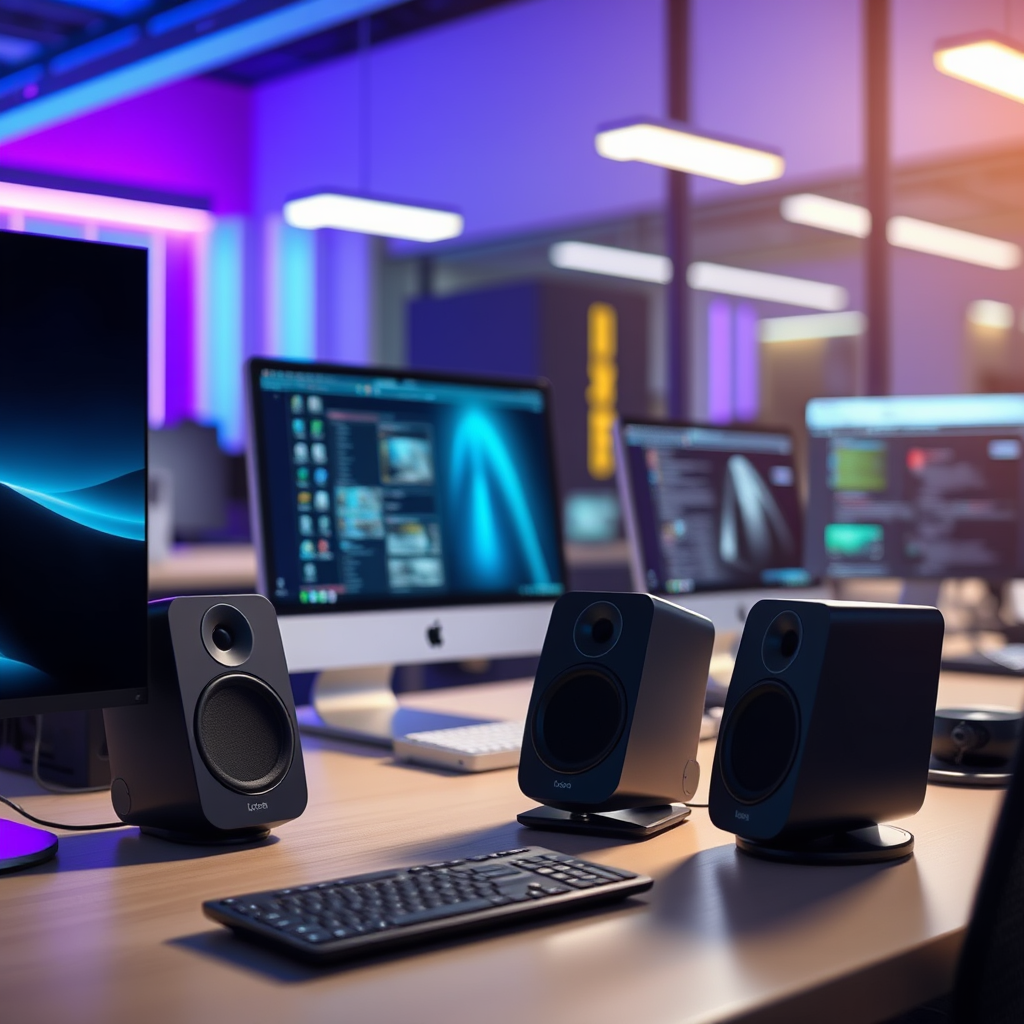

Connecting Logitech speakers to your PC is a straightforward process that typically involves plugging in the speakers to the correct ports and adjusting settings. This guide will walk you through the steps for both wired and wireless connections, ensuring you can enjoy high-quality audio from your computer without any hassle.
Understanding Your Logitech Speakers
Before diving into the connection process, it’s essential to understand the type of Logitech speakers you own. Logitech offers a diverse range of audio products, primarily categorized into wired and wireless speakers. Wired speakers typically connect via an audio cable, often utilizing a 3.5mm audio jack or USB port. On the other hand, wireless speakers use Bluetooth technology for connectivity, allowing for a clutter-free setup.
Identifying the specific ports available on your speakers is crucial. Common ports include:
– 3.5mm Audio Jack: Most traditional speakers use this for audio input.
– USB Port: Often found in powered speakers, this port can provide both audio and power.
– Bluetooth: For wireless speakers, this feature allows them to connect to your PC without physical cables.
Understanding these aspects will help streamline the connection process and enhance your audio experience.
Preparing Your PC
To ensure a smooth connection with your Logitech speakers, your PC must be properly configured. Begin by checking your computer’s audio output options. Most modern PCs support multiple audio outputs, including headphone jacks, USB ports, and Bluetooth connectivity.
Next, ensure that your operating system is updated. An updated OS not only improves compatibility with audio devices but also enhances overall system performance. Windows and macOS regularly release updates that include drivers and patches for audio devices. By keeping your system current, you can avoid potential issues when connecting Logitech speakers.
Connecting Wired Logitech Speakers
Connecting wired Logitech speakers to your PC is a simple process. Follow these steps closely:
1. Identify the Audio Cable: Locate the 3.5mm audio cable that typically comes with your Logitech speakers.
2. Plug the Cable into Your PC: Insert the 3.5mm audio plug into the headphone jack or the designated audio output port on your computer. Ensure a firm connection to avoid audio disruptions.
3. Connect Power to the Speakers: If your speakers require power, plug them into an electrical outlet using the provided power adapter.
4. Switch On the Speakers: Turn on the speakers using the power button, which is usually located on the speaker unit itself.
Once you’ve completed these steps, the speakers should be ready to use. You can test the audio output by playing a sound file or video.
Connecting Wireless Logitech Speakers
Connecting wireless Logitech speakers involves a few additional steps, primarily focused on Bluetooth pairing. Here’s how to do it effectively:
1. Activate Bluetooth on Your PC: Navigate to your PC’s settings and turn on Bluetooth. This can typically be found in the “Devices” section of the settings menu.
2. Put the Speakers in Pairing Mode: Most Logitech wireless speakers have a dedicated button or a combination of buttons that enable pairing mode. Refer to your speaker’s manual if you’re unsure.
3. Select the Speakers from Available Devices: On your PC, you should see a list of available Bluetooth devices. Find your Logitech speakers in the list and select them to initiate the connection.
4. Connect: Once selected, your PC may prompt you to confirm the connection. Accept the prompt, and your speakers should now be connected.
After successfully pairing, you can enjoy music, videos, and games with superior sound quality.
Top 7 Logitech Speakers Comparison (2023)
| # | Model | Type | Power Output | Bluetooth | Price |
|---|---|---|---|---|---|
| 1 | Logitech Z623 | Wired | 200W | No | $149.99 |
| 2 | Logitech Z906 | Wired | 500W | No | $399.99 |
| 3 | Logitech MX Sound | Wireless | 24W | Yes | $99.99 |
| 4 | Logitech G560 | Wireless | 240W | Yes | $199.99 |
| 5 | Logitech Z337 | Wireless | 80W | Yes | $129.99 |
| 6 | Logitech Z313 | Wired | 40W | No | $59.99 |
| 7 | Logitech S150 | Wired | 2W | No | $29.99 |
Adjusting Sound Settings
Once your Logitech speakers are connected, it is essential to adjust your computer’s sound settings for optimal performance. Access your computer’s sound settings, which can typically be found in the Control Panel for Windows users or System Preferences for macOS users.
1. Set the Speakers as Default Output Device: Ensure that your Logitech speakers are selected as the default playback device. This step is critical for ensuring that all audio output from your PC is routed through the speakers.
2. Adjust Volume Levels: Set the volume on both your PC and the speakers to a comfortable level. It’s advisable to start at a lower volume and gradually increase it to avoid sudden loud sounds that might damage the speakers.
3. Explore Sound Enhancements: Depending on your operating system, you may have access to sound enhancement features such as equalizers or spatial sound settings. Experimenting with these options can help you achieve a more immersive audio experience tailored to your preferences.
Troubleshooting Common Issues
Despite the straightforward connection process, you may encounter issues while setting up your Logitech speakers. Here are some common problems and their solutions:
– No Sound: If you hear no audio from your speakers, double-check all connections. Ensure that the audio cable is securely plugged in and that the speakers are powered on.
– Connectivity Issues: For wireless connections, if your speakers fail to connect, try restarting your PC and re-pairing the speakers. Ensure that Bluetooth is enabled and that the speakers are in pairing mode.
– Driver Issues: Occasionally, outdated or missing audio drivers can lead to connectivity problems. Visit the Logitech website to download and install the latest drivers for your speakers.
By following these troubleshooting steps, you can quickly resolve most issues that may arise during the setup process.
Maintaining Your Logitech Speakers
To ensure the longevity and performance of your Logitech speakers, regular maintenance is key. Here are some tips to keep your speakers in top condition:
– Cleaning: Dust and debris can accumulate on your speakers over time, affecting sound quality. Use a soft, dry cloth to gently clean the surfaces of your speakers. Avoid using liquids that could damage the electronic components.
– Software Updates: Regularly check for software or firmware updates from Logitech. These updates can improve functionality and address any bugs or performance issues.
– Proper Storage: If you don’t use your speakers frequently, store them in a cool, dry place, away from direct sunlight. This practice can help prevent damage from environmental factors.
By adhering to these maintenance tips, you can enhance the lifespan of your Logitech speakers and enjoy high-quality audio for years to come.
Summarizing the steps to connect Logitech speakers to your PC ensures you can enjoy immersive audio with minimal hassle. Follow the outlined procedures, and don’t hesitate to troubleshoot if issues arise. Enjoy your enhanced sound experience and explore more features of your Logitech speakers for even better audio enjoyment!
Frequently Asked Questions
How do I connect my Logitech speakers to a PC using USB?
To connect your Logitech speakers to a PC via USB, simply plug the USB connector from the speakers into an available USB port on your computer. Once connected, your PC should automatically recognize the speakers, and you may need to select them as the audio output device in your sound settings for optimal performance.
What should I do if my Logitech speakers are not recognized by my PC?
If your Logitech speakers are not recognized by your PC, first check the physical connections to ensure they are securely plugged in. Next, access your PC’s sound settings to see if the speakers are listed as an output device; if not, try restarting your computer or updating your audio drivers to resolve potential software conflicts.
Why are my Logitech speakers producing low sound on my PC?
Low sound output from Logitech speakers can occur due to several factors, including incorrect audio settings on your PC or insufficient volume levels. Ensure that both the speaker volume and your computer’s audio settings are turned up, and check for any software enhancements or equalizer settings that might be limiting the sound output.
What is the best way to connect Logitech Bluetooth speakers to my PC?
The best way to connect Logitech Bluetooth speakers to your PC is to first ensure that Bluetooth is enabled on your computer. Then, put your speakers in pairing mode, usually done by pressing a designated Bluetooth button. Finally, go to your PC’s Bluetooth settings, find your Logitech speakers in the list, and click “Pair” to establish the connection.
Which Logitech speakers are best for PC gaming?
For PC gaming, the Logitech G560 LIGHTSYNC speakers are highly recommended due to their immersive sound quality and customizable RGB lighting that syncs with your gameplay. Additionally, the Logitech Z623 is a great option, offering powerful bass and THX certification for a rich audio experience that enhances gaming.
References
- Google Scholar Google Scholar
https://scholar.google.com/scholar?q=how+to+connect+logitech+speakers+to+pc - https://www.britannica.com/technology/speaker
https://www.britannica.com/technology/speaker - https://scholar.google.com/scholar?q=computer+audio+connection+guidelines Google Scholar
https://scholar.google.com/scholar?q=computer+audio+connection+guidelines - https://www.lifewire.com/how-to-connect-computer-speakers-2483235
https://www.lifewire.com/how-to-connect-computer-speakers-2483235 - Google Scholar Google Scholar
https://scholar.google.com/scholar?q=audio+output+devices - how to connect logitech speakers to pc – Search results
https://en.wikipedia.org/wiki/Special:Search?search=how+to+connect+logitech+speakers+to+pc - https://www.ncbi.nlm.nih.gov/search/research-articles/?term=how+to+connect+logitech+speakers+to+pc
https://www.ncbi.nlm.nih.gov/search/research-articles/?term=how+to+connect+logitech+speakers+to+pc
