
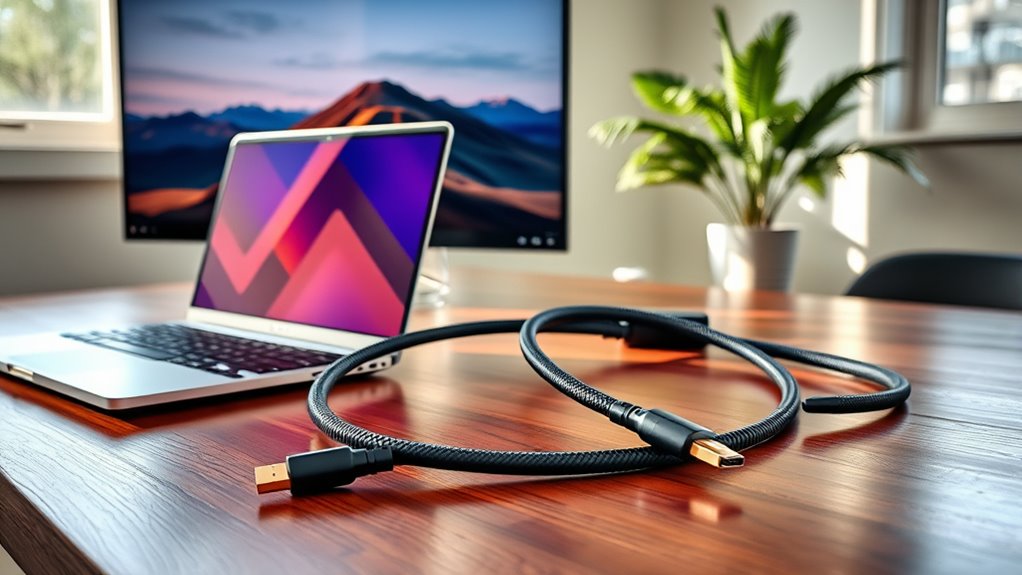

To connect a monitor to your laptop, start by checking the available ports on both devices. Use a compatible cable, like HDMI, DisplayPort, or USB-C, or an adapter if needed. Connect one end to your laptop and the other to the monitor. Once connected, right-click on your desktop to adjust display settings, including resolution and orientation. Need tips for enhancing your multi-monitor experience? There’s more to explore for a smooth setup!
Understanding the Types of Connections
When you’re looking to connect a monitor to your laptop, understanding the different types of connections is essential. You’ll encounter several connection types, including HDMI, DisplayPort, VGA, and USB-C. HDMI is widely used and supports high-definition video and audio, while DisplayPort offers advanced features like daisy chaining multiple displays. VGA, although older, is still found in many setups, but it only transmits video. USB-C is becoming popular for its versatility, as it can handle both video and power. It’s vital to check your laptop and monitor for compatible display standards, ensuring you can achieve the best visual quality. Knowing these options will empower you to make the right choice for your setup.
Gathering the Necessary Equipment
Before you connect your monitor to your laptop, you’ll need to gather the right cables and adapters. Make sure to check your monitor’s compatibility with your laptop’s ports. Having everything ready will make the setup process much smoother.
Required Cables and Adapters
To successfully connect a monitor to your laptop, you’ll need to gather the right cables and adapters. Start by identifying the cable types your laptop and monitor support. Common connections include HDMI, DisplayPort, VGA, and USB-C. Check your laptop’s ports to know what you’re working with. If your monitor uses a different connection than your laptop, you’ll need an adapter. Popular adapter options include HDMI to VGA or USB-C to HDMI. Make certain the cable is long enough to reach your setup without strain. By selecting the right combination of cables and adapters, you’ll guarantee a smooth connection, allowing you to enjoy a more expansive workspace or immersive viewing experience without hassle. Happy connecting!
Monitor Compatibility Check
Checking monitor compatibility is essential for ensuring a smooth connection with your laptop. Start by examining the monitor specifications, including resolution and refresh rate, to make sure they align with your laptop’s capabilities. Look for compatibility standards like HDMI, DisplayPort, or VGA, which dictate the types of connections you can use.
You’ll want to verify that both devices support the same standards to avoid any issues. Additionally, check the monitor’s aspect ratio and features, such as built-in speakers or USB ports, that might enhance your experience. By gathering this information, you empower yourself to make informed choices, leading to a seamless setup and a more enjoyable viewing experience. Take charge, and enjoy your expanded workspace!
Connecting the Monitor to Your Laptop
Now that you’ve gathered your equipment, it’s time to connect your monitor to your laptop. First, you’ll need to choose the right cable that fits both your laptop and the monitor. Once connected, you can adjust the display settings to optimize your viewing experience.
Choose the Right Cable
Selecting the right cable is essential for a successful connection between your laptop and monitor. You’ll encounter various cable types, such as HDMI, DisplayPort, VGA, and USB-C. Each has its specifications, so knowing your laptop and monitor’s ports helps you choose wisely. For example, HDMI is popular for high-definition video and sound, while VGA is more common with older monitors.
Don’t overlook cable lengths, either. Make sure your cable is long enough to reach from your laptop to your monitor without being too tight or creating a tripping hazard. If you’re aiming for a clean setup, consider shorter cables or cable management solutions. With the right cable, you’re one step closer to enjoying an expanded workspace or enhanced media experience.
Adjust Display Settings
Once you’ve connected your monitor to the laptop using the appropriate cable, it’s time to adjust the display settings to optimize your viewing experience. You can easily customize how your external display looks by tweaking a few settings.
- Choose your display mode: Decide between extended or mirrored displays to fit your needs.
- Adjust display scaling: Make sure text and images are sized correctly for comfortable viewing.
- Set the resolution: Match the resolution of your external display to its native settings for the best visuals.
These adjustments can enhance productivity and make multitasking a breeze. Don’t hesitate to explore the settings until you find the perfect setup that works for you!
Configuring Display Settings
As you connect your monitor to the laptop, configuring the display settings is essential for optimizing your viewing experience. Start by right-clicking on your desktop and selecting “Display settings.” Here, you can adjust the display scaling to guarantee that text and images appear at the right size on your external display. If you find elements too small or too large, tweaking this setting can make a big difference. Don’t forget to arrange the displays according to your preference—whether you want the external display to mirror your laptop’s screen or extend it for more workspace. Setting up these parameters will empower you to work comfortably and efficiently, giving you the freedom to customize your setup as you like.
Adjusting Resolution and Orientation
After arranging your displays, the next step is adjusting the resolution and orientation for ideal viewing. This is essential for a smooth experience, so let’s explore! You’ll want to tweak the resolution settings to guarantee crisp visuals, and you can choose between different orientation options to match your workflow.
Adjusting your display’s resolution and orientation is key for a seamless viewing experience. Find what works best for you!
Here are a few tips to help you out:
- Set the resolution: Find the right resolution that fits your monitor’s capabilities for the best image quality.
- Choose the orientation: Decide between landscape or portrait mode based on your tasks—portrait is great for reading documents!
- Test it out: Don’t hesitate to experiment with settings until you find what feels comfortable for you.
Enjoy your new setup!
Troubleshooting Common Issues
While connecting a monitor to your laptop can enhance productivity, you might run into some common issues that can disrupt your workflow. Here are a few common connection issues and potential fixes:
| Issue | Cause | Solution |
|---|---|---|
| No display on the monitor | Incorrect input source | Check monitor input settings |
| Flickering screen | Loose cable connection | Secure all connections |
| Display detection problems | Outdated drivers | Update graphics drivers |
| Wrong resolution | Incorrect settings | Adjust resolution in settings |
If you encounter display detection problems, try re-detecting the monitor through your laptop’s display settings. These quick checks can save you time and frustration, helping you get back to work smoothly.
Tips for an Enhanced Multi-Monitor Experience
To maximize your productivity when using multiple monitors, it’s essential to customize your setup for best performance. An ergonomic setup not only enhances comfort but also boosts your multi monitor productivity. Here are some tips to reflect on:
- Position your monitors at eye level: This reduces neck strain and keeps you focused on your tasks.
- Use a consistent color profile: Verify your monitors display similar colors to avoid distractions when moving between screens.
- Organize your workspace: Keep your cables tidy and allocate space for your keyboard and mouse to create a clean, efficient environment.
Frequently Asked Questions
Can I Use Multiple Monitors With My Laptop?
Yes, you can use multiple monitors with your laptop. This setup enhances your multi-tasking efficiency, allowing for better organization of tasks. You’ll enjoy external display benefits like increased screen space and improved productivity.
How Do I Choose the Right Monitor for My Laptop?
To choose the right monitor, consider that 75% of users prefer high-resolution options for clarity. Aim for a screen size that complements your workspace, balancing resolution options and dimensions for an ideal viewing experience.
Will Connecting a Monitor Drain My Laptop Battery Faster?
Yes, connecting a monitor can increase your laptop’s battery consumption. However, effective power management settings can help minimize the impact, allowing you to enjoy extended use without draining your battery too quickly.
Can I Connect a Monitor Wirelessly to My Laptop?
Yes, you can connect a monitor wirelessly to your laptop using technologies like wireless display or screen mirroring. Just verify both devices support these features, and you’ll enjoy the freedom of a cable-free setup!
What if My Laptop Doesn’t Have an HDMI Port?
If your laptop doesn’t have an HDMI port, consider using USB adapters, DisplayPort alternatives, or VGA connections. Wireless dongles can also provide a convenient solution for connecting your monitor without the need for cables.
