
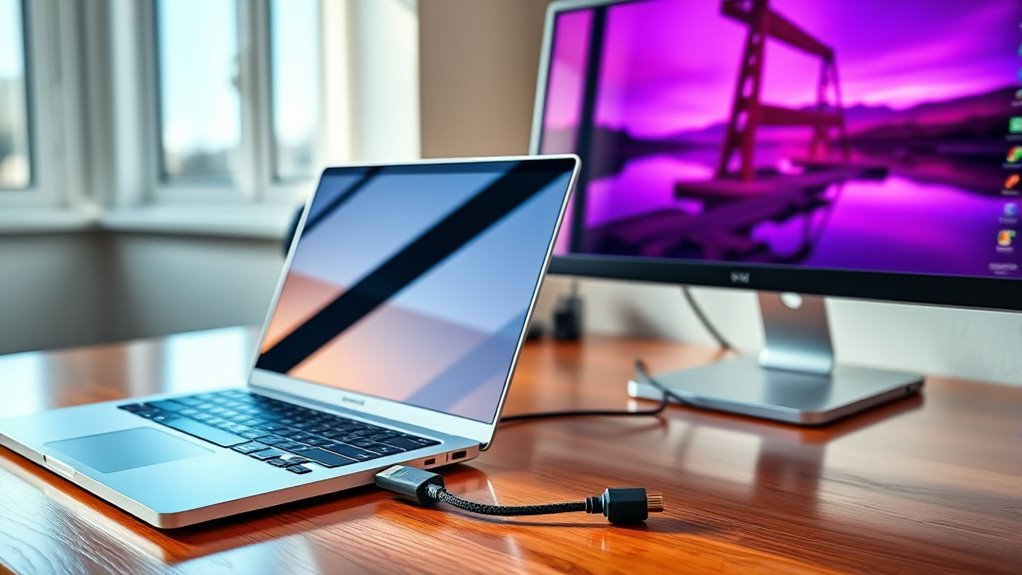

To connect a PC monitor to your laptop, start by choosing the right cable, like HDMI or DisplayPort, based on available ports on both devices. Next, verify compatibility with your monitor’s resolution and refresh rate. Once you connect the monitor, adjust display settings for peak clarity, choosing between extending or duplicating displays based on your needs. Troubleshoot any connection issues by checking cables and settings. There’s more to enhancing your setup for maximum comfort and productivity.
Understanding the Types of Connectors
When connecting a PC monitor to a laptop, it’s crucial to understand the various types of connectors available. You’ll typically encounter HDMI, DisplayPort, VGA, and DVI. Each connector type serves a different purpose and has its own advantages. HDMI and DisplayPort are the most common today, supporting high-definition video and audio, while VGA and DVI are older options primarily used for video only.
Before you proceed, verify your laptop and monitor have compatible ports. Check your device specifications to avoid frustration later. The right cable compatibility matters, as mismatched connectors won’t work. Familiarizing yourself with these connector types will empower you to make informed choices, paving the way for a seamless connection to enhance your productivity and enjoyment.
Choosing the Right Cable
When connecting your laptop to a PC monitor, choosing the right cable is essential. You’ll need to take into account the types of cables available, verify compatibility with your devices, and think about the length and quality for peak performance. Let’s break down these factors to help you make the best choice.
Cable Types Explained
Choosing the right cable to connect your PC monitor to a laptop can greatly impact your display experience. You’ve got several options, each with unique cable features. HDMI cables support high-definition video and audio, making them a popular choice. DisplayPort cables are great for higher resolutions and refresh rates, while VGA cables, though older, can still get the job done for basic needs.
When selecting a cable, consider cable durability, too. A well-built cable can withstand wear and tear, ensuring a reliable connection over time. Look for cables with reinforced connectors or those made from high-quality materials. This will not only enhance your viewing experience but also give you the freedom to set up your workspace without worrying about cable issues.
Compatibility Considerations
Before connecting your PC monitor to a laptop, it’s vital to verify compatibility between the two devices. Start by checking the monitor specifications, including resolution and refresh rate. Make sure your laptop graphics can support these settings; otherwise, you might not get the best experience. If your monitor has a higher resolution than your laptop can handle, you could end up with lag or poor display quality. Additionally, look at the available ports on both devices. Common options like HDMI, DisplayPort, or VGA need to match for successful connection. Choosing the right cable is essential, as it directly impacts performance. Take the time to confirm these details, and you’ll guarantee a seamless setup for your workspace.
Length and Quality
While you might be tempted to grab any cable for your setup, the length and quality of the cable you choose can greatly impact your display experience. First, consider the monitor size; a larger screen may require a longer cable to avoid signal degradation over distance. Aim for a cable that matches or exceeds the required length without being excessively long, as that can also affect performance. Next, prioritize cable quality. Low-quality cables can lead to poor display quality, with issues like flickering or muted colors. Opt for reputable brands and check for specifications like bandwidth and shielding. By choosing the right cable, you guarantee your monitor delivers the best display quality, making your computing experience much more enjoyable.
Preparing Your Laptop and Monitor
To successfully connect a PC monitor to your laptop, you’ll need to gather a few essential items and make some adjustments. First, find a suitable spot for your monitor—consider its placement to guarantee comfort and accessibility. Make sure it’s at eye level to prevent strain. Next, check your laptop settings. You’ll want to adjust your display settings to recognize the new monitor. This often involves accessing your display settings through the control panel or system preferences. If you’re using Windows, simply press the Windows key and P to select your desired display mode. With the right monitor placement and adjusted laptop settings, you’ll be well on your way to enjoying a more expansive workspace.
Connecting the Monitor to Your Laptop
To connect your monitor to your laptop, you’ll need the right cables and possibly some adapters. Once everything’s plugged in, you’ll want to adjust your display settings to guarantee everything looks sharp. Let’s explore how to get set up quickly and efficiently.
Required Cables and Adapters
Before you get started with connecting your PC monitor to your laptop, it’s essential to gather the right cables and adapters. First, identify the cable types your laptop and monitor support. Common options include HDMI, DisplayPort, VGA, and DVI. If your laptop and monitor share a compatible port, you’ll need just the corresponding cable. However, if they don’t match, you’ll require adapter options like HDMI to VGA or DisplayPort to HDMI. Make certain to check the specifications of your devices to guarantee compatibility. Once you have the right cables and adapters, you’re ready to connect your monitor and expand your workspace. Enjoy the freedom of a dual-screen setup that can enhance your productivity!
Display Settings Adjustment
Once you’ve connected your monitor to the laptop, adjusting the display settings is essential for peak performance. You’ll want to make certain everything looks great and works seamlessly. Here’s what you should check:
- Display Orientation: Choose between landscape or portrait, depending on your needs.
- Resolution Settings: Adjust the resolution for maximum clarity and sharpness.
- Color Calibration: Fine-tune colors to guarantee accurate and vibrant visuals.
- Multiple Displays: Decide if you want to duplicate or extend your display for more workspace.
Taking the time to tweak these settings will enhance your experience, giving you the freedom to work or play exactly how you like. Enjoy your newly set-up dual-screen paradise!
Configuring Display Settings
Configuring display settings is essential for optimizing your dual-screen setup. Start by right-clicking on your desktop and selecting “Display settings.” Here, you can choose how you want your multiple monitors to work together—whether to duplicate or extend your display. Adjust the display orientation to suit your needs; you can set one monitor to landscape while the other is in portrait mode, for instance. This flexibility allows you to create a workspace that fits your style. Don’t forget to rearrange the monitor icons to match their physical placement on your desk, ensuring a seamless experience. By taking these steps, you’ll enhance productivity and enjoy greater freedom in how you use your screens.
Adjusting Screen Resolution
Adjusting the screen resolution is an essential step in ensuring that your external monitor displays content clearly and accurately. To get started, follow these steps for ideal settings:
Adjusting screen resolution ensures your external monitor displays content clearly and accurately for an optimal viewing experience.
- Right-click on your desktop and select “Display settings.”
- Choose the external monitor from the dropdown menu.
- Adjust the resolution settings to match your monitor’s native resolution.
- Utilize screen scaling if necessary to improve readability and layout.
Extending vs. Duplicating Displays
How do you want to use your external monitor? If you’re looking to maximize your workspace, extending displays is the way to go. This option lets you stretch your desktop across multiple screens, giving you more room for multitasking—perfect for presentations, graphic design, or simply keeping your tabs organized. On the other hand, if you want to mirror your laptop’s content, duplicating displays will do the trick. This is ideal for sharing presentations or videos with an audience, ensuring everyone sees the same thing. Consider what suits your needs best: do you want more screen real estate or just to showcase your laptop’s display? Your choice will shape how you interact with your work and media.
Troubleshooting Connection Issues
If you encounter issues when trying to connect your PC monitor to your laptop, don’t worry; troubleshooting is often straightforward. Here are some common connection problems you might face and useful troubleshooting techniques to resolve them:
- Check your cables: Confirm they’re securely connected and not damaged.
- Verify input settings: Make sure your monitor’s input source matches the cable type.
- Update drivers: Outdated graphics drivers can cause connectivity issues.
- Restart devices: Sometimes, a simple restart can reset connections and solve problems.
Tips for an Optimal Viewing Experience
After resolving any connection issues, you’ll want to guarantee your viewing experience is as enjoyable as possible. Start by adjusting the monitor’s settings for best brightness. A well-lit screen reduces eye strain and enhances clarity. Experiment with brightness levels until it feels just right for you. Next, consider your viewing distance; ideally, you should sit about an arm’s length away from the screen. This distance helps prevent discomfort and allows for a more immersive experience. If you’re using the monitor for extended periods, take regular breaks to rest your eyes. Finally, make sure your workspace is comfortable and free from distractions. With these tips, you’ll be set for a visually pleasing experience, whether you’re working or enjoying entertainment.
Frequently Asked Questions
Can I Use a TV Instead of a Monitor?
Yes, you can use a TV instead of a monitor, as long as it’s compatible. Most TVs support HDMI, but if you need alternatives, consider VGA or DisplayPort, depending on your laptop’s output options.
Will Connecting a Monitor Drain My Laptop’s Battery Faster?
Yes, connecting a monitor can nibble away at your laptop’s battery performance due to increased power consumption. While it enhances your workspace, be mindful of how it affects your laptop’s endurance on the go.
Is It Possible to Connect Multiple Monitors?
Yes, you can connect multiple monitors for a dual display setup, allowing for an extended desktop experience. Just verify your laptop supports multiple external displays and use the appropriate connections to achieve it.
Can I Connect a Monitor Wirelessly to My Laptop?
Sure, you can connect a monitor wirelessly to your laptop, but isn’t that just a bit ironic? Consider using wireless display options like Miracast or Chromecast for seamless connection methods, giving you the freedom to roam.
What if My Monitor Isn’t Detected by the Laptop?
If your monitor isn’t detected, try monitor troubleshooting steps. Check cable compatibility and connections. Restart both devices, update drivers, or adjust display settings. Sometimes, it’s just a simple fix that’ll get you back on track.
