


Linking JBL speakers together is straightforward and allows you to create a powerful audio experience. By using JBL’s Connect feature, you can synchronize multiple speakers for a richer sound. In this guide, you will learn the steps to connect your JBL speakers effectively, ensuring you get the most out of your audio setup.
Understanding JBL Connect Technology
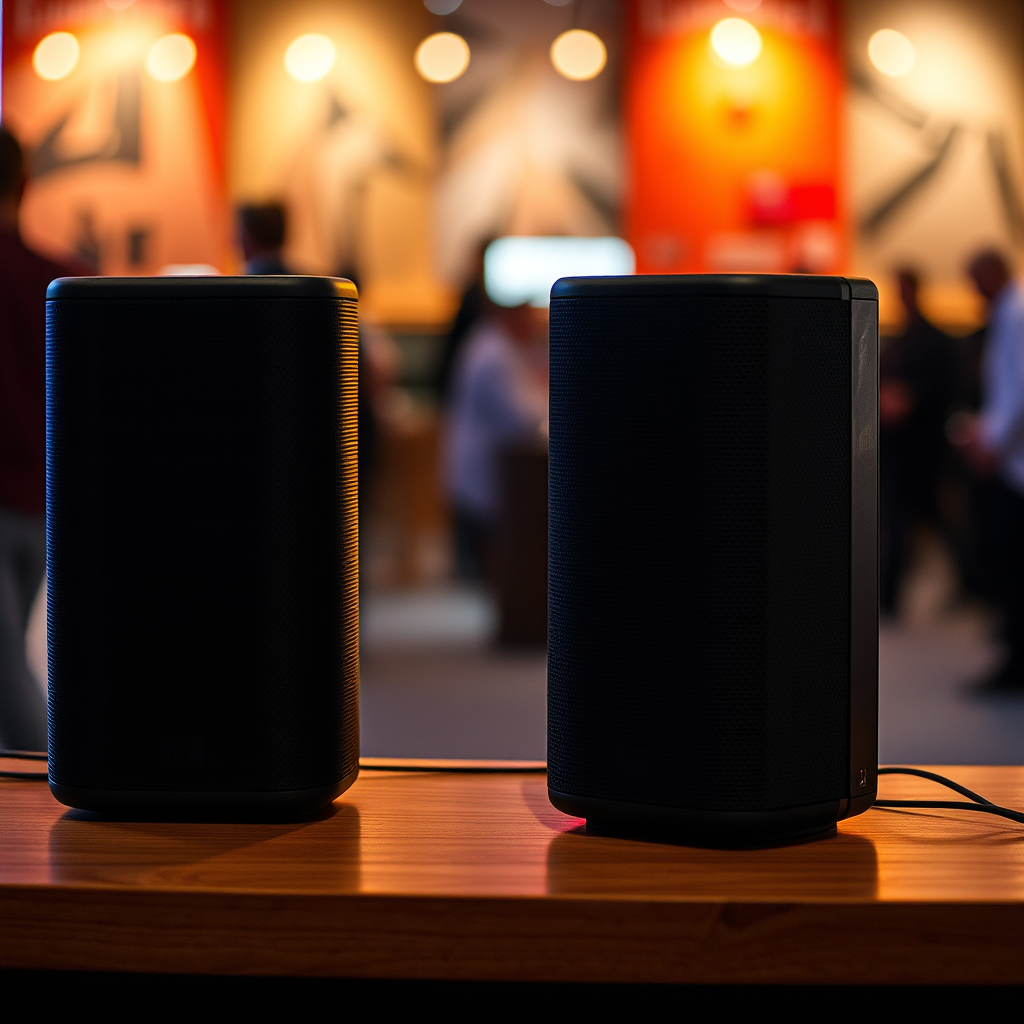
JBL has developed multiple technologies for connecting speakers, namely JBL Connect, Connect+, and PartyBoost. Understanding these features is crucial for achieving the best audio performance.
– JBL Connect: This feature allows you to link two speakers together, creating a stereo sound experience. It is often available on entry-level models such as the JBL Flip series.
– Connect+: This version expands on the original Connect feature, allowing you to connect up to 100 JBL Connect+ compatible speakers simultaneously. This feature is found in mid-range models like the JBL Charge series.
– PartyBoost: The latest iteration, PartyBoost, enhances connectivity and allows users to link multiple speakers in a more flexible manner. However, it is not compatible with the older Connect and Connect+ technologies. Models like the JBL Flip 5 and JBL Xtreme 3 support PartyBoost.
Before attempting to link your JBL speakers, ensure that the models you own support the same technology to avoid connectivity issues.
Preparing Your Speakers
To ensure a seamless connection between your JBL speakers, follow these preparation steps:
– Charge Your Speakers: Before initiating the linking process, make sure all your speakers are fully charged or plugged into a power source. This prevents any disconnection during setup and guarantees optimal performance.
– Update Firmware: Keeping your speakers’ firmware up-to-date can significantly enhance connectivity and performance. Download the JBL app on your smartphone, and check for any available updates for your devices. Regular updates can fix bugs and improve overall compatibility.
Linking Speakers via JBL Connect
Linking your JBL speakers can be done easily through the JBL app or manually using physical buttons. Here are the steps for both methods:
Step-by-Step Instructions
1. Using the JBL App:
– Download the JBL Connect app from your device’s app store and launch it.
– Power on the speakers you wish to link.
– Ensure Bluetooth is enabled on your device and pair it with one of the speakers.
– Open the app and select the ‘Connect’ option to identify your available JBL speakers.
– Follow the prompts to link the speakers together.
2. Using Physical Buttons:
– Power on the first speaker and press the “Connect” button.
– Turn on the second speaker and press its “Connect” button as well. The speakers will automatically pair with each other.
– For models with multi-connect capability, repeat this process with additional speakers.
Troubleshooting Common Issues
Sometimes, you may encounter challenges while trying to link your JBL speakers. Here are some troubleshooting tips:
– Speakers Not Pairing: Ensure the speakers are within close proximity and that they are powered on. Restart both devices and try again.
– Interference: Other Bluetooth devices can cause interference. Disable Bluetooth on nearby devices to ensure a stable connection.
– Firmware Issues: If problems persist, check for firmware updates as outdated software can lead to connectivity problems.
Comparison of JBL Connect Technologies
| # | Feature | JBL Connect | Connect+ | PartyBoost |
|---|---|---|---|---|
| 1 | Number of Speakers | 2 | 100 | Multiple |
| 2 | Compatibility | Limited | Limited | Flexible |
| 3 | Sound Quality | Standard | Enhanced | Optimized |
| 4 | Range | Short | Medium | Long |
| 5 | Battery Life | Up to 10 hours | Up to 20 hours | Varies |
| 6 | Weight | Light | Medium | Varies |
| 7 | Use Case | Personal | Parties | Events |
Using JBL Connect+ and PartyBoost
Linking more than two speakers is where JBL Connect+ and PartyBoost technologies shine. Here’s how to effectively connect multiple speakers:
Connecting Multiple Speakers
1. JBL Connect+: If you have speakers that support Connect+, ensure they are all powered on. Start by linking one speaker using the method described earlier, and then continue pressing the “Connect” button on each additional speaker until they are all linked.
2. PartyBoost: For connecting speakers with PartyBoost, follow the same initial steps. Once the first speaker is linked, use the app or the “Connect” button to add more speakers. PartyBoost allows you to mix and match different models, provided they all support this feature.
Sound Quality Considerations
Linking multiple speakers can enhance your sound experience, but it’s essential to be mindful of sound quality and balance. When placing speakers in various locations, consider their orientation and distance from one another to avoid sound distortion. Adjusting volume levels and equalizer settings through the app can further refine your listening experience.
Managing Your Linked Speakers
Once your speakers are linked, managing them effectively is crucial for optimal sound performance.
Adjusting Volume and EQ Settings
Using the JBL app, you can easily adjust the volume across all linked speakers. The app also provides options for equalizer settings, allowing you to customize the sound to your preferences. Experiment with different settings to find the best balance that suits your environment.
Disconnecting and Reconnecting
If you need to temporarily disconnect your speakers, you can do so through the app or by pressing the “Connect” button on any of the linked speakers. To reconnect, simply follow the same steps as before. This flexibility ensures that you can manage your audio setup seamlessly.
Additional Tips for Optimal Performance
Enhancing your JBL speaker experience goes beyond just linking them together. Here are some additional tips for optimal performance:
Placement of Speakers
The placement of your speakers significantly impacts sound quality. For the best audio experience, position the speakers at ear level if possible, and create a triangular setup with the listening area. Avoid placing speakers in corners or against walls to reduce sound distortion.
Exploring Other Features
The JBL app offers various features to enhance your listening experience, including ambient sound modes, customizable EQ settings, and lighting effects for certain models. Take the time to explore these features to maximize your audio enjoyment.
By following these steps, you can successfully link your JBL speakers to enjoy a more immersive sound experience. Remember to ensure compatibility and keep your devices updated for optimal performance. For a more enjoyable experience, play around with speaker placement and settings. Happy listening!
Frequently Asked Questions
How can I connect multiple JBL speakers together?
To connect multiple JBL speakers, use the JBL Connect app or the built-in Connect+ feature if your speakers support it. Simply power on all the speakers, ensure they are in pairing mode, and then select one as the main speaker to link the others. This allows you to enjoy synchronized sound across all connected devices.
What is JBL Connect+ and how does it work for linking speakers?
JBL Connect+ is a feature that allows you to connect up to 100 compatible JBL speakers together for a more immersive audio experience. By enabling this feature on each speaker, you can enjoy amplified sound in larger spaces by creating a multi-speaker system that works seamlessly together.
Why won’t my JBL speakers connect to each other?
If your JBL speakers won’t connect, ensure they are compatible with each other and check if they are in pairing mode. Additionally, make sure that the Bluetooth settings on your device are turned on and that the speakers are within range. Restarting the speakers and clearing their Bluetooth memory can also help resolve connectivity issues.
Which JBL speakers can be linked together using the JBL Connect app?
Many JBL speakers, such as the Charge, Flip, and Xtreme series, support the JBL Connect app and can be linked together. However, ensure that each speaker has the same Connect or Connect+ feature for compatibility, as only specific models can be paired with each other for synchronized playback.
What are the best practices for connecting JBL speakers to avoid sound delay?
To avoid sound delay when connecting JBL speakers, use the JBL Connect+ feature for wired or Bluetooth connections, as it minimizes latency. Keep your speakers close to the source device and avoid obstacles that may interfere with the Bluetooth signal. Additionally, ensure that your device is updated to the latest firmware for optimal performance.
References
- https://en.wikipedia.org/wiki/JBL_(company
https://en.wikipedia.org/wiki/JBL_(company - Google Scholar Google Scholar
https://scholar.google.com/scholar?q=linking+JBL+speakers+together - https://www.jbl.com/support/faq.html
https://www.jbl.com/support/faq.html - Google Scholar Google Scholar
https://scholar.google.com/scholar?q=JBL+speakers+connectivity - https://www.lifewire.com/how-to-connect-jbl-bluetooth-speakers-5073712
https://www.lifewire.com/how-to-connect-jbl-bluetooth-speakers-5073712 - Google Scholar Google Scholar
https://scholar.google.com/scholar?q=Bluetooth+speaker+pairing+technology - Google Scholar Google Scholar
https://scholar.google.com/scholar?q=how+to+link+jbl+speakers+together - how to link jbl speakers together – Search results
https://en.wikipedia.org/wiki/Special:Search?search=how+to+link+jbl+speakers+together - https://www.ncbi.nlm.nih.gov/search/research-articles/?term=how+to+link+jbl+speakers+together
https://www.ncbi.nlm.nih.gov/search/research-articles/?term=how+to+link+jbl+speakers+together
