
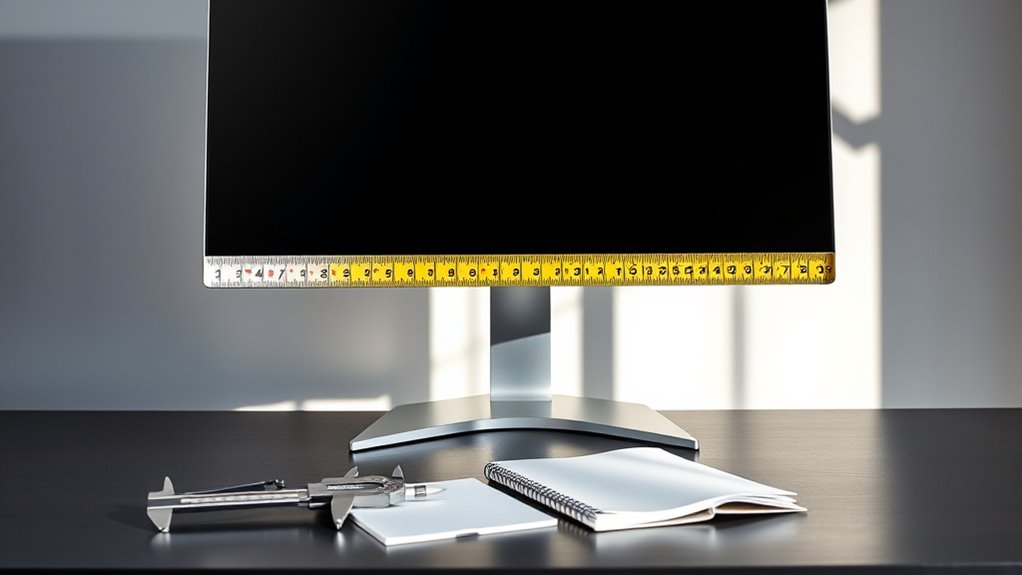

To measure your monitor, use a measuring tape to accurately get the diagonal screen size from one corner to the opposite. Next, measure the width and height directly, recording each dimension separately. Be certain the screen is clean to avoid miscalculations. Checking the native resolution is essential for peak performance; higher pixel density guarantees sharper images. Understanding aspect ratios will enhance your viewing experience. There’s more to discover about measurements and specifications for your monitor setup.
Understanding Monitor Types and Sizes
When you’re choosing a monitor, it’s essential to understand the various types and sizes available, as this can greatly impact your viewing experience. Monitor technology has evolved considerably, offering diverse screen types like LCD, LED, and OLED. Each type has unique characteristics, such as color accuracy and brightness levels, which can enhance or detract from your productivity and enjoyment. In addition, size matters; a larger screen can provide a more immersive experience but may require more desk space. Consider the resolution as well—higher resolutions lead to sharper images. Ultimately, understanding these factors will empower you to make an informed decision that aligns with your needs and preferences, ensuring your monitor serves as a valuable tool for your freedom in work and leisure.
Tools Needed for Measuring
To accurately measure a monitor, you’ll need a measuring tape or ruler for precise dimensions. Additionally, a leveling tool guarantees that the monitor is aligned correctly, which is essential for both function and aesthetics. With these tools in hand, you can achieve accurate measurements with ease.
Measuring Tape or Ruler
A measuring tape or ruler is essential for accurately measuring your monitor’s dimensions. When you’re ready to take those tape measurements, confirm you choose the right tool to achieve the best ruler accuracy. Here are some important considerations:
- Material: Plastic or metal tape measures offer different levels of durability.
- Length: Confirm your measuring tool is long enough to cover your monitor’s width and height.
- Units: Opt for a tool that displays both metric and imperial units for versatility.
- Clear Markings: Look for a ruler or tape with easily readable measurements to avoid errors.
With these tools in hand, you’re well-equipped to get precise measurements, paving the way for an informed decision on your monitor setup.
Leveling Tool
Using a leveling tool can greatly enhance the accuracy of your monitor measurements. This vital device helps guarantee that your monitor’s alignment is precise, which is important for ideal viewing experiences. To effectively utilize leveling techniques, place the tool on top of your monitor and observe the bubble’s position. If it’s centered, you’re good to go; if not, adjust the monitor’s height or angle accordingly.
For alignment tips, consider using the leveling tool in conjunction with a measuring tape to verify distances from your desk. This combination will assist in achieving a balanced setup, promoting both comfort and productivity. Remember, a well-leveled monitor can reduce eye strain and improve your overall workspace efficiency.
Measuring Diagonal Screen Size
Measuring the diagonal screen size of a monitor is a straightforward yet essential task for guaranteeing compatibility and ideal viewing experience. To accurately determine this diagonal measurement, follow these guidelines:
- Use a tape measure or ruler, placing it from one corner of the screen to the opposite corner.
- Confirm the monitor’s screen is clean to avoid miscalculations during measurement.
- Consider the aspect ratio, as it affects how the monitor fits in your workspace.
- Perform screen calibration afterward to optimize display settings based on the diagonal size.
Determining Width and Height
To accurately determine a monitor’s width and height, you’ll need to measure its screen dimensions directly. Keep in mind that the aspect ratio plays an essential role in how these measurements translate to the overall viewing experience. Understanding these factors will help you select a monitor that suits your needs.
Measuring Screen Dimensions
When determining the width and height of a monitor, it is essential to take accurate measurements that reflect the screen’s actual dimensions. This guarantees proper screen calibration and helps you make informed decisions regarding pixel density. Here’s how to measure effectively:
- Use a flexible measuring tape for precise results.
- Measure diagonally from one corner to the opposite to find the screen size.
- Record the width and height separately for clarity.
- Double-check your measurements to avoid discrepancies.
Accurate measurements not only enhance your understanding of the monitor’s size but also improve your overall viewing experience. Remember, the more precise you are, the better equipped you’ll be to choose the right monitor for your needs.
Aspect Ratio Considerations
Understanding the aspect ratio of your monitor is vital, as it directly influences not only the screen’s dimensions but also how content is displayed. Aspect ratio definitions indicate the proportional relationship between width and height, important for your viewing experience. Common aspect ratios include 16:9, which is standard for widescreen displays, and 4:3, often used in older monitors. When measuring, make certain you factor in these ratios; they dictate how images and videos render. A wider aspect ratio can enhance immersion in gaming or movies, while a narrower one may suit tasks like document editing. By grasping these concepts, you can choose a monitor that best meets your needs and preferences, empowering your digital freedom.
Checking Screen Resolution
Although many users may overlook it, checking your monitor’s screen resolution is essential for maximizing your viewing experience. Screen resolution directly affects screen density and pixel clarity, influencing how crisp and vibrant images appear. Here’s how you can verify you’re getting the best display quality:
- Verify the native resolution: Always use the monitor’s recommended resolution for peak performance.
- Check pixel density: Higher pixel density results in sharper images, especially on larger screens.
- Adjust settings: Tweaking brightness and contrast can enhance clarity alongside resolution.
- Test multiple resolutions: Experimenting with different settings can help you find the sweet spot for your needs.
Considering Aspect Ratios and Other Specs
While you might focus primarily on resolution, considering aspect ratios and other specifications is equally important for optimizing your monitor’s performance. The aspect ratio defines the width-to-height relationship of your screen, influencing not just aesthetics but also functionality. Common ratios like 16:9 are versatile for both gaming and productivity, while 21:9 offers immersive experiences for movies and multitasking. Additionally, you should look at other screen specs, including refresh rates, response times, and color accuracy. These elements can greatly affect your viewing experience, whether you’re gaming, designing, or streaming. Balancing these factors with your personal needs will guarantee you get the most out of your monitor, providing freedom to enjoy various activities without limitations.
Frequently Asked Questions
How Do I Measure a Curved Monitor Accurately?
To measure a curved monitor accurately, use a flexible tape measure for curved monitor measurements. Align it from edge to edge, ensuring you capture the accurate curvature calculation, giving you precise dimensions for your setup.
Can I Measure a Monitor While It’s Mounted?
Yes, you can measure a mounted monitor, but monitor measurement techniques may face challenges like limited access to edges. Using flexible measuring tools can help guarantee accuracy despite these obstacles, allowing for precise dimensions even when mounted.
What Is the Best Way to Find a Monitor’s Dimensions Online?
To find a monitor’s dimensions online, check manufacturer websites or reliable online resources that list monitor specifications. These details typically include width, height, and depth, ensuring you get accurate measurements without needing to measure physically.
How Does Screen Size Affect Eye Strain?
Imagine your eyes as weary travelers. Screen size, combined with screen distance and brightness level, can either guide them safely or lead to discomfort. Larger screens may strain eyes if not properly adjusted for distance and brightness.
Is There a Standard Monitor Size for Gaming?
There isn’t a strict standard monitor size for gaming, but 24 to 32 inches with a 16:9 aspect ratio is popular. Gaming monitor dimensions can affect immersion and comfort, so choose what suits your preferences best.
