
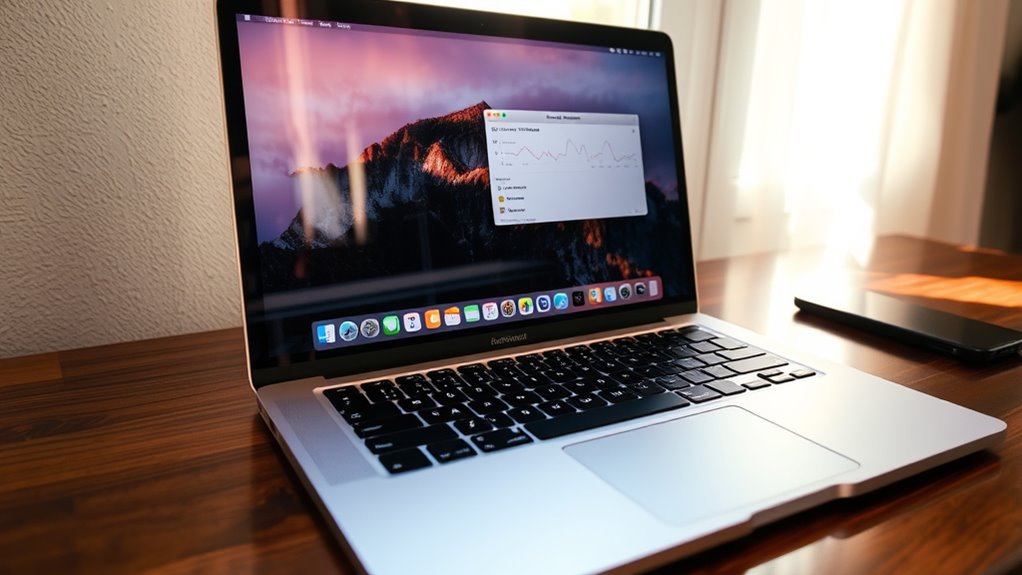

To open Activity Monitor on your Mac, you can use several methods. Press Command + Spacebar to launch Spotlight, then type “Activity Monitor” and hit Enter. Alternatively, click the Finder icon, navigate to Applications, then Utilities, and find Activity Monitor there. You can also access it directly from the Dock if it’s saved as a shortcut. For a hands-free option, activate Siri and say, “Open Activity Monitor.” There’s more to discover about using this tool effectively.
What Is Activity Monitor?
Activity Monitor is like a control center for your Mac, providing real-time insights into how your system is performing. With its robust activity monitor features, you can easily track CPU usage, memory consumption, disk activity, and network performance. This powerful tool empowers you to identify resource-hungry applications and processes, helping you optimize your Mac’s performance. If you’re looking for freedom from sluggishness or crashes, performance monitoring becomes crucial. You can quickly close unresponsive apps or manage startup programs to guarantee a smoother experience. By utilizing Activity Monitor, you take control of your Mac’s health, making informed decisions that enhance your workflow and overall productivity. Embrace this tool, and let your Mac work for you, not the other way around.
Opening Activity Monitor From Spotlight Search
To quickly access Activity Monitor, you can use Spotlight Search, which is an efficient tool for finding applications on your Mac. Simply press Command + Spacebar to open Spotlight, then type “Activity Monitor” to locate it swiftly. This method saves you time and helps you manage your system effectively.
Using Keyboard Shortcuts
- Use Command (⌘) + Option + Esc to quickly access the Force Quit Applications window.
- Familiarize yourself with other Spotlight shortcuts for faster navigation.
- Regularly check system performance to optimize your Mac’s efficiency.
- Customize your keyboard shortcuts for frequently used applications.
Embracing these tips will help you navigate your Mac with ease and enhance your overall workflow.
Accessing Spotlight Efficiently
If you’re looking for a quick way to access the Activity Monitor, using Spotlight is a great option. To get started, press Command (⌘) and the Space bar simultaneously. This opens the Spotlight search bar, allowing for efficient searching. Just type “Activity Monitor” and you’ll see it pop up in the results.
For some Spotlight tips, you can refine your search by typing just the first few letters, which speeds things up. Once you see Activity Monitor, hit Enter, and you’re in! This method not only saves time but also enhances your freedom to manage your Mac’s performance with ease. Embrace this simple yet powerful tool to take control of your tasks efficiently!
Searching for Applications
One of the quickest ways to open Activity Monitor is by searching for applications directly in Spotlight. This method gives you freedom and efficiency when managing applications on your Mac. Here are some searching tips to enhance your experience:
- Press Command + Space to open Spotlight instantly.
- Type “Activity Monitor” for quick access to the app.
- Use keywords like “CPU,” “Memory,” or “Disk” to find specific activities.
- Familiarize yourself with the layout for better application management.
Accessing Activity Monitor via the Applications Folder
Accessing the Activity Monitor through the Applications folder is a straightforward way to keep an eye on your Mac’s performance. Start by clicking on the Finder icon in your dock, then select “Applications” from the sidebar. Once you’re in the Applications folder, scroll down to the “Utilities” folder and double-click it. Inside, you’ll find the Activity Monitor icon. By managing applications this way, you can easily launch it whenever you need to check the status of your system. Activity Monitor lets you see how your Mac is managing processes in real-time, helping you identify any resource-hungry apps and keep your system running smoothly. This method gives you control over your Mac’s performance effortlessly.
Launching Activity Monitor From the Dock
You can quickly launch Activity Monitor from the Dock for instant access to your Mac’s performance metrics. By clicking the dock icon, you can easily monitor your system’s activity usage and keep your device running smoothly. Here’s why using the Dock is a great choice:
- Convenience: It’s just a click away, saving you time.
- Real-Time Monitoring: Get instant insights into CPU, memory, and energy usage.
- Efficiency: Quickly identify resource-hogging applications.
- Customization: You can keep the dock icon in view for ongoing access.
Using the Dock to launch Activity Monitor empowers you to take control of your Mac’s performance, ensuring freedom from sluggishness and interruptions.
Using Siri to Open Activity Monitor
If you prefer a hands-free approach, using Siri to open Activity Monitor is a convenient option. Simply activate Siri by saying “Hey Siri” or holding down the Command and Space keys. Once Siri is listening, use a simple Siri command like “Open Activity Monitor.” This voice activation method allows you to quickly access the tool without needing to navigate through menus or the Dock. It’s especially useful when you’re multitasking or if you want to keep your focus on other tasks. Just remember that Siri needs to be enabled on your Mac for this to work. Embrace this effortless way to monitor your system’s performance and keep everything running smoothly!
Keyboard Shortcut to Open Activity Monitor
Consider these points:
- Instant access to system activity
- Efficient resource management
- Comparison with alternative task managers
- Enhanced productivity
Understanding the Activity Monitor Interface
After quickly accessing the Activity Monitor with a keyboard shortcut, you’ll find a user-friendly interface designed to provide clear insights into your Mac’s performance. The Activity Monitor features several tabs, including CPU, Memory, Energy, Disk, and Network, each offering essential information about your system’s operations. You can easily switch between these tabs for effective interface navigation, allowing you to monitor everything from resource usage to process activity. Each process is listed with details such as its name, CPU usage, and memory footprint, giving you the freedom to identify and manage demanding applications. With just a few clicks, you can force quit unresponsive programs, ensuring your Mac runs smoothly and efficiently. Embrace this powerful tool to optimize your experience!
Frequently Asked Questions
Can I Customize the Activity Monitor Display Options?
Yes, you can customize the Activity Monitor display options! Did you know over 30% of users prefer tailored views? You can adjust columns and display preferences to suit your specific needs for better efficiency.
How Do I Force Quit an Application Using Activity Monitor?
To force quit an unresponsive application using Activity Monitor, open it, locate the application in the list, select it, and click the “X” button. This guarantees efficient application management and restores your freedom to work smoothly.
Is Activity Monitor Available on Older Mac Versions?
Yes, Activity Monitor’s been part of Mac’s system resource management since 2000. Over 90% of users rely on it to monitor performance, reflecting its essential role in optimizing your Mac’s efficiency through its rich history.
Can I Monitor Network Activity in Activity Monitor?
Yes, you can monitor network activity in Activity Monitor. It lets you track network usage and monitor bandwidth effectively. Just navigate to the Network tab to see real-time data and manage your resources better.
What Does Each Column in Activity Monitor Represent?
Each column in Activity Monitor reveals a glimpse into your Mac’s soul. It shows process priority, resource usage, and more, helping you understand which apps consume your resources and guiding you toward peak performance.
