
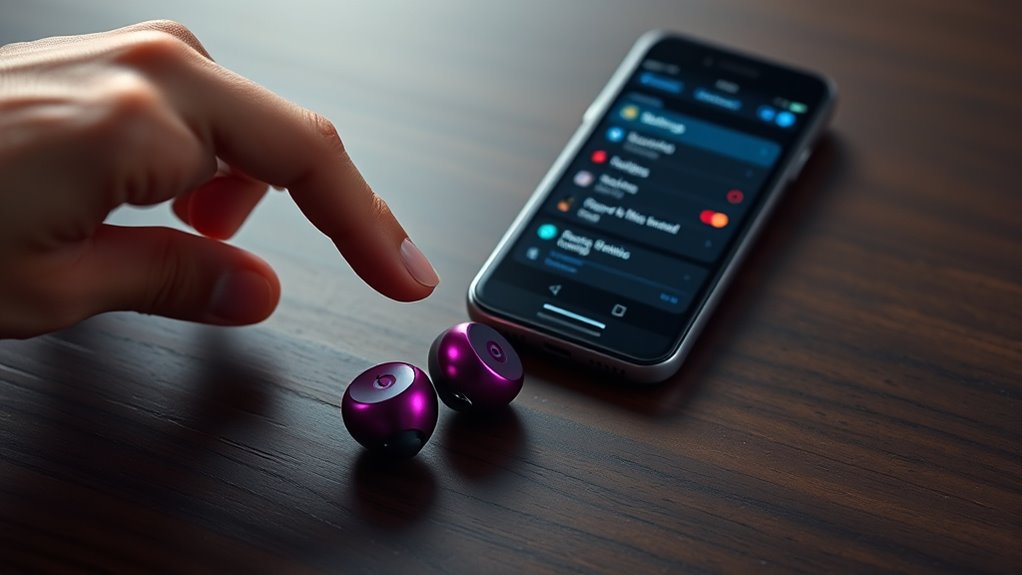

To pair your Beats wireless earbuds, first make sure they’re charged and in pairing mode (look for a blinking light). On your device, enable Bluetooth in settings. For iOS, go to Settings > Bluetooth, then select your Beats from the list. For Android, hold the power button on the earbuds until the LED flashes and select them in available devices. Once paired, they’ll connect automatically in the future. If you’d like more tips on pairing, there’s plenty more to explore.
Unboxing Your Beats Wireless Earbuds
Unboxing your Beats wireless earbuds is an exciting moment, as you’ll soon experience high-quality sound without the hassle of wires. As you peel away the packaging, you’ll appreciate the sleek design features that make these earbuds both stylish and functional. The compact charging case is an essential part of your experience, ensuring your earbuds are always ready to go. You’ll notice the magnetic closure that keeps them secure, and the LED indicator that shows battery status at a glance. Each earbud fits snugly, providing comfort during long listening sessions. With an easy-to-follow setup and a modern aesthetic, you’re not just unboxing a product; you’re revealing a world of wireless freedom. Get ready to enjoy your favorite tunes like never before!
Preparing Your Device for Pairing
Before you can enjoy your new Beats wireless earbuds, it’s essential to prepare your device for pairing. First, check your device compatibility; make certain it supports Bluetooth connectivity. Most smartphones, tablets, and computers will work seamlessly with your earbuds. Next, navigate to your device’s Bluetooth settings. Turn on Bluetooth if it’s off, and keep the settings page open. This will allow your device to search for new connections. If you’ve previously connected other Bluetooth devices, you may need to disconnect them or verify they’re not in pairing mode to avoid any confusion. With your device ready, you’ll soon be able to enjoy the freedom of wireless listening.
Pairing Beats Earbuds With Ios Devices
Pairing your Beats earbuds with iOS devices is a quick and straightforward process that enhances your listening experience. First, verify your earbuds are charged and in pairing mode, usually indicated by a blinking light. On your iOS device, open the Bluetooth settings by going to Settings > Bluetooth, and make sure Bluetooth connectivity is turned on. Your Beats earbuds should appear in the list of available devices. Tap on their name to connect. Once paired, you’ll enjoy exceptional audio quality, making your favorite music, podcasts, or calls sound great. Remember, once paired, your earbuds will automatically connect in the future, giving you seamless access to your audio without hassle. Enjoy the freedom of wireless listening!
Pairing Beats Earbuds With Android Devices
While setting up your Beats earbuds with an Android device is simple, making sure they’re charged and in pairing mode is essential for a smooth connection. To connect, follow these steps:
- Turn on Bluetooth: Go to your device’s Bluetooth settings.
- Put Earbuds in Pairing Mode: Press and hold the power button on your Beats until the LED flashes.
- Connect: Look for your Beats in the list of available devices and select them.
Here’s a quick reference:
| Step | Action | Notes |
|---|---|---|
| 1. Enable Bluetooth | Open Settings > Bluetooth | Make sure Bluetooth is toggled on |
| 2. Pair Earbuds | Hold power until LED blinks | Indicates pairing mode |
| 3. Select Device | Choose Beats from list | Confirm connection |
Enjoy your music!
Troubleshooting Common Pairing Issues
If you’re having trouble connecting your Beats wireless earbuds, don’t worry—there are several common issues you can troubleshoot. First, verify your earbuds are charged. If they’re still not connecting, try resetting the earbuds by holding the power button and the volume down button until the LED light flashes. This can often resolve connectivity problems.
Next, check your device’s Bluetooth settings. Make sure Bluetooth is enabled and that your earbuds are in pairing mode. If they’re still not showing up, forget the device in your Bluetooth list and attempt to reconnect. Finally, confirm you’re within range of your device. With these steps, you should be able to enjoy the freedom of your Beats earbuds without hassle!
Frequently Asked Questions
Can I Use Beats Earbuds With Non-Bluetooth Devices?
You can’t use Beats earbuds with non-Bluetooth devices directly. For wired connections, you’ll lose some audio quality, but using an adapter might help bridge the gap, giving you the freedom to enjoy your music anywhere.
How Do I Reset My Beats Wireless Earbuds?
To reset your Beats wireless earbuds, hold the power button and volume down button for 10 seconds until the LED flashes. This troubleshooting tip can help resolve connectivity issues and enhance your listening experience.
Are Beats Earbuds Water-Resistant?
Beats earbuds typically offer some water resistance and sweat protection, making them suitable for workouts and light rain. However, they’re not fully waterproof, so it’s best to avoid submerging them in water.
Can I Connect Multiple Devices to My Beats Earbuds?
Yes, you can connect multiple devices to your Beats earbuds using Bluetooth pairing. Just switch between devices easily, but remember, only one device can play audio at a time for seamless multi-device connectivity.
What Is the Battery Life of Beats Wireless Earbuds?
Your Beats earbuds typically offer impressive battery performance, lasting up to 15 hours on a single charge. With various charging options, you won’t be tethered for long, enjoying your music with freedom and convenience.
