
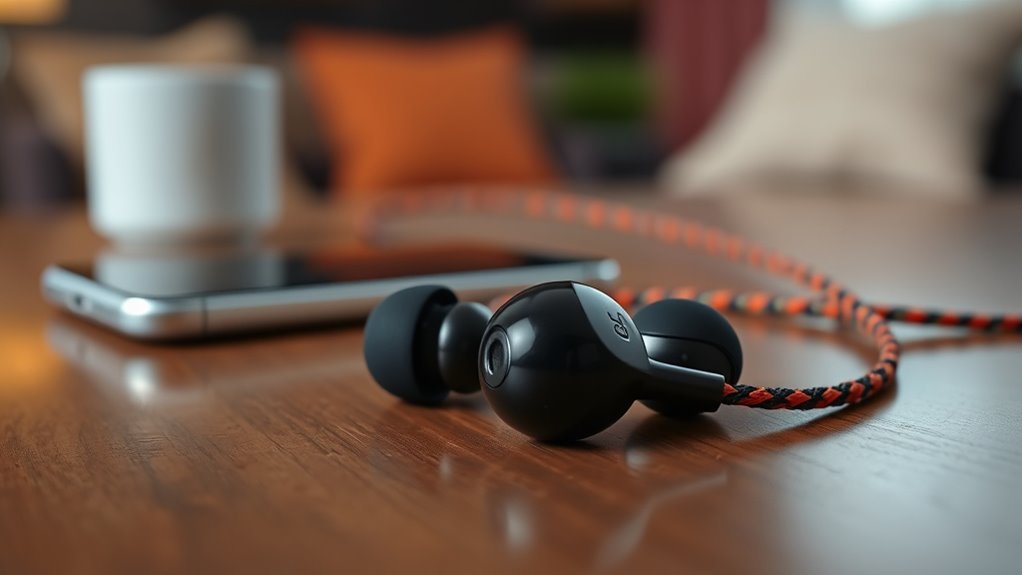

To pair your Billboard earbuds, first make sure they’re fully charged and powered on. Open your smartphone’s Bluetooth settings and activate Bluetooth if it’s off. Put the earbuds in pairing mode by pressing and holding the multi-function button for five seconds until you see a flashing LED light. Find and select your Billboard earbuds from the available devices list. Follow any prompts to confirm the connection. Stick around to find out how to troubleshoot any pairing issues.
Unboxing Your Billboard Earbuds
When you first open the box for your Billboard earbuds, you’ll be greeted with a sleek design and essential accessories. This unboxing experience sets the tone for what’s to come. Inside, you’ll find the earbuds nestled securely, alongside a compact charging case that’s perfect for on-the-go freedom. Included accessories often feature different ear tip sizes, ensuring a comfortable fit for any ear shape. There’s also a USB charging cable, which is crucial for keeping your earbuds powered up. Take a moment to appreciate the thoughtful packaging, designed to protect your new gear while showcasing its modern aesthetics. This first encounter not only excites but also prepares you for the incredible sound experience that awaits.
Charging Your Earbuds
To keep your Billboard earbuds performing at their best, charging them properly is essential. Neglecting charging safety and battery maintenance can lead to reduced performance or even damage. Follow these tips to guarantee your earbuds stay in top shape:
- Use the original charging cable for peak performance.
- Avoid overcharging; unplug once fully charged.
- Store your earbuds in a cool, dry place to prevent overheating.
- Charge them regularly, even if you don’t use them often.
- Keep the charging port clean to guarantee a good connection.
Activating Pairing Mode
Before you can enjoy your music, you’ll need to activate pairing mode on your Billboard earbuds. Start by verifying your earbuds are charged and powered on. To enter pairing mode, press and hold the multi-function button for about five seconds until you see a flashing LED light. This indicates that the earbuds are ready to connect. If you’ve previously connected them to another device, you may need to clear that connection first. For best results, keep your smartphone or device within three feet of the earbuds during this process. Following these activation tips will guarantee a smooth connection experience, giving you the freedom to enjoy your favorite tunes without any hassle.
Connecting to Your Smartphone
To connect your Billboard earbuds to your smartphone, you’ll first need to access the Bluetooth settings on your device. Once there, follow a few simple steps to complete the pairing process. With just a bit of setup, you’ll be ready to enjoy your music wirelessly.
Bluetooth Settings Access
Once your Billboard earbuds are charged and ready, accessing your smartphone’s Bluetooth settings is the next step in establishing a connection. This guarantees Bluetooth accessibility and compatibility with your device. Here’s how to navigate:
- Open your smartphone’s settings app.
- Locate the Bluetooth option, often found under “Connections” or “Network & Internet.”
- Toggle Bluetooth on if it isn’t already activated.
- Look for your Billboard earbuds in the list of available devices.
- Confirm your earbuds are in pairing mode for a seamless connection.
These steps will help you access the full potential of your earbuds, allowing you to enjoy your favorite tunes without missing a beat. Embrace the freedom of wireless listening!
Pairing Process Steps
Connecting your Billboard earbuds to your smartphone is a straightforward process that takes just a few steps. First, make sure your earbuds are fully charged. Turn them on by pressing the power button until you see a blinking light. Next, access your smartphone’s Bluetooth settings and search for available devices. You’ll see your Billboard earbuds listed; select them to initiate the pairing process. If prompted, confirm the connection. For effective pairing techniques, keep your smartphone and earbuds close together, ensuring no obstacles interfere with the signal. Remember these connectivity tips: turn off other Bluetooth devices nearby and restart both your smartphone and earbuds if you encounter issues. Enjoy your newfound freedom with seamless audio!
Pairing With a Tablet
Pairing your Billboard earbuds with a tablet is a straightforward process that can enhance your audio experience. First, verify your tablet is compatible with Bluetooth. Once that’s confirmed, follow these steps to enjoy high-quality sound:
Pairing Billboard earbuds with your tablet is simple and boosts your audio experience. Ensure Bluetooth compatibility and follow the pairing steps for optimal sound.
- Turn on your earbuds and activate pairing mode.
- Open your tablet’s Bluetooth settings.
- Search for available devices and select your earbuds.
- Confirm the connection and wait for the pairing notification.
- Test the audio quality to guarantee peak performance.
Linking to a Computer
To link your Billboard earbuds to a computer, start by accessing the Bluetooth settings on your device. From there, follow the pairing process steps to establish a connection. Once paired, you’ll enjoy seamless audio for all your computer tasks.
Bluetooth Settings Access
Once you’ve confirmed your Billboard earbuds are fully charged, accessing the Bluetooth settings on your computer is the next step. Here’s how to make certain you’ve got everything you need for a smooth connection:
- Check your device compatibility to verify your computer supports Bluetooth.
- Enable Bluetooth permissions in your computer settings.
- Look for the Bluetooth icon in your system tray or settings menu.
- Make certain your earbuds are in pairing mode.
- Keep your computer and earbuds within a close range for ideal connectivity.
Pairing Process Steps
With Bluetooth settings ready, you’re set to link your Billboard earbuds to your computer. Follow these simple steps for a seamless connection and enjoy the impressive earbud features and sound quality they provide.
| Step | Action | Result |
|---|---|---|
| 1 | Turn on your earbuds | They enter pairing mode |
| 2 | Open Bluetooth settings | Detect nearby devices |
| 3 | Select your earbuds | Initiate the connection |
| 4 | Confirm pairing | Enjoy your audio experience |
Once paired, you’ll experience the freedom of wireless listening. Make sure to adjust your sound settings for peak quality and maximize your enjoyment!
Troubleshooting Common Connection Issues
If you’re experiencing connection issues with your Billboard earbuds, don’t worry—you’re not alone. Many users face similar connection problems and audio issues. Here are some quick fixes to help you get back on track:
- Verify your earbuds are fully charged.
- Confirm Bluetooth is enabled on your device.
- Forget and re-pair your earbuds in your device’s Bluetooth settings.
- Keep your device and earbuds within a reasonable distance to avoid interference.
- Restart both your earbuds and the device you’re connecting to.
Frequently Asked Questions
Can I Use Billboard Earbuds With Multiple Devices Simultaneously?
You can’t use Billboard earbuds with multiple devices simultaneously. Their Bluetooth connectivity only allows for one connection at a time. Multi-device pairing isn’t an option, so you’ll need to switch manually for each device.
What Is the Battery Life of Billboard Earbuds?
Billboard earbuds offer impressive battery performance, typically lasting around 6-8 hours on a single charge. With a quick charging time, you’ll be back to enjoying your music in no time, maximizing your freedom to listen.
Are Billboard Earbuds Waterproof or Sweat-Resistant?
Billboard earbuds aren’t fully waterproof but offer decent sweat protection capabilities. They’ve got some water resistance features, making them suitable for workouts or light rain, but avoid submerging them in water for best performance.
How Do I Reset My Billboard Earbuds?
To reset your Billboard earbuds, hold the power button for about 10 seconds until you see a flashing light. This can help with earbud troubleshooting and improve Bluetooth connectivity for a better listening experience.
Can I Use Voice Assistants With Billboard Earbuds?
Yes, you can use voice commands with Billboard earbuds, as they usually support popular assistant compatibility. Just make certain your device’s settings are configured correctly for a seamless experience while enjoying hands-free functionality.
