
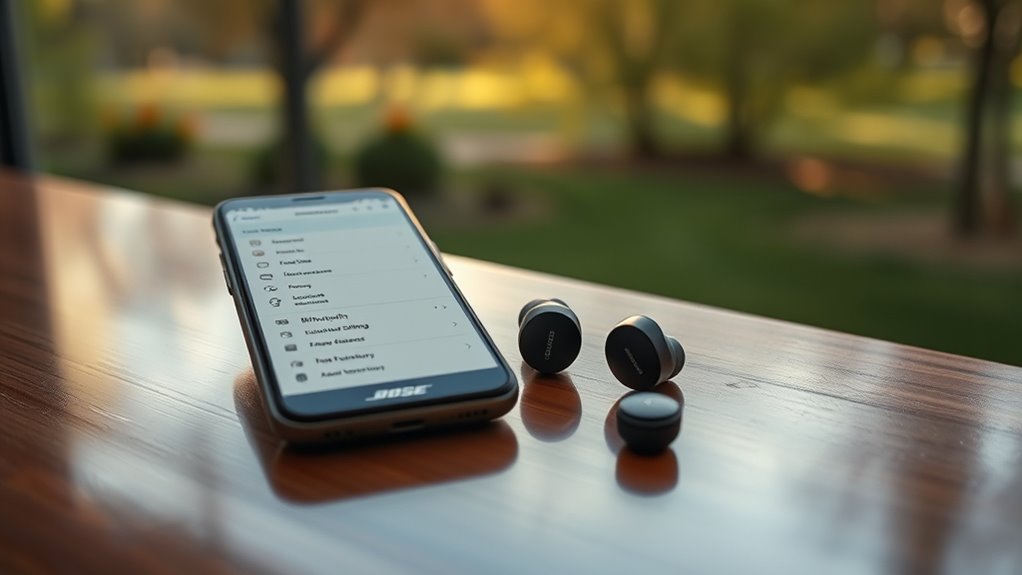

To pair your Bose Open Earbuds, first, verify they’re charged. Power them on by removing them from the case; the LED will flash. Next, enable Bluetooth on your device and hold the Bluetooth button on the earbuds to enter pairing mode. Search for available devices in your device’s Bluetooth settings and select “Bose Open Earbuds.” If you run into issues, check your range or restart both devices. There’s more to explore about optimizing your experience!
Unboxing Your Bose Open Earbuds
Unboxing your Bose Open Earbuds is an exciting step toward enjoying high-quality audio. As you peel away the packaging, you’ll discover the sleek design features that make these earbuds stand out. They’re lightweight and comfortable, perfect for long listening sessions or active lifestyles. The open-ear design allows you to stay aware of your surroundings while immersing yourself in sound quality that Bose is renowned for. You’ll appreciate the clarity and balance of the audio, whether you’re jamming to your favorite tunes or taking calls. Each component is thoughtfully crafted to enhance your experience, offering the freedom to enjoy music without compromising comfort. Get ready to elevate your audio experience with these innovative earbuds!
Charging Your Earbuds
Before you can enjoy your Bose Open Earbuds, it’s essential to charge them properly. Start by using the included USB-C charging cable and connect it to a power source. For ideal battery maintenance, avoid letting the battery drain completely before charging. Keeping your earbuds between 20% and 80% charged can prolong their lifespan. Also, try not to expose them to extreme temperatures while charging, as this can affect performance. For the best experience, charge your earbuds at least a couple of hours before use. Remember these charging tips to guarantee your earbuds remain ready whenever you are, providing you with the freedom to enjoy your music without interruptions.
Enabling Bluetooth on Your Device
To connect your Bose Open Earbuds, you’ll need to enable Bluetooth on your device. Start by accessing your device’s settings. Look for the Bluetooth option, which is often found under “Connections” or “Wireless & Networks.” Once you find it, toggle the Bluetooth switch to turn it on. Your device will now search for nearby devices compatible with Bluetooth technology. Make sure your earbuds are charged and within range for a smooth pairing experience. Check your device’s compatibility; most smartphones, tablets, and laptops support Bluetooth, but it’s always good to confirm. Once Bluetooth is on, your device is ready to find and connect to your Bose Open Earbuds. Enjoy your music and freedom!
Putting Your Earbuds in Pairing Mode
To start pairing your Bose Open Earbuds, you first need to power them on. Once they’re on, make sure your device’s Bluetooth settings are enabled. This sets the stage for a successful connection between your earbuds and your device.
Power On Earbuds
Once you’ve confirmed your Bose Open Earbuds are charged, you can easily power them on and put them into pairing mode. To start, simply remove the earbuds from their case. This action automatically turns them on, showcasing their impressive earbud features. You’ll notice the LED indicator light will start flashing, signaling that they’re ready to pair.
For ideal sound quality, verify you’re in a suitable environment, free from distractions. These earbuds not only deliver exceptional audio, but also offer a comfortable fit, allowing you to enjoy your favorite tunes effortlessly. Once they’re in pairing mode, you’re set to connect them to your device. It’s that simple—embrace the freedom of wireless listening with your Bose Open Earbuds!
Enable Bluetooth Settings
While your Bose Open Earbuds are in pairing mode, you’ll need to enable Bluetooth on your device to establish a connection. This will allow you to enjoy the freedom of wireless listening. Here’s how you can access Bluetooth settings across various devices:
| Device Type | Steps to Enable Bluetooth | Bluetooth Features |
|---|---|---|
| iPhone | Open Settings > Bluetooth | Automatic pairing |
| Android | Open Settings > Connections > Bluetooth | Voice prompts |
| Windows | Open Settings > Devices > Bluetooth | Multi-device pairing |
| Mac | Click Apple Menu > System Preferences > Bluetooth | Easy device management |
| Smart TV | Access Menu > Settings > Bluetooth | Stream audio easily |
Once you’ve enabled Bluetooth, your earbuds should connect seamlessly, allowing for an uninterrupted listening experience. Enjoy!
Connecting to Your Device
Now that your Bose Open Earbuds are in pairing mode, it’s time to connect them to your device. Make sure your device is compatible and ready for Bluetooth pairing. We’ll walk you through the simple steps to get your earbuds connected quickly.
Bluetooth Pairing Process
To connect your Bose Open Earbuds to your device, start by ensuring that both the earbuds and your device have Bluetooth enabled. Next, put your earbuds in pairing mode by pressing and holding the Bluetooth button until you see the indicator light flashing. On your device, go to Bluetooth settings and search for available devices. When you see your Bose Open Earbuds listed, select them to complete the connection. If you encounter any issues, refer to Bluetooth troubleshooting tips like ensuring your device is within range or restarting both devices. For peak performance, follow earbud maintenance advice, such as keeping them clean and storing them in their case when not in use. Enjoy your wireless freedom!
Device Compatibility Checklist
Before diving into the pairing process, it’s essential to make certain your device is compatible with Bose Open Earbuds. To guarantee peak performance, check the following compatibility requirements:
- Bluetooth Version: Your device should have Bluetooth 5.0 or higher for seamless connectivity.
- Supported Devices: Bose Open Earbuds work with most smartphones, tablets, and laptops, but it’s best to confirm compatibility with your specific brand.
- Operating System: Verify your device runs on the latest version of its operating system to avoid connection issues.
Testing the Connection
Once you’ve successfully paired your Bose Open Earbuds with your device, it’s essential to test the connection to verify everything’s working smoothly. Start by playing your favorite track and check the sound quality. If you notice any interruptions, it may involve some connection troubleshooting.
Here’s a quick reference table to help you through the testing process:
| Action | Expected Result | Troubleshooting Tip |
|---|---|---|
| Play Music | Clear sound from earbuds | Check Bluetooth settings |
| Adjust Volume | Immediate response | Restart your device |
| Make a Call | Clear audio | Confirm earbuds are charged |
| Switch Devices | Quick reconnection | Remove and re-pair earbuds |
Testing guarantees you’re ready to enjoy your music without interruptions.
Frequently Asked Questions
Can I Use Bose Open Earbuds With Multiple Devices Simultaneously?
You can’t use Bose Open Earbuds with multiple devices simultaneously. For instance, if you’re streaming music on your laptop while taking a call on your phone, audio quality drops considerably, limiting your freedom.
How Do I Reset My Bose Open Earbuds?
To reset your Bose Open Earbuds, press and hold the power button for 10 seconds until you see the LED light flash. This earbuds troubleshooting step clears previous connections and initiates the reset process.
Are Bose Open Earbuds Water-Resistant or Sweat-Proof?
While they’re not completely submerged, Bose Open Earbuds offer a splash of water resistance and decent sweat protection. So, if you’re enjoying a workout or a light rain, you should be just fine!
What Is the Battery Life of Bose Open Earbuds?
Bose Open Earbuds offer impressive battery performance, providing up to 8 hours of listening time on a single charge. With quick charging capabilities, you can get about 2 hours of use after just 15 minutes of charging.
How Can I Adjust the Volume on My Bose Open Earbuds?
To get your sound just right, use the volume control on your device or the earbuds themselves. With a simple swipe or button press, you’ll enjoy ideal sound quality without missing a beat.
