
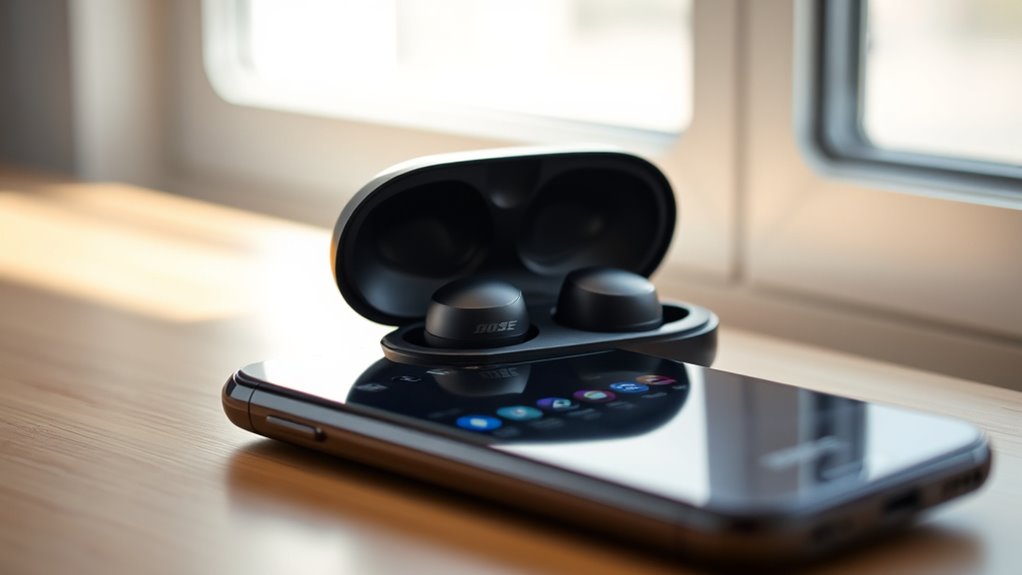

To pair your Bose earbuds, first charge them fully and guarantee they’re in pairing mode by holding the power button until you hear a voice prompt. Then, enable Bluetooth on your smartphone, tablet, or laptop. Look for your earbuds in the list of available devices and select them to connect. If you face any issues, try resetting the earbuds or clearing previous pairings. Stick around to explore more tips for seamless pairing!
Preparing Your Bose Earbuds for Pairing
Before you can enjoy your music, you’ll need to prepare your Bose earbuds for pairing. Start by charging your earbuds fully; this guarantees they have enough power for a seamless connection. Simply place them in their charging case and connect the case to a power source. Once charged, it’s essential to reset your earbuds if you’re experiencing any issues. To reset, press and hold the power button for about 10 seconds until you see the LED indicator flash. This step clears any previous pairings, allowing your earbuds to enter pairing mode smoothly. With your earbuds charged and reset, you’re now ready to move forward to connect them to your device and embrace the freedom of wireless listening.
Connecting to a Smartphone
To connect your Bose earbuds to a smartphone, start by ensuring Bluetooth is enabled on your device. Open your smartphone settings and navigate to the Bluetooth menu. If you don’t see Bluetooth activated, toggle it on. Once Bluetooth is active, your smartphone will begin searching for nearby devices.
Put your Bose earbuds in pairing mode—typically done by holding the power button until you hear a voice prompt. Your earbuds should appear in the list of available devices on your smartphone. Tap on your earbuds’ name to initiate the connection. Once connected, you’ll hear a confirmation sound in your earbuds. Enjoy your newfound freedom to listen to music, take calls, or access your favorite podcasts wirelessly!
Pairing With a Tablet
While pairing your Bose earbuds with a tablet may seem similar to connecting them to a smartphone, there are a few steps to keep in mind. First, make sure your tablet’s Bluetooth settings are enabled. Go to your tablet’s settings and find the Bluetooth option, then toggle it on. Next, put your Bose earbuds in pairing mode by pressing and holding the Bluetooth button until you see the indicator light flash. Now, return to your tablet and look for your earbuds in the list of available devices. Select them to establish the connection. Once paired, your earbuds should automatically connect whenever they’re in range, guaranteeing seamless tablet compatibility for all your audio needs. Enjoy your newfound freedom!
Linking to a Laptop
Connecting your Bose earbuds to a laptop is a straightforward process that mirrors the steps used for tablets and smartphones. First, verify your laptop is Bluetooth compatible. Check your device settings to confirm this. Next, put your earbuds in pairing mode by pressing and holding the power button until you see a blinking light. Open the Bluetooth settings on your laptop—this is usually found in the system tray or settings menu. Look for available devices, and select your Bose earbuds from the list. Once paired, you should hear a confirmation sound in your earbuds. Finally, adjust your laptop’s audio output settings if needed to guarantee the sound plays through your earbuds. Enjoy your wireless freedom!
Troubleshooting Common Pairing Issues
If you encounter issues when trying to pair your Bose earbuds, don’t worry; these problems are often easy to resolve. First, verify your device’s Bluetooth is enabled and in range. If pairing still fails, try resetting your earbuds by holding the power button for ten seconds until you see the Bluetooth light blink. This can clear any glitches that might be causing issues.
Next, check for Bluetooth interference. Move away from other electronic devices or turn them off to see if that helps. Finally, remove any previously paired devices from your earbud’s memory to avoid confusion. With these steps, you should be able to pair your earbuds seamlessly and enjoy your music without interruptions.
Frequently Asked Questions
Can I Use My Bose Earbuds With Multiple Devices Simultaneously?
No, you can’t use your Bose earbuds with multiple devices simultaneously. They support multi-device connection, but only one device can play audio at a time due to audio prioritization. Switch devices for seamless listening.
How Do I Reset My Bose Earbuds for Pairing?
To reset your Bose earbuds, press and hold the power button for 10 seconds until you hear a voice prompt. This can resolve earbud troubleshooting and pairing issues, giving you the freedom to connect effortlessly.
What Bluetooth Version Do Bose Earbuds Support?
Bose earbuds typically support Bluetooth 5.0, offering enhanced connectivity and range. With these earbud features, you’ll enjoy a seamless audio experience, ensuring compatibility with most devices, so you can move freely without interruptions.
Are Bose Earbuds Compatible With Smart Home Devices?
Bose earbuds aren’t directly compatible with smart home devices, but they work well with smart assistants for voice control. You can enjoy hands-free convenience, making your life easier while keeping your freedom intact.
How Do I Check Battery Life on My Bose Earbuds?
To check your Bose earbuds’ battery life, look for battery indicators on the device or in the companion app. For ideal battery maintenance, keep them charged regularly and avoid extreme temperatures to prolong lifespan.
