
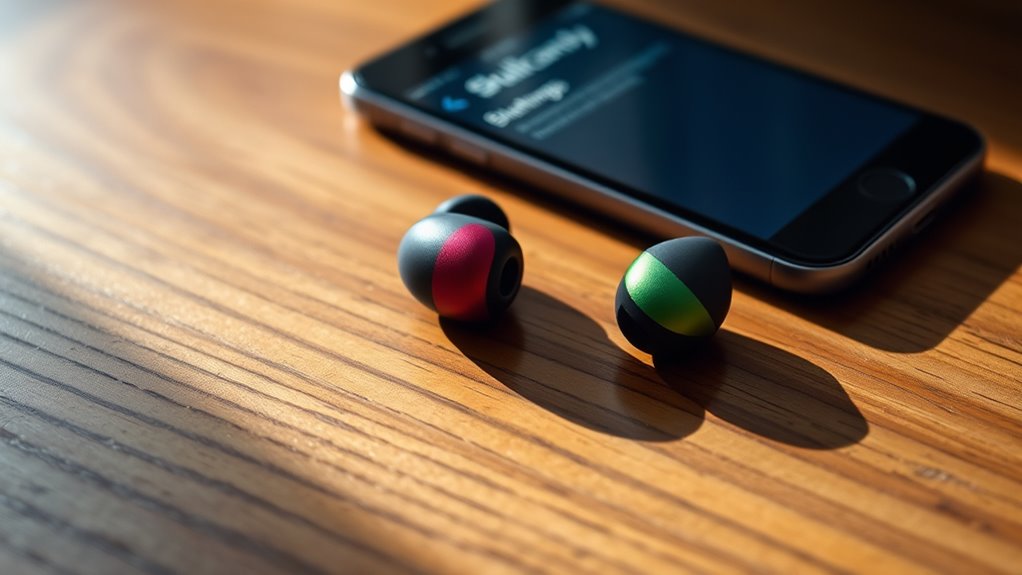

To pair your Skullcandy earbuds, make certain they’re charged and in pairing mode. For Android, open Bluetooth settings, enable Bluetooth, and select your earbuds. On iOS, go to Settings, verify Bluetooth is on, and tap your earbuds’ name. If using Windows, navigate to Bluetooth settings and add a device. If you encounter issues, try resetting the earbuds. You’ll find more tips and detailed steps to make the process easier.
Preparing Your Skullcandy Earbuds for Pairing
Before you can enjoy your favorite tunes, you need to prepare your Skullcandy earbuds for pairing. Start by charging your earbuds fully to guarantee they’re ready for use. Connect them to a power source using the provided charging cable and wait until the indicator light shows they’re fully charged. Once charged, if you experience any connectivity issues, you might need to reset your earbuds. To do this, press and hold both the volume up and down buttons for about 10 seconds until the LED light flashes. This will clear any previous connections, giving you a fresh start. Now, your earbuds will be ready to pair with your device seamlessly, letting you enjoy your music without interruptions.
Pairing With Android Devices
Pairing your Skullcandy earbuds with an Android device is a straightforward process that takes just a few moments. Follow these steps to complete the pairing process:
- Turn on your earbuds: Make sure they’re charged and ready.
- Open Android settings: Go to the Bluetooth section.
- Enable Bluetooth: Toggle it on if it’s off.
- Put earbuds in pairing mode: Usually done by holding the power button until you see a blinking light.
- Select your earbuds: Find them in the list of available devices and tap to connect.
Once you’ve completed these steps, your earbuds should be paired and ready to use. Enjoy the freedom of wireless listening without the hassle!
Pairing With Ios Devices
Connecting your Skullcandy earbuds to an iOS device is quick and easy. First, verify your earbuds are charged and in pairing mode—this usually involves holding the power button until you see a flashing light. On your iOS device, navigate to Settings, then Bluetooth. Make sure Bluetooth is turned on. You’ll see a list of available devices; look for your Skullcandy earbuds. Tap on their name, and they’ll connect in seconds.
Once paired, you can enjoy all the earbud features like active noise cancellation or voice assistant integration. With Bluetooth technology, you’ll experience seamless audio and freedom of movement. Now you’re all set to enjoy your music or podcasts without any hassle!
Pairing With Windows Devices
To pair your Skullcandy earbuds with a Windows device, start by ensuring your earbuds are charged and in pairing mode—typically indicated by a flashing light when you hold the power button. Next, follow these steps:
Ensure your Skullcandy earbuds are charged and in pairing mode before connecting them to your Windows device.
- Open Windows settings by clicking the Start menu.
- Select Devices and then go to Bluetooth & other devices.
- Turn on Bluetooth if it’s off.
- Click on Add Bluetooth or other device and choose Bluetooth.
- Wait for your earbuds to appear in the list, then select them to establish the Bluetooth connection.
Once connected, you’re all set to enjoy your music and calls wirelessly!
Troubleshooting Common Pairing Issues
Encountering issues while trying to pair your Skullcandy earbuds isn’t uncommon, and there are a few straightforward steps you can take to resolve them. First, make sure your earbuds are charged and in pairing mode. If you’re facing connection problems, try disconnecting any previously paired devices. Sometimes, simply restarting your phone or computer can help. If you’re still having trouble, reset your earbuds by pressing and holding the power button for about 10 seconds until the LED flashes. This clears any previous connections and allows you to start fresh. After resetting, attempt to pair them again. Following these steps should get you back to enjoying your music without hassle. Freedom to listen is just a few fixes away!
Frequently Asked Questions
Can I Use My Skullcandy Earbuds While Charging?
You can’t use your Skullcandy earbuds while charging; they typically have charging compatibility issues that prevent simultaneous use. It’s best to let them charge fully before enjoying your music again for an uninterrupted experience.
How Do I Reset My Skullcandy Earbuds?
To reset your Skullcandy earbuds, try these reset methods: hold the power button for 10 seconds or follow specific troubleshooting tips in the manual. This can resolve connectivity issues and enhance your listening freedom.
Are My Skullcandy Earbuds Water-Resistant?
Your Skullcandy earbuds usually have sweat-proof designs, but water resistance features vary by model. Think of them like a trusty umbrella—great for light rain, but not meant for a downpour. Enjoy the freedom!
What Is the Battery Life of My Skullcandy Earbuds?
Your Skullcandy earbuds typically offer around 3 to 10 hours of battery performance, depending on the model. Charging time usually ranges from one to two hours, letting you enjoy your music quickly and conveniently.
Can I Connect Multiple Devices to My Skullcandy Earbuds?
When it comes to Bluetooth connectivity, you can’t have your cake and eat it too. Your Skullcandy earbuds support multi-device pairing, allowing you to connect to multiple devices, but only one at a time.
